
Introduction
Thank you for choosing the HiFree T1 Clip-on OWS Bluetooth Earphones. These earphones are designed to provide a comfortable and open-ear listening experience, allowing you to stay aware of your surroundings while enjoying high-quality audio. This manual will guide you through the setup, operation, and maintenance of your new earphones.
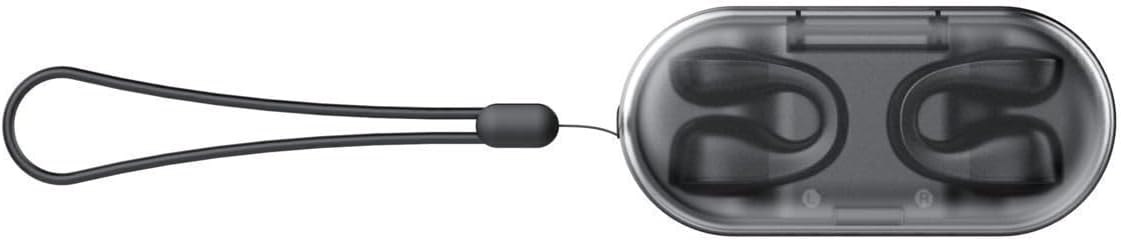
Image: HiFree T1 earphones inside their charging case, featuring a wrist strap. The case is black with a transparent lid, and the earphones are black.
Setup Guide
1. Charging the Earphones and Case
Before first use, fully charge the earphones and the charging case. Connect the provided USB-C cable to the charging port on the case and to a compatible USB power source. The indicator lights on the case will show the charging status.
- Charging Case: Connect the USB-C cable. Indicator lights will illuminate.
- Earphones: Place the earphones into the charging case. Ensure they are correctly seated; the indicator lights on the earphones will confirm charging.

Image: The HiFree T1 charging case with both earphones securely placed inside, and the transparent lid closed. The brand logo "HIFREE" is visible on the front of the case.
2. Bluetooth Pairing
- Power On: Open the charging case. The earphones will automatically power on and enter pairing mode.
- Activate Bluetooth: On your device (smartphone, tablet, etc.), enable Bluetooth.
- Select Device: Search for "HiFree T1" in the list of available Bluetooth devices and select it to connect.
- Confirmation: A voice prompt or indicator light on the earphones will confirm successful pairing.
Note: If pairing fails, ensure the earphones are charged and within range of your device. You may need to reset the earphones (refer to the Troubleshooting section).
3. Wearing the Earphones
The HiFree T1 earphones feature an open-ear clip-on design for comfort and situational awareness.
- Gently clip each earphone onto your ear, ensuring the speaker portion is positioned correctly over your ear canal without blocking it.
- Adjust the earphone for a secure and comfortable fit. The design allows sound to be directed into your ear while keeping your ear canal open.

Image: Various angles of a single HiFree T1 earphone, showcasing its ergonomic clip-on design and the speaker grille. This helps users understand how to wear them.
Operating Instructions
The HiFree T1 earphones are equipped with touch controls for easy management of audio playback and calls.
| Action | Function |
|---|---|
| Single Tap (Left/Right) | Play/Pause music, Answer/End call |
| Double Tap (Right) | Next Track |
| Double Tap (Left) | Previous Track |
| Triple Tap (Right) | Volume Up |
| Triple Tap (Left) | Volume Down |
| Long Press (2 seconds) | Activate Voice Assistant / Reject Call |
Power On/Off
- Power On: Open the charging case, or long-press the touch area on both earphones for 3 seconds if they are out of the case and off.
- Power Off: Place the earphones back into the charging case and close the lid, or long-press the touch area on both earphones for 5 seconds.
Maintenance and Care
Proper maintenance ensures the longevity and optimal performance of your HiFree T1 earphones.
- Cleaning: Use a soft, dry, lint-free cloth to clean the earphones and charging case. Do not use abrasive cleaners, alcohol, or chemical sprays.
- Storage: When not in use, store the earphones in their charging case to protect them from dust and damage.
- Avoid Water: The earphones are not waterproof. Avoid exposure to excessive moisture, rain, or submersion in water.
- Temperature: Do not expose the earphones to extreme temperatures (hot or cold).
Troubleshooting
If you encounter issues with your HiFree T1 earphones, try the following solutions:
| Problem | Solution |
|---|---|
| Earphones not pairing with device. |
|
| Only one earphone is working. |
|
| No sound or low volume. |
|
| Charging case not charging. |
|
Specifications
- Brand: Hifree
- Model Name: HiFreeT1
- Color: Black
- Product Weight: 0.1 Kilogram
- Connectivity: Bluetooth
- Design: Clip-on, Open-ear
- ASIN: B0FFHFXTKM
Warranty and Support
The HiFree T1 Clip-on OWS Bluetooth Earphones come with a standard manufacturer's warranty. For detailed warranty information, please refer to the warranty card included in your product packaging or visit the official Hifree website.
If you require technical support, have questions about your product, or need assistance with troubleshooting beyond what is covered in this manual, please contact Hifree customer service through their official support channels. Contact information can typically be found on the product packaging or the brand's website.