
1. Introduction
This manual provides detailed instructions for the setup, operation, maintenance, and troubleshooting of your YOUSUOMASTER YK61 60% Mechanical Gaming Keyboard. The YK61 is a high-performance wired keyboard designed for gaming, featuring Hall Effect magnetic switches, adjustable actuation, rapid trigger mode, and customizable RGB backlighting.
Please read this manual thoroughly before using the keyboard to ensure optimal performance and longevity.
2. Setup
2.1 Package Contents
- YOUSUOMASTER YK61 Mechanical Gaming Keyboard
- USB-C Cable
- Keycap Puller
- User Manual (this document)
2.2 Connecting the Keyboard
- Locate the USB-C port on the back of the YK61 keyboard.
- Connect one end of the provided USB-C cable to the keyboard's USB-C port.
- Connect the other end of the USB-C cable to an available USB port on your computer (PC or Laptop).
- The keyboard will be automatically detected by your operating system.

Image: The YK61 keyboard connected to a laptop via its USB-C cable, illustrating the wired connection setup.
2.3 Driver and Software Installation
For full customization of key mapping, macro definitions, RGB lighting effects, and advanced features like adjustable actuation and rapid trigger mode, download the official YK61 driver and software from the YOUSUOMASTER website: yousuomaster.com.
- The software is compatible with Windows operating systems only and requires a wired connection for full functionality.
- Follow the on-screen instructions during installation.

Image: A screenshot displaying the YOUSUOMASTER YK61 software interface, showing options for key mapping, macro settings, and lighting customization.
3. Operating the Keyboard
3.1 Basic Key Functions
The YK61 is a 60% layout keyboard, meaning some functions are accessed via the Fn key combined with other keys. Refer to the keycap legends for secondary functions.
- Fn + [Key]: Activates the secondary function printed on the side of the keycap.
- For example, Fn + I, J, K, L may function as arrow keys.
3.2 RGB Backlighting
The YK61 features customizable RGB backlighting with 19 effects and over 16.8 million colors. Lighting can be adjusted directly on the keyboard using Fn key combinations or through the dedicated software.
- Changing Effects: Use Fn + [Key] combinations (refer to your keyboard's specific legends for lighting controls).
- Brightness/Speed: Adjust via Fn + [Key] combinations.
- Software Customization: The YOUSUOMASTER software allows for advanced customization, including per-key RGB, custom effects, and music rhythm synchronization.
3.3 Adjustable Actuation and Rapid Trigger Mode
The Hall Effect magnetic switches allow for precise control over actuation points and rapid trigger functionality. These settings are primarily configured through the YOUSUOMASTER software.
- Adjustable Actuation: Customize the actuation distance for each key from 0.1 mm to 4.0 mm with 0.1 mm sensitivity. This allows you to set how far a key needs to be pressed before it registers an input.
- Rapid Trigger Mode: This feature allows a key to register an input immediately upon release, without needing to return to its full reset position. This is particularly beneficial for competitive gaming, enabling faster repeated inputs. Enable and configure this mode within the software.
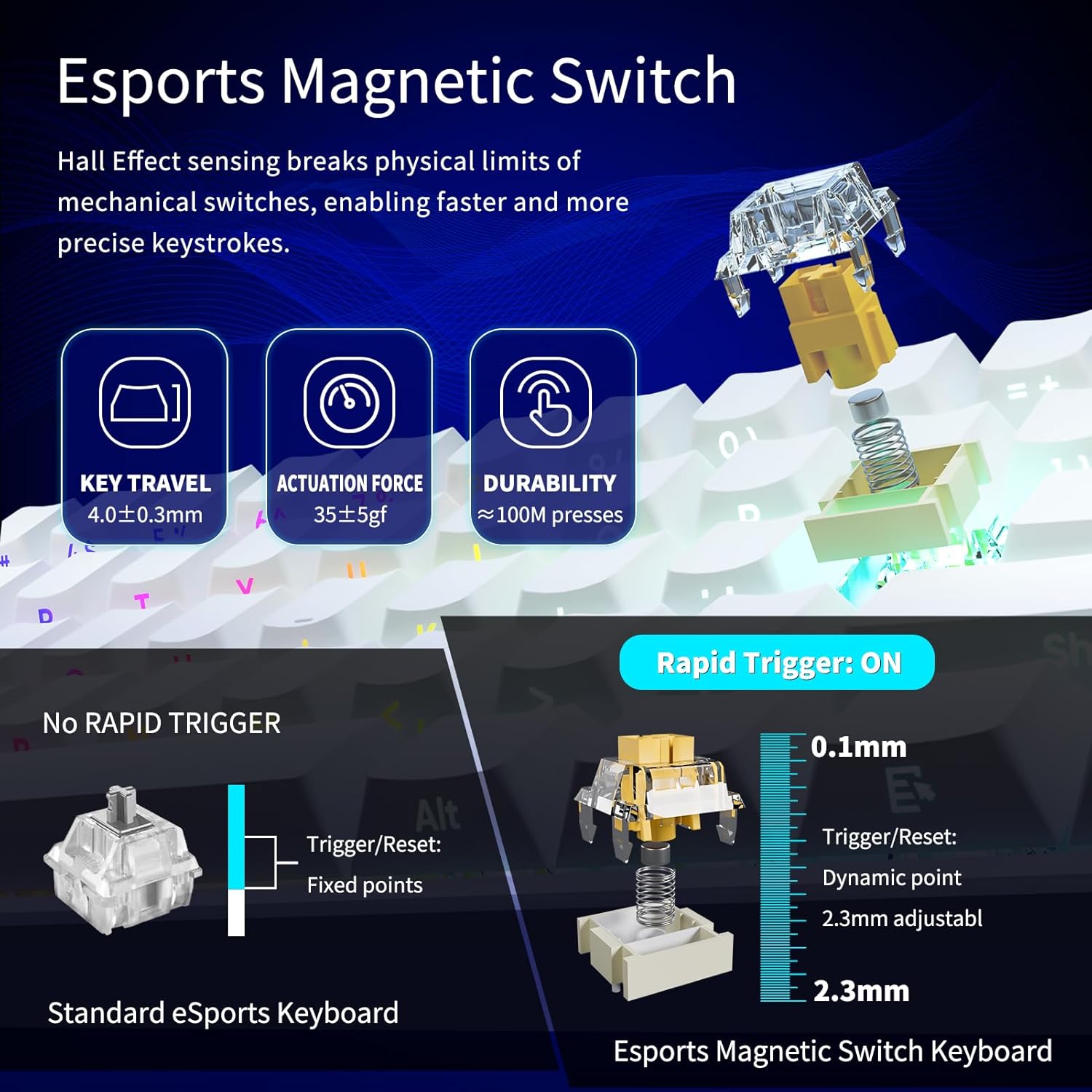
Image: A visual representation of the Hall Effect magnetic switch technology, detailing key travel, actuation force, durability, and the difference between standard and rapid trigger modes with adjustable actuation points.
4. Key Features
- Hall Effect Magnetic Switches: Utilizes magnetic technology for precise, consistent actuation without physical contact, reducing wear and tear.
- Ultra-High Speed Response: Features an 8000Hz polling rate, delivering 8 times faster response than standard 1000Hz devices, and achieving 0.125ms input latency.
- 60% Compact Design: A space-saving layout that is approximately 40% smaller than full-sized keyboards, ideal for portability and maximizing desk space for mouse movement.
- Hot-Swappable Switches: Allows for easy replacement of switches without soldering, enabling customization and maintenance.
- PBT Keycaps: Durable, side-printed PBT (Polybutylene Terephthalate) keycaps offer stability and resistance to oil and shine from prolonged use.
- Advanced Gasket-Mount Structure: Incorporates extended integrated silicone pads and PCB single key slotting for enhanced elasticity and stability, providing a softer typing feel. Multilayer sound-deadening material reduces cavity noise.

Image: The YK61 keyboard showcasing its ultra-compact design, easily fitting into a backpack, highlighting its portability.
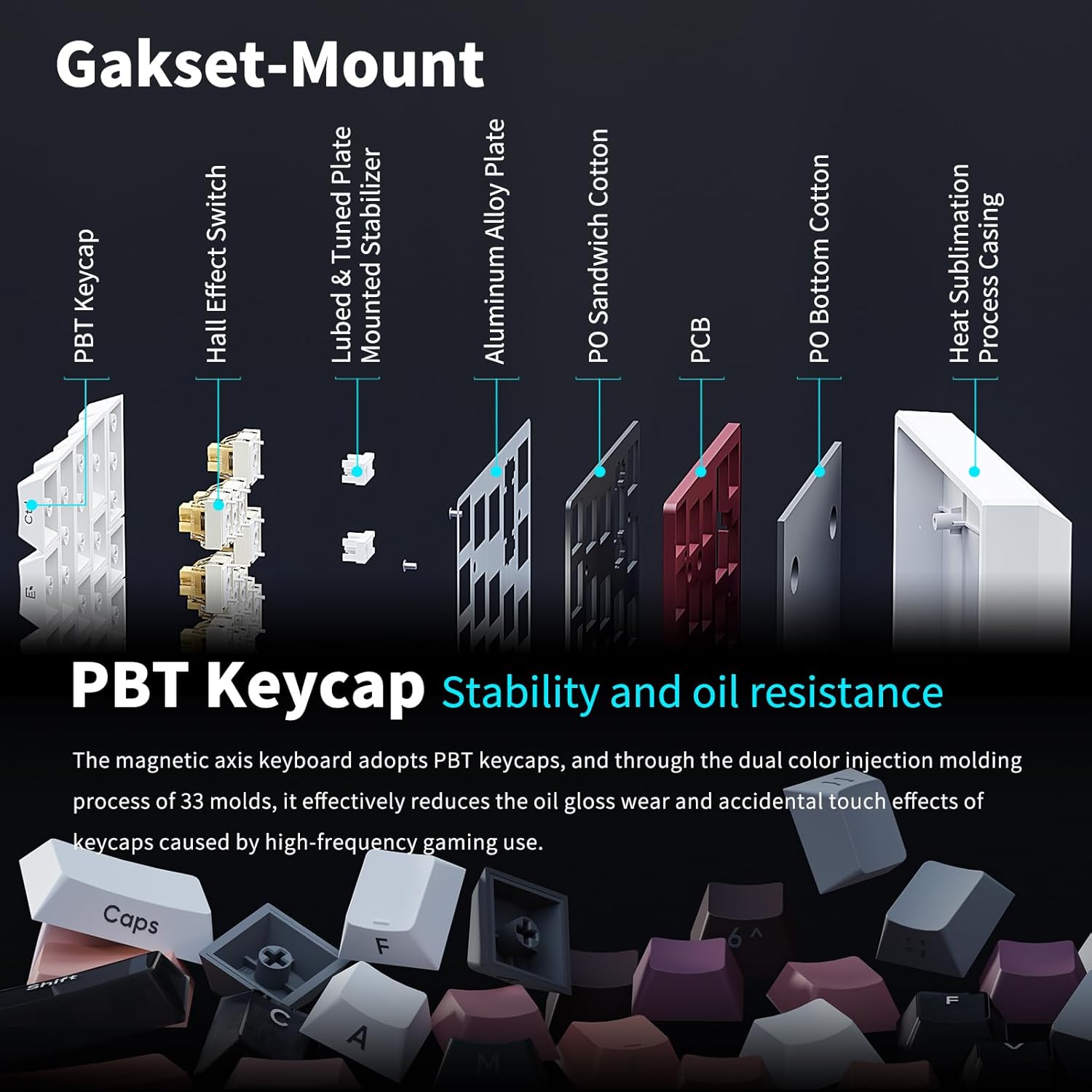
Image: An exploded diagram illustrating the Gasket-Mount structure of the YK61 keyboard, showing components like PBT keycaps, Hall Effect switches, aluminum alloy plate, and sound-dampening cotton layers. It also highlights the stability and oil resistance of PBT keycaps.
5. Maintenance
5.1 Cleaning the Keyboard
- Disconnect the keyboard from your computer before cleaning.
- Use a soft, lint-free cloth lightly dampened with water or a mild cleaning solution to wipe the keycaps and chassis.
- For dust and debris between keys, use compressed air.
- Avoid using harsh chemicals or abrasive materials.
5.2 Replacing Switches and Keycaps
The YK61 features hot-swappable switches, allowing for easy replacement. Use the provided keycap puller and switch puller (if included, otherwise a standard switch puller) for this process.
- Gently remove the keycap using the keycap puller.
- Using a switch puller, carefully grip the switch from the top and bottom, then pull it straight up to remove it from the PCB.
- Align the pins of the new switch with the holes on the PCB and press it down firmly until it clicks into place. Ensure pins are not bent.
- Replace the keycap.
6. Troubleshooting
6.1 Keyboard Not Responding
- Ensure the USB-C cable is securely connected to both the keyboard and the computer.
- Try connecting the keyboard to a different USB port on your computer.
- Test the keyboard on another computer to rule out system-specific issues.
- Restart your computer.
6.2 RGB Lighting Not Working or Incorrect
- Check if the lighting is turned off via keyboard shortcuts (Fn combinations).
- Ensure the YOUSUOMASTER software is installed and running correctly.
- Reset the keyboard to factory default settings (refer to software or specific keyboard shortcut if available).
- Update the keyboard firmware via the YOUSUOMASTER software.
6.3 Software Not Detecting Keyboard
- Ensure the keyboard is connected via a wired USB-C connection. The software only supports wired mode.
- Verify that you have downloaded the correct driver for the YK61 model from yousuomaster.com.
- Temporarily disable any antivirus or firewall software that might be blocking the application.
- Reinstall the YOUSUOMASTER software.
7. Specifications
| Brand | YOUSUOMASTER |
| Model | YK61 |
| Connectivity | USB-C Wired |
| Switch Type | Hall Effect Magnetic Switches |
| Polling Rate | 8000 Hz |
| Input Latency | 0.125 ms |
| Actuation Adjustment | 0.1 mm to 4.0 mm (0.1 mm sensitivity) |
| Number of Keys | 61 |
| Keycap Material | PBT (Side Printed) |
| Backlighting | RGB (19 effects, 16.8 million colors) |
| Dimensions (L x W x H) | 29.3L x 10.3W x 2.9H cm |
| Weight | 499 Grams |
| Compatible Devices | Laptop, PC, Smart TV |
| Operating System Support | Windows (for software), General OS for basic function |
8. Warranty and Support
8.1 Warranty Information
YOUSUOMASTER products are covered by a limited warranty. For specific warranty terms and conditions, please refer to the warranty card included with your product or visit the official YOUSUOMASTER website. This warranty typically covers manufacturing defects and workmanship under normal use.
8.2 Customer Support
If you encounter any issues or have questions regarding your YOUSUOMASTER YK61 keyboard that are not addressed in this manual, please contact YOUSUOMASTER customer support through their official website: yousuomaster.com. Please have your product model and purchase information ready when contacting support.