
1. Introduction
This manual provides detailed instructions for the YOUSUOMASTER YK61 Mini 60% Mechanical Gaming Keyboard. Please read this guide thoroughly to ensure proper setup, operation, and maintenance of your device. The YK61 keyboard features Hall Effect magnetic switches, adjustable actuation, rapid trigger mode, and an 8K Hz polling rate, designed for high-performance gaming.

Image 1.1: YOUSUOMASTER YK61 Mini 60% Mechanical Gaming Keyboard.
2. Package Contents
Verify that all items are present in the package:
- YK61 Keyboard x 1
- USB-C Cable x 1
- Keycap Puller x 1
- User Manual x 1

Image 2.1: Contents of the YK61 Keyboard Package.
3. Setup
3.1 Connecting the Keyboard
- Locate the USB-C port on the back of the YK61 keyboard.
- Connect the provided USB-C cable to the keyboard.
- Plug the other end of the USB-C cable into an available USB port on your computer.
- The keyboard will automatically be recognized by your operating system.
3.2 Driver Installation
For full customization and advanced features, download the YK61 driver software from the official YOUSUOMASTER website: yousuomaster.com. The driver supports Windows operating systems in wired mode.
4. Operating Instructions
4.1 Basic Key Functions (60% Layout)
The YK61 features a compact 60% layout. Many functions are accessed via the Fn key in combination with other keys. Refer to the included quick reference card for specific key combinations for arrow keys, function keys (F1-F12), and other commands.

Image 4.1: YK61 Ultra-Compact Design.
4.2 RGB Lighting Control
The YK61 keyboard features customizable RGB backlighting with 19 lighting effects and over 16.8 million colors. Lighting effects can be adjusted directly on the keyboard using Fn key combinations or through the driver software. The south-facing LEDs illuminate the side-printed PBT keycaps effectively.

Image 4.2: RGB Backlighting in operation.
4.3 Software Customization
The YK61 driver software allows for comprehensive customization, including:
- Key Mapping: Reassign individual key functions.
- Macro Definitions: Create complex sequences of commands.
- RGB Lighting Effects: Fine-tune lighting patterns, colors, and brightness, including music rhythm backlight synchronization.
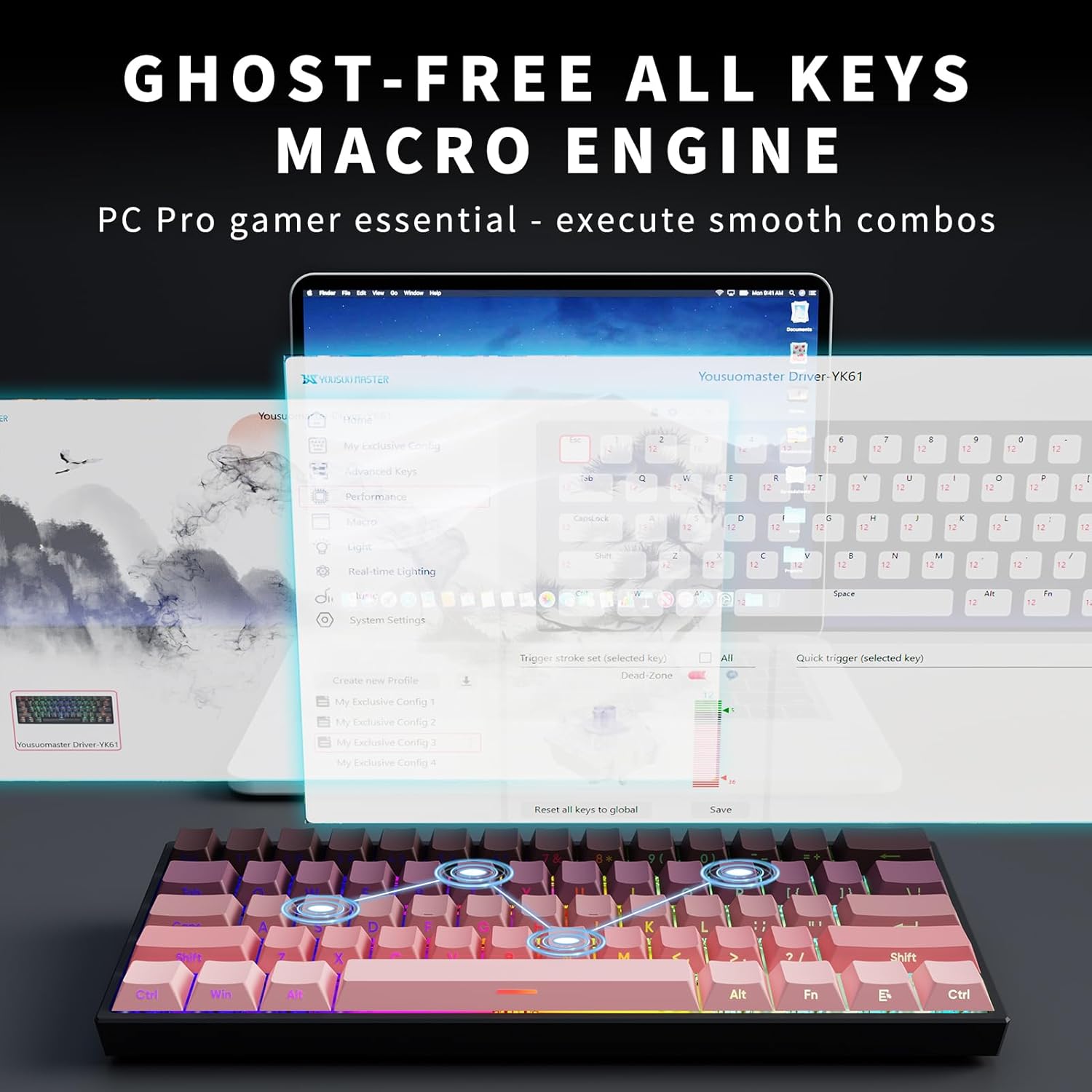
Image 4.3: YK61 Driver Software Interface.
4.4 Hall Effect Magnetic Switches and Rapid Trigger
The YK61 utilizes Hall Effect magnetic switches, which detect key presses using magnetic fields, offering precise and consistent actuation without physical contact. This design reduces wear and tear and allows for advanced features:
- Adjustable Actuation: Customize the actuation point from 0.1mm to 4.0mm with 0.1mm sensitivity.
- Rapid Trigger Mode: This feature allows keys to reset dynamically, enabling faster repeated inputs and quick-stop shooting in games.

Image 4.4: Hall Effect Magnetic Switch Technology.
4.5 Hot-Swappable Switches
The YK61 keyboard features hot-swappable switches, allowing users to easily remove and replace switches without soldering. This enables customization of typing feel and sound.

Image 4.5: Hot-Swappable Switches.
5. Maintenance
5.1 Cleaning
To clean your YK61 keyboard:
- Disconnect the keyboard from your computer.
- Use the provided keycap puller to carefully remove keycaps.
- Use a soft brush or compressed air to remove dust and debris from between the switches.
- Wipe keycaps with a damp cloth and mild soap solution, then dry thoroughly before reattaching.
5.2 Keycap and Switch Replacement
The YK61 features durable PBT keycaps and hot-swappable switches. To replace them:
- Use the keycap puller to gently remove the desired keycap.
- Use a switch puller (not included, but compatible with hot-swap switches) to carefully remove the switch.
- Align the pins of the new switch with the sockets on the PCB and press firmly until it clicks into place.
- Place the new keycap onto the switch stem.

Image 5.1: YK61 Gasket-Mount Structure.
6. Troubleshooting
- Keyboard not responding: Ensure the USB-C cable is securely connected to both the keyboard and the computer. Try a different USB port or cable.
- RGB lighting not working: Check Fn key combinations for lighting control. If using the driver, ensure it is installed correctly and the keyboard is in wired mode.
- Keys not registering or double-typing: This may indicate an issue with the switch. Due to hot-swap capability, try replacing the affected switch. Ensure the driver software is up to date.
- Driver software not detecting keyboard: Ensure the keyboard is connected via USB-C and that the driver is the correct version for your operating system (Windows only). Restart your computer and try again.
- Difficulty seeing side-printed keycaps in low light: While the keyboard has RGB backlighting, the visibility of side-printed legends can vary based on ambient light and specific RGB settings. Adjust lighting brightness or use direct light if needed.
7. Specifications
| Feature | Detail |
|---|---|
| Model Number | YK61 |
| Brand | YOUSUOMASTER |
| Keyboard Type | Mini 60% Mechanical Gaming Keyboard |
| Switch Type | Hall Effect Magnetic Switch |
| Polling Rate | 8000 Hz |
| Actuation Adjustment | 0.1mm to 4.0mm (0.1mm sensitivity) |
| Keycaps | Side-printed PBT |
| Backlighting | RGB (19 effects, 16.8 million colors) |
| Connectivity | Wired (USB-C) |
| Hot-Swappable | Yes |
| Product Dimensions | 11.54"L x 4.06"W x 1.16"H |
| Item Weight | 1.1 pounds |
| Compatible Devices | Laptop, PC, Smart TV |
8. Warranty and Support
For warranty information and technical support, please visit the official YOUSUOMASTER website or contact their customer service. Details regarding specific warranty periods and support channels can be found on the product's dedicated support page.