
8Bitdo 6922621507192
8BitDo Pro 3 Bluetooth Controller User Manual
Model: 6922621507192
1. Product Overview
The 8BitDo Pro 3 Bluetooth Controller is a versatile gaming peripheral designed for multi-platform compatibility, offering an enhanced gaming experience across various systems. It features advanced components like TMR Joysticks and Hall Effect Triggers, along with user-friendly functionalities such as swappable ABXY buttons and an integrated charging dock.

Image: The 8BitDo Pro 3 Bluetooth Controller in purple, shown with its integrated charging dock.
Key Features:
- Multi-Platform Compatibility: Supports Switch 1 & 2, Windows PC, Apple, SteamOS, and Android devices.
- Swappable Magnetic ABXY Buttons: Easily switch between Switch and Xbox button layouts.
- Integrated Charging Dock: Provides convenient charging and automatic reconnection.
- TMR Joysticks & Hall Effect Triggers: High-precision input with switchable trigger modes.
- Pro-level Back Buttons: Two customizable back buttons for advanced control.
- 8BitDo Ultimate Software V2 Support: Customize mapping, stick sensitivity, trigger dead zones, vibration, and macros.
2. Package Contents
Please verify that all items are present in your package:
- 8BitDo Pro 3 Bluetooth Controller
- Integrated Charging Dock
- USB-C Charging Cable
- Button Puller Tool
- Two Ball-top Joystick Caps
- User Manual (this document)
3. Controller Layout
Familiarize yourself with the various buttons and features of your 8BitDo Pro 3 controller.

Image: Front view of the controller, highlighting the ABXY buttons, D-pad, joysticks, and central function buttons.
- ABXY Buttons: Standard action buttons, magnetically swappable.
- D-Pad: Tactile directional pad for precise input.
- Left/Right Joysticks: High-precision TMR joysticks.
- Select (-) / Start (+) Buttons: Standard system function buttons.
- Home Button: For system menu access.
- Screenshot Button: For capturing in-game moments.
- L1/R1 & L2/R2 Triggers: Shoulder buttons and Hall Effect triggers.
- L4/R4 & PL/PR Buttons: Pro-level back buttons and extra bumpers.
- Trigger Mode Switch: Located on the underside, allows switching between linear and tactile trigger modes.
- USB-C Port: For wired connection and charging.

Image: Rear view of the controller, showing the PL and PR back buttons and the trigger mode switch.

Image: Detail view of the extra R4/L4 bumpers and the tactile D-pad.
4. Setup and Connectivity
4.1 Charging the Controller
The 8BitDo Pro 3 controller comes with an integrated charging dock. To charge:
- Connect the USB-C cable to the charging dock and a power source (e.g., USB wall adapter, computer USB port).
- Place the controller onto the charging dock. The indicator lights on the controller will show charging status.
The controller automatically reconnects to the last paired device when removed from the dock.
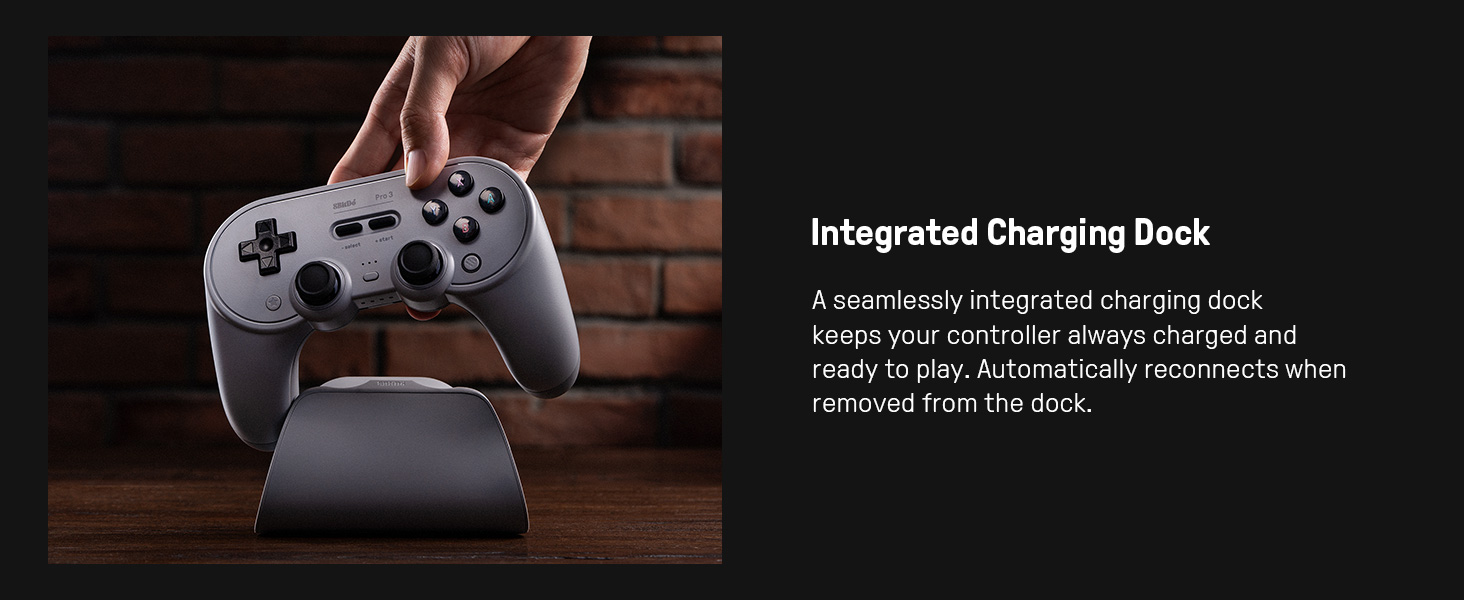
Image: The controller seamlessly integrated with its charging dock.
4.2 Bluetooth Pairing
The 8BitDo Pro 3 supports Bluetooth connectivity across multiple platforms.
- Power On: Press the Home button to turn on the controller.
- Enter Pairing Mode: Press and hold the Pair button (usually a small button near the USB-C port or on the back) for 3 seconds until the indicator lights start blinking rapidly.
- Device Pairing: On your device (Switch, PC, Android, Apple), go to Bluetooth settings and select "8BitDo Pro 3" from the list of available devices.
- Connection Confirmation: The indicator lights on the controller will become solid when successfully paired.
4.3 2.4G Connection with USB-C Adapter (Optional)
For a robust and low-latency connection, especially with PCs or Steam Deck, you can use the optional 2.4G USB-C adapter (if included or purchased separately).
- Insert the 2.4G USB-C adapter into a compatible port on your device.
- Ensure the controller is powered on. It should automatically connect to the adapter.
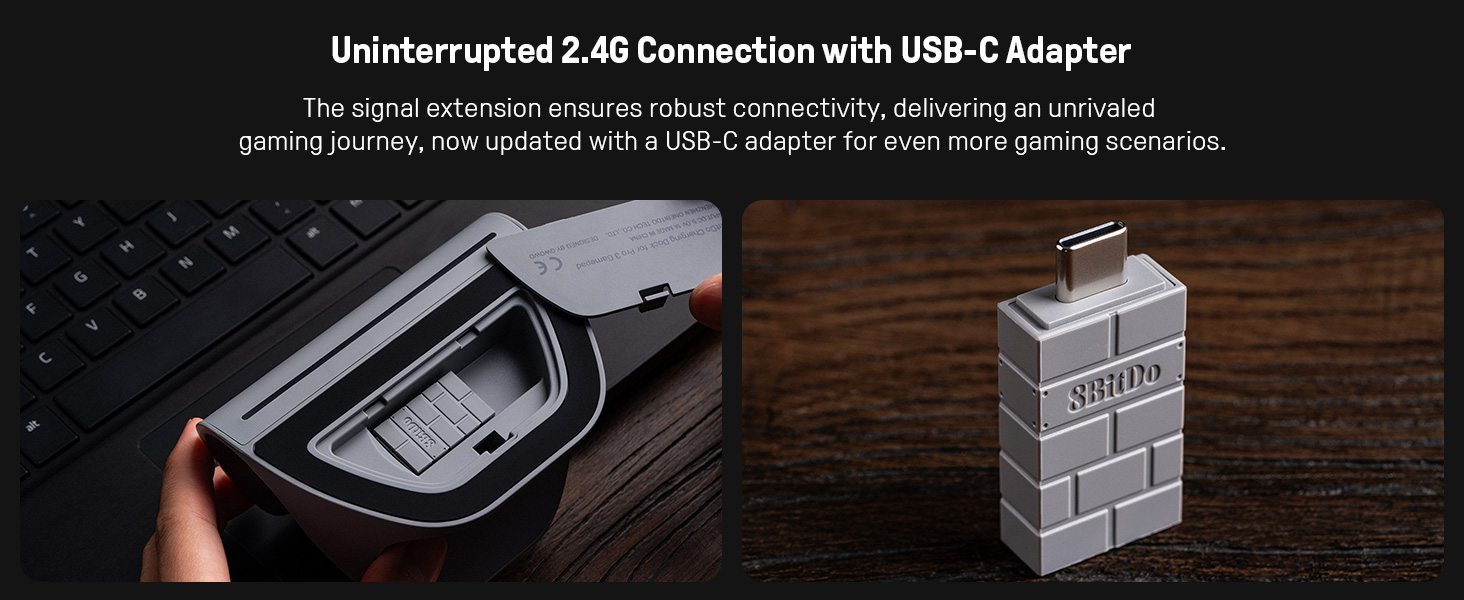
Image: The 2.4G USB-C adapter, which can be stored within the charging dock for convenience.
4.4 Swapping Magnetic ABXY Buttons
The ABXY buttons are magnetic and can be rearranged to match Switch or Xbox layouts.
- Use the included button puller tool to gently lift the desired button from its slot.
- Place the new button into the slot, ensuring it snaps into place magnetically.
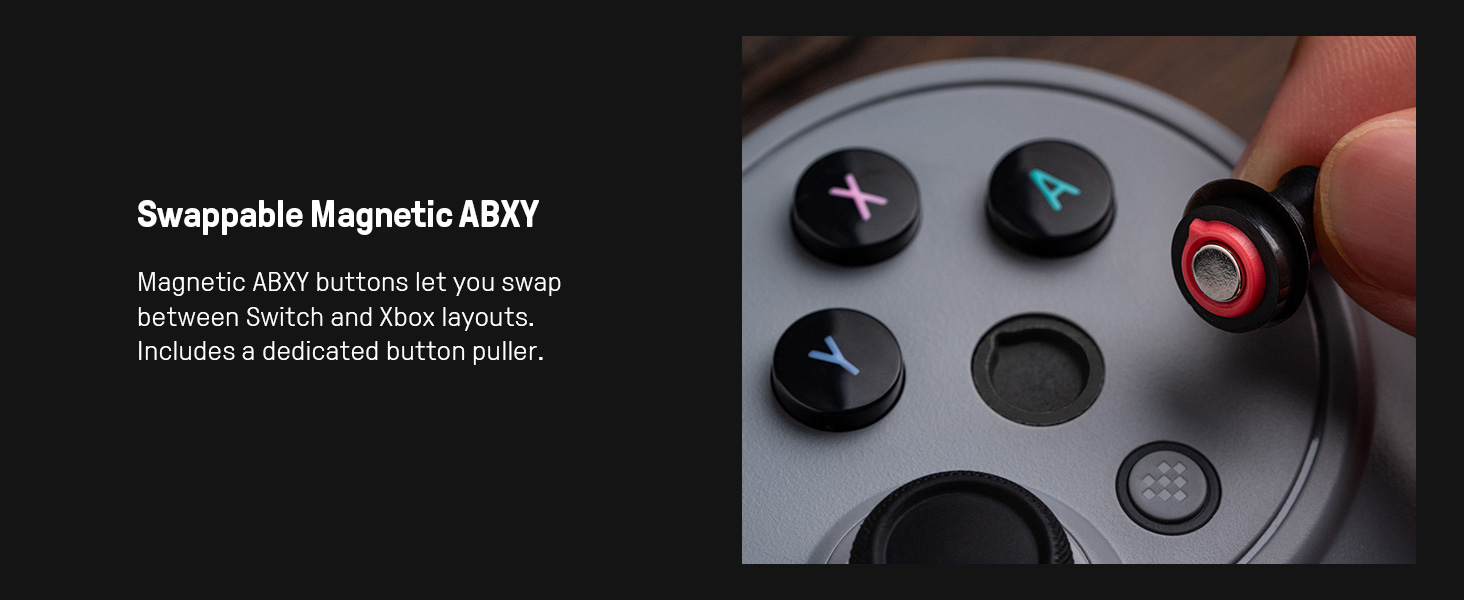
Image: A close-up view of the swappable magnetic ABXY buttons and the button puller tool.
5. Operating Instructions
5.1 TMR Joysticks and Trigger Mode Switch
The controller features high-precision TMR joysticks and adjustable Hall Effect triggers.
- TMR Joysticks: Provide enhanced sensitivity and precision.
- Trigger Mode Switch: Use the physical switch on the underside of the controller to toggle between linear (for racing games, etc.) and non-linear tactile (for shooting games, etc.) trigger responses.
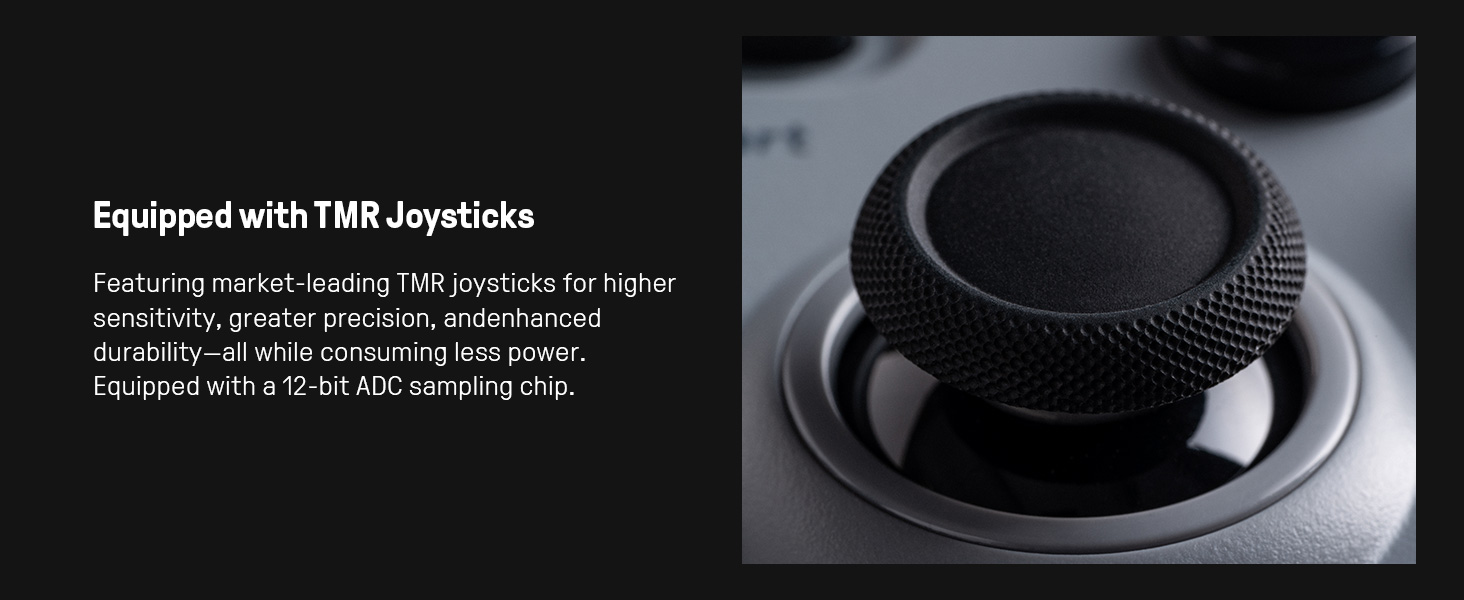
Image: A detailed view of the TMR joystick, highlighting its textured surface.

Image: A close-up of the Hall Effect trigger and the small switch used to change trigger modes.
5.2 Pro Back Buttons (PL/PR) and Extra Bumpers (L4/R4)
The controller includes two programmable back buttons (PL/PR) and additional L4/R4 bumpers for quick reactions.
- These buttons can be mapped to other functions using the 8BitDo Ultimate Software V2.
- Refer to the software section for detailed mapping instructions.
5.3 Vibration and Motion Control
- Vibration feedback is supported for compatible games.
- Motion control is available for Switch and Steam platforms only.
5.4 Turbo Function
The Turbo function allows a button to be pressed repeatedly as long as it is held down. This feature can be configured via the 8BitDo Ultimate Software V2.
5.5 Wake-on-Shake
The controller supports a "wake-on-shake" feature to quickly power on the device. Note that this feature is not supported on Switch 2.
5.6 8BitDo Ultimate Software V2
Unlock the full potential of your controller with the 8BitDo Ultimate Software V2. This software allows for extensive customization.
- Button Mapping: Remap any button to your preference.
- Stick Customization: Adjust joystick sensitivity and dead zones.
- Trigger Adjustment: Fine-tune trigger response.
- Vibration Control: Adjust vibration intensity.
- Macros: Create complex button sequences with a single press.
- Profile Management: Save and switch between up to 3 custom profiles.
- Firmware Update: Keep your controller's firmware up-to-date for optimal performance and new features.
Download the software from the official 8BitDo website.
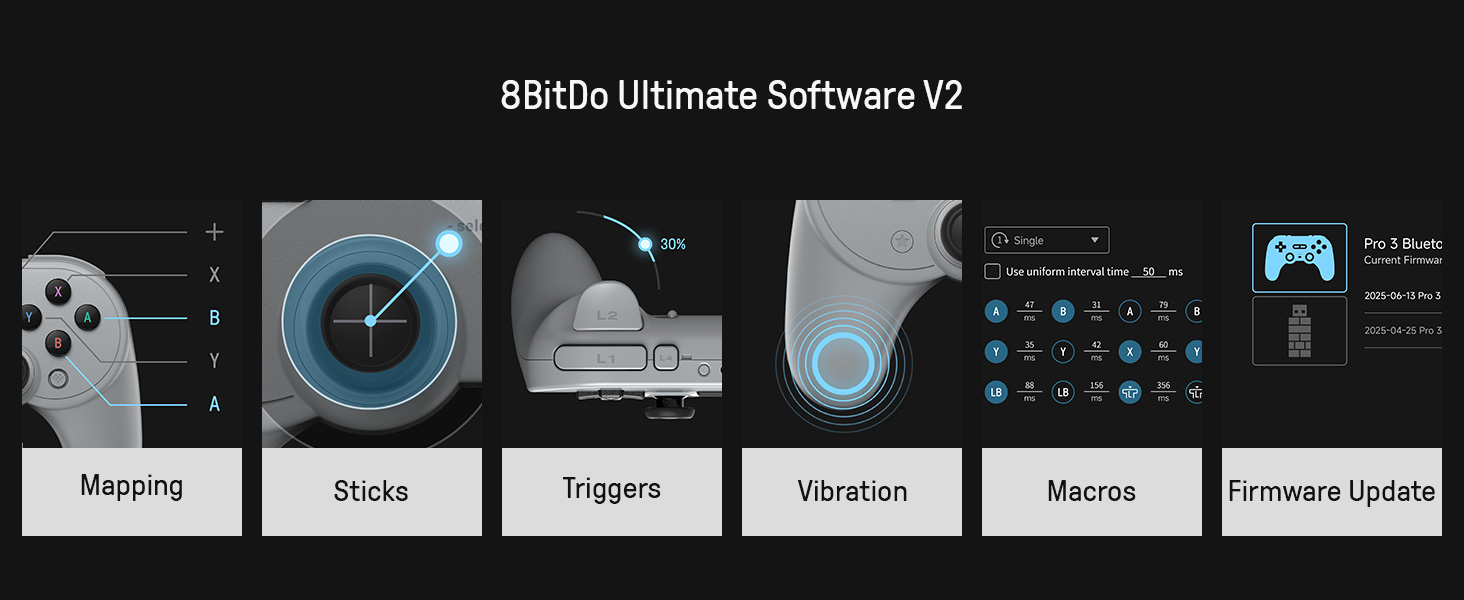
Image: An overview of the 8BitDo Ultimate Software V2 interface, demonstrating its various customization options.
6. Maintenance
Proper care will extend the life of your controller:
- Cleaning: Use a soft, dry cloth to wipe down the controller. For stubborn dirt, slightly dampen the cloth with water. Avoid harsh chemicals or abrasive materials.
- Storage: Store the controller in a cool, dry place away from direct sunlight and extreme temperatures.
- Battery Care: To maintain battery health, avoid fully discharging the controller frequently. If storing for a long period, charge it to about 50% every few months.
7. Troubleshooting
| Problem | Possible Solution |
|---|---|
| Controller does not power on. | Ensure the controller is charged. Connect it to the charging dock or directly via USB-C cable. |
| Controller does not connect via Bluetooth. |
|
| Buttons or joysticks are unresponsive. |
|
| Charging dock not charging. |
|
Firmware Updates
Regularly check for firmware updates using the 8BitDo Ultimate Software V2. Updates can improve performance, add new features, and resolve bugs.
8. Specifications
| Feature | Detail |
|---|---|
| Model Number | 6922621507192 |
| Connectivity | Bluetooth, USB-C (wired), 2.4G (with adapter) |
| Compatibility | Nintendo Switch 1 & 2, Windows PC, Apple (macOS, iOS), SteamOS, Android |
| Joysticks | TMR Joysticks with 12-bit ADC sampling chip |
| Triggers | Hall Effect Triggers with switchable linear/tactile modes |
| Buttons | Swappable Magnetic ABXY, Pro Back Buttons (PL/PR), Extra Bumpers (L4/R4), Tactile D-pad |
| Battery | 1 Lithium Ion battery (included) |
| Weight | 1.6 pounds (approx. 725g) |
| Dimensions (Package) | 6.9 x 6.5 x 3 inches |
| Manufacturer | 8BitDo |
| Country of Origin | China |
9. Warranty and Support
For warranty information and technical support, please visit the official 8BitDo website or contact their customer service directly. Keep your proof of purchase for any warranty claims.
Official 8BitDo Website: www.8bitdo.com
Related documents6922621507192


Ask a question about this manual
Ask about setup, troubleshooting, compatibility, parts, safety, or missing instructions. Manuals+ will review the question and use this page’s manual context to help answer it.