
1. Product Overview
The WEILAILIFE Indoor Wi-Fi Security Camera (Model: WEILAI-DPYTJ) is designed for comprehensive indoor surveillance, offering advanced features for home security, pet monitoring, and elderly/child care. Its compact dome design and wireless connectivity ensure seamless integration into any indoor environment.

Image: Front view of the WEILAILIFE Indoor Wi-Fi Security Camera.
2. Key Features
- One-Touch Call Function: Directly initiate a call to a registered smartphone by pressing a button on the camera, ideal for emergencies or quick communication.
- Two-Way Audio & Video Intercom: Communicate with family members from your smartphone anytime, anywhere, enhancing security and connection.
- Automatic Human Tracking: The camera automatically detects and follows moving human figures, providing efficient and unmanned surveillance over a wide area.
- Wide-Angle Pan/Tilt Coverage: Offers 355° horizontal and 60° vertical rotation, allowing surveillance from any angle in the house.
- Flexible Recording Storage: Supports both secure cloud storage and local TF card recording (up to 256GB), ensuring important footage is saved and accessible.
- Free Mobile App: Easily manage and monitor your camera with the free 'Im Cam' app, available on iOS and Android, with no monthly fees.
- Night Vision: Equipped with infrared light source for clear monitoring in low-light conditions up to 20 meters.
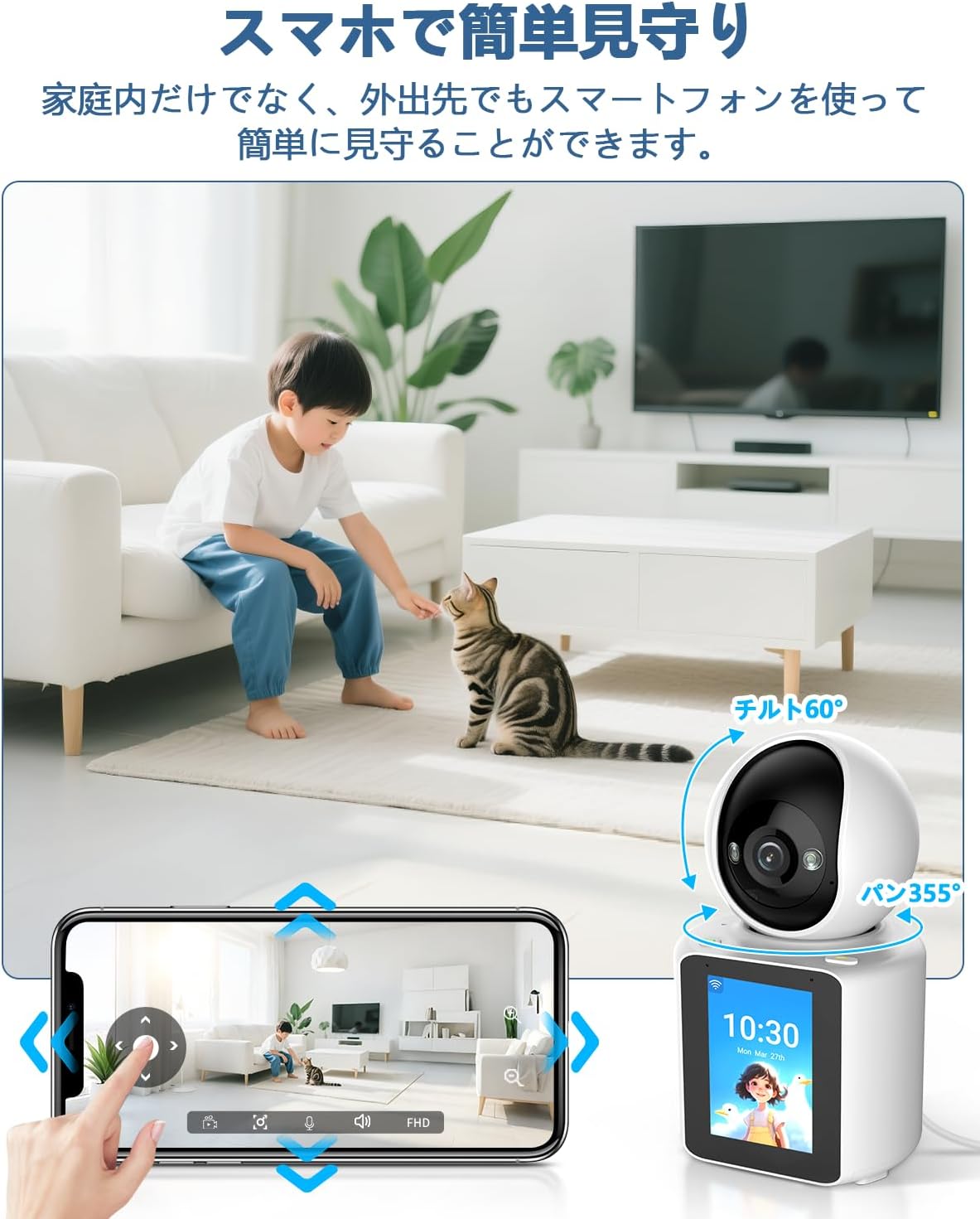
Image: An elderly person interacting with the camera's one-touch call feature, while a smartphone displays a video call.

Image: A child walking, with the camera's automatic human tracking feature highlighted, showing the camera following the child's movement.

Image: A smartphone screen showing pan and tilt controls for the camera, with a child and cat in the camera's view.
3. Package Contents
Upon opening the package, please ensure all the following items are included:
- Camera Body (1 unit)
- 5V Power Adapter
- USB Cable
- Mounting Bracket
- Screw Package
- Instruction Manual

Image: All items included in the WEILAILIFE camera package, laid out neatly.
4. Product Specifications
| Feature | Specification |
|---|---|
| Model Number | WEILAI-DPYTJ |
| Recommended Use | Indoor Security |
| Connectivity Technology | Wireless (Wi-Fi) |
| Special Features | Video Intercom, One-Touch Call, Two-Way Audio, Horizontal 355° Vertical 60°, Automatic Human Tracking |
| Effective Still Image Resolution | 3 MP |
| Video Pixel Count | 1440p |
| Frame Rate | 15 fps |
| Field of View | 355 degrees |
| Night Vision Range | 20 meters |
| Power Source | Corded Electric |
| Product Body Size | 20 x 10 x 10 cm |
| Exterior Material | Acrylonitrile Butadiene Styrene (ABS) |
| Waterproof Type | Not Waterproof |
5. Setup Guide
5.1 Initial Setup
- Unpack the Camera: Carefully remove all components from the packaging.
- Insert SD Card (Optional): If using local storage, gently lift the camera lens to reveal the SD card slot and insert a TF card (up to 256GB).
- Connect Power: Connect the provided USB cable to the camera's Type-C port and the 5V power adapter. Plug the adapter into a power outlet. The camera will perform an initial rotation and emit a welcome message.
- Download the App: Scan the QR code in the instruction manual or search for 'Im Cam' in your smartphone's app store (iOS/Android) to download and install the application.
- Register Account: Open the 'Im Cam' app and follow the on-screen instructions to register a new account or log in if you already have one.
- Add Device: In the app, tap the '+' icon to add a new device. Select the WEILAILIFE camera model.
- Connect to Wi-Fi: Enter your 2.4GHz Wi-Fi network name (SSID) and password. The camera does not support 5GHz Wi-Fi.
- Scan QR Code: The app will display a QR code. Hold your smartphone 15-20 cm in front of the camera lens until you hear a beep sound, indicating successful scanning.
- Finalize Setup: Once connected, the camera will appear in your device list. You can customize its name and location within the app.
5.2 Important Wi-Fi Considerations
The camera requires a stable 2.4GHz Wi-Fi connection. Ensure your Wi-Fi router settings are compatible. If you have multiple Wi-Fi networks, you can pre-set a 'backup Wi-Fi' in the app. If the current Wi-Fi signal is poor or the password changes, the device can automatically or manually switch to the backup Wi-Fi.
Note: The device does not verify if the password is correct during backup Wi-Fi setup. If the password is incorrect, connection may fail. Always verify the correct password manually to ensure proper operation.
Video: A demonstration of the two-way video call function, showing how to initiate a call and communicate through the camera.
6. Operating Instructions
6.1 Live View and Playback
- Access Live View: From the app's home screen, tap on your camera to access the live video feed.
- Adjust Resolution: Tap the HD/SD button on the live view screen to switch between high definition (HD) and standard definition (SD) video quality.
- Pan/Tilt/Zoom (PTZ): Use the directional controls in the app to remotely rotate the camera horizontally (355°) and vertically (60°). Pinch-to-zoom is also available for digital magnification.
- Two-Way Communication: Tap the microphone icon to speak through the camera (two-way audio). Tap the video call icon to initiate a video call.
- Playback Recorded Footage: Access the playback feature in the app to review recorded events or continuous footage. You can select specific dates and times.
6.2 Motion and Sound Detection
- Motion Detection: The camera is equipped with an automatic human tracking feature that detects movement and follows the subject.
- Sound Detection: The camera can detect abnormal sounds and send instant notifications to your smartphone.
- Alerts: Receive instant notifications on your smartphone when motion or sound is detected, allowing for timely response to suspicious activity or emergencies.
6.3 Night Vision
The camera automatically switches to infrared night vision mode in low-light conditions, providing clear black-and-white video up to 20 meters. You can also manually enable or disable night vision in the app settings.

Image: Split image showing the camera's view in normal light (child sleeping) and in darkness (dog sleeping), demonstrating night vision capability.
7. Recording and Storage
The WEILAILIFE camera offers flexible recording and storage options:
- Local Storage (TF Card): Insert a TF card (up to 256GB) into the camera for continuous or event-triggered recording. This allows you to store footage directly on the device.
- Cloud Storage: The camera supports cloud storage for secure backup of your recordings. This option ensures your data is safe even if the camera is damaged or stolen.

Image: Visual representation of cloud storage and TF card storage options for the camera.
8. Advanced Features
8.1 Smart Home Integration
The WEILAILIFE camera is compatible with Amazon Alexa and Google Assistant, allowing for voice control and integration into your smart home ecosystem.
8.2 Family Sharing
You can easily share access to the camera's live view and recorded footage with multiple family members through the app, ensuring everyone can stay connected and monitor the home.

Image: Multiple family members viewing the camera feed on their smartphones, illustrating the family sharing feature.
9. Maintenance
- Cleaning: Use a soft, dry cloth to clean the camera lens and body. Avoid using harsh chemicals or abrasive materials.
- Firmware Updates: Regularly check the 'Im Cam' app for available firmware updates to ensure optimal performance and security.
- Power Cycle: If the camera experiences issues, try unplugging it from the power source for a few seconds and then plugging it back in.
10. Troubleshooting
- Connection Issues: Ensure your Wi-Fi network is 2.4GHz and the password is correct. Check the camera's distance from the router.
- App Not Responding: Clear the app's cache or reinstall the app if it becomes unresponsive.
- No Video/Audio: Check your internet connection and ensure the camera is powered on. Verify app permissions for microphone and camera access.
- One-Touch Call Not Working: Ensure the smartphone is registered correctly in the app and has an active internet connection.
11. Warranty and Support
The WEILAILIFE Indoor Wi-Fi Security Camera comes with a 12-month quality guarantee. Our company maintains strict quality control throughout manufacturing and inspection processes.
For any questions, concerns, or issues during the use of your product, please do not hesitate to contact our dedicated support team. We offer Japanese language support via email.
- Email Support: info-jp@weilailifetech.com (Response within 24 hours)
- Japanese Service Center Address: Rose Avenue Inage Tendai 1F, 5-8-9 Tendai, Inage-ku, Chiba City, Chiba Prefecture.