
1. Introduction
This manual provides detailed instructions for the setup, operation, maintenance, and troubleshooting of your DIERYA DK68 Wireless Mechanical Keyboard. Please read this manual thoroughly before using the product to ensure proper functionality and to maximize your user experience.
2. Package Contents
Verify that all items are present in the package:
- 1 x DIERYA DK68 68-Key Wireless Mechanical Keyboard
- 1 x 2.4G Wireless Receiver
- 1 x USB-C to USB-A Cable
- 1 x Instruction Manual (this document)
3. Product Overview
The DIERYA DK68 is a compact 68-key mechanical keyboard featuring triple-mode connectivity (wired USB-C, 2.4GHz wireless, and Bluetooth 5.0). It is equipped with linear red mechanical switches and customizable RGB backlighting.

Image: The DIERYA DK68 Wireless Mechanical Keyboard in white, showcasing its compact 68-key layout and RGB backlighting.
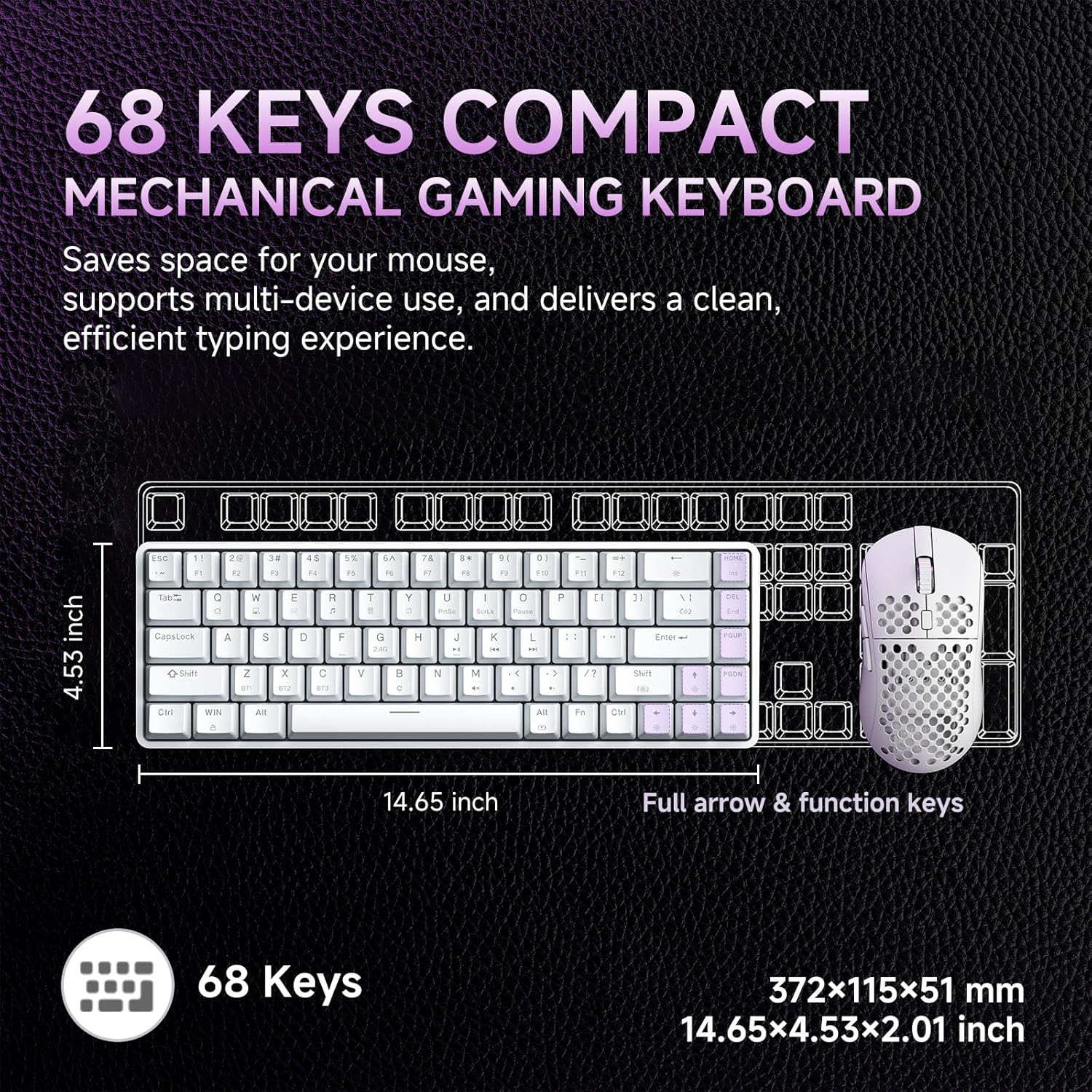
Image: A diagram illustrating the compact dimensions of the DIERYA DK68 keyboard, measuring 14.65 inches in length and 4.53 inches in width.
4. Setup
4.1 Wired Connection (USB-C)
- Connect the provided USB-C cable to the keyboard's USB-C port.
- Connect the other end of the USB-C cable to an available USB-A port on your computer.
- The keyboard will be automatically recognized and ready for use.
4.2 2.4GHz Wireless Connection
- Locate the 2.4G wireless receiver included in the package.
- Plug the 2.4G receiver into an available USB-A port on your computer.
- Turn on the keyboard using the switch located on the back or side of the keyboard.
- The keyboard should automatically connect to the receiver. If not, press Fn + R to initiate pairing.
4.3 Bluetooth 5.0 Connection
The keyboard supports connecting up to three Bluetooth devices.
- Ensure the keyboard is powered on.
- Press and hold Fn + Z, Fn + X, or Fn + C for 3-5 seconds to enter pairing mode for Bluetooth device 1, 2, or 3 respectively. The indicator light will flash rapidly.
- On your device (PC, laptop, tablet, smartphone), enable Bluetooth and search for new devices.
- Select "DIERYA DK68" from the list of available devices to pair.
- Once paired, the indicator light will stop flashing and remain solid for a few seconds.
- To switch between paired Bluetooth devices, press Fn + Z, Fn + X, or Fn + C briefly.

Image: Visual representation of the DIERYA DK68's triple-mode connectivity options: USB-C, Bluetooth 5.0, and 2.4GHz wireless, compatible with various operating systems.
5. Operating Instructions
5.1 Basic Keyboard Functions
The DK68 features a 68-key layout. Many standard functions are accessed via the Fn key combinations.
- Fn + 1-12: F1-F12 function keys.
- Fn + Q/W/E/R/T/Y: Multimedia controls (specific functions may vary).
- Fn + Arrow Keys: Page Up, Page Down, Home, End.
- Fn + Backspace: Delete.
5.2 RGB Lighting Control
The keyboard offers 20 built-in RGB lighting effects and 16.8 million customizable colors.
- Fn + Backspace: Turn backlight On/Off.
- Fn + Shift: Switch light colors (for certain modes).
- Fn + |\: Switch light modes (cycle through 20 effects).
- Fn + Up Arrow: Increase brightness.
- Fn + Down Arrow: Decrease brightness.
- Fn + Left Arrow: Decrease light speed.
- Fn + Right Arrow: Increase light speed.

Image: A visual guide to controlling the RGB backlighting on the DIERYA DK68 keyboard using Fn key combinations for mode, color, brightness, and speed adjustments.
5.3 Battery Management
The keyboard is equipped with a 3000mAh lithium battery.
- Charging: Connect the keyboard via the USB-C cable to a power source (computer USB port or USB wall adapter). The charging indicator light will show charging status.
- Battery Life: Up to 12 hours with backlighting on, and up to 333 hours with backlighting off.
- Auto-Sleep: The keyboard enters auto-sleep mode after 3 minutes of inactivity to conserve power. Press any key to wake it up.

Image: An infographic detailing the 3000mAh battery capacity, showing 12 hours of use with lights on, 333 hours with lights off, 3-minute auto-stop, and Type-C charging.
5.4 Software Customization
For advanced customization of keys, macros, and lighting effects, download the dedicated software from the official DIERYA website. This software allows for:
- 16.8 million customizable lighting colors.
- Music-sync lighting effects.
- Full-key macro programming.
- Macro recording and editing.
- Custom shortcut keys.
6. Maintenance
- Cleaning: Use a soft, dry cloth to wipe the keyboard surface. For deeper cleaning, use compressed air to remove dust and debris from between keycaps. Avoid using liquid cleaners directly on the keyboard.
- Storage: Store the keyboard in a cool, dry place away from direct sunlight and extreme temperatures.
- Keycap Removal: If removing keycaps for cleaning or switch replacement, use a keycap puller to avoid damage.
7. Troubleshooting
| Issue | Solution |
|---|---|
| Keyboard not responding (Wired) | Ensure the USB-C cable is securely connected to both the keyboard and the computer. Try a different USB port or cable. |
| 2.4GHz wireless connection unstable or not connecting | Ensure the 2.4G receiver is plugged in and the keyboard is powered on. Re-pair by pressing Fn + R. Move the receiver closer to the keyboard. Avoid interference from other wireless devices. |
| Bluetooth connection issues | Ensure Bluetooth is enabled on your device. Re-enter pairing mode (Fn + Z/X/C) and re-pair. Forget the device on your computer/phone and try pairing again. Ensure the keyboard is charged. |
| RGB backlighting not working | Press Fn + Backspace to toggle the backlight. Check brightness settings (Fn + Up/Down Arrow). Ensure the keyboard battery is not critically low. |
| Keys not registering (Anti-Ghosting) | The keyboard features full N-Key Rollover (NKRO). If specific keys are not registering, try cleaning under the keycap or contact support. |
| Keyboard not charging | Verify the USB-C cable and power source are functional. Try a different cable or charging port. |
8. Specifications
| Feature | Detail |
|---|---|
| Model | DIERYA DK68 |
| Connectivity | USB-C Wired, 2.4GHz Wireless, Bluetooth 5.0 |
| Switch Type | Linear Red Mechanical Switches |
| Key Count | 68 Keys (60% Layout) |
| Backlighting | RGB (16.8 Million Colors, 20 Modes) |
| Battery Capacity | 3000mAh |
| Battery Life | Up to 12 hours (backlight on), 333 hours (backlight off) |
| Anti-Ghosting | Full N-Key Rollover (NKRO) |
| Keycap Material | Acrylonitrile Butadiene Styrene (ABS) Double-shot |
| Compatible Devices | Laptop, PC, Smartphone |
| Dimensions | 14.65 x 4.53 x 2.01 inches (372 x 115 x 51 mm) |
| Item Weight | 1.83 pounds (820g) |
| Included Components | Keyboard, 2.4G Receiver, USB Cable, Instruction Manual |
9. Warranty and Support
DIERYA products are designed for reliability and performance. For warranty information, technical support, or service inquiries, please refer to the official DIERYA website or contact their customer support directly. Keep your purchase receipt as proof of purchase for warranty claims.
For the latest drivers and software, please visit: www.dierya.com


