
1. Introduction
Welcome to the JIAN BOLAND FP200 USB Fingerprint Reader instruction manual. This document provides essential information for setting up, operating, and maintaining your fingerprint reader. Please read this manual carefully to ensure proper use and optimal performance of your device.
The JIAN BOLAND FP200 is designed to provide secure and convenient password-free login to your Windows 10 or Windows 11 PC using Windows Hello biometric authentication.
2. Product Overview
The JIAN BOLAND FP200 USB Fingerprint Reader is a compact and efficient device for enhancing your computer's security and login speed.
Key Features:
- Windows Hello Integration: Seamlessly integrates with Windows 10/11 for one-touch login.
- Microsoft-Certified Security: Supports Windows Biometric Framework with low False Acceptance Rate (FAR) and False Rejection Rate (FRR).
- Plug & Play Simplicity: Automatic driver installation for genuine Windows systems.
- Multi-User Flexibility: Supports up to 10 unique fingerprints for shared devices.
- Durable Design: Features a metal shell for enhanced strength and durability.
- Compact & Portable: Mini design fits easily into any USB port and is ideal for laptops.
What's in the Box:
- 1 x JIAN BOLAND FP200 USB Fingerprint Reader

Image: The JIAN BOLAND FP200 USB Fingerprint Reader, a compact device for secure login.
3. Setup
The JIAN BOLAND FP200 is designed for easy setup on Windows 10 and Windows 11 operating systems. No external drivers are typically required for genuine Windows systems.
Compatibility:
- Windows 10 (32-bit and 64-bit)
- Windows 11 (32-bit and 64-bit)
- Note: This device does not support Windows 7 or Windows 8.
Installation Steps:
- Plug In the Device: Insert the FP200 USB Fingerprint Reader into an available USB port on your PC or laptop.
- Automatic Driver Installation: For genuine Windows 10/11 systems, the driver should install automatically upon connection if your computer is connected to the internet.
- Access Windows Settings: Click the Start button, then select 'Settings' (gear icon).
- Navigate to Sign-in Options: In the Settings window, click on 'Accounts', then select 'Sign-in options' from the left-hand menu.
- Set Up Windows Hello PIN: If you haven't already, you will need to set up a Windows Hello PIN. Click on 'Windows Hello PIN' and follow the on-screen prompts to add a PIN. This requires verifying your computer's lock screen password.
- Set Up Windows Hello Fingerprint: After setting your PIN, click on 'Windows Hello Fingerprint' and then 'Set up'. Follow the instructions to swipe your finger on the sensor multiple times to register your fingerprint. You may need to swipe with different parts of your finger to capture the edges.
- Completion: Once the setup is complete, you can use your fingerprint to log in to your Windows device.

Image: The fingerprint reader connected to a laptop, illustrating automatic driver installation on Windows 10.
Setup Video Guide:
Video: A detailed guide on how to install the FP200 USB Fingerprint Reader driver and set up Windows Hello fingerprint login.
4. Operating Instructions
Once your fingerprint is registered, using the JIAN BOLAND FP200 is straightforward.
Logging In:
- At the Windows login screen, simply place your registered finger on the fingerprint sensor.
- The device will authenticate your fingerprint, and you will be logged into your account. Authentication typically takes less than 0.5 seconds.
Multi-User Setup:
The FP200 supports up to 10 unique fingerprints, making it suitable for shared computers. Each user can set up their own fingerprint through their individual Windows user account settings by following the setup steps outlined above.
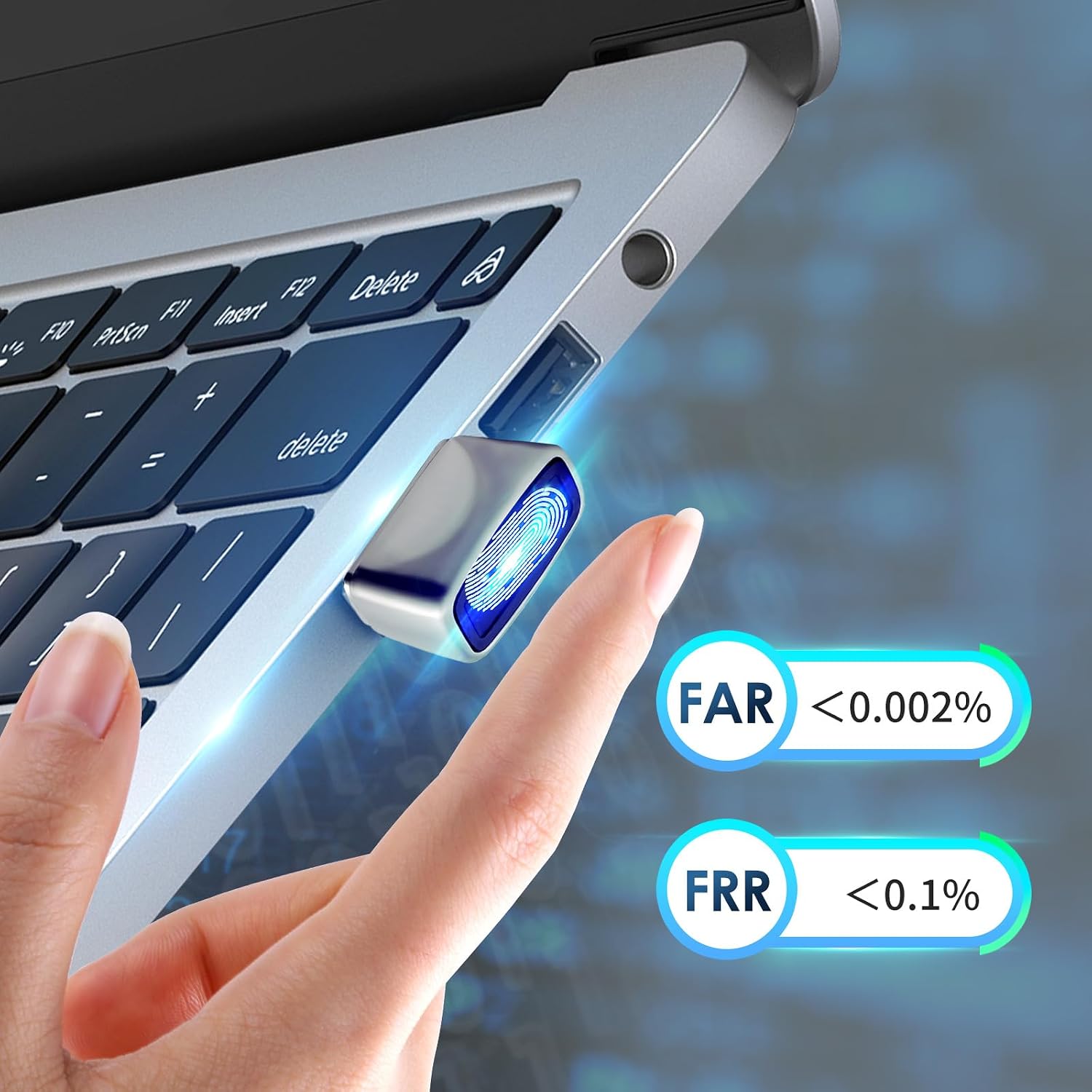
Image: A finger activating the fingerprint reader, highlighting its low False Acceptance Rate (FAR) and False Rejection Rate (FRR).
Product Overview Video:
Video: A brief overview of the JIAN BOLAND FP200 USB Fingerprint Reader and its quick authentication capabilities.
5. Maintenance
To ensure consistent performance and longevity of your fingerprint reader, follow these simple maintenance guidelines:
- Keep the Sensor Clean: Regularly wipe the fingerprint sensor surface with a soft, dry, lint-free cloth. Avoid using abrasive materials or harsh chemicals.
- Avoid Liquids: Do not expose the device to water or other liquids.
- Handle with Care: The device is designed to be durable, but avoid dropping it or subjecting it to excessive force.
6. Troubleshooting
If you encounter issues with your JIAN BOLAND FP200, refer to the following common solutions:
Common Issues & Solutions:
- Fingerprint Not Recognized:
- Ensure your finger and the sensor are clean and dry.
- Try re-registering your fingerprint in Windows Hello settings, ensuring you swipe your finger across the sensor from various angles.
- Ensure you are using a registered finger.
- Driver Not Installing Automatically:
- Verify your computer has an active internet connection.
- Restart your computer after plugging in the device.
- If you are using a non-genuine Windows operating system, automatic driver installation may not occur. You may need to contact JIAN BOLAND support for a driver download link.
- Windows Hello Not Available (Non-Genuine Windows):
- The FP200 fingerprint reader is certified by Microsoft for genuine Windows systems. If you use a non-genuine Windows system, it may not recognize or use Windows Hello. In this situation, you might need to create a new local administrator account to use the system.
- Device Not Detected:
- Try plugging the device into a different USB port.
- Ensure the USB port is functional.
7. Specifications
| Feature | Detail |
|---|---|
| Model Number | FP200 |
| Product Dimensions | 0.59 x 0.39 x 0.79 inches |
| Item Weight | 0.634 ounces (approx. 18 grams) |
| Material | Metal (Zinc Alloy Housing) |
| Compatibility | Windows 10/11 |
| Authentication Speed | < 0.5 seconds |
| False Acceptance Rate (FAR) | < 0.002% |
| False Rejection Rate (FRR) | < 0.1% |

Image: A hand holding the compact FP200 fingerprint reader, illustrating its small size and dimensions.
8. Warranty and Support
JIAN BOLAND products are manufactured to high-quality standards. For specific warranty details, please refer to the product packaging or the retailer's return policy at the time of purchase. If you experience any issues or require technical assistance, please contact JIAN BOLAND customer support through the retailer's platform or the official JIAN BOLAND website.
