
1. Introduction
This manual provides detailed instructions for the setup, operation, and maintenance of your PRONEXT 15.6 inch Digital Calendar. Please read this manual thoroughly before using the device to ensure proper functionality and to maximize your experience with this smart family organizer.
2. Product Overview
The PRONEXT Digital Calendar is designed to streamline family organization with its full HD touchscreen display and versatile features. It serves as an all-in-one solution for managing schedules, chores, meal plans, and more.
Key Features:
- All-in-One Family Organizer: Seamlessly syncs with popular calendar services including Google, Outlook, iCloud, Yahoo, and Cozi.
- Rechargeable & Wireless: Equipped with a built-in rechargeable battery providing up to 8 hours of continuous use, offering portable convenience.
- WiFi Connectivity & Free App: Manage and update events, chores, and meals remotely via the dedicated free app and Wi-Fi connection.
- Chore & Meal Planning: Integrated chore charts and dinner planners help assign responsibilities and organize family meals.
- 1080P Touchscreen Display: A 15.6-inch Full HD touchscreen ensures clear visuals and intuitive navigation.
- Digital Photo Frame Functionality: Displays photos and videos through the free app when not actively used as a calendar.
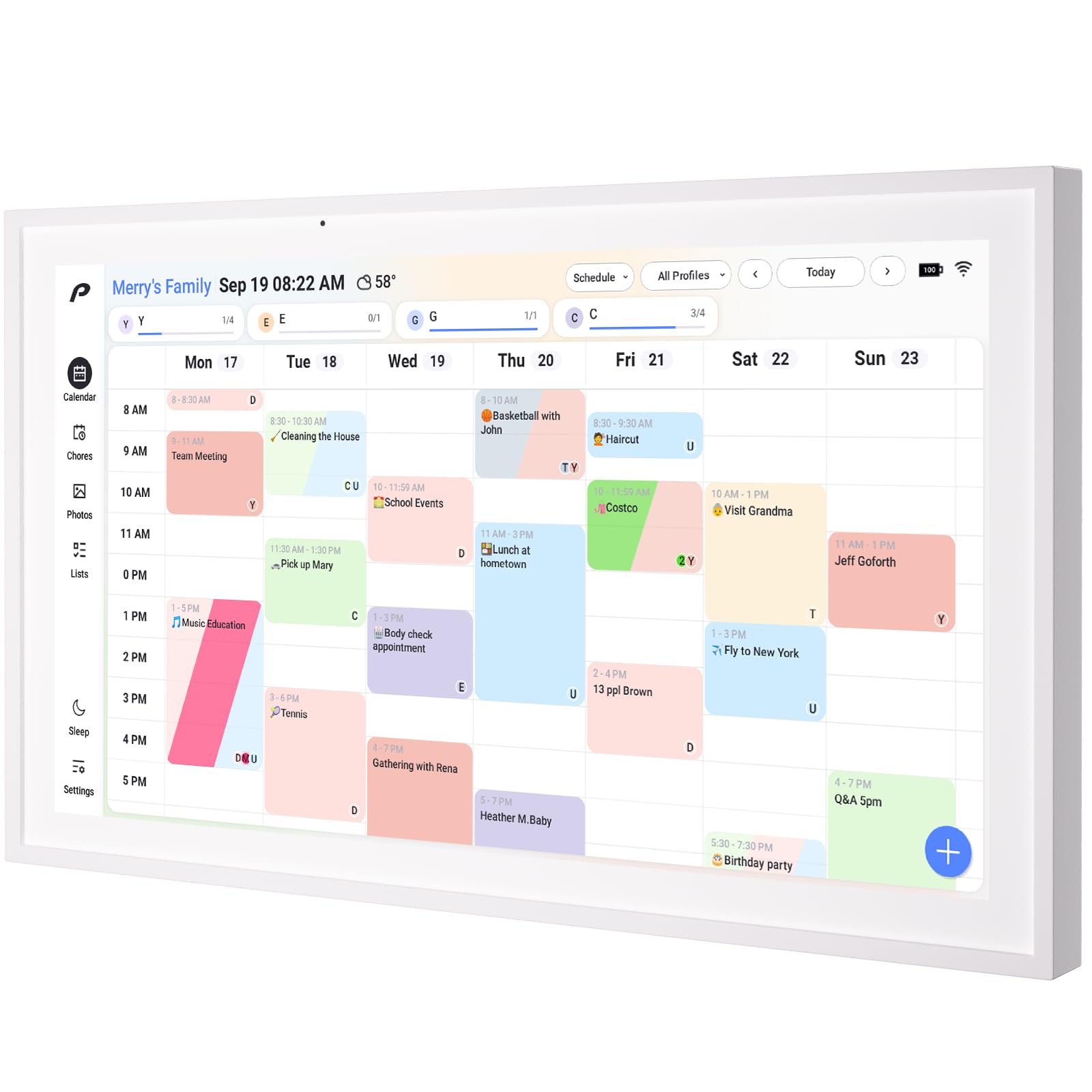
Figure 2.1: The PRONEXT 15.6 inch Digital Calendar in desk mount orientation.
3. Package Contents
Verify that all items are present in the package:
- PRONEXT 15.6 inch Digital Calendar (Model DC10)
- Power Adapter
- Desk Stand
- Wall Mount Kit
- Instruction Manual (this document)
4. Setup
4.1 Mounting Options
Your PRONEXT Digital Calendar can be used in two configurations: desk mount or wall mount.
Desk Mount:
Attach the included desk stand to the back of the calendar. Ensure it is securely fastened before placing the device on a flat, stable surface.
Wall Mount:
Use the provided wall mount kit to securely attach the calendar to a wall. Follow the instructions included with the wall mount kit for safe installation. The device supports both horizontal and vertical orientations.

Figure 4.1: The Digital Calendar in a wall-mounted setup, demonstrating app access.
4.2 Powering On and Initial Setup
- Connect the power adapter to the calendar and plug it into a power outlet.
- Press and hold the power button (usually located on the back or side) until the screen illuminates.
- Follow the on-screen prompts to select your language and connect to your Wi-Fi network.
4.3 App Installation and Calendar Sync
Download the free PRONEXT app from your device's app store (iOS or Android). Once installed:
- Create an account or log in.
- Pair your digital calendar with the app by following the in-app instructions.
- Sync your existing calendars (Google, Outlook, iCloud, Yahoo, Cozi) through the app. This allows for seamless transfer of events and schedules to your PRONEXT Digital Calendar.

Figure 4.2: The calendar display showing integration with various online calendar services.
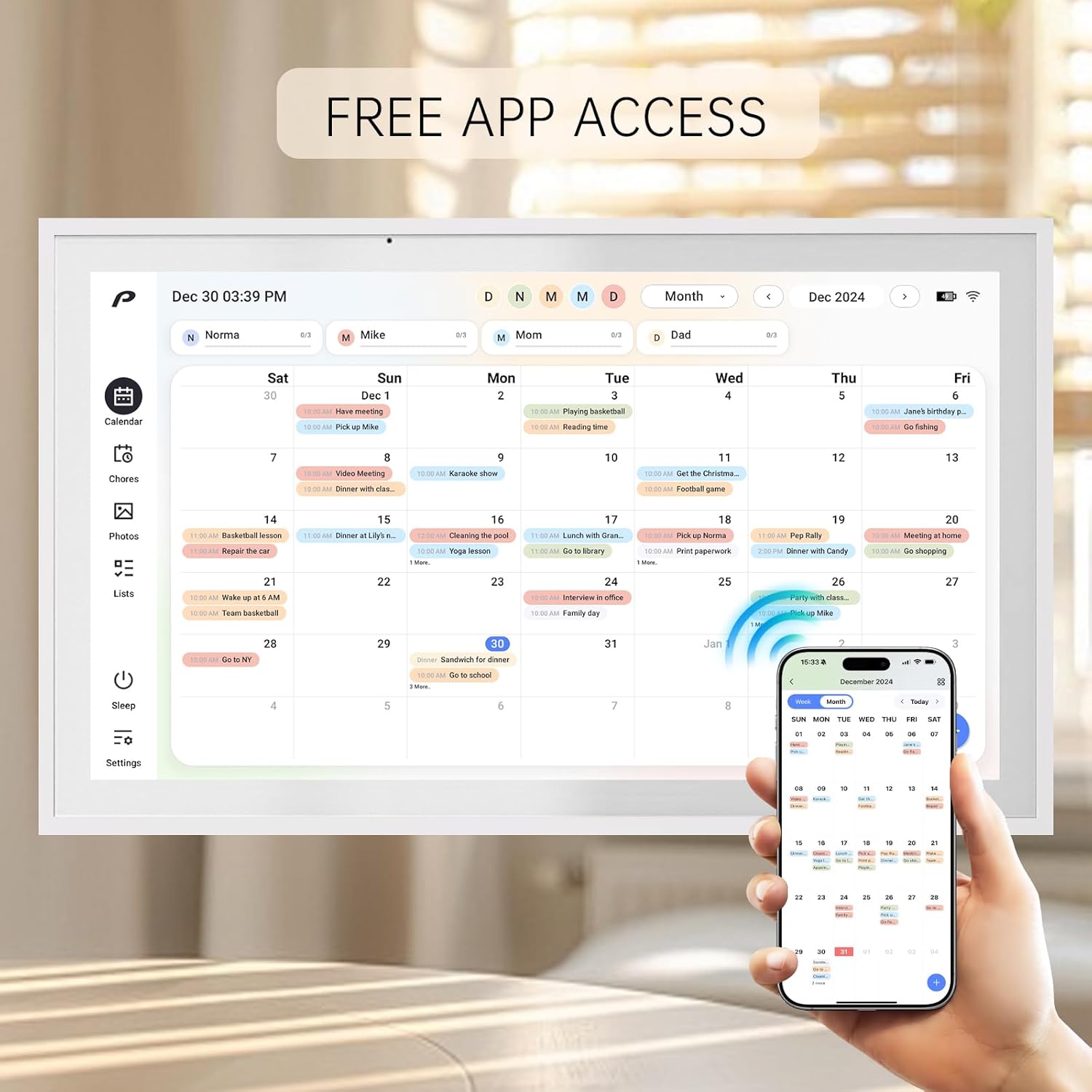
Figure 4.3: The companion app allows remote access and management of the calendar.
5. Operating Instructions
5.1 Navigating the Touchscreen
The PRONEXT Digital Calendar features a responsive touchscreen interface. Swipe left/right to navigate between days/weeks/months, and tap on icons to access different functions.
5.2 Calendar Views
The calendar offers multiple viewing options:
- Day View: Displays events for a single day.
- Week View: Shows events for the current week.
- Month View: Provides an overview of the entire month.
- Schedule View: Presents a detailed hourly breakdown of events.
Video 5.1: Demonstrates various calendar views and navigation, highlighting the ease of use for family organization.
5.3 Chore Chart
Manage household tasks efficiently:
- Tap the 'Chores' icon on the sidebar.
- Add new chores and assign them to specific family members.
- Family members can mark chores as completed directly on the touchscreen or via the app.
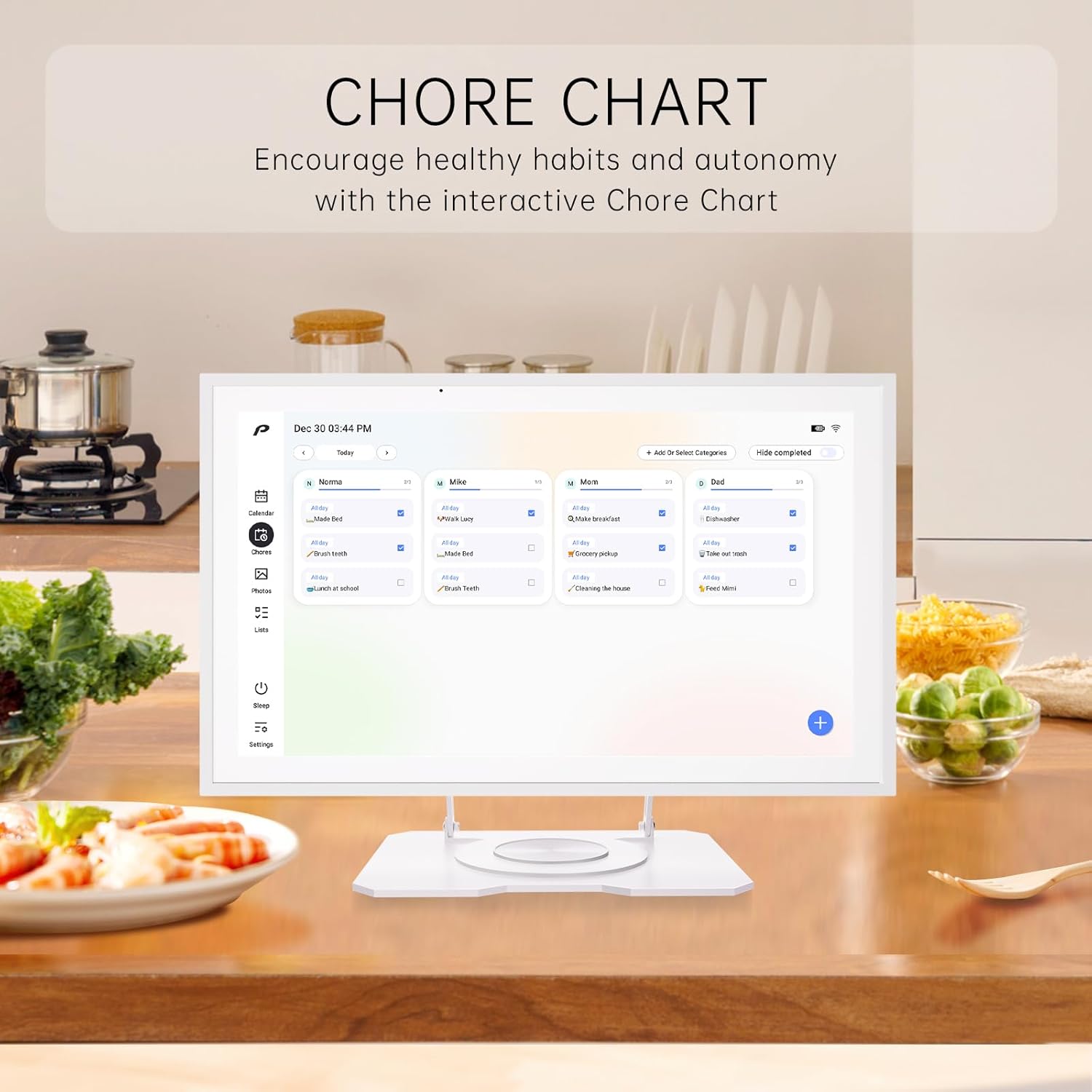
Figure 5.1: The interactive Chore Chart helps encourage healthy habits and autonomy.
5.4 Meal Planning
Plan your family's meals directly on the calendar:
- Access the meal planning section to add daily breakfast, lunch, and dinner entries.
- This feature helps organize meal preparation and reduces daily inquiries about dinner plans.
5.5 Lists
Create and manage various lists, such as grocery lists or to-do lists:
- Tap the 'Lists' icon.
- Add new lists and items. Items can be checked off as completed.

Figure 5.2: Example of a family-specific list for grocery shopping.
5.6 Digital Photo Frame
When not actively used for scheduling, the calendar can function as a digital photo frame:
- Upload photos and videos through the PRONEXT app.
- The device will display a slideshow of your uploaded media, turning your calendar into a personalized display.
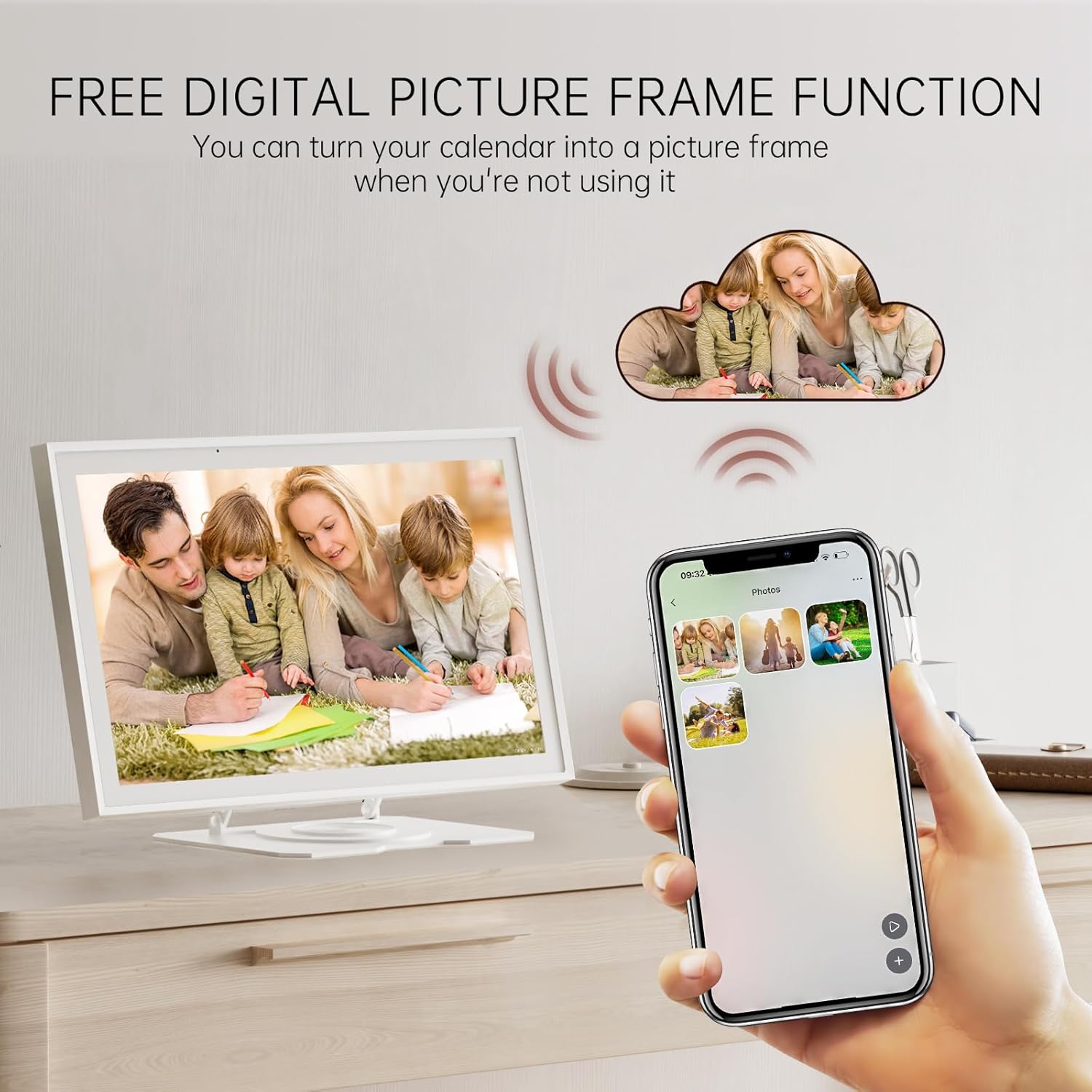
Figure 5.3: The calendar doubles as a digital photo frame, showcasing family moments.
5.7 Reminders and Notifications
The calendar provides timely reminders for upcoming events and tasks:
- Set custom reminder times for events.
- Notifications appear on the screen to ensure no important appointments are missed.

Figure 5.4: Reminder settings can be customized to suit your needs.
5.8 Sleep Mode
To conserve power or for privacy, activate sleep mode:
- Tap the 'Sleep' icon on the sidebar.
- The screen will turn off while the device continues to operate in the background.

Figure 5.5: Sleep mode helps save power while maintaining background operations.
5.9 Weather Display
The calendar can display real-time weather information:
- Ensure location services are enabled in the app settings.
- The current weather and temperature will be shown on the display.

Figure 5.6: The calendar displays real-time weather updates.
6. Maintenance
6.1 Cleaning
To clean the screen and exterior of your calendar:
- Power off the device and unplug it from the power source.
- Use a soft, lint-free cloth slightly dampened with water or a screen-cleaning solution.
- Avoid using harsh chemicals or abrasive materials, as these can damage the screen or finish.
6.2 Battery Care
The PRONEXT Digital Calendar features a rechargeable battery:
- For optimal battery life, avoid fully discharging the battery frequently.
- If storing the device for an extended period, charge it to approximately 50% before storage.
- Use only the provided power adapter for charging.
7. Troubleshooting
If you encounter issues with your PRONEXT Digital Calendar, refer to the following common solutions:
| Problem | Solution |
|---|---|
| Device does not power on | Ensure the power adapter is securely connected and plugged into a working outlet. Check if the battery is charged. |
| Wi-Fi connection issues | Verify your Wi-Fi password. Restart your router and the calendar. Ensure the calendar is within range of your Wi-Fi network. |
| Calendar not syncing | Check your internet connection. Ensure the PRONEXT app is updated and your external calendars are correctly linked in the app settings. |
| Touchscreen unresponsive | Restart the device. If the issue persists, perform a factory reset (refer to settings menu for option). |
| Battery drains quickly | Adjust screen brightness. Ensure sleep mode is activated when not in use. Limit background app activity. |
8. Specifications
| Feature | Detail |
|---|---|
| Model Number | DC10 |
| Screen Size | 15.6 inches |
| Display Resolution | 1080P Full HD |
| Product Dimensions | 15.8"W x 9.9"H |
| Material | Plastic |
| Mounting Type | Desk Mount and Wall Mount |
| Battery Life | Up to 8 hours continuous use (rechargeable) |
| Connectivity | Wi-Fi |
9. Warranty and Support
For warranty information and customer support, please refer to the documentation included with your purchase or visit the official PRONEXT website. Keep your proof of purchase for warranty claims.
