
1. Introduction
Thank you for choosing the Inateck Nomad Ergo N0131 Foldable Ergonomic Wireless Keyboard. This manual provides detailed instructions for setting up, operating, maintaining, and troubleshooting your device. Please read this manual thoroughly before use to ensure optimal performance and longevity of your keyboard.
2. Package Contents
Upon opening the package, please verify that all items listed below are present and in good condition:
- Inateck Nomad Ergo N0131 Foldable Ergonomic Wireless Keyboard
- USB-C Charging Cable
- Adjustable Device Stand
- Soft Protective Pouch
- User Manual

Image 2.1: The Inateck Nomad Ergo N0131 keyboard, accompanied by its USB-C charging cable, an adjustable stand for mobile devices, and a soft protective pouch.
3. Product Overview
The Inateck Nomad Ergo N0131 is a dual-fold, ergonomic wireless keyboard designed for portability and comfortable typing across multiple devices. It features a QWERTZ layout and connects via Bluetooth.
3.1 Key Features
- Dual-Fold Magnetic Design: Folds compactly for easy transport and secures with a magnetic closure.
- Ergonomic V-shaped Layout: Positions wrists at a 15° angle to reduce fatigue during extended typing.
- Multi-Device Connectivity: Supports up to three Bluetooth devices with quick switching.
- Long Battery Life: Integrated 140mAh lithium battery provides approximately 45 hours of continuous typing and up to 150 days of standby time.
- Durable Construction: Skin-friendly PU layer resists fingerprints, and keys are rated for 5 million strokes.
- Scissor-Switch Keys: Provides a comfortable and precise typing experience with 1mm key travel.

Image 3.1: The dual-fold magnetic design of the keyboard, illustrating its compact folding capability.

Image 3.2: A detailed view of the magnetic closure, which ensures stability when the keyboard is unfolded for use.

Image 3.3: An exploded view illustrating the scissor-switch structure beneath a keycap, designed for comfortable and accurate typing.

Image 3.4: The keyboard's exterior, highlighting the skin-friendly PU leather material that is resistant to fingerprints and scratches.
4. Setup
4.1 Charging the Keyboard
- Locate the USB-C charging port on the keyboard.
- Connect the provided USB-C cable to the keyboard's charging port.
- Connect the other end of the USB-C cable to a USB power source (e.g., computer USB port, USB wall adapter).
- The charging indicator light will illuminate. A full charge typically takes approximately 2 hours.

Image 4.1: The USB-C charging port on the keyboard, indicating charging status and battery life details.
4.2 Bluetooth Pairing
The keyboard can be paired with up to three devices simultaneously.
- Power On: Unfold the keyboard to automatically power it on.
- Select Channel: Press the Fn key simultaneously with BT1, BT2, or BT3 to select a Bluetooth channel. The corresponding indicator light will flash slowly.
- Enter Pairing Mode: Press and hold Fn + C (or the dedicated Bluetooth pairing key if available) until the selected channel indicator light flashes rapidly. This indicates the keyboard is in pairing mode.
- Enable Bluetooth on Your Device: On your computer, tablet, or smartphone, go to Bluetooth settings and turn on Bluetooth.
- Connect: Search for available devices and select "Inateck N0131" (or similar name) from the list. Follow any on-screen prompts to complete the pairing.
- Confirmation: Once successfully paired, the indicator light on the keyboard will stop flashing and remain solid for a few seconds before turning off.

Image 4.2: The keyboard demonstrating multi-device connectivity, showing it paired with a tablet, a desktop computer, and a smartphone.
4.3 Switching Between Paired Devices
To switch between previously paired devices, simply press Fn + BT1, BT2, or BT3 corresponding to the desired device. The keyboard will automatically connect to the selected device.
5. Operating Instructions
5.1 Folding and Unfolding
The keyboard features a dual-fold design. To unfold, gently open the two halves until they lie flat and the magnetic mechanism engages, securing the keyboard in its typing position. To fold, disengage the magnetic lock and fold the halves inwards until they meet, forming a compact unit.
5.2 Ergonomic Typing
The V-shaped layout and split design are engineered to promote a natural wrist and forearm posture. When typing, ensure your wrists are relaxed and positioned comfortably at the keyboard's 15° angle to minimize strain.

Image 5.1: A user demonstrating the ergonomic V-shaped layout, which helps maintain a natural and relaxed wrist posture during typing.
5.3 Using Multimedia Hotkeys
The keyboard includes dedicated multimedia hotkeys for increased productivity. These keys are typically accessed by pressing the Fn key in combination with the corresponding function key (e.g., volume control, screenshot). Refer to the keycap legends for specific functions.
5.4 Adjustable Device Stand
The included adjustable stand can be used to position your smartphone or tablet at an optimal viewing angle, reducing neck strain during use with the keyboard.
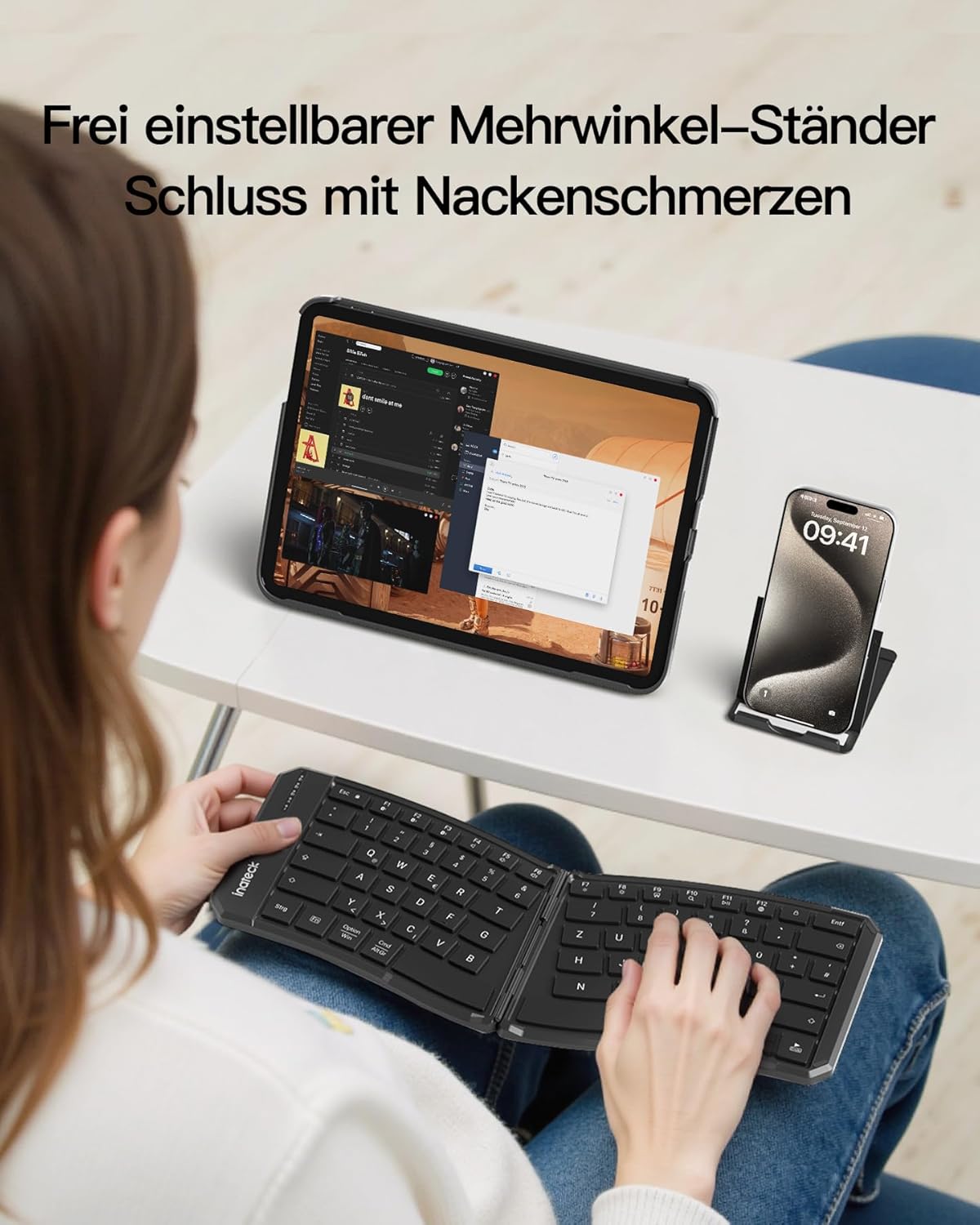
Image 5.2: The adjustable stand in use, supporting a tablet and smartphone, allowing for comfortable viewing angles while typing on the keyboard.
6. Maintenance
6.1 Cleaning
- Ensure the keyboard is powered off before cleaning.
- Use a soft, lint-free cloth slightly dampened with water or a mild cleaning solution to wipe the surface.
- Avoid using harsh chemicals, abrasive cleaners, or excessive moisture, as these can damage the keyboard.
- For cleaning between keys, use compressed air or a small brush.
6.2 Storage
- When not in use, fold the keyboard and store it in the provided soft protective pouch to guard against dust and scratches.
- Store in a cool, dry place away from direct sunlight and extreme temperatures.
7. Troubleshooting
7.1 Keyboard Not Connecting via Bluetooth
- Check Power: Ensure the keyboard is unfolded and powered on, and that the battery has sufficient charge.
- Re-enter Pairing Mode: Follow the steps in Section 4.2 to put the keyboard back into pairing mode.
- Device Bluetooth: Verify that Bluetooth is enabled on your device (computer, tablet, smartphone).
- Forget Device: On your device, try forgetting or removing the keyboard from the list of paired Bluetooth devices, then attempt to pair again.
- Restart Devices: Restart both the keyboard (by folding and unfolding) and your host device.
- Interference: Move away from other wireless devices that might cause interference.
7.2 Keys Not Responding
- Battery Level: Check if the keyboard battery is low. Charge the keyboard if necessary.
- Connection: Ensure the keyboard is properly connected to your device via Bluetooth.
- Restart: Power off and on the keyboard, and restart your host device.
- Clean Keys: Check for any debris under the keys that might be preventing them from functioning correctly.
7.3 Keyboard Unstable When Unfolded
- Ensure the keyboard is fully unfolded and the internal magnetic closure mechanism has engaged properly.
- Place the keyboard on a flat, stable surface.
8. Specifications
| Brand | Inateck |
| Model Number | Nomad Ergo N0131 |
| Connectivity Technology | Bluetooth |
| Keyboard Layout | QWERTZ |
| Special Features | Dual-Fold Magnetic, Ergonomic Design, Multi-Device Support |
| Compatible Devices | Laptop, PC, Smartphone, Tablet (iPad, iPhone, Mac, Android, Windows) |
| Battery Capacity | 140mAh Lithium Battery |
| Continuous Typing Time | ≥45 hours |
| Standby Time | Up to 150 days |
| Charging Time | Approx. 2 hours (via USB-C) |
| Key Switch Type | Scissor-Switch |
| Key Travel | 1mm |
| Product Dimensions (Unfolded) | 35.72 x 14.48 x 0.93 cm |
| Product Weight | 262 g |
9. Warranty and Support
Inateck products are designed and manufactured to the highest quality standards. For warranty information and technical support, please refer to the warranty card included in your package or visit the official Inateck website. Please retain your proof of purchase for warranty claims.