
1. Introduction
The RAPIQUE R306 Pro Wireless Mouse offers versatile connectivity and a comfortable, slim design. It supports connection to up to three devices via Bluetooth and 2.4G USB receiver, features silent clicks, and is conveniently rechargeable via USB-C. This manual provides essential information for setting up, operating, and maintaining your R306 Pro Wireless Mouse.

Image: RAPIQUE R306 Pro Wireless Mouse, showcasing its sleek design and white-to-black gradient.
2. What's in the Box
- R306 PRO Bluetooth Mouse x1
- USB Receiver x1
- USB-C Charge Cable x1
- Manual x1
3. Product Overview
The RAPIQUE R306 Pro features a modern white-to-black gradient design, offering a balanced and professional aesthetic. Its slim, portable form factor makes it ideal for various environments, from office to travel. The mouse is designed for comfortable, long-term use with its symmetrical shape and lightweight construction.

Image: The RAPIQUE R306 Pro Wireless Mouse being used in different settings, highlighting its versatility.
Key Features:
- Triple-Device Connectivity: Connects up to three devices using Bluetooth 1, Bluetooth 2, and the included 2.4G USB receiver.
- USB-C Rechargeable: Features an upgraded USB-C rechargeable battery for efficient daily use.
- Quiet & Smooth Operation: Silent left/right clicks and a refined scroll wheel for a distraction-free environment.
- Comfortable Symmetrical Shape: Designed for a natural feel and easy control during extended use.
- Portable Slim Design: Compact and low-profile, easily fits into laptop bags and cases.
4. Setup
Before initial use, fully charge the mouse for approximately 2 hours using the provided USB-C cable.
4.1. 2.4G USB Receiver Connection:
- Locate the USB receiver stored in the bottom compartment of the mouse. Push the 'PUSH' button to release the cover and retrieve the receiver.
- Plug the USB receiver into an available USB port on your computer or device.
- Turn the mouse ON using the switch on the bottom.
- Slide the mode switch to the '2.4G' position. The indicator light will illuminate.
- Your device should automatically detect and connect to the mouse.

Image: Underside of the mouse with the ON/OFF switch, mode selector, and USB receiver compartment.
4.2. Bluetooth Connection (BT1/BT2):
- Turn the mouse ON using the switch on the bottom.
- Slide the mode switch to either 'BT1' or 'BT2' position.
- Press and hold the 'MODE' button for 3-5 seconds until the corresponding Bluetooth indicator light (BT1 or BT2) starts blinking rapidly. This indicates pairing mode.
- On your device (laptop, tablet, etc.), go to Bluetooth settings and search for new devices.
- Select 'RAPIQUE R306 Pro' from the list of available devices to pair.
- Once connected, the indicator light will stop blinking and remain solid for a few seconds before turning off.
- To switch between paired Bluetooth devices, simply slide the mode switch to the desired BT1 or BT2 position.
Video: Demonstrates the unboxing and initial setup of the RAPIQUE R306 Pro Wireless Mouse, including locating the USB receiver and connecting.
5. Operating Instructions
The R306 Pro Wireless Mouse is designed for intuitive and quiet operation.
- Silent Clicks: The left and right click buttons are engineered for silent operation, minimizing noise in quiet environments.
- Smooth Scrolling: The refined scroll wheel provides precise and quiet scrolling.
- Multi-Device Switching: Easily switch between up to three connected devices by moving the mode switch on the bottom of the mouse to the desired Bluetooth channel (BT1, BT2) or 2.4G mode.

Image: Close-up of the RAPIQUE R306 Pro Wireless Mouse highlighting its smooth scrolling capability.
6. Charging
The RAPIQUE R306 Pro features a built-in rechargeable battery. Use the provided USB-C cable to charge the mouse.
- Connect the USB-C end of the cable to the charging port on the front of the mouse.
- Connect the USB-A end of the cable to a power source (e.g., computer USB port, USB wall adapter).
- A full charge takes approximately 1.5 hours and can provide up to 30 days of usage, depending on usage patterns.
- The mouse can be used while charging.
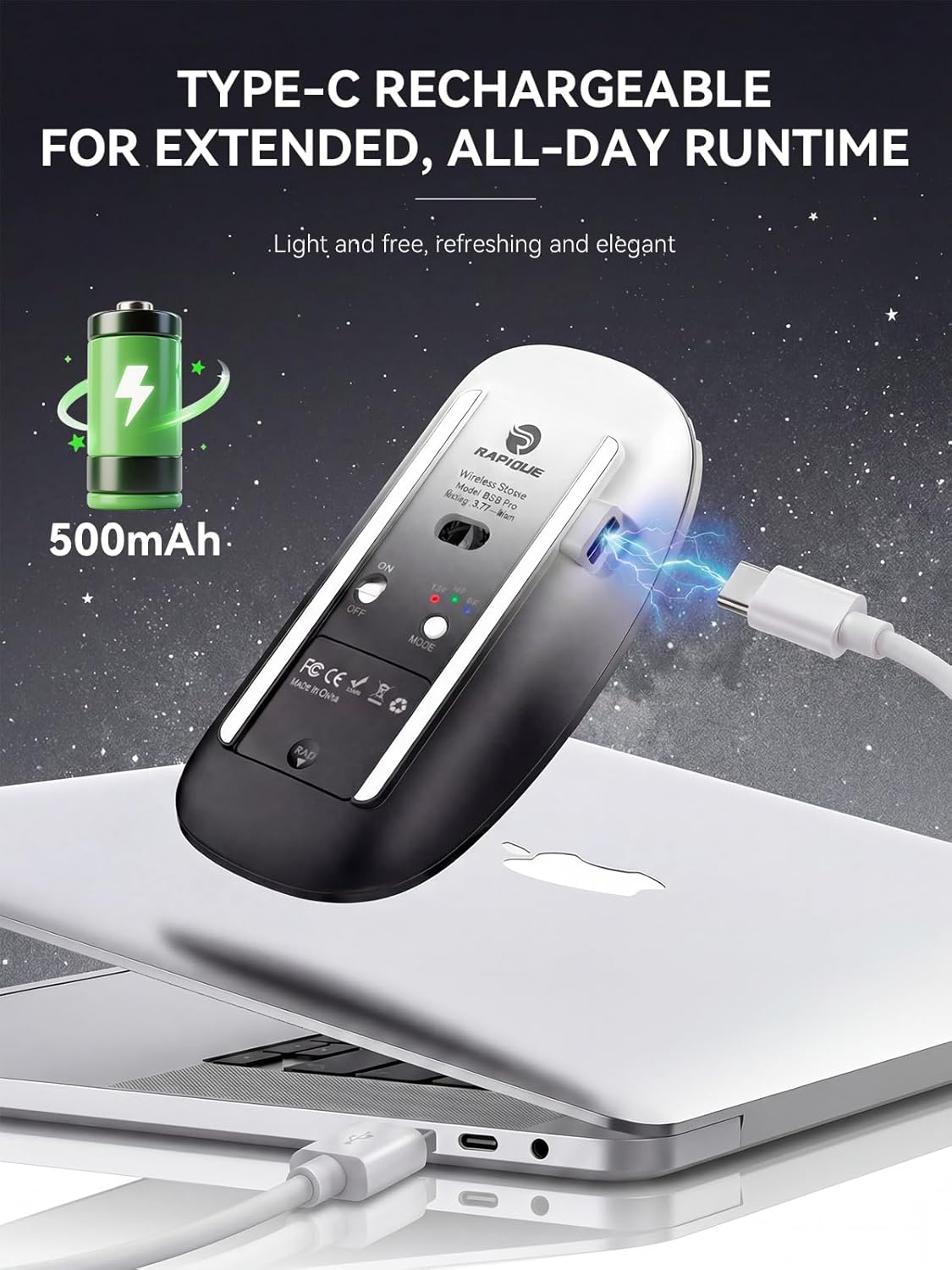
Image: The RAPIQUE R306 Pro Wireless Mouse connected to a laptop via its USB-C charging cable.
7. Compatibility
The RAPIQUE R306 Pro Wireless Mouse offers broad compatibility with various operating systems and devices.
- 2.4G Mode: Compatible with devices that have a standard USB-A port (e.g., laptops, desktop computers).
- Bluetooth Mode: Compatible with Bluetooth-enabled devices running Windows, Mac OS, iOS (13.0 or later), Android (4.3 or later), and Chrome OS.

Image: The RAPIQUE R306 Pro Wireless Mouse demonstrating compatibility with Windows, Mac OS, Linux, iOS, Android, and Chrome OS.
8. Maintenance
To ensure the longevity and optimal performance of your RAPIQUE R306 Pro Wireless Mouse, follow these maintenance guidelines:
- Cleaning: Use a soft, dry cloth to clean the mouse. Avoid using harsh chemicals or abrasive materials.
- Storage: When not in use, store the mouse in a cool, dry place. If traveling, ensure the USB receiver is securely stored in its compartment.
- Avoid Extreme Conditions: Do not expose the mouse to extreme temperatures, direct sunlight, or excessive moisture.
9. Troubleshooting
If you encounter issues with your RAPIQUE R306 Pro Wireless Mouse, refer to the following common troubleshooting steps:
- Mouse not responding: Ensure the mouse is turned ON and fully charged. Check the mode switch is set correctly (2.4G, BT1, or BT2). For 2.4G, ensure the USB receiver is properly plugged in. For Bluetooth, verify the mouse is paired and connected in your device's Bluetooth settings.
- Connection issues: Try re-pairing the Bluetooth connection or re-inserting the 2.4G USB receiver. Ensure your device's Bluetooth is enabled.
- Lag or erratic movement: Ensure the mouse is used on a clean, flat surface. Avoid using it on reflective or transparent surfaces. Check for interference from other wireless devices.
- Charging problems: Verify the USB-C cable is securely connected to both the mouse and the power source. Try a different USB-C cable or power adapter.
10. Specifications
| Feature | Detail |
|---|---|
| Model Number | R306 PRO |
| Connectivity Technology | Bluetooth 5.1, 2.4GHz Wireless |
| Movement Detection Technology | Optical |
| Special Features | Dual Bluetooth 5.1+2.4GHz Wireless, Ergonomic Design, Up to 3 devices, Lightweight, Rechargeable, Portable, Slim, Soundless |
| Charging Port | USB-C |
| Item Weight | 1.94 ounces (approx. 55g) |
| Package Dimensions | 4.69 x 3.03 x 1.34 inches |
| Batteries | 1 Nonstandard Battery (included) |
11. Warranty and Support
RAPIQUE products are designed and manufactured to the highest quality standards. For warranty information, technical support, or any inquiries regarding your R306 Pro Wireless Mouse, please refer to the contact information provided in the product packaging or visit the official RAPIQUE website.

