
1. Introduction
This manual provides comprehensive instructions for the Inateck Nomad N0158 Foldable Keyboard and Mouse Set. It covers product features, setup procedures, operational guidelines, maintenance tips, and troubleshooting information to ensure optimal performance and user experience. This set is designed for multi-device connectivity, supporting up to three devices simultaneously across various operating systems including Windows, macOS, Android, and iOS.
2. Package Contents
Verify that all items listed below are included in your package:
- Inateck Nomad N0158 Foldable Keyboard
- Wireless Mouse
- Accessory Bag (600D two-tone splash-proof RPET recycled material)
- Folding Stand (suitable for 4-13 inch iPads, smartphones, and tablets)
- USB-C Charging Cable
- User Manual
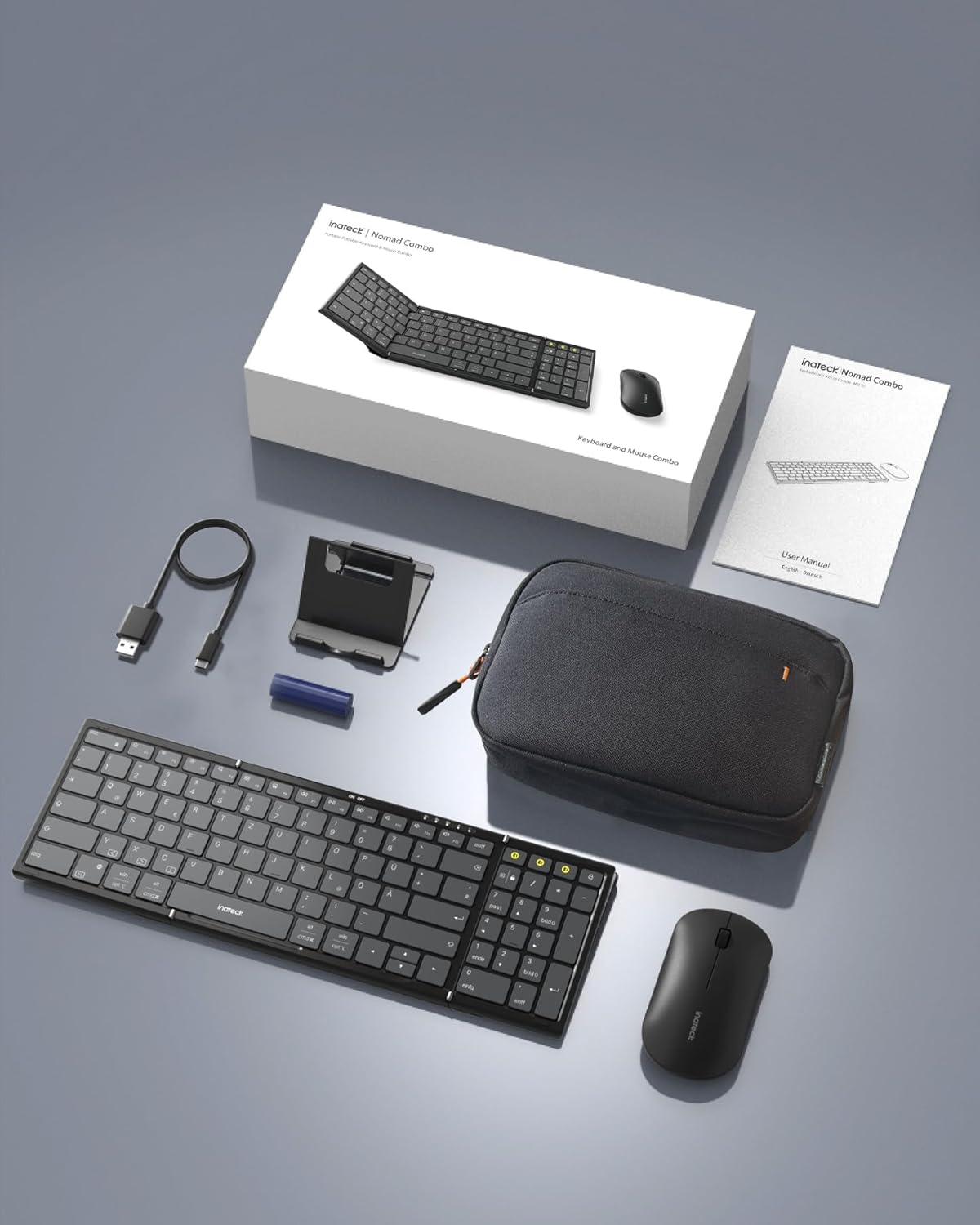
Image: All components included in the Inateck Nomad N0158 package: the foldable keyboard, wireless mouse, accessory bag, folding stand, and USB-C charging cable.
3. Product Overview
3.1 Keyboard Features
- Foldable Design: Compact for portability.
- Full-size Layout: 99 keys with a separate numeric keypad for efficient data entry and document editing.
- Multi-device Connectivity: Connects to up to 3 devices via 2.4G, Bluetooth 1 (BT1), and Bluetooth 2 (BT2).
- Long Battery Life: Over 90 hours of continuous use, up to 180 days standby. Rechargeable via Type-C port.
- Stable Hinge: Features a seamless metal hinge with magnetic locking for stability when unfolded.

Image: The Inateck Nomad N0158 keyboard unfolded, showcasing its full-size layout with six rows of main keys and a dedicated numeric keypad.

Image: A detailed view of the keyboard's seamless metal hinge and magnetic locking system, designed for stability when the keyboard is open.
3.2 Mouse Features
- Wireless Connectivity: Connects via 2.4G USB dongle and two Bluetooth channels (BT1, BT2).
- Long Battery Life: Over 50 hours of continuous operation, with extended standby time.
4. Setup Guide
4.1 Charging the Keyboard
- Locate the USB-C charging port on the keyboard.
- Connect the provided USB-C cable to the keyboard and a power source (e.g., computer USB port, USB wall adapter).
- The charging indicator light will illuminate. Once fully charged, the light will change or turn off.
The mouse typically uses a replaceable battery (often pre-installed with a pull tab) or may be rechargeable. Refer to the mouse's specific instructions for charging or battery installation.
4.2 Pairing the Keyboard and Mouse
The keyboard and mouse support multiple connection methods: 2.4G wireless (for mouse only, via USB dongle) and Bluetooth (BT1, BT2 for both keyboard and mouse).
4.2.1 2.4G Wireless Connection (Mouse Only)
- Locate the 2.4G USB dongle, usually stored within the mouse or accessory bag.
- Insert the USB dongle into an available USB port on your computer.
- Turn on the mouse. It should automatically connect to the dongle.
4.2.2 Bluetooth Connection (Keyboard and Mouse)
The keyboard and mouse each have two Bluetooth channels (BT1 and BT2) for connecting to different devices.
- Turn on the device: Ensure the keyboard and mouse are powered on.
- Select a Bluetooth Channel:
- For the keyboard, press the dedicated BT1 or BT2 button.
- For the mouse, switch to the desired Bluetooth mode (BT1 or BT2) using its mode switch.
- Activate Pairing Mode:
- For the keyboard, long press the selected BT1 or BT2 button until the indicator light flashes, indicating pairing mode.
- For the mouse, long press its Bluetooth pairing button (refer to mouse-specific instructions if not obvious) until its indicator light flashes.
- Enable Bluetooth on your device: On your computer, tablet, or smartphone, go to Bluetooth settings.
- Search for devices: Your device will scan for available Bluetooth devices.
- Select and Connect: Choose "Inateck Keyboard" and/or "Inateck Mouse" from the list of found devices. Follow any on-screen prompts to complete the pairing.

Image: Illustration of the keyboard and mouse connected to multiple devices (laptop, tablet, smartphone) via 2.4G, BT1, and BT2 channels. Short press to switch channels, long press to activate pairing mode.
5. Operating Instructions
5.1 Switching Between Connected Devices
Once paired with multiple devices, you can easily switch between them:
- Keyboard: Short press the BT1 or BT2 button to switch to the corresponding paired device.
- Mouse: Use the mode switch on the mouse to select between 2.4G, BT1, or BT2.
5.2 Using the Folding Stand
The included folding stand is designed to hold 4-13 inch iPads, smartphones, and tablets, providing an ergonomic viewing angle while using the keyboard. Ensure the stand is placed on a stable, flat surface.
5.3 Keyboard Usage Notes
- Stable Surface: Always place the keyboard on a flat, stable surface. The folding hinge is not designed to lock, and typing on uneven surfaces may cause instability.
- Keyboard Layout: The keyboard features a QWERTZ layout. Ensure your device's operating system is configured to match this layout for correct character input.
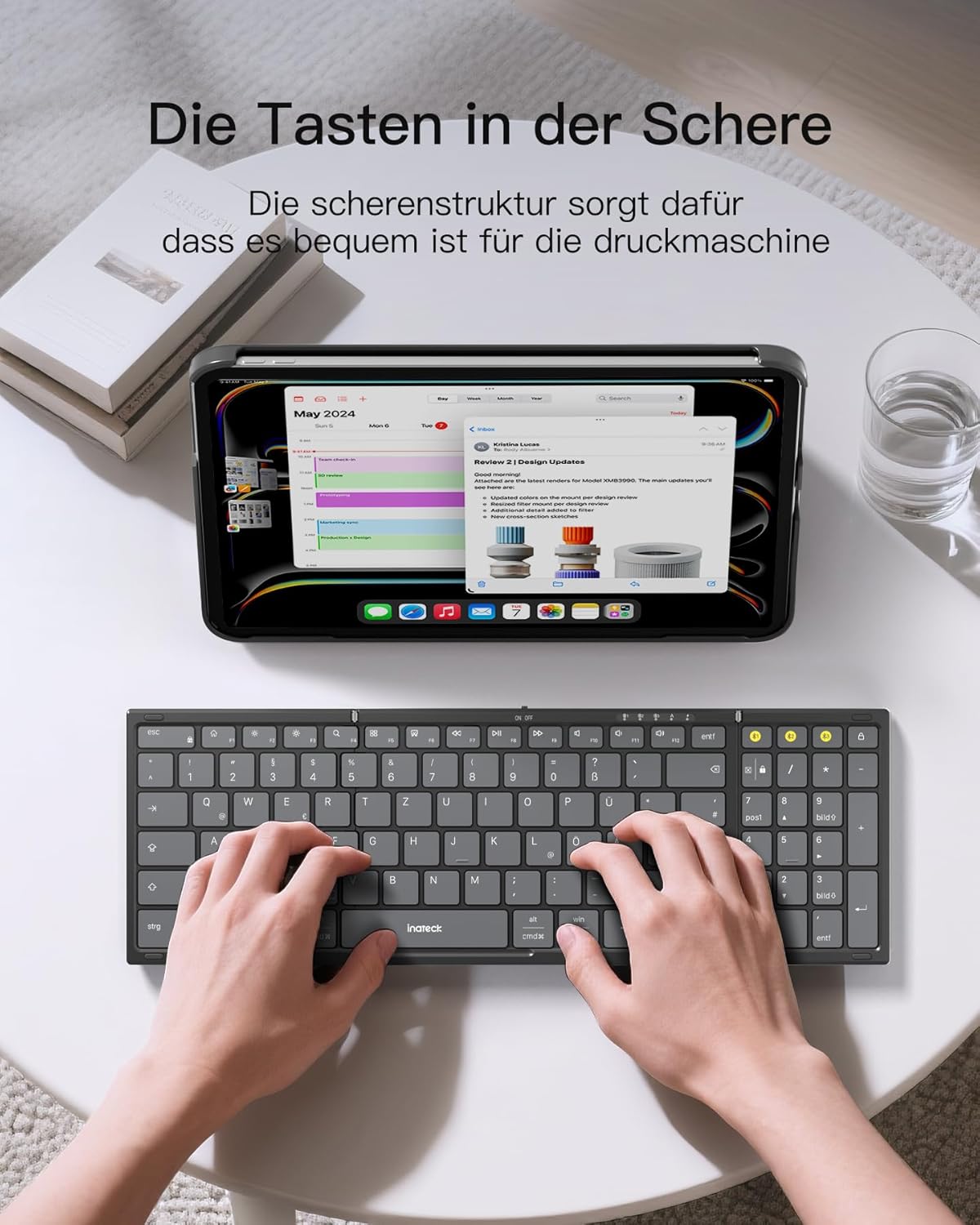
Image: A user demonstrating typing on the Inateck Nomad N0158 foldable keyboard, with a tablet positioned on the included stand for an optimal workspace setup.
6. Maintenance
6.1 Cleaning
- Use a soft, dry, lint-free cloth to clean the keyboard and mouse surfaces.
- For stubborn dirt, slightly dampen the cloth with water or a mild, non-abrasive cleaner. Avoid excessive moisture.
- Do not use harsh chemicals, solvents, or abrasive materials, as these can damage the product finish.
6.2 Storage
- When not in use, fold the keyboard and store it along with the mouse and stand in the provided accessory bag.
- Store the product in a cool, dry place away from direct sunlight and extreme temperatures.
- The accessory bag is made from splash-proof material, offering protection during travel.
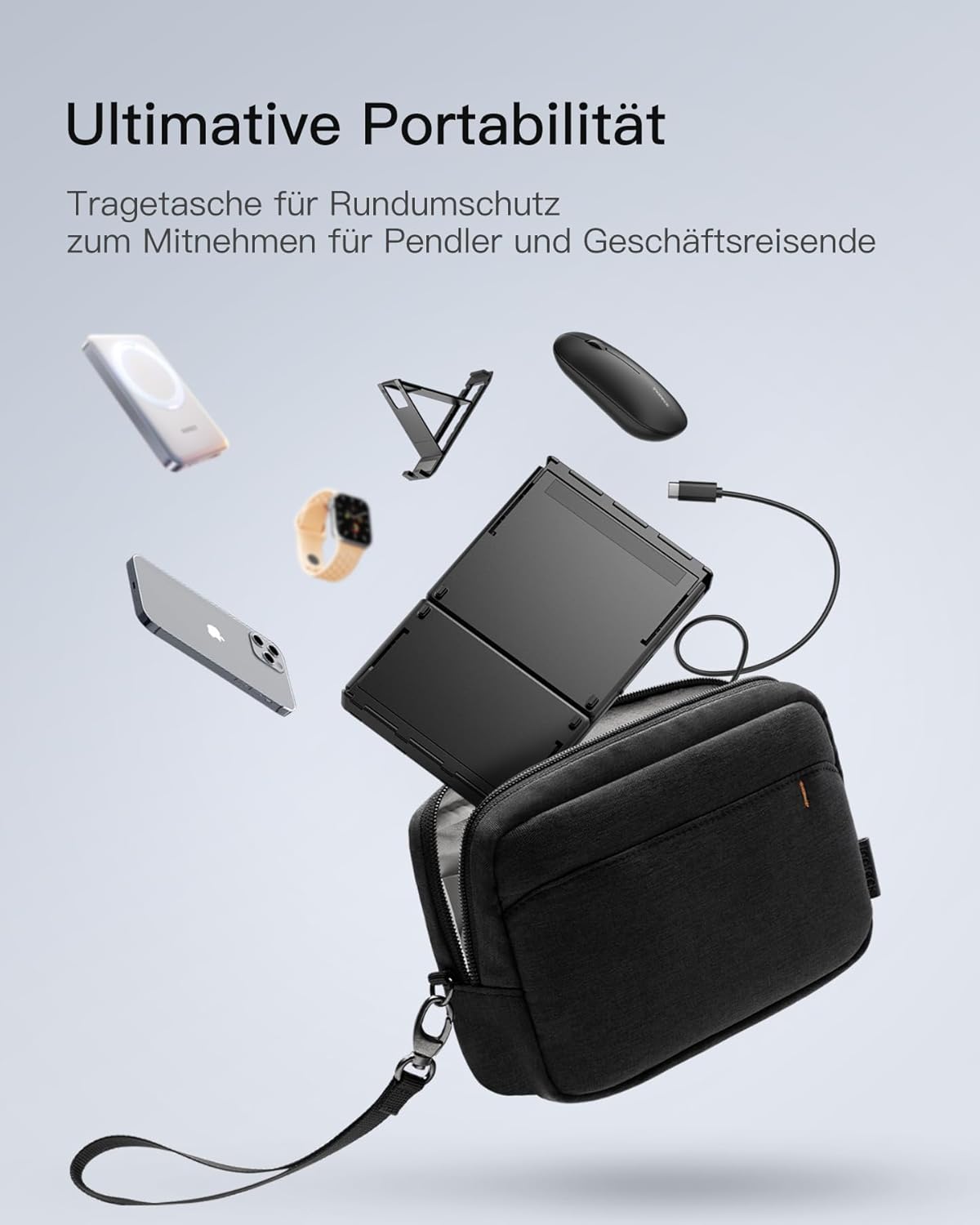
Image: The Inateck Nomad N0158 accessory bag, designed for ultimate portability and protection of the keyboard, mouse, and folding stand during transport.
6.3 Battery Care
- Recharge the keyboard regularly to maintain battery health, even if not used frequently.
- Avoid fully discharging the battery for extended periods.
- If the mouse uses replaceable batteries, ensure they are inserted correctly and replace them when power is low.
7. Troubleshooting
7.1 Connectivity Issues
- Device Not Connecting:
- Ensure the keyboard/mouse is charged and powered on.
- Verify that the correct Bluetooth channel (BT1/BT2) is selected and in pairing mode (flashing indicator).
- On your device, turn Bluetooth off and then on again.
- Remove any previous pairings for the keyboard/mouse from your device's Bluetooth settings and attempt to pair again.
- For 2.4G mouse connection, ensure the USB dongle is securely inserted and the mouse is in 2.4G mode.
- Intermittent Connection:
- Ensure there are no obstructions between the keyboard/mouse and your device.
- Move closer to your device to rule out range issues.
- Check for interference from other wireless devices.
7.2 Incorrect Keyboard Output (e.g., 'Y' appears instead of 'Z')
This issue typically occurs when the device's operating system keyboard layout does not match the physical QWERTZ layout of the Inateck keyboard. To resolve this, adjust your device's keyboard language settings:
For Windows/Android/macOS/iOS:
- Go to your device's Settings.
- Navigate to Language & Input or similar (e.g., "Other settings > Language and input methods" on Android).
- Find Physical Keyboard or Hardware Keyboard settings.
- Select the "Nomad" or "Inateck Keyboard" entry.
- Set the keyboard layout to German (QWERTZ).
7.3 Keyboard Instability
The keyboard's folding hinge does not lock. For stable typing, always ensure the keyboard is placed on a completely flat and firm surface. Avoid using it on uneven surfaces like a lap, bed, or soft cushions, as this can cause the keyboard to fold unexpectedly.
8. Specifications
| Brand | Inateck |
| Model | N0158 |
| Connectivity Technology | Bluetooth, 2.4G Wireless (Mouse) |
| Special Features | 3 Bluetooth Channels, Ergonomic (design) |
| Compatible Devices | Laptop, Personal Computer, Smartphone (iPad, iPhone, Mac, Android, Windows) |
| Keyboard Description | Foldable keyboard mouse set wireless |
| Recommended Product Uses | Office, Travel |
| Keyboard Layout | QWERTZ |
| Power Source | Battery Powered (Rechargeable via USB-C for keyboard) |
| Keyboard Battery Life | 90+ hours continuous use, 180 days standby |
| Mouse Battery Life | 50+ hours continuous use, extended standby |
| Product Dimensions (Unfolded) | 40.54 x 11.49 x 3 cm |
| Product Weight | 756 g |

Image: Visual representation of the Inateck Nomad N0158 keyboard's dimensions when folded (18.4 cm) and unfolded (34.2 cm x 11.5 cm), alongside a tablet (27.9 cm) and smartphone (14.6 cm) for scale.
9. Warranty and Support
Inateck products are designed for reliability and performance. For warranty information, technical support, or customer service inquiries, please refer to the official Inateck website or contact their customer support directly. Keep your purchase receipt for warranty claims.
Official Website: www.inateck.com