
Introduction
Welcome to the user manual for your new Auusda 14.1'' FHD Laptop. This guide provides essential information for setting up, operating, maintaining, and troubleshooting your device. Please read this manual thoroughly to ensure optimal performance and longevity of your laptop.
Product Overview
The Auusda 14.1'' FHD Laptop (Model A146G) is a lightweight and efficient notebook designed for everyday computing tasks, including work, study, and entertainment. It features a Celeron J4125 Quad-Core processor, 8GB of RAM, and a 256GB SSD for responsive performance.
Package Contents
- Auusda 14.1'' FHD Laptop
- Power Adapter/Charger
- User Manual
- Keyboard Membrane (may include multiple language options)

Image: Front view of the Auusda 14.1 inch FHD Laptop, displaying its screen with specifications overlay including 14.1" size, 1080p Full HD, J4125 processor, 8GB RAM, and 256GB SSD.
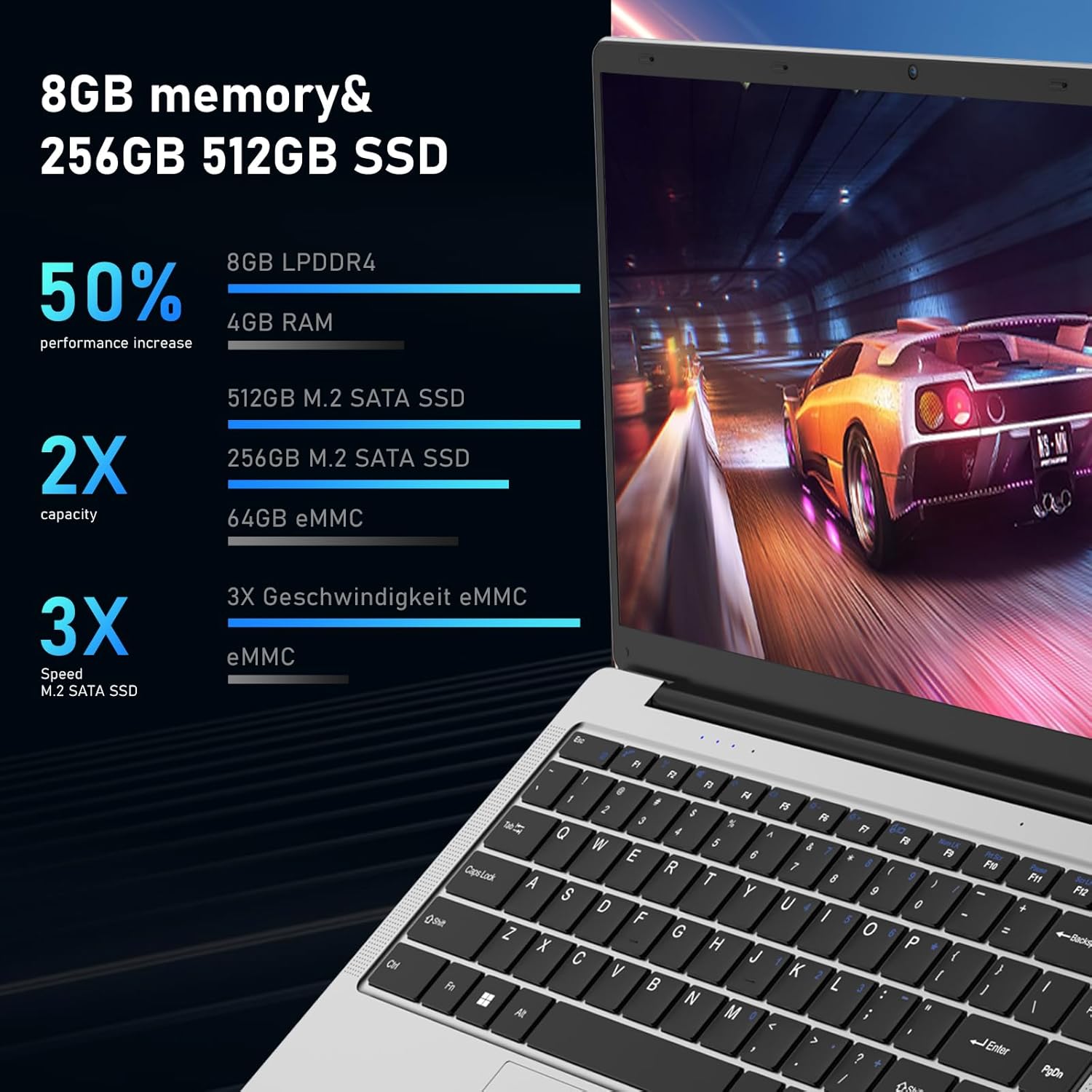
Image: A direct front view of the Auusda laptop, showcasing its keyboard and touchpad.

Image: The back view of the Auusda laptop, showing the hinge and the rear chassis design.
Components and Ports
Familiarize yourself with the various components and ports on your laptop.

Image: An overhead diagram of the laptop's sides, labeling the USB-A 2.0, Headphone Jack, Micro SD Card Slot, Charging Port, USB-A 3.0, and Mini HDMI ports.
- USB-A 2.0 Port: For connecting USB devices such as mice, keyboards, or external storage.
- Headphone Jack: For connecting headphones or external speakers.
- Micro SD Card Slot: For expanding storage or transferring data from Micro SD cards.
- Charging Port: For connecting the power adapter to charge the laptop.
- USB-A 3.0 Port: For connecting high-speed USB 3.0 devices.
- Mini HDMI Port: For connecting to external displays or projectors.

Image: Close-up images of both sides of the laptop, detailing the location of the 3.5 mm DC charging port, USB 3.0, Mini HDMI, 3.5 mm headphone jack, and Micro SD slot.
Setup
Initial Charging
Before first use, fully charge your laptop.
- Connect the power adapter to the charging port on the laptop.
- Plug the power adapter into a power outlet.
- The charging indicator light will illuminate. Allow the laptop to charge until the indicator shows a full charge.
First-Time Power On
- Open the laptop lid.
- Press the power button located on the keyboard.
- Follow the on-screen instructions to complete the Windows 11 Pro setup process, including language selection, network connection, and user account creation.
Operating Instructions
Basic Operation
- Power On/Off: Press the power button to turn on. To shut down, click the Start button, then Power, and select "Shut down".
- Sleep Mode: Close the lid or press the power button briefly to enter sleep mode.
- Touchpad Usage: Use the touchpad for navigation. Tap to click, two-finger tap for right-click, and two-finger scroll for scrolling.
- Keyboard: The laptop features a full-sized keyboard. Function keys (F1-F12) can be accessed by pressing the Fn key in combination with the desired function key.
Connecting to Wi-Fi
- Click the Wi-Fi icon in the taskbar.
- Select your desired network from the list.
- Enter the network password if prompted, then click "Connect".

Image: A visual representation of the laptop's wireless capabilities, showing icons for 2.4G+5G Wi-Fi and Bluetooth 5.1, along with an indication of two speakers.
Connecting Bluetooth Devices
- Go to Settings > Bluetooth & devices.
- Ensure Bluetooth is turned On.
- Select Add device and choose Bluetooth.
- Select your device from the list and follow the pairing instructions.
Using External Displays (Mini HDMI)
- Connect one end of a Mini HDMI cable to the laptop's Mini HDMI port.
- Connect the other end to the HDMI input of your external display.
- Press Windows key + P to open the Project menu and select your desired display mode (e.g., Duplicate, Extend, Second screen only).
Maintenance
Cleaning
- Use a soft, lint-free cloth to clean the screen and chassis.
- For stubborn marks, dampen the cloth slightly with water or a screen cleaner.
- Avoid using harsh chemicals or abrasive materials.
Battery Care
- To prolong battery life, avoid fully discharging the battery frequently.
- Store the laptop in a cool, dry place when not in use for extended periods.
- If storing for a long time, charge the battery to about 50-60% before storage.
Software Updates
Regularly update your Windows operating system and drivers to ensure optimal performance and security.
- Go to Settings > Windows Update.
- Click Check for updates and install any available updates.
Storage Management
Periodically clean up unnecessary files to free up storage space and improve performance.

Image: An image illustrating the laptop's support for TF card and M.2 2280 SSD expansion, including a view of the laptop's bottom panel.

Image: A screenshot of the laptop's display showing a file explorer window, accompanied by text indicating the potential for storage upgrades.
Troubleshooting
Common Issues and Solutions
| Problem | Possible Cause / Solution |
|---|---|
| Laptop does not power on. |
|
| Screen is blank or black. |
|
| Wi-Fi connection issues. |
|
| Slow performance. |
|
Specifications
Detailed technical specifications for the Auusda 14.1'' FHD Laptop (Model A146G).

Image: A graphic detailing the Celeron J4125 processor, its 2.7 GHz maximum clock speed, and integrated UHD 600 graphics.

Image: A visual representation of the laptop's 14.1-inch IPS screen, highlighting its 1920x1080 resolution, 178-degree viewing angle, and 180-degree hinge flexibility.
| Feature | Detail |
|---|---|
| Model Name | A146G (Series T141J) |
| Display | 14.1 Inches FHD (1920x1080) IPS Display |
| Processor | Intel Celeron J4125 Quad-Core (up to 2.7 GHz) |
| RAM | 8GB DDR4 |
| Storage | 256GB SSD (M.2 2280) |
| Graphics | Integrated Intel UHD Graphics 600 |
| Operating System | Windows 11 Pro |
| Ports | 2x USB 3.0, 1x Mini HDMI, 1x Micro SD Card Slot, 1x 3.5mm Headphone Jack, 1x DC Charging Port |
| Wireless Connectivity | Dual-Band Wi-Fi (2.4G+5G), Bluetooth 5.1 |
| Webcam | Yes |
| Audio | Two Stereo Speakers, HD Audio |
| Battery | 31920mWh (1x 9V battery included) |
| Dimensions (LxWxH) | 12.6 x 8.3 x 0.7 inches |
| Weight | 2.9 lb (1.3 kg) / 3.99 pounds (product data) |
| Color | Silver |
Warranty and Support
Warranty Information
Your Auusda laptop comes with a 2-year warranty. During this 24-month warranty period, Auusda will provide free repair or return/exchange services for the computer.
Customer Support
For any questions, technical assistance, or warranty claims, please contact Auusda customer support.
- Email Support: Send your order number and a video of the problem to Auusda.ltd@gmail.com
- Amazon Support: Log in to your Amazon account, navigate to "Your Orders", and select "Ask questions" for your purchase.

Image: A graphic outlining the available after-sale service channels, including Amazon's order support and direct email contact, along with warranty duration.


