
BRIMFORD AX-K03-VT
BRIMFORD Programmable Macro Keyboard User Manual
Model: AX-K03-VT
1. Introduction
Thank you for purchasing the BRIMFORD Programmable Macro Keyboard. This versatile device is designed to enhance your productivity and gaming experience by allowing extensive customization of keys and knobs. It supports multiple connection modes and is compatible with various operating systems. Please read this manual carefully to understand the features and proper operation of your new macro keyboard.
2. Package Contents
Please check the package for the following items:
- BRIMFORD Programmable Macro Keyboard (16 Keys, 3 Knobs)
- USB Type-C Cable
- 2.4G Wireless Dongle
- Anti-slip Rubber Rings (for product bottom)
- User Manual (this document)

Image: The BRIMFORD Programmable Macro Keyboard, showing the 16 keys, 3 knobs, included USB Type-C cable, and 2.4G wireless dongle.
3. Product Overview
The BRIMFORD Macro Keyboard features 16 programmable keys and 3 multi-functional knobs, designed for intuitive control and customization.

Image: Top-down view of the BRIMFORD Macro Keyboard with approximate dimensions: 10.2cm width, 13.4cm length.
Key Features:
- 16 Programmable Keys: Assign single keys, key combinations, text strings (up to 18 characters), or multimedia functions.
- 3 Multi-functional Knobs: Control volume, zoom, or other assigned functions.
- Red Mechanical Switches: Linear key feel, light press, no click sound, durable for 50 million keystrokes.
- RGB Illumination: Customizable backlighting with various modes via software.
- Hot-Swappable: Easily replace 3-pin switches for personalized feel.
- 3-Layer Functionality: Configure different functions across three layers for expanded control.

Image: A close-up view of a red mechanical switch on the keyboard, highlighting its linear design and clear housing.

Image: A close-up view of the three rotary knobs on the keyboard, indicating their role in 3-layer function settings.
4. Setup
4.1 Initial Preparation
- Unpack the keyboard and all accessories.
- Locate the screw parts on the bottom of the keyboard. Attach the included anti-slip rubber rings to these areas for stability.
4.2 Software Installation
To fully customize your macro keyboard, you need to install the dedicated software. The software is compatible with Windows and Mac OS. For Android and iOS devices, you must configure the functions on a Windows system first, as there is no dedicated software for these mobile platforms.
Download the software from the following link: https://drive.google.com/drive/folders/120lUakVNI6wecTwqLFGKvqhhLnb_QmZq
Note: When using the software, please ensure the keyboard is connected via wired connection.

Image: Screenshot of the customization software interface, showing options for key assignment and function settings. The software allows for detailed configuration of the keyboard's capabilities.
5. Connection Modes
The BRIMFORD Macro Keyboard supports three connection methods: Wired (Type-C), Bluetooth, and 2.4G Wireless.

Image: The macro keyboard positioned next to a laptop, demonstrating its compatibility with various devices and connection types.
5.1 Wired Connection (Type-C)
- Connect the provided USB Type-C cable to the keyboard and your computer's USB port.
- The keyboard will automatically switch to wired mode. This mode is recommended for initial setup and software configuration.
5.2 Bluetooth Connection
- Ensure the USB cable is disconnected from the keyboard.
- Locate the slide switch on the keyboard and turn it to the "ON" position.
- On your device (PC, laptop, tablet, smartphone), enable Bluetooth.
- Search for available Bluetooth devices and select "MINI_KEYBOARD" to pair.
5.3 2.4G Wireless Connection
- Ensure the USB cable is disconnected from the keyboard.
- Insert the 2.4G wireless dongle into an available USB port on your device.
- Locate the slide switch on the keyboard and turn it to the "ON" position.
- Wait a few seconds for the keyboard to automatically connect to the dongle.
6. Customization and Programming
The BRIMFORD Macro Keyboard offers extensive customization options through its dedicated software. You can assign various functions to each of the 16 keys and 3 knobs.
6.1 Key and Knob Assignment
- Single Key Functions: Assign any standard key press.
- Key Combinations: Program complex shortcuts like Ctrl+C, Ctrl+V, or Alt+Shift+Ctrl+S.
- Text Input: Store and input text strings up to 18 characters with a single key press (e.g., passwords, frequently used phrases).
- Multimedia Control: Assign functions like play/pause, previous track, next track, volume up/down to keys or knobs.
- Mouse Operations: Control mouse movements or clicks.
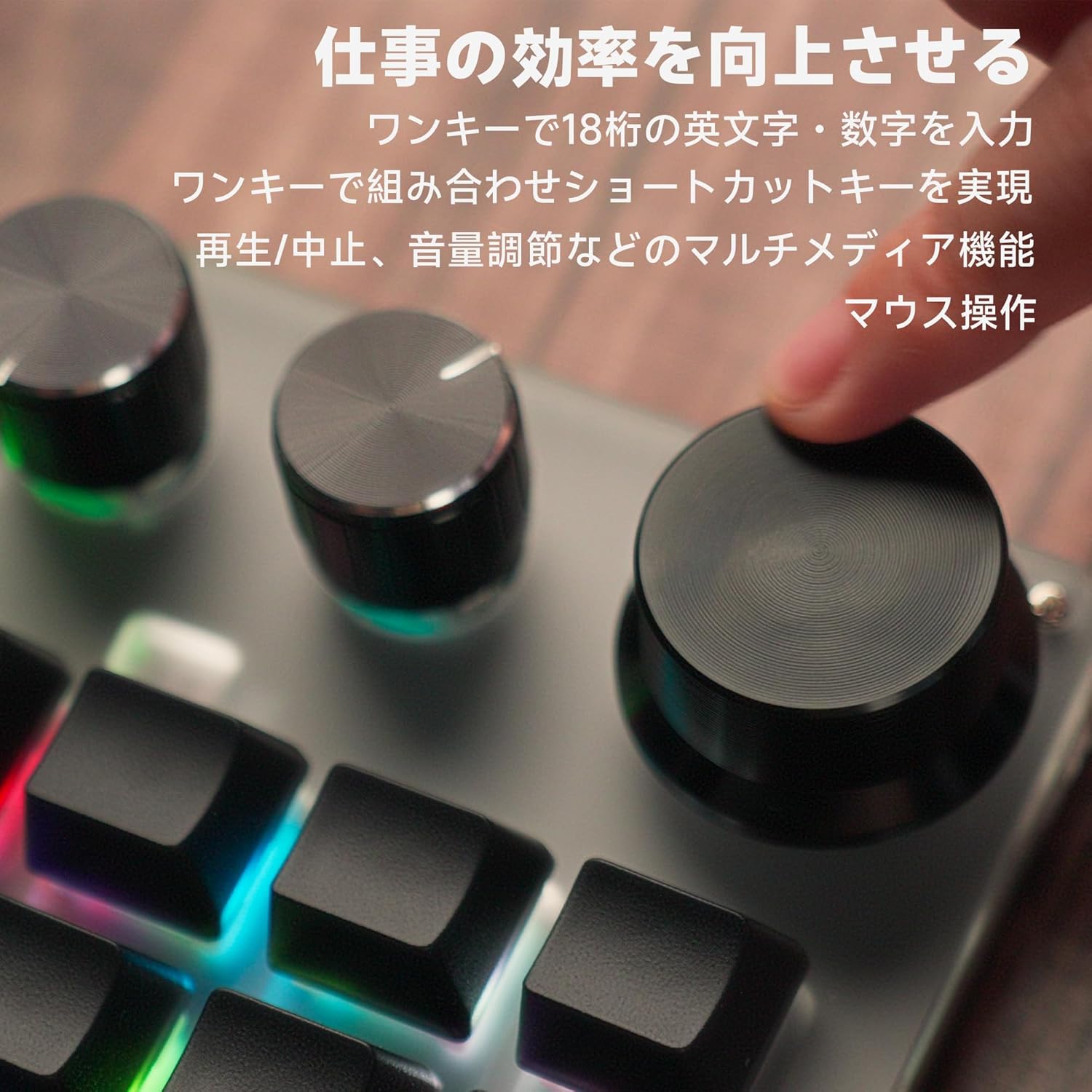
Image: A hand adjusting one of the knobs on the macro keyboard, illustrating its ease of use for functions like volume control or zooming.
6.2 3-Layer Functionality
The keyboard supports 3 distinct layers of functions. After configuring different functions for each layer using the software, you can switch between layers by pressing the designated layer switch button (configurable in software) to access different sets of commands.
6.3 RGB Illumination
The keyboard features customizable RGB backlighting. Using the software, you can switch between various lighting modes or turn off the illumination entirely. Note that RGB lighting is only active when the keyboard is connected via wired mode.

Image: The macro keyboard displaying its RGB illumination, showcasing the customizable lighting effects.
7. Operating Tips
- For optimal performance and to prevent hand fatigue during long sessions, utilize the programmable features to simplify complex tasks.
- The red mechanical switches provide a light and smooth typing experience, suitable for both gaming and professional work.
- Experiment with different key assignments and layers to find the most efficient setup for your workflow.

Image: A user's finger pressing a key on the macro keyboard, illustrating the comfortable and effortless input experience provided by the red mechanical switches.
8. Maintenance
- Keep the keyboard clean by regularly wiping it with a soft, dry cloth.
- Avoid exposing the keyboard to excessive moisture or extreme temperatures.
- Do not use harsh chemicals or abrasive cleaners on the keyboard.
- If you need to replace switches, use a switch puller tool (not included) and ensure the new switches are 3-pin compatible.
9. Troubleshooting
| Problem | Possible Cause | Solution |
|---|---|---|
| Keyboard not responding. | Loose connection, low battery (wireless), incorrect mode. |
|
| Custom functions not working. | Software not configured, incorrect layer selected, software not running. |
|
| RGB lighting not working. | Not in wired mode, lighting turned off in software. |
|
| Cannot connect via Bluetooth/2.4G. | Pairing issue, dongle not recognized, interference. |
|
If you encounter any issues not listed here or require further assistance, please contact our customer support.
10. Specifications
| Feature | Detail |
|---|---|
| Brand | BRIMFORD |
| Model Number | AX-K03-VT |
| Keys | 16 Programmable Keys |
| Knobs | 3 Multi-functional Knobs |
| Switch Type | Red Mechanical Switches (Linear) |
| Switch Durability | 50 Million Keystrokes |
| Connectivity | USB Type-C Wired, Bluetooth, 2.4G Wireless |
| Compatibility | Windows, Mac OS, Android, iOS (software for Windows/Mac only) |
| Illumination | RGB Backlighting (configurable via software, wired mode only) |
| Dimensions | Approx. 5 x 4 x 2 cm (Package Size); Product Weight: 100 g |
| Hot-Swappable | Yes, 3-pin switches |
11. Warranty and Support
BRIMFORD is committed to providing high-quality products. If you have any questions or concerns regarding your macro keyboard, please do not hesitate to contact our customer support team. We are dedicated to providing sincere assistance.
For support, please refer to the contact information provided with your purchase or visit the BRIMFORD official website.
Ask a question about this manual
Ask about setup, troubleshooting, compatibility, parts, safety, or missing instructions. Manuals+ will review the question and use this page’s manual context to help answer it.