
Product Overview
The ONIKUMA GAMING MT706 is a 75% compact wireless gasket mechanical keyboard designed for gaming and typing. It features a five-layer sound-absorbing padding for a quiet experience, tri-mode connectivity (Bluetooth, 2.4G wireless, USB-C wired), hot-swappable keys, factory-lubed switches, a multi-function knob, and 16.8M RGB lighting.
This manual provides detailed instructions for setting up, operating, and maintaining your keyboard to ensure optimal performance and longevity.
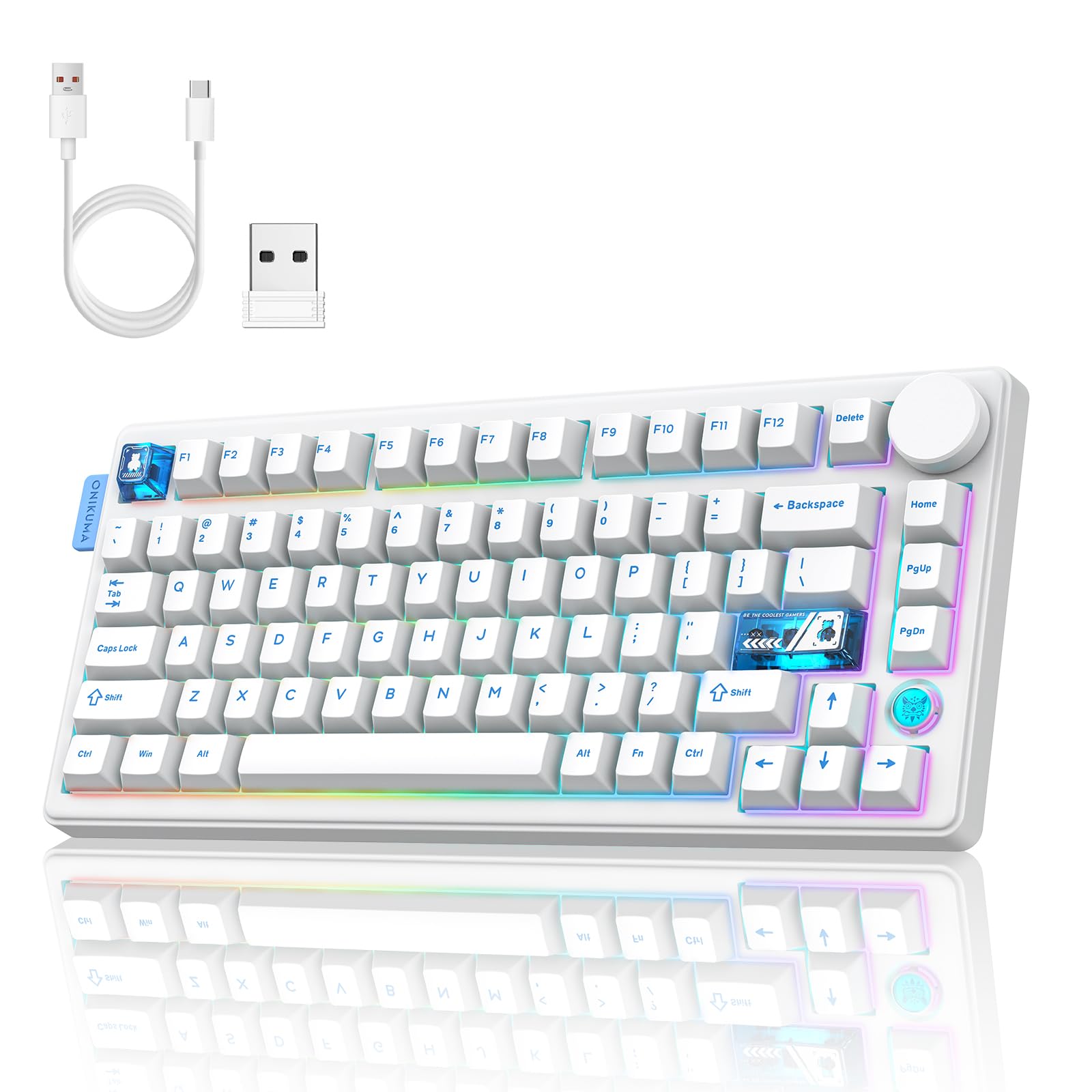
Image: The ONIKUMA GAMING MT706 keyboard in white, showcasing its 75% layout, RGB backlighting, and multi-function knob.
Setup and Connectivity
Your MT706 keyboard offers three versatile connection modes: 2.4G Wireless, Bluetooth, and USB-C Wired. Choose the mode that best suits your device and usage scenario.
1. 2.4G Wireless Connection
- Locate the 2.4G wireless receiver (dongle) stored in the keyboard's bottom compartment.
- Plug the 2.4G receiver into an available USB port on your computer or device.
- On the keyboard, switch the mode selector to "2.4G". The keyboard will automatically connect to the receiver.

Image: The keyboard connected to a laptop, PC, and tablet via 2.4G wireless, USB-C wired, and Bluetooth modes, respectively. This illustrates the tri-mode connectivity options.
2. Bluetooth Connection
- On the keyboard, switch the mode selector to "BT" (Bluetooth).
- Press and hold the FN + W, FN + E, or FN + R keys for 3-5 seconds to enter pairing mode. The indicator light on the corresponding key (W, E, or R) will flash rapidly.
- On your device (PC, tablet, phone), open Bluetooth settings and search for "ONIKUMA GAMING MT706" (or similar).
- Select the keyboard to pair. Once connected, the indicator light will stop flashing.
- You can pair up to three Bluetooth devices using FN + W (BT1), FN + E (BT2), and FN + R (BT3). Switch between paired devices by pressing FN + W/E/R briefly.
3. USB-C Wired Connection
- Connect the provided USB-C cable to the keyboard's USB-C port.
- Plug the other end of the cable into an available USB port on your computer or device.
- The keyboard will automatically switch to wired mode.
Operating Instructions
Multi-Function Knob
The integrated knob on the top right of the keyboard provides quick control over volume and lighting.
- Rotate Left: Decrease volume.
- Rotate Right: Increase volume.
- Press Down: Mute/Unmute audio.

Image: A close-up of the multi-function knob on the keyboard, illustrating its rotation for volume control and press function for mute/unmute.
RGB Backlighting Control
The keyboard features 16.8M RGB lighting with various effects. Use the following key combinations to adjust the lighting:
- FN + \ |: Keyboard backlight color switch.
- FN + Enter: Keyboard backlight effect switch.
- FN + Shift_R: Keyboard LOGO effect switch.
- FN + T: Keyboard backlight switch (On/Off).
- FN + →: Light speed increase.
- FN + ←: Light speed decrease.
- FN + ↑: Light brightness increase.
- FN + ↓: Light brightness decrease.
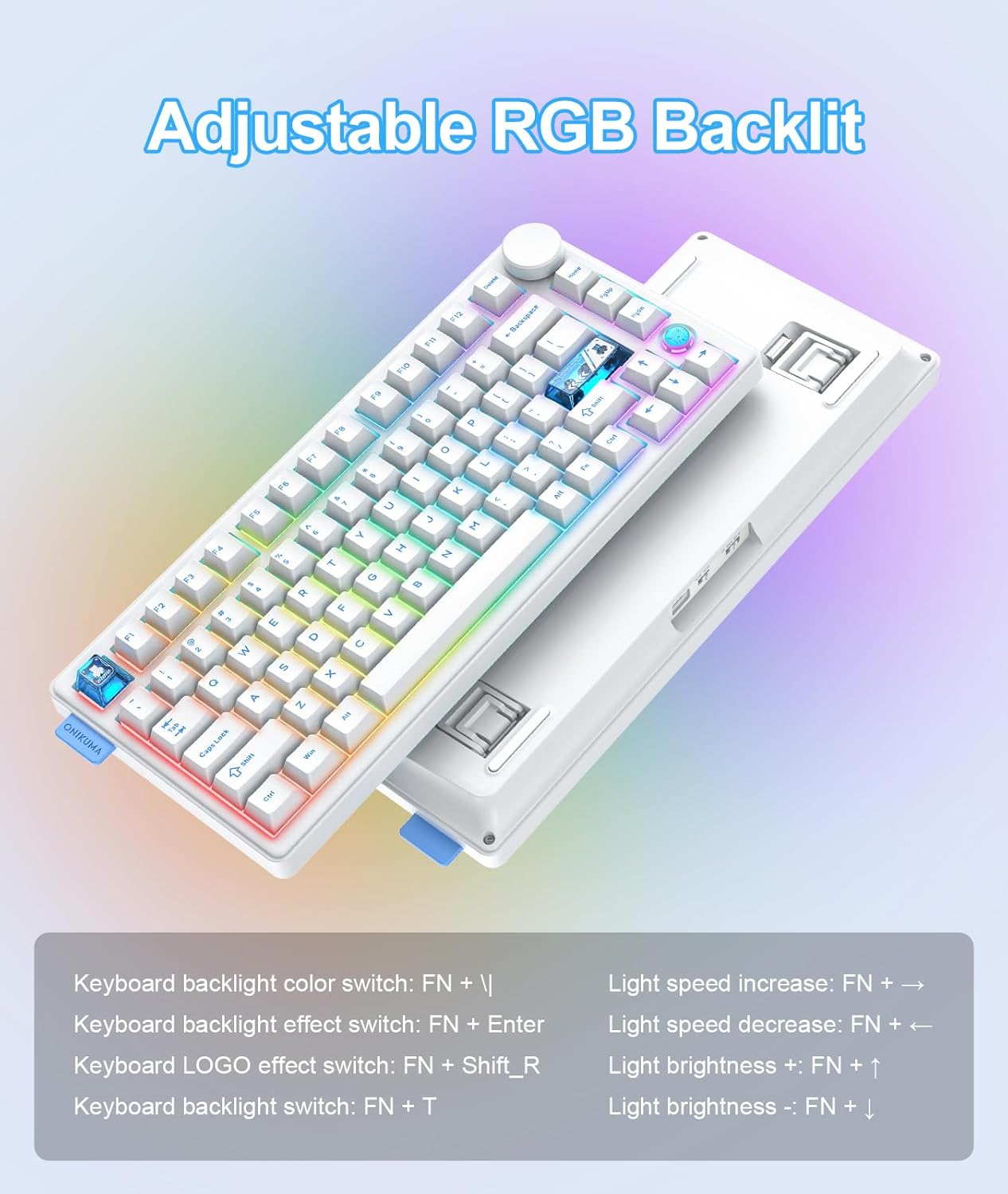
Image: The keyboard displaying various RGB lighting effects, with a legend detailing key combinations for controlling color, effect, speed, and brightness.
Battery Level Display
Press FN + Backspace to display the current battery level on the screen. The indicator will show red for less than 30%, yellow for less than 50%, and green for more than 50% charge.
Customization and Features
Hot-Swappable Keys
The MT706 keyboard features hot-swappable sockets, allowing you to easily change switches without soldering. This enables customization of your typing feel and sound.

Image: A close-up of the keyboard with several keycaps and switches removed, demonstrating the hot-swappable design. A switch puller tool is also visible.
Gasket Structure and Sound Dampening
The innovative gasket design with high-density padding and five-layer sound-absorbing materials (PORON/IXPE/PET/SILICONE) provides a soft, stable, and quiet typing experience, reducing cavity and typing noise.

Image: An exploded view diagram illustrating the internal layers of the keyboard, including the keycap, top cover, switch body, slot PC positioning plate, PO sound-absorbing cotton, gasket structure, IXPE switch pad, PET sound pad, PO base cotton, silicone base pad, and case bottom.
PBT Keycaps
The keyboard is equipped with durable PBT keycaps, which are resistant to wear, shine, and oil, ensuring longevity and a consistent feel.
Adjustable Keyboard Stand
The keyboard features a 2-stage adjustable stand on the back, allowing you to set the typing angle for improved ergonomics and comfort.
Maintenance
- Keep the keyboard clean by regularly wiping it with a soft, dry cloth.
- Avoid spilling liquids on the keyboard. If spills occur, disconnect immediately and allow to dry completely before reuse.
- Store the keyboard in a cool, dry place away from direct sunlight and extreme temperatures.
- Charge the battery regularly to maintain its health, especially if not used for extended periods.
Troubleshooting
- Connectivity Issues: Ensure the keyboard is in the correct mode (2.4G, BT, or Wired). For Bluetooth, ensure the device is in pairing mode and visible. For 2.4G, ensure the dongle is securely plugged in.
- Keys Not Responding: Check if the keyboard is powered on and charged. If using wireless, ensure it's connected. If a specific key is not working, it might be a faulty switch; utilize the hot-swappable feature to replace it.
- RGB Lighting Problems: Use the FN key combinations to adjust brightness, speed, and effects. Ensure the keyboard is not in a low power state.
- Battery Draining Quickly: Reduce RGB brightness or turn off lighting when not needed. Adjust the sleep time settings if available through software.
Specifications
| Feature | Detail |
|---|---|
| Brand | ONIKUMA GAMING |
| Model Name | MT706 |
| Connectivity Technology | 2.4G Wireless, Bluetooth, USB-C |
| Keyboard Description | Mechanical |
| Special Feature | Backlit (RGB) |
| Color | White |
| Material | Metal, Plastic, Polybutylene Terephthalate, Rubber, Silicone |
| Power Source | Battery Powered (4000mAh) |
| Switch Type | Mechanical (Pre-lubed Linear) |
| Compatible Devices | Laptop, PC, Tablet |
| Item Weight | 2.44 pounds |
| Package Dimensions | 15 x 7.24 x 2.24 inches |
Official Product Videos
ONIKUMA GAMING Keyboard Review
Video: A detailed review of the ONIKUMA GAMING Keyboard, showcasing its features and performance. This video is provided by a seller.
This Wireless Gaming Mechanical Keyboard Is Incredible
Video: An in-depth look at the wireless gaming mechanical keyboard, highlighting its incredible features and user experience. This video is provided by a seller.
New Wireless Gaming Keyboard
Video: A presentation of the new wireless gaming keyboard, demonstrating its design and functionality. This video is provided by a seller.
Check Out This Wireless Gaming Keyboard!
Video: A quick overview of the wireless gaming keyboard, showcasing its key features and appeal. This video is provided by a seller.
Compact Mechanical Keyboard for Pro Gaming
Video: A demonstration of the compact mechanical keyboard, highlighting its suitability for professional gaming. This video is provided by a seller.