
Introduction
This manual provides detailed instructions for the installation, operation, and maintenance of your ChangM Smart Recessed Lighting. This 4-inch RGBCW LED downlight features color-changing capabilities, dimming, and smart control via Bluetooth and Alexa. Please read this manual thoroughly before installation and use to ensure proper function and safety.
Safety Information
- Always turn off power at the circuit breaker before beginning installation or performing any maintenance.
- Consult a qualified electrician if you are unsure about any part of the installation process.
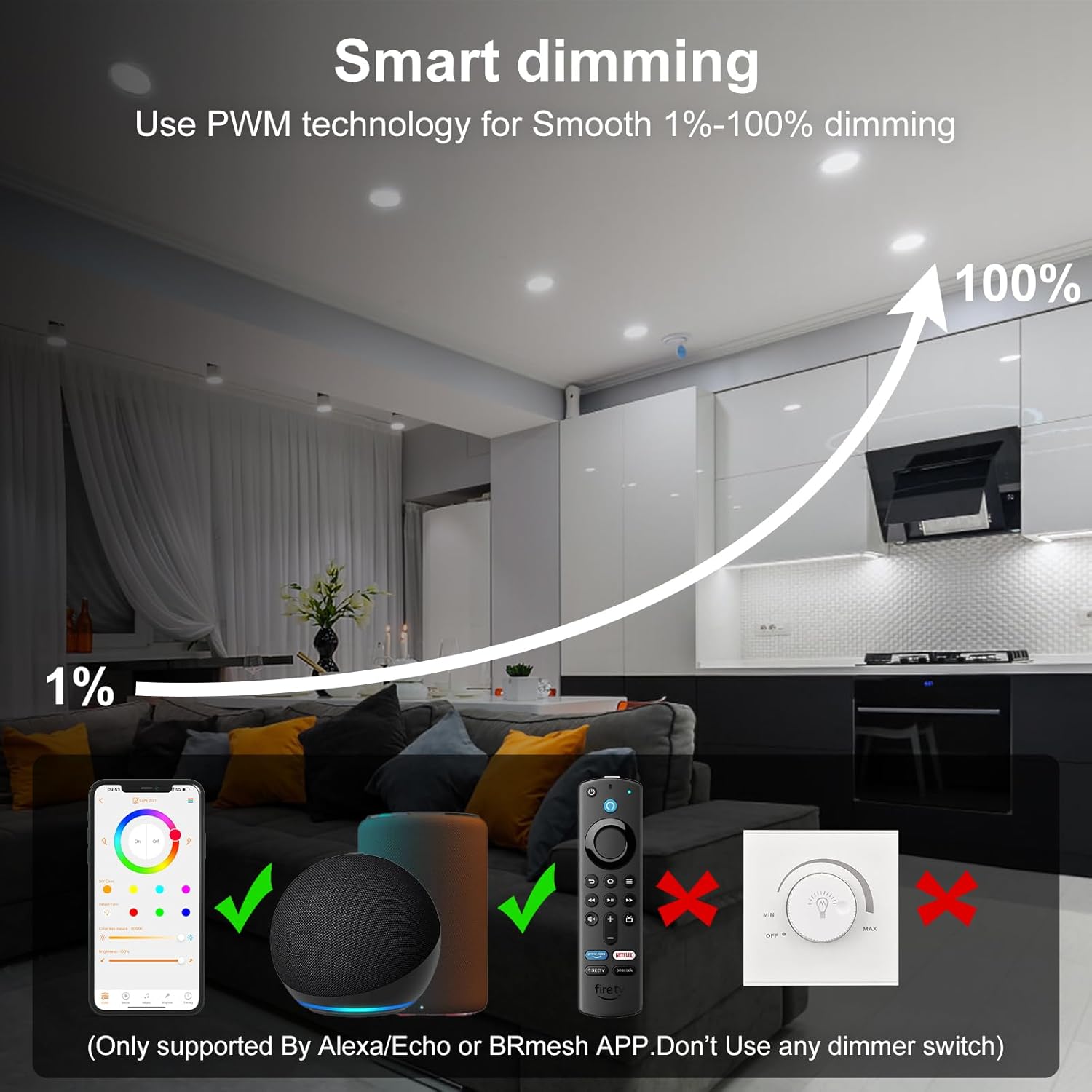
- Do not use with standard dimmer switches. This product is designed for app or voice-controlled dimming only.
- Ensure all electrical connections are secure and comply with local electrical codes.
- This product is for indoor use only.
Package Contents
Verify that all components are present in the package:
- 1x Smart Recessed Lighting 4 Inch RGBCW Color Changing LED Downlight
- 1x Junction Box
- 1x User Manual
Specifications
| Brand | ChangM |
| Model Name | TD4C001 |
| Light Type | LED |
| Wattage | 12 Watts |
| Brightness | 1080 Lumens (RGB), 1100 Lumens (White) |
| Color Temperature | 2700K-6000K (Adjustable White) |
| Light Color | Multicolor (RGBCW) |
| Voltage | 100-120 Volts |
| Product Dimensions | 4.7"W x 1.57"H |
| Ceiling Cutout | 3.5-4.5 inches |
| Control Method | App (BRmesh), Voice (Alexa) |
| Connectivity | Bluetooth 5.0 Mesh Technology |
| Average Life | 25,000 Hours |
| Material | Aluminum, Plastic |
Setup and Installation
Follow these steps for safe and proper installation of your recessed lighting:
- Prepare the Ceiling: Using the provided cutting template, cut a hole in the ceiling with a diameter between 3.5 to 4.5 inches. Ensure the installation depth is at least 1.57 inches.
- Connect Wiring: Open the junction box. Connect the household electrical wires to the wires inside the junction box according to standard electrical practices (e.g., black to black, white to white, ground to ground). Secure connections with wire nuts.
- Connect Downlight to Junction Box: Plug the connector cable from the downlight into the corresponding connector on the junction box.
- Insert into Ceiling: Push the spring clips on the sides of the downlight upwards. Carefully insert the downlight into the prepared ceiling hole. The spring clips will secure the light in place.

Operating Instructions
1. APP Control (BRmesh App)
The BRmesh app allows comprehensive control over your smart recessed lights without requiring an internet connection or registration.
- Download App: Search for and download the "BRmesh" app from your mobile device's app store.
- Enable Bluetooth: Turn on Bluetooth on your mobile phone.
- Connect Lights: Open the BRmesh app. On the home page, click to add a device. The app will automatically detect and connect to your ChangM smart downlights.
- Control Features: Once connected, you can control individual lights or groups, change colors, adjust brightness, set scenes, and more.

2. Smart Voice Control (Alexa)
Your ChangM smart lights are compatible with Alexa for convenient voice control.
- Enable Skill: Ensure your Alexa device is set up and the relevant skill for smart lighting is enabled (if required by Alexa).
- Discover Devices: Say "Alexa, find devices" to your Alexa-enabled speaker. The lights will be discovered and added to your Alexa app.
- Voice Commands: You can now use voice commands to control your lights. Examples include:
- "Alexa, turn on/off the [light name]."
- "Alexa, set [light name] to blue."
- "Alexa, dim [light name] to 50%."
- "Alexa, set the scene to [scene name]."

3. Bluetooth Mesh Technology
The lights utilize Bluetooth 5.0 Mesh technology for stable and efficient control of multiple downlights.
- Stable Connection: Bluetooth Mesh provides a stable connection that does not rely on Wi-Fi bandwidth, reducing disconnections.
- Extended Range: Devices can relay signals to each other, extending the control range beyond typical Bluetooth limits.
- Multi-Lamp Control: Control up to 125 recessed lights with a single application.

4. Color Changing and Dimming
The RGBCW feature allows for a wide range of lighting options.
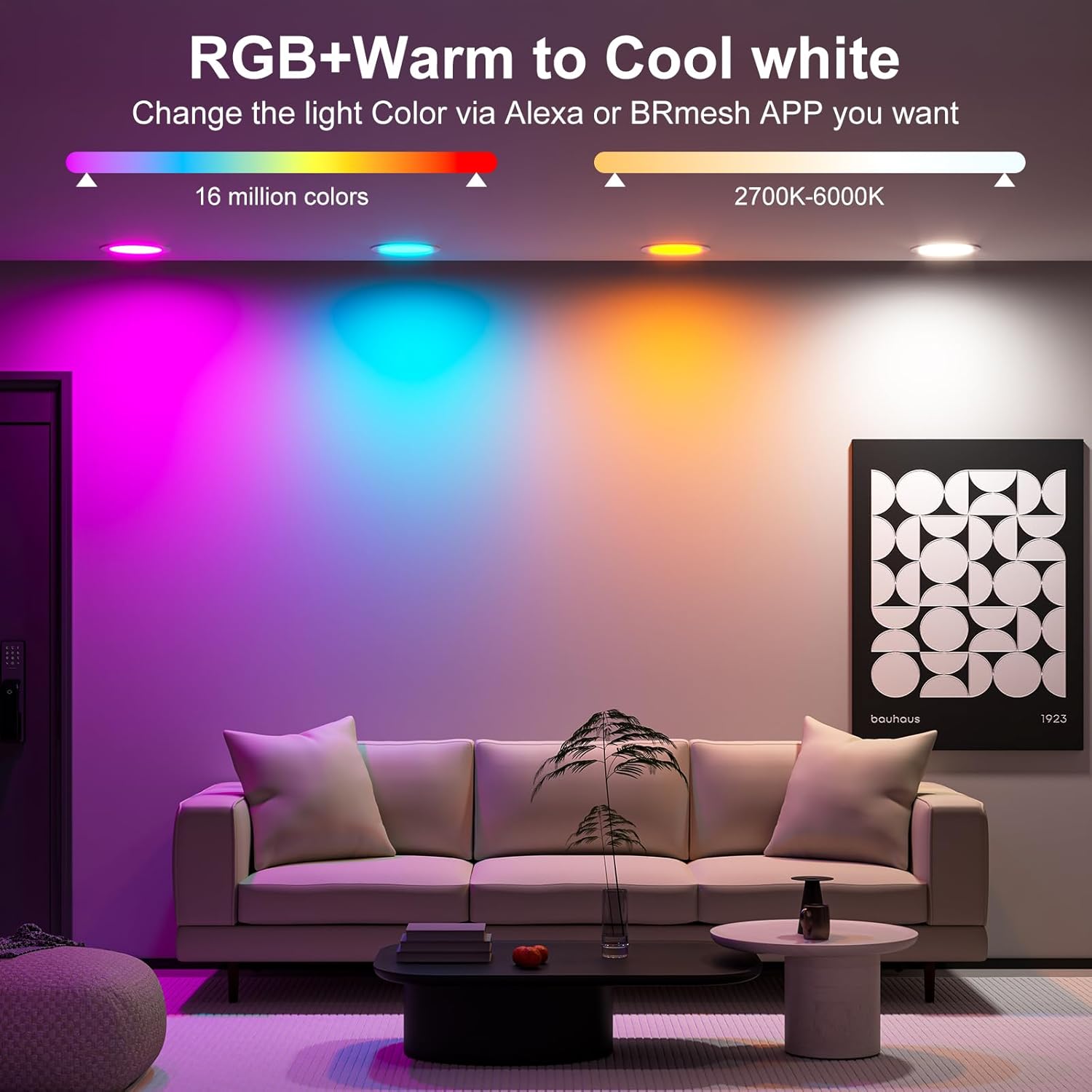
- RGB Colors: Access 16 million colors to create various moods and ambiances.
- Tunable White: Adjust white light color temperature from 2700K (warm white) to 6000K (cool white) for daily lighting needs.
- Smooth Dimming: Utilize the app or voice control for 1%-100% brightness adjustment without flicker. Note: Do not use with physical dimmer switches.
5. DIY Scenes and Synchronization
Create and save custom lighting scenes for different activities or moods.
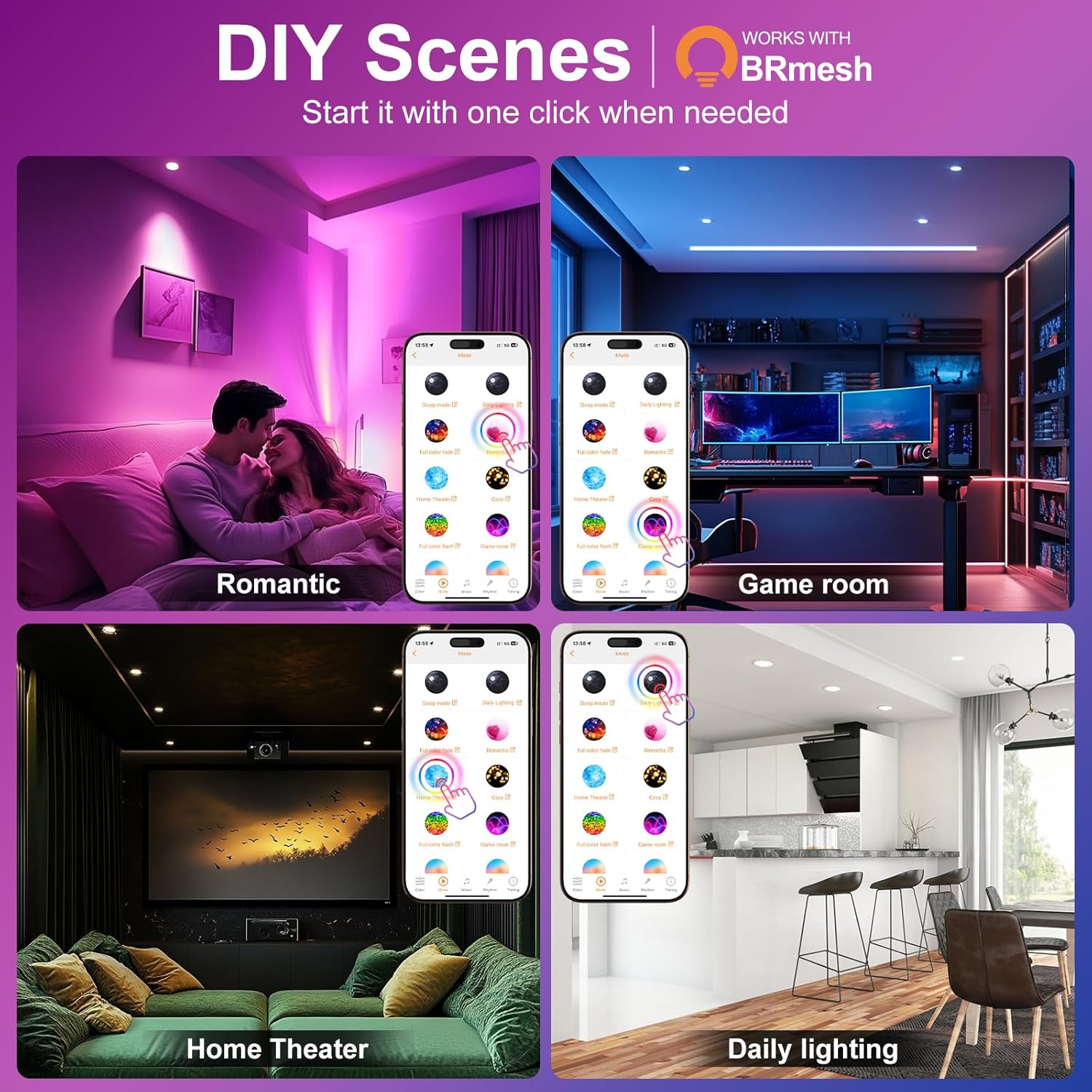
- Custom Scenes: Set specific colors, brightness levels, and modes for each light to match scenes like "Home Theater," "Bathroom," "Yoga," or "Game Room."
- One-Key Activation: Activate your saved scenes with a single tap in the app.
- Dynamic Modes: Choose from 23 different dynamic modes. When multiple lights are activated, their rhythm of color changes can be synchronized.
6. Group Control
Manage multiple lights simultaneously by organizing them into groups.
- Create a Group: In the BRmesh app, navigate to the group control section and click to create a new group.
- Name the Group: Assign a descriptive name to your new group (e.g., "Bedroom," "Living Room").
- Add Downlights: Select the individual downlights you wish to include in this group.
- Control Group: Return to the main control interface. You can now control all lights within the group simultaneously.

7. Timer and Schedule Setting
Automate your lighting to fit your daily routine.
- Set Schedules: Use the BRmesh app to set specific times for your lights to turn on or off automatically.
- Daily Routines: Program lights to wake you up in the morning or turn off when you typically go to sleep.

Maintenance
To ensure the longevity and optimal performance of your ChangM Smart Recessed Lighting, follow these simple maintenance guidelines:
- Cleaning: Ensure the power is off before cleaning. Use a soft, dry cloth to wipe the surface of the light. Do not use abrasive cleaners or solvents, as they may damage the finish.
- Inspection: Periodically check for any loose connections or visible damage. If any issues are found, consult a qualified electrician.
- No User-Serviceable Parts: The LED module is integrated and not designed for user replacement. Do not attempt to disassemble the light fixture.
Troubleshooting
If you encounter issues with your smart recessed lighting, refer to the following common solutions:
| Problem | Possible Cause | Solution |
|---|---|---|
| Light does not turn on. | No power, loose connection, or light failure. | Check circuit breaker. Ensure all wiring connections are secure. If problem persists, contact support. |
| Cannot connect to BRmesh app. | Bluetooth off, light not in pairing mode, or app issue. | Ensure Bluetooth is enabled on your phone. Restart the app and try again. Power cycle the light (turn off/on at switch). |
| Alexa cannot discover lights. | Alexa skill not enabled, lights not connected to app, or network issue. | Ensure lights are connected to the BRmesh app first. Say "Alexa, find devices." Check your Alexa app for any skill requirements. |
| Lights flicker or behave erratically. | Incompatible dimmer switch, unstable power, or software glitch. | Ensure no physical dimmer switch is used. Power cycle the light. Update BRmesh app if available. |
Warranty and Support
For warranty information or technical support, please contact the manufacturer, ChangM, directly. Refer to the product packaging or the official ChangM website for contact details.