
1. Introduction
Thank you for choosing the taopodo Children's Smartwatch TK09-QSUK1-SBE. This smartwatch is designed for children aged 3-12 years, offering a range of features including games, a camera, music player, alarm clock, flashlight, and health monitoring functions. This manual provides essential information for safe and effective use of your device.
2. Safety Information
- Choking Hazard: Keep small parts away from young children.
- Battery Safety: Do not attempt to replace the battery yourself. Use only the provided charging cable.
- Water Resistance: The smartwatch may have limited water resistance. Avoid submerging it in water or exposing it to high-pressure water.
- Temperature: Do not expose the device to extreme temperatures (hot or cold).
- Cleaning: Clean the device with a soft, dry cloth. Avoid harsh chemicals.
- Supervision: Adult supervision is recommended for young children using the device.
3. Package Contents
Please check the package for the following items:
- taopodo Children's Smartwatch TK09-QSUK1-SBE (Dark Blue)
- Charging Cable
- User Manual (this document)
4. Product Overview
Familiarize yourself with the main components of your smartwatch.

Image: Front view of the taopodo Children's Smartwatch, showing the screen and side buttons.
4.1 Watch Components
- HD Touch Screen: The primary interface for interaction.
- Side Buttons: Typically used for power on/off, back function, or specific feature activation.
- Charging Port: Located on the side or back, used with the provided charging cable.
- Camera: Integrated for taking photos.
- Speaker/Microphone: For audio playback and recording (if supported).
5. Setup
5.1 Charging the Smartwatch
- Connect the charging cable to the smartwatch's charging port.
- Plug the other end of the charging cable into a standard USB power adapter (not included) or a computer's USB port.
- The watch screen will display a charging indicator. Allow approximately 2-3 hours for a full charge.
5.2 Power On/Off
- To Power On: Press and hold the power button (usually on the side) for a few seconds until the screen lights up.
- To Power Off: Press and hold the power button until a power-off option appears on the screen. Tap to confirm.
5.3 Initial Setup
Upon first power-on, you may be prompted to set the following:
- Language: Select your preferred language.
- Date and Time: Set the current date and time.
This smartwatch is designed to function independently without requiring a smartphone app for its core features. However, an optional companion app may be available for viewing health data on a parent's device.

Image: Overview of smartwatch features, including health tracking and utility apps. The device works without a phone for basic functions, but an app can be used to view health data.
6. Operating Instructions
6.1 Navigating the Interface
- Touch Screen: Swipe left, right, up, or down to navigate through menus and applications. Tap to select an item.
- Side Button: Press the side button to return to the previous screen or the home screen.
6.2 Core Features
6.2.1 Games
The smartwatch includes 12 puzzle games to entertain and engage children.
- From the home screen, swipe to find the 'Games' icon and tap it.
- Select from the list of available games.
- Follow the on-screen instructions to play.
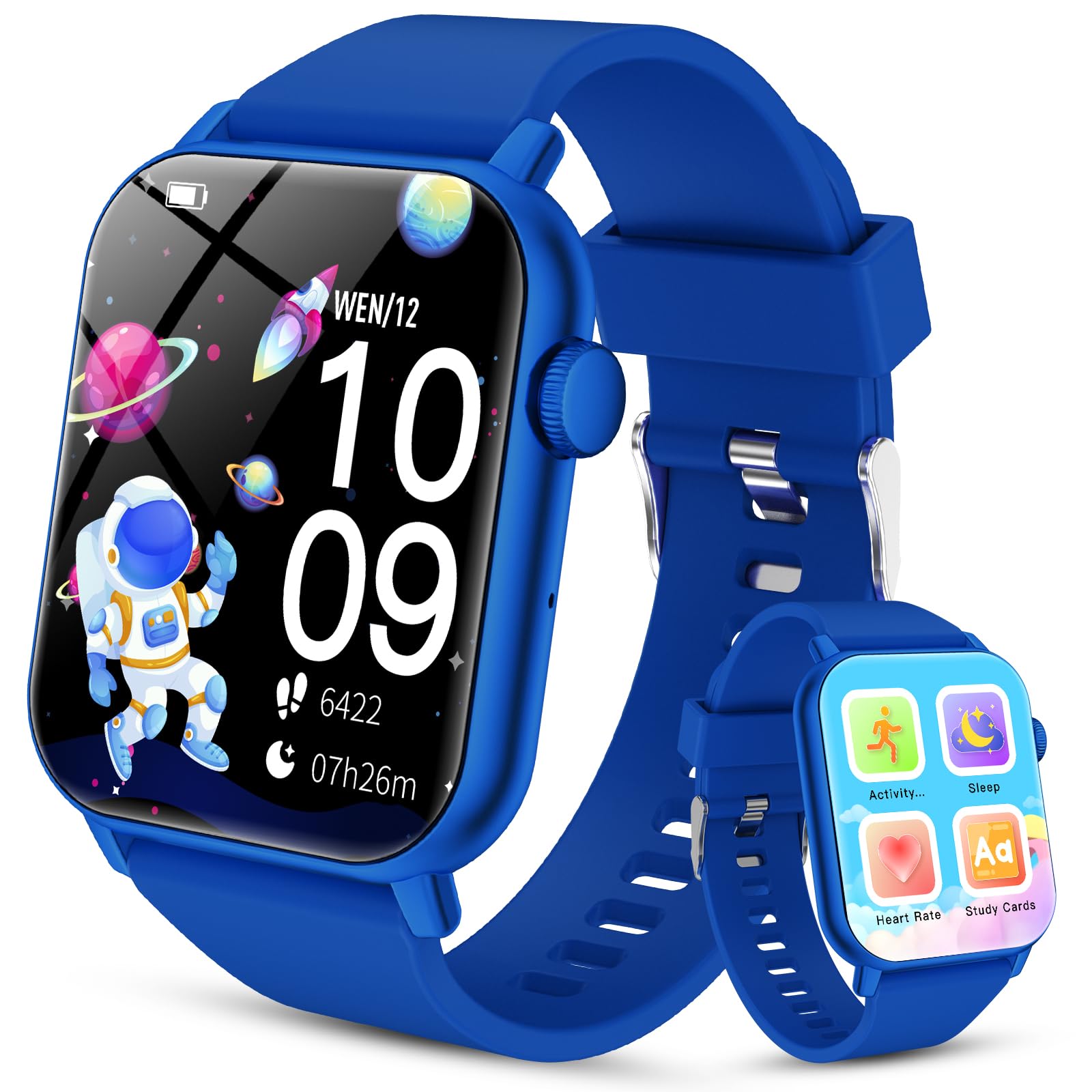
Image: The smartwatch screen showing a selection of 12 built-in puzzle games.
6.2.2 Camera
Capture photos directly from the smartwatch.
- Locate and tap the 'Camera' icon.
- Tap the screen to take a photo.
- Photos are saved to the watch's internal storage.
6.2.3 Music Player
Listen to pre-loaded music or transfer compatible audio files to the watch.
- Tap the 'Music' icon to open the player.
- Select a song to play.
- Use on-screen controls for play, pause, skip, and volume adjustment.
6.2.4 Alarm Clock
Set alarms to help with daily routines.
- Open the 'Alarm' application.
- Tap to add a new alarm and set the time.
- Customize alarm settings such as repeat days.
6.2.5 Flashlight
Activate the built-in flashlight for illumination.
- Find and tap the 'Flashlight' icon.
- Tap again to turn it off.
6.2.6 Activity Tracking
Monitor daily steps and estimated calories burned.
- Tap the 'Activity' icon to view your daily progress.
- The watch tracks steps and calculates distance and calories automatically.

Image: The smartwatch screen showing activity tracking, including steps and distance covered.
6.2.7 Real-time Heart Rate Monitoring
The smartwatch can monitor heart rate in real-time.
- Tap the 'Heart Rate' icon.
- Ensure the watch is snug on the wrist for accurate readings.
- The screen will display the current heart rate in BPM (beats per minute).

Image: The smartwatch screen showing real-time heart rate monitoring with a graphical display.
6.2.8 Auto Sleep Monitoring
The watch automatically tracks sleep patterns.
- Wear the smartwatch to bed.
- In the morning, open the 'Sleep' application to view sleep duration and quality.

Image: The smartwatch screen showing automatic sleep monitoring data, including total sleep duration and sleep quality score.
6.2.9 Study Cards & Audiobooks
Access educational content directly on the watch.
- Tap the 'Study Cards' or 'Audiobooks' icon.
- Browse and select content for learning or listening.
6.2.10 Other Utilities
The smartwatch also includes useful tools:
- Calculator: For basic arithmetic.
- Timer: Set countdown timers.
- Stopwatch: Measure elapsed time.
7. Maintenance
7.1 Cleaning
- Wipe the screen and watch body with a soft, lint-free cloth.
- For stubborn marks, slightly dampen the cloth with water. Do not use harsh chemicals or abrasive materials.
7.2 Battery Care
- Charge the smartwatch regularly, even if not in use, to maintain battery health.
- Avoid fully discharging the battery frequently.
- Do not leave the watch charging for extended periods after it is fully charged.
7.3 Storage
- Store the smartwatch in a cool, dry place away from direct sunlight and extreme temperatures.
- If storing for a long period, ensure the battery is charged to about 50% to prevent deep discharge.
8. Troubleshooting
8.1 Smartwatch Will Not Turn On
- Ensure the battery is charged. Connect the charging cable and leave it to charge for at least 30 minutes.
- Try pressing and holding the power button for 10-15 seconds.
8.2 Screen is Unresponsive
- Restart the smartwatch by holding the power button until the power-off option appears, then power it back on. If unresponsive, force restart by holding the power button for an extended period (e.g., 15-20 seconds).
- Ensure the screen is clean and dry.
8.3 Charging Issues
- Verify the charging cable is securely connected to both the watch and the power source.
- Try a different USB power adapter or USB port.
- Check the charging port on the watch for any debris or damage.
8.4 Inaccurate Health Readings
- Ensure the smartwatch is worn snugly on the wrist, not too loose or too tight.
- Readings can be affected by movement, skin conditions, and environmental factors. These are for reference only and not for medical use.
9. Specifications
| Feature | Description |
|---|---|
| Model Name | TK09-QSUK1-SBE |
| Brand | taopodo |
| Operating System | Android Wear 1.0 |
| Screen Size | 1.96 Inches |
| Connectivity Technology | Bluetooth |
| Human Interface Input | Buttons, Touchscreen |
| Included Components | Charging Cable |
| Color | Dark Blue |
| Special Features | Puzzle Games, Study Cards, Real-time Heart Rate Monitoring, Sleep Monitoring, Durable Battery Life |
10. Warranty and Support
For warranty information and customer support, please refer to the documentation provided at the time of purchase or contact your retailer. Keep your proof of purchase for any warranty claims.