
1. Introduction
This manual provides instructions for the ZWP Replacement Remote Control. This remote is designed to be a direct replacement for various IPTV and Android TV Boxes, offering reliable and convenient control over your entertainment system. Please read this manual carefully to ensure proper use and to maximize the lifespan of your remote control.

Image: Front view of the ZWP Replacement Remote Control, highlighting its button layout and ergonomic shape.
2. Product Features
- Wide Compatibility: Designed to work with a range of IPTV and Android TV Box models.
- Durable Construction: Made from high-quality ABS material, ensuring wear-resistance and durability.
- Comfortable Design: Ergonomically shaped for a comfortable hand feeling during extended use.
- No Programming Required: Ready to use immediately after battery insertion.
- Stable Signal: Provides a stable and quick response for seamless control.
- Long-Range Control: Effective up to 26 feet with multi-angle control up to 120 degrees.

Image: Features of the ZWP remote, emphasizing its comfortable feel and durable ABS material.
3. Compatible Models
This ZWP Replacement Remote Control is compatible with the following IPTV and Android TV Box models:
- A2
- A3
- A3 PRO
- Tigre
- TG2
- IPTV5
- IPTV6
- IPTV8
- Luna
- Lunatv
- HTV Box A1
- HTV Box B7
No programming is required for these models; simply insert batteries and the remote is ready for use.
4. Setup: Battery Installation
To begin using your ZWP Replacement Remote Control, you will need to install two 1.5V AAA batteries (not included). Follow these steps:
- Locate the battery compartment on the back of the remote control.
- Gently slide down the battery compartment cover to open it.
- Insert two AAA batteries, ensuring that the positive (+) and negative (-) terminals align correctly with the indicators inside the compartment.
- Slide the battery compartment cover back into place until it clicks securely.

Image: Detailed view of the battery compartment, showing correct AAA battery placement.
Video: Battery Installation and Remote Overview
Video: This video demonstrates how to install batteries into the remote control (0:06-0:18) and provides a general overview of the remote's design and functionality.
5. Operating Instructions
Once batteries are installed, your ZWP Replacement Remote Control is ready to operate your compatible IPTV or Android TV Box. The remote features a standard layout for intuitive control:
- Power Button (●): Located at the top left, use to turn your device on or off.
- Navigation Pad (OK, Up, Down, Left, Right): Central circular pad for menu navigation and selection.
- Volume Control (VOL+, VOL-): Adjusts the volume level.
- Channel Control (P+, P-): Changes channels or scrolls through lists.
- Numeric Keypad (0-9): For direct channel input or other numerical functions.
- Menu Button: Accesses the device's main menu.
- Home Button: Returns to the home screen.
- Exit Button: Exits current menus or applications.
- Colored Buttons (Red, Green, Yellow, Blue): These buttons often have specific functions depending on the application or menu you are in. Refer to your device's on-screen prompts.
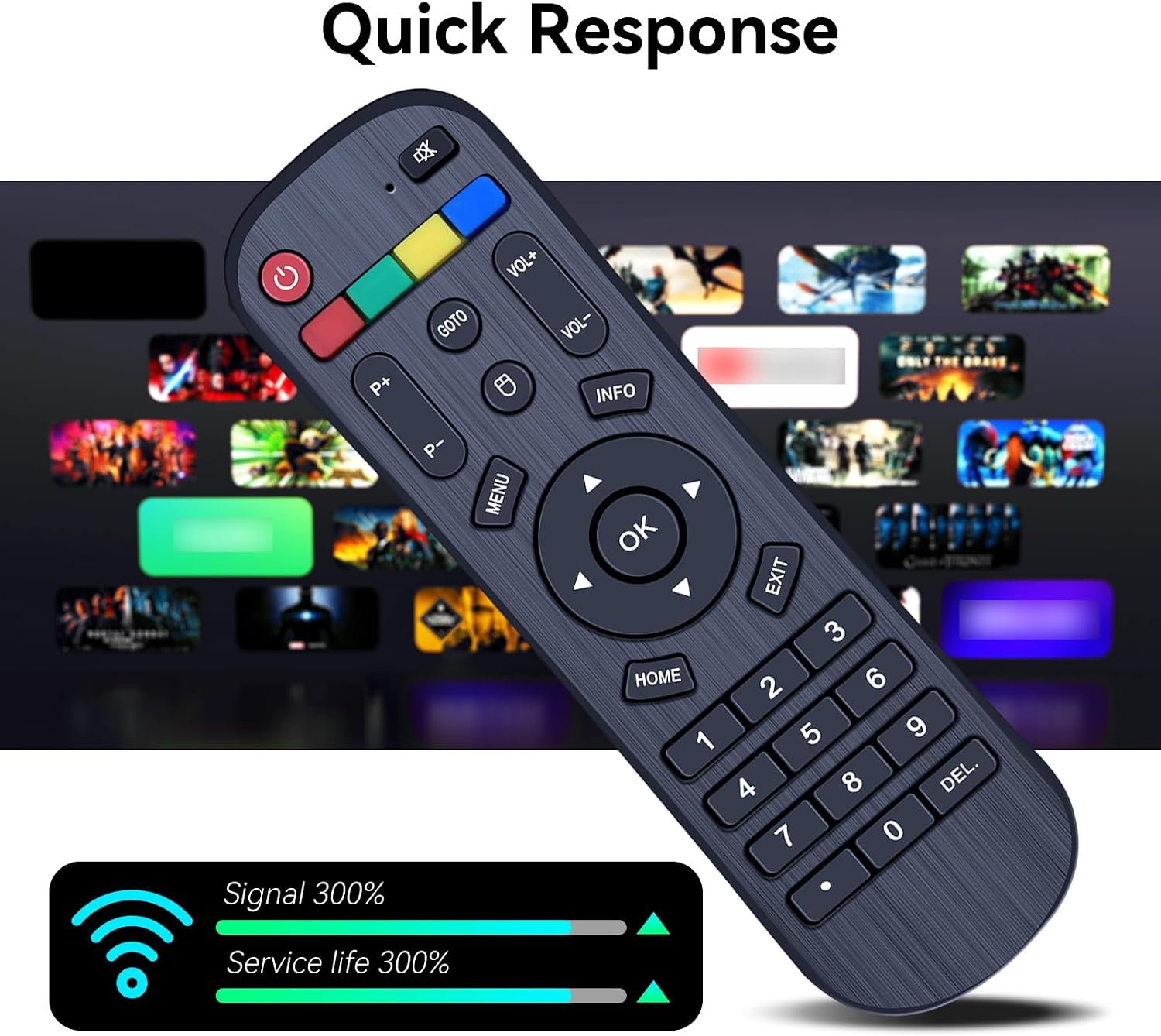
Image: The remote control in action, demonstrating its quick response and signal reliability.

Image: Illustrates the remote's long-range and multi-angle control capabilities.
6. Maintenance
To ensure the longevity and optimal performance of your remote control, please follow these maintenance guidelines:
- Cleaning: Wipe the remote with a soft, dry cloth. For stubborn dirt, a slightly damp cloth can be used, but ensure no moisture enters the remote. Do not use harsh chemicals or abrasive cleaners.
- Battery Replacement: Replace batteries when the remote's response becomes sluggish or it stops functioning. Always replace both batteries at the same time with new ones of the same type.
- Storage: Store the remote in a cool, dry place away from direct sunlight and extreme temperatures. If the remote will not be used for an extended period, remove the batteries to prevent leakage.
- Avoid Drops: While durable, excessive drops or impacts can damage internal components. Handle with care.
7. Troubleshooting
If you experience issues with your ZWP Replacement Remote Control, try the following steps:
- Remote Not Responding:
- Check if the batteries are inserted correctly with the correct polarity.
- Replace old batteries with new ones.
- Ensure there are no obstructions between the remote and your TV Box's infrared receiver.
- Make sure you are within the effective operating range (up to 26 feet).
- Buttons Not Working:
- Clean the remote's surface and buttons to remove any dirt or residue that might be preventing proper contact.
- If only specific buttons are not working, the remote might be damaged.
- Interference:
- Strong light sources or other electronic devices can sometimes interfere with the remote's signal. Try operating the remote in a different environment.
If the problem persists after trying these steps, please refer to the "Warranty and Support" section for further assistance.
8. Specifications
| Feature | Detail |
|---|---|
| Brand | ZWP |
| Compatible Devices | Set Top Box (IPTV Box A2/A3/A3 PRO/Tigre/TG2 IPTV5 IPTV6 IPTV8 Android TV Box Luna Lunatv HTV Box A1 B7) |
| Color | Black |
| Material | High-quality ABS |
| Special Feature | Ergonomic design |
| Max Number of Supported Devices | 1 (direct replacement) |
| Power Source | 2 x 1.5V AAA Batteries (not included) |
| Item Weight | 2.08 ounces |
| Package Dimensions | 7.4 x 2.5 x 1.1 inches |

Image: Physical dimensions of the ZWP Replacement Remote Control.
9. Warranty and Support
ZWP is committed to providing high-quality products and customer satisfaction. While specific warranty details are not provided in this manual, we encourage you to contact us directly if you encounter any issues or have questions regarding your ZWP Replacement Remote Control.
Customer Support: If you have any questions or require assistance, please do not hesitate to contact ZWP customer support. We are dedicated to helping you resolve any concerns you may have.
"Any question, Please do not hesitate to contact us before leaving Feedback, We will help you resolve it, Thank you."