
1. Introduction
This manual provides essential information for the proper setup, operation, and maintenance of your UPERFECT Delta Pro Touch 16" 2K Portable Dual Monitor. This innovative device offers a pressure-sensitive touchscreen experience, enhancing productivity and versatility for various computing tasks. Please read this manual thoroughly before using the product.
2. Package Contents
Verify that all items listed below are present in your product packaging:
- UPERFECT Delta Pro Touch 16" 2K Portable Dual Monitor
- User Manual
- Power Adapter
- HDMI Cable
- 2 x USB-C to USB-C Cables
- Microsoft MPP-Certified Stylus
3. Product Overview
3.1 Physical Features
The UPERFECT Delta Pro Touch monitor features a sleek metal body with thin bezels, providing a modern and robust design. It weighs approximately 2.2 pounds (1 kg) and has dimensions of 0.39 x 12.64 x 8.27 inches when folded, making it highly portable.

Image: UPERFECT Delta Pro Touch Portable Dual Monitor in a folded position, showcasing its compact design.
3.2 Integrated Stand
The monitor includes an integrated, adjustable stand that folds out from the back. This stand is designed for stability and durability, featuring rubber stoppers to prevent slipping and surface damage. It also supports VESA mounting for alternative setup options.

Image: Rear view of the UPERFECT Delta Pro Touch Portable Dual Monitor showing its integrated stand extended.
3.3 Ports and Controls
The monitor is equipped with various ports for connectivity and control:
- USB-C Ports (x2): One port for audio/video signal transmission and another for power input.
- HDMI Port (x1): For video input from devices without USB-C display output.
- 3.5mm Audio Jack (x1): For audio output to headphones or external speakers.
- Power Button: To turn the monitor on/off.
- Control Buttons: To switch display modes and adjust settings such as brightness.
4. Setup
- Positioning the Monitor: Unfold the integrated stand and adjust it to your desired viewing angle. The monitor can be used in various orientations, including vertical.
- Power Connection: Connect the provided power adapter to a power outlet and then to one of the USB-C ports on the monitor (designated for power input).
- Device Connection:
- USB-C Connection: If your device supports USB-C display output, connect one of the provided USB-C to USB-C cables from your device to the monitor's USB-C audio/video port.
- HDMI Connection: If your device uses HDMI, connect the provided HDMI cable from your device to the monitor's HDMI port. Note that an additional USB-C cable for power will still be required.
- Power On: Press the power button on the side of the monitor to turn it on.
5. Operating Modes
The UPERFECT Delta Pro Touch monitor supports multiple display modes to suit your needs:
- Duplicate Mode (Mirroring): This mode mirrors the content of your primary device's screen onto the portable monitor. It is ideal for presentations or sharing content with others.
- Extend Mode: This mode expands your desktop across the portable monitor, providing additional screen real estate for multitasking. You can drag windows between your primary device and the portable monitor.
- Portrait Orientation: The monitor can be physically rotated and configured in your operating system to display content vertically. This is beneficial for viewing long documents, code, or social media feeds.
Use the control buttons on the side of the monitor or your device's display settings to switch between these modes and adjust display parameters.
6. Key Features
6.1 Pressure-Sensitive Touch Display
Experience the world’s first portable monitor featuring pressure-sensitive touch input. Write, sketch, and annotate naturally with 4096 levels of pen sensitivity, delivering precision for both professionals and creatives.

Image: Close-up of the UPERFECT Delta Pro Touch Portable Dual Monitor showing a hand interacting with the touchscreen using a stylus.
6.2 MPP-Certified Stylus
The included Microsoft MPP-certified stylus ensures ultra-smooth, virtually zero-latency input. From fine sketches to bold strokes, every line feels as natural as pen on paper, perfect for notes, design, and digital art.
Video: This video demonstrates the pressure-sensitive touch capabilities of the UPERFECT Delta Pro Touch monitor, highlighting its responsiveness and precision with the included stylus.
6.3 2.5K Ultra-Clear Resolution
Unlike most portable monitors stuck at 1080P, our upgraded 2560×1600 2.5K panel delivers 78% more pixels, sharper text, and finer details for an enhanced visual experience.

Image: The UPERFECT Delta Pro Touch Portable Dual Monitor displaying a vibrant, high-resolution image, emphasizing its 2.5K clarity.
6.4 Dual-Screen Productivity Boost
Work smarter with an innovative vertical dual-screen design. Compare documents, code and debug, edit and preview, or multitask effortlessly without constant tab switching. Twice the screen means twice the efficiency.
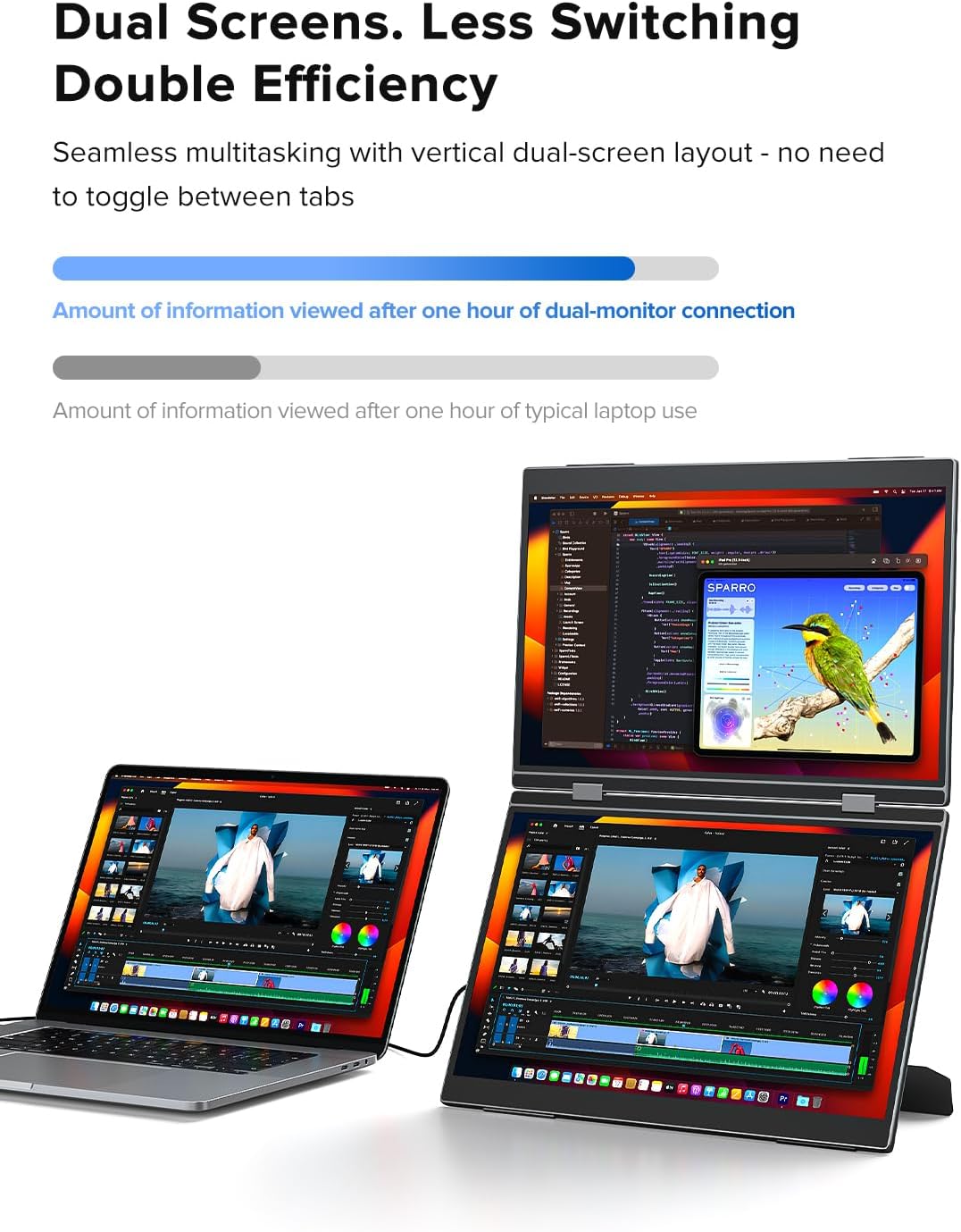
Image: A user working with a laptop and the UPERFECT Delta Pro Touch Portable Dual Monitor in a stacked vertical configuration, demonstrating enhanced productivity.
7. Specifications
| Feature | Detail |
|---|---|
| Product Dimensions | 0.39 x 12.64 x 8.27 inches |
| Item Weight | 2.2 pounds |
| Manufacturer | UPERFECT |
| Item Model Number | Delta Pro Touch |
| Standing Screen Display Size | 16 Inches |
| Aspect Ratio | 16:10 |
| Resolution | 2560 x 1600 Pixels (2.5K QXGA Wide) |
| Image Brightness | 400 Candela (nits) |
| Screen Surface Description | Matte |
8. Maintenance
- Cleaning the Screen: Use a soft, lint-free cloth slightly dampened with water or a screen-cleaning solution. Avoid harsh chemicals or abrasive materials.
- General Cleaning: Wipe the exterior of the monitor with a soft, dry cloth.
- Storage: When not in use, fold the monitor to protect the screens and store it in a safe, dry place away from extreme temperatures.
- Handling: Handle the monitor with care to avoid dropping or impacting it, which could damage the screens or internal components.
9. Troubleshooting
If you encounter issues with your UPERFECT Delta Pro Touch monitor, please refer to the following common solutions:
- No Display/Signal:
- Ensure all cables (power and video) are securely connected.
- Verify that the monitor is powered on.
- Check your device's display settings to ensure the external monitor is detected and configured correctly (e.g., extended or duplicated).
- Try a different USB-C or HDMI cable.
- Touchscreen Not Responding:
- Ensure the USB-C cable used for video transmission also supports touch data (most modern USB-C cables do).
- Restart both the monitor and your connected device.
- Check for any driver updates for your device's graphics or touch input.
- Power Issues:
- Confirm the power adapter is correctly plugged into both the wall outlet and the monitor's power input USB-C port.
- If using a power bank, ensure it provides sufficient power output.
- Image Quality Issues (Flickering, Distorted):
- Adjust the display settings (resolution, refresh rate) on your connected device.
- Ensure the video cable is not damaged.
10. Warranty and Support
UPERFECT offers a 100% money-back guarantee within 30 days and a 90-day replacement policy for product issues. A 12-month warranty is provided for any manufacturing defects. Professional technical support is available to ensure a worry-free experience.
For any queries, problems, or support needs, please contact UPERFECT customer service via support@uperfectmonitor.com.