
MSI MAG A750GLS
MSI MAG A750GLS PCIE5 750W Power Supply User Manual
Model: MAG A750GLS
1. Introduction
This manual provides essential information for the installation, operation, and maintenance of your MSI MAG A750GLS PCIE5 750W Power Supply. This power supply unit (PSU) is designed to deliver stable and efficient power to your computer system, featuring ATX 3.1 and PCIe 5.1 support with native 12V-2x6 connectors. It is built to handle modern graphics cards and AI PCs, ensuring reliable performance under various loads.

Image 1.1: The MSI MAG A750GLS PCIE5 750W Power Supply shown with its packaging.
2. Safety Information
Please read and follow these safety instructions carefully to prevent damage to the product, personal injury, or electric shock.
- Disconnect Power: Always disconnect the power cord from the wall outlet before installing, removing, or cleaning the power supply.
- Proper Grounding: Ensure your computer system is properly grounded to prevent electrical hazards.
- Avoid Moisture: Do not expose the power supply to water or moisture. Operate it in a dry environment.
- Ventilation: Ensure adequate ventilation around the power supply. Do not block any ventilation openings.
- Authorized Service: Do not open the power supply casing. There are no user-serviceable parts inside, and opening it will void the warranty and pose a risk of electric shock.
- Voltage Compatibility: Ensure the input voltage matches the specifications of your region.
- Handle with Care: Avoid dropping or subjecting the power supply to strong impacts.
3. Package Contents
Verify that all items listed below are present in your package:
- MSI MAG A750GLS PCIE5 750W Power Supply Unit
- Modular Cable Set (as detailed below)
- AC Power Cord
- Mounting Screws
- User Manual (this document)
3.1 Included Cables
The MAG A750GLS includes a comprehensive set of modular cables to support various system configurations. Refer to the diagrams below for cable types and quantities.

Image 3.1: Overview of the modular cables included with the power supply.
- 1x ATX (20+4 PIN)
- 1x EPS (4+4 PIN)
- 1x 12V-2x6 (PCIe 5.1)
- 2x PCIe 8-pin (6+2 PIN)
- 1x SATA / Peripheral (5x SATA, 2x Molex)
- 1x SATA / Peripheral / FDD (1x SATA, 1x Molex, 1x FDD)
- 1x 16-pin to Dual 8-pin adapter (for additional GPU power)

Image 3.2: Detailed view of the power supply's modular connector panel.
4. Product Overview and Features
The MSI MAG A750GLS PCIE5 power supply is engineered for high performance and reliability. Key features include:
- 80 PLUS Gold Certified: Achieves up to 90% efficiency, reducing energy waste and heat generation.
- Native 12V-2x6 Connector: Directly supports PCIe 5.1 GPUs with up to 600W power delivery.
- Durable Design: Features an LLC half-bridge with DC-to-DC converter and active PFC for stable output and comprehensive protection (OCP, OTP, OPP, SCP, OVP, UVP, SIP, NLO).
- Compact Size: A 150mm-long and 150mm-wide ATX form factor allows for easy installation and improved cable management.
- Low-Noise Operation: Equipped with a 135mm Fluid-dynamic bearing (FDB) fan for quiet and durable cooling.
- Embossed Jacket Cables: High-quality, flexible cables for a clean and organized build.
- Dual-Color 12V-2x6 Cable: Distinctive cable design for easy identification and aesthetic appeal.
4.1 Key Features Visuals

Image 4.1: 80 PLUS Gold Efficiency Certification.

Image 4.2: Native 12V-2x6 Connector for PCIe 5.1.

Image 4.3: ATX 3.1 Ready for enhanced power excursion handling.

Image 4.4: Embossed Jacket Cables for durability and aesthetics.

Image 4.5: Integrated Cable Organizer for neat routing.
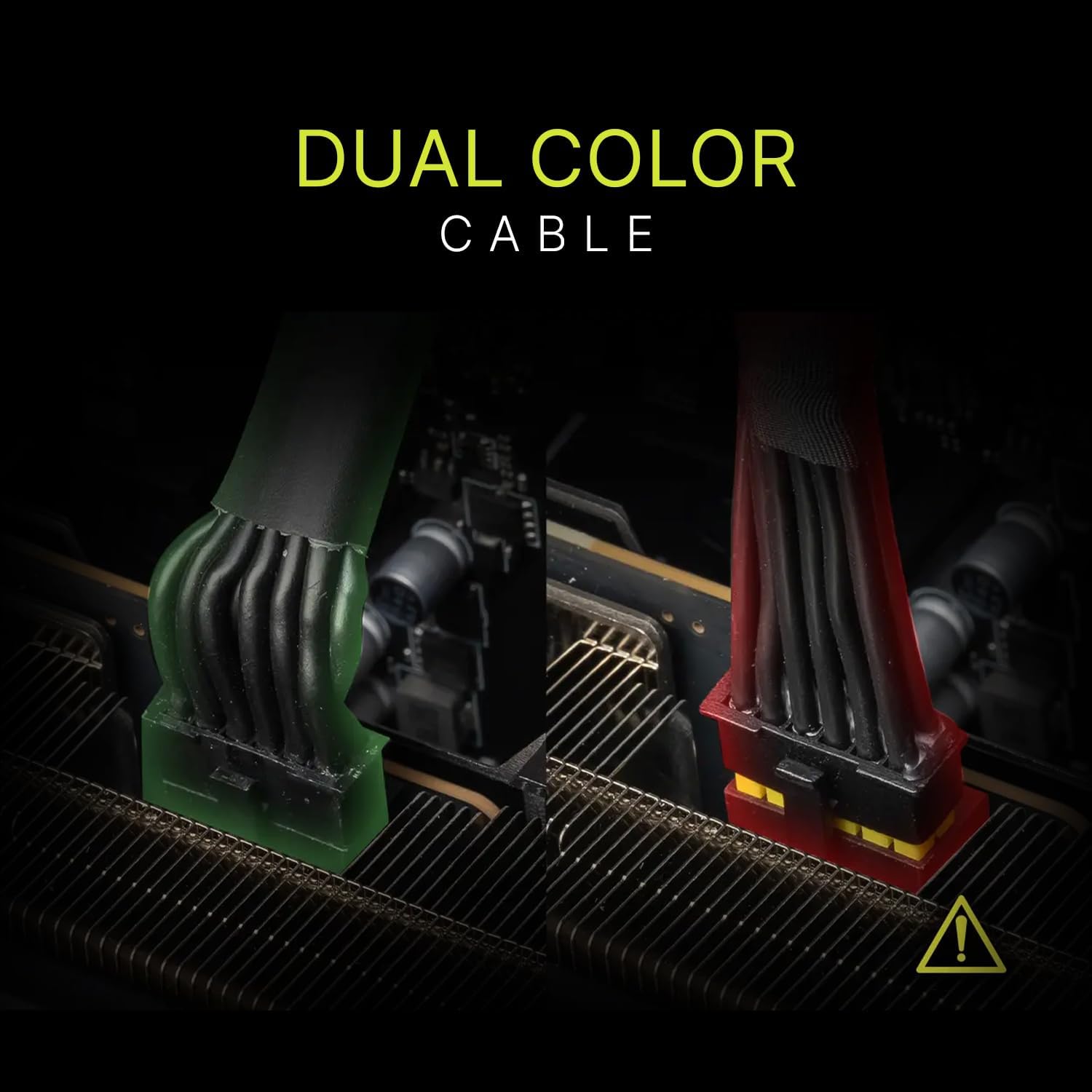
Image 4.6: Dual-Color 12V-2x6 Cable for easy identification.
5. Setup and Installation
Follow these steps to properly install your MSI MAG A750GLS power supply into your computer system.
- Prepare Your System:
- Turn off your computer and disconnect the AC power cord from the wall outlet.
- Open your computer case.
- If replacing an existing PSU, disconnect all cables from the old power supply and remove it from the case.
- Mount the Power Supply:
- Carefully place the MSI MAG A750GLS into the PSU mounting bay of your computer case.
- Align the screw holes on the PSU with those on the case.
- Secure the PSU using the provided mounting screws.
- Connect Modular Cables:
- Identify the necessary cables for your motherboard, CPU, graphics card(s), and storage devices.
- Connect the required modular cables to the corresponding ports on the power supply unit. Ensure a firm connection.
- Route the cables neatly within your case, utilizing cable management features if available.
- Connect Components:
- Connect the 20+4 pin ATX cable to your motherboard.
- Connect the 4+4 pin EPS cable(s) to your motherboard's CPU power connector(s).
- Connect the 12V-2x6 (PCIe 5.1) cable or 6+2 pin PCIe cables to your graphics card(s).
- Connect SATA power cables to your SSDs/HDDs and optical drives.
- Connect Peripheral (Molex) cables to any other components requiring them (e.g., case fans, fan controllers).
- Final Checks:
- Double-check all cable connections to ensure they are secure and correctly seated.
- Ensure no loose cables are obstructing fans or airflow.
- Close your computer case.
- Power On:
- Connect the AC power cord to the power supply and then to a wall outlet.
- Flip the power switch on the back of the PSU to the "ON" position.
- Power on your computer.
6. Operating Instructions
Once installed, the MSI MAG A750GLS operates automatically with your computer system. No specific user interaction is required for its normal function beyond ensuring proper power connection.
- Power On/Off: Use the main power switch on the back of the PSU to cut off or restore power to the unit. This switch should typically remain in the "ON" position during normal computer use.
- Fan Operation: The integrated 135mm FDB fan will operate automatically to cool the power supply. Its speed adjusts based on the PSU's temperature and load to maintain optimal thermal performance and low noise levels.
- Efficiency: The 80 PLUS Gold certification ensures high efficiency, meaning less power is wasted as heat, contributing to a cooler and more stable system.
7. Maintenance
Regular maintenance helps ensure the longevity and optimal performance of your power supply.
- Dust Removal: Periodically clean dust from the power supply's fan grille and vents using compressed air. Ensure the computer is powered off and unplugged before cleaning.
- Cable Management: Ensure cables are neatly routed and do not obstruct airflow within the computer case.
- Environmental Conditions: Operate the PSU in a clean, dry, and well-ventilated environment. Avoid extreme temperatures.
- No User Servicing: Do not attempt to open or repair the power supply unit. Refer to authorized service personnel for any issues beyond basic cleaning.
8. Troubleshooting
If you encounter issues with your power supply, refer to the following common troubleshooting steps:
| Problem | Possible Cause | Solution |
|---|---|---|
| Computer does not power on. |
|
|
| System powers on but shuts down unexpectedly. |
|
|
| Loud fan noise from PSU. |
|
|
If these steps do not resolve your issue, please contact MSI customer support for further assistance.
9. Specifications
Detailed technical specifications for the MSI MAG A750GLS PCIE5 750W Power Supply.
| Feature | Detail |
|---|---|
| Brand | MSI |
| Model Name | MAG A750GLS |
| Series | MAG A750GLS |
| Output Wattage | 750 Watts |
| 80 PLUS Certification | Gold (up to 90% efficiency) |
| ATX Version | ATX 3.1 |
| PCIe Version | PCIe 5.1 (with native 12V-2x6 connector) |
| Form Factor | ATX |
| Cooling Method | Air (135mm Fluid-dynamic bearing fan) |
| Modular Type | Fully Modular |
| Protection Features | OCP, OTP, OPP, SCP, OVP, UVP, SIP, NLO |
| Item Weight | 5.76 pounds (approx. 2.61 kg) |
| Product Dimensions (LxWxH) | 11.54 x 9.25 x 5.08 inches (approx. 29.3 x 23.5 x 12.9 cm) |
| Maximum Input Voltage | 240 Volts (AC) |
10. Warranty and Support
MSI stands behind the quality of its products.
- Warranty: The MSI MAG A750GLS PCIE5 Power Supply comes with a 10-year warranty from the date of purchase. Please retain your proof of purchase for warranty claims.
- Technical Support: For technical assistance, troubleshooting beyond this manual, or warranty inquiries, please visit the official MSI website or contact MSI customer support.
- Online Resources: Additional drivers, software, and FAQs may be available on the MSI support website.
For the most up-to-date support information, please visit: www.msi.com/support
Related Documents - MAG A750GLS
 |
MSI MAG A750GLS PCIE5 & A650GLS PCIE5 Power Supply Unit User Guide User guide for MSI MAG A750GLS PCIE5 and MAG A650GLS PCIE5 power supply units, detailing specifications, dimensions, connector types, cable lengths, and installation instructions. |
 |
MSI MAG Series Power Supply Unit User Guide User guide for MSI MAG Series Power Supply Units, including models MAG A850GL PCIE5, MAG A850GL PCIE5 WHITE, MAG A750GL PCIE5, and MAG A650GL. Details specifications, dimensions, connectors, and installation. |
 |
MSI MAG A750BN/A650BN PCIE5 III 電源供應器 使用手冊 MSI MAG A750BN PCIE5 III 和 MAG A650BN PCIE5 III 電源供應器的詳細規格、尺寸、連接器資訊、線材長度及安裝指南。本手冊提供完整的使用說明,確保用戶能正確安裝與操作。 |
 |
MSI MAG A-Series PCIE5 Power Supply Unit User Guide User guide for MSI MAG A850GL PCIE5, MAG A750GL PCIE5, and MAG A650GL power supply units, detailing specifications, dimensions, connector types, cable lengths, and installation instructions. |
 |
MSI MAG Series Power Supply Unit User Guide: MAG A750BN & A650BN PCIE5 II Comprehensive user guide for MSI MAG A750BN PCIE5 II and MAG A650BN PCIE5 II power supply units. Includes detailed specifications, dimensions, connector information, cable lengths, and installation guidance. |
 |
MSI MAG Series Power Supply Unit User Guide - MAG A1200PLS PCIE5 & MAG A1000PLS PCIE5 User guide for the MSI MAG Series Power Supply Units, including models MAG A1200PLS PCIE5 and MAG A1000PLS PCIE5. Provides specifications, dimensions, connector details, cable lengths, protection features, and installation guidance. |