
Introduction
This manual provides essential information for setting up, operating, maintaining, and troubleshooting your Microsoft Surface Laptop 5. The Surface Laptop 5 is designed for powerful performance and stunning visuals, featuring a 15-inch touchscreen display, an Intel Core i7 12th Gen processor, 8GB of LPDDR5X memory, and a 512GB Solid State Drive (SSD). It operates on Windows 11, offering a smooth and secure user experience. Its integrated Intel Iris Xe Graphics, touch screen display, and backlit keyboard enhance both entertainment and productivity.
Package Contents
- Microsoft Surface Laptop 5
- Power Supply Unit
- Quick Start Guide (if applicable)
- Safety and Warranty Documents (if applicable)
Setup
1. Initial Power On
Before first use, ensure your Surface Laptop 5 is fully charged. Connect the power supply unit to the charging port on the side of the laptop and then to a power outlet. Once charged, press the power button located on the keyboard deck to turn on the device.
2. Connecting Peripherals
Your Surface Laptop 5 includes various ports for connecting external devices:
- USB 3.0 Port: For connecting standard USB devices like mice, keyboards, or external hard drives.
- USB-C Port: A versatile port for charging, data transfer, and connecting to external displays with compatible adapters.
For wireless connections, the laptop supports IEEE 802.1 Wi-Fi and Bluetooth 5.2. To connect Bluetooth devices, navigate to Settings > Bluetooth & devices in Windows 11.
3. Windows 11 Setup
Upon the first boot, you will be guided through the Windows 11 setup process. This includes selecting your region and language, connecting to a Wi-Fi network, accepting the license agreement, and setting up your Microsoft account or creating a local user account. Follow the on-screen instructions to complete the setup.
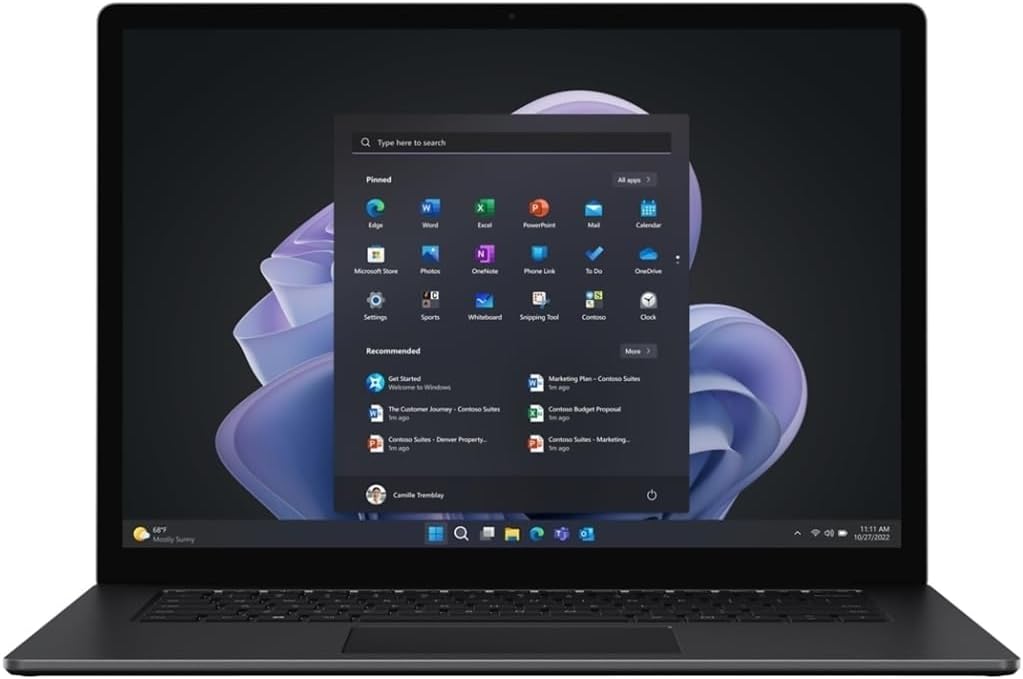
Image: The Microsoft Surface Laptop 5 with its 15-inch display showing the Windows 11 Start Menu, featuring pinned applications and recommended items. This illustrates the user interface during initial setup and daily operation.
Operating Your Surface Laptop 5
1. Touchscreen Usage
The 15-inch display is a multi-touch screen. You can interact with Windows 11 using gestures:
- Tap: Select an item or open an application.
- Tap and Hold: Right-click or access context menus.
- Pinch to Zoom: Zoom in or out on images and web pages.
- Swipe: Navigate through content or open system panels (e.g., notifications).
2. Keyboard and Touchpad
The Surface Laptop 5 features a backlit standard keyboard and a precision touchpad. The keyboard backlight can be adjusted through function keys or Windows settings. The touchpad supports multi-finger gestures for navigation, scrolling, and switching applications.
3. Webcam and Microphone
A 2MP webcam and integrated microphone are built into the laptop, suitable for video calls and online meetings. Ensure privacy settings in Windows 11 allow applications to access the camera and microphone when needed.

Image: An angled view of the Microsoft Surface Laptop 5, showcasing its sleek design and the Windows 11 Start Menu on its 15-inch display. This perspective highlights the laptop's form factor and screen clarity during operation.
Maintenance
1. Cleaning
To clean your Surface Laptop 5, use a soft, lint-free cloth slightly dampened with water or an approved screen cleaner. Avoid harsh chemicals, abrasive materials, or spraying liquids directly onto the device. For the screen, use a microfiber cloth to gently wipe away smudges.
2. Battery Care
To maximize battery life, avoid extreme temperatures. Store the laptop in a cool, dry place. For long-term storage, it is recommended to keep the battery charged to around 50%. Regularly discharging and recharging the battery within normal operating parameters helps maintain its health.
3. Software Updates
Keep your Windows 11 operating system and drivers updated. Regular updates provide security enhancements, bug fixes, and performance improvements. You can check for updates by going to Settings > Windows Update.
Troubleshooting
- Device not powering on: Ensure the power adapter is securely connected and the battery is charged. Try holding the power button for 10-15 seconds to perform a hard reset.
- Screen issues (no display, flickering): Connect an external monitor to check if the issue is with the laptop's display or the graphics output. Update graphics drivers.
- Wi-Fi or Bluetooth connectivity problems: Check if Wi-Fi/Bluetooth is enabled in Windows settings. Restart the laptop and your router. Update network drivers.
- Slow performance: Close unnecessary applications. Check Task Manager for processes consuming high CPU or RAM. Ensure sufficient free space on the SSD. Run a disk cleanup.
- Touchscreen not responding: Restart the device. Check for Windows updates. If the issue persists, you may need to recalibrate the touchscreen or check device drivers in Device Manager.
Specifications
| Feature | Detail |
|---|---|
| Display | 15-inch (2496 x 1664) LCD Touchscreen |
| Processor | Intel Core i7-1255U (Deca-Core, 1.7GHz, 12MB Cache) |
| RAM | 8GB LPDDR5X System Memory |
| Storage | 512GB Solid State Drive (SSD) |
| Graphics | Integrated Intel Iris Xe Graphics |
| Operating System | Windows 11 Home |
| Ports | 1 x USB 3.0, 1 x USB-C |
| Wireless Connectivity | IEEE 802.1 Wi-Fi, Bluetooth 5.2 |
| Webcam | 2MP Webcam |
| Keyboard | Backlit Standard Keyboard |
| Dimensions (LxWxH) | 9.6 x 0.6 x 0.6 inches |
| Item Weight | 2.8 pounds |
| Color | Matte Black |
Support and Warranty
For technical assistance, driver downloads, and further support, please visit the official Microsoft Support website. You can find detailed information about your device, software, and troubleshooting guides there.
Information regarding the warranty for your Microsoft Surface Laptop 5 can typically be found in the documentation included with your purchase or on the official Microsoft website. Please retain your proof of purchase for warranty claims.
Microsoft Support: support.microsoft.com


