
Introduction
Thank you for choosing the FREEPEAR Party Bluetooth Speaker. This manual provides essential information for the safe and efficient operation of your speaker. Please read it thoroughly before use and retain it for future reference.
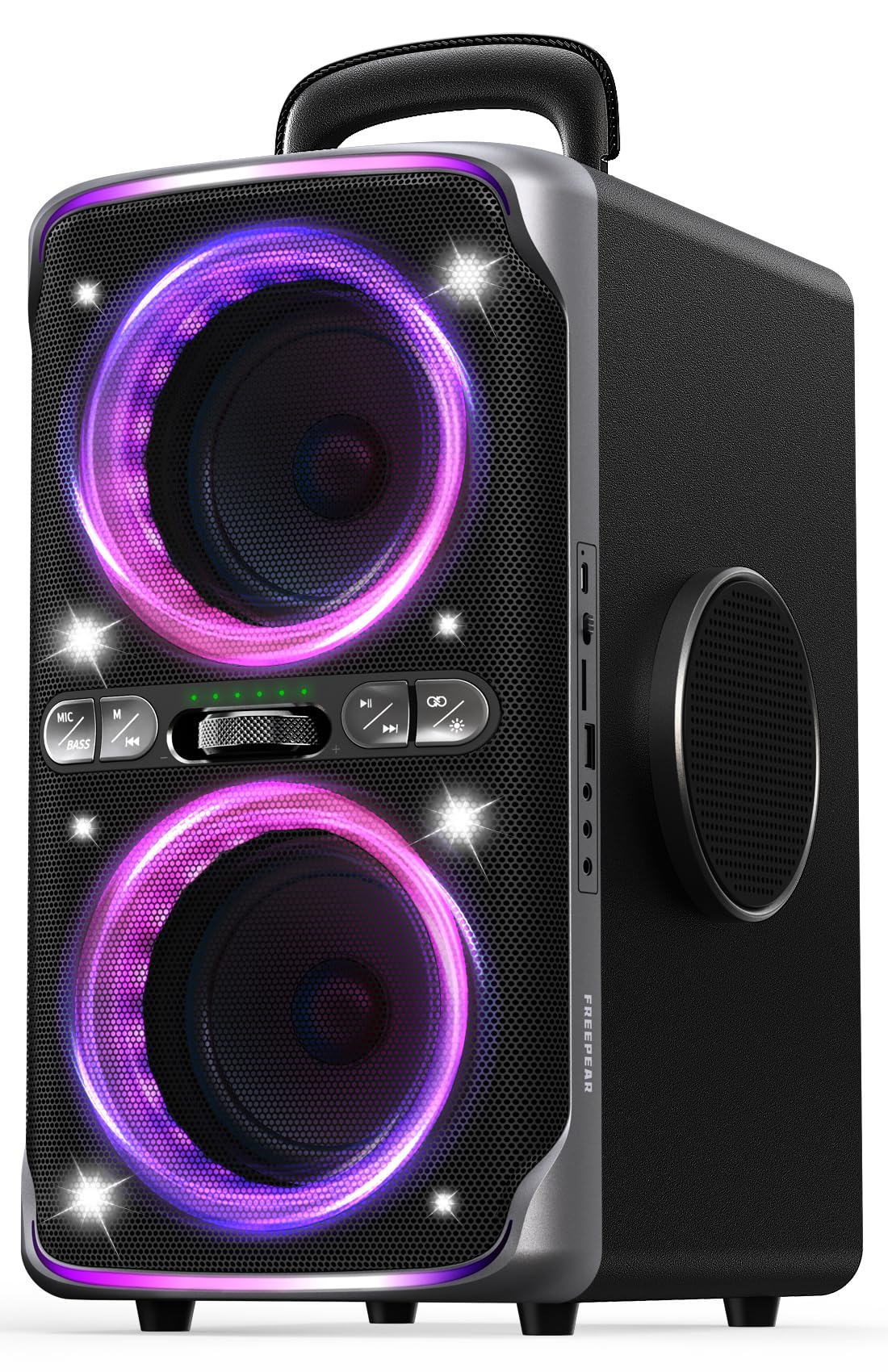
Image: Front view of the FREEPEAR Party Bluetooth Speaker, showcasing its design and integrated colorful lighting.
Package Contents
Ensure all items are present in the package:
- Party Bluetooth Speaker
- Quick Start Guide
- Fast Charging Cable
- Charging Cable
- AUX Cable
Product Overview
The FREEPEAR Party Bluetooth Speaker is designed for powerful audio and dynamic light shows. Key features include:
- 240W Peak Sound Output: Dual 5-inch woofers and dual 3-inch tweeters deliver robust audio.
- Dazzling Light Shows: Multiple light modes synchronize with music.
- TWS Pairing: Connect two speakers for a 480W stereo experience.
- 15-Hour Playtime: High-capacity battery for extended use.
- IPX4 Splashproof: Resistant to water splashes, suitable for outdoor use.
- Versatile Connectivity: Bluetooth 5.3, AUX, USB, TF card, Microphone, and Guitar inputs.
- Power Bank Function: Charge external devices via USB.
Control Panel

Image: Detailed view of the speaker's control panel, showing buttons for microphone, bass, track control, volume knob, and light mode.
Input/Output Ports

Image: Close-up of the speaker's side panel, illustrating the various input and output ports including USB, AUX, microphone, and guitar jacks.
Setup
1. Charging the Speaker
Before first use, fully charge the speaker. Connect the provided charging cable to the speaker's charging port and a power source. The battery indicator lights will show charging status. A full charge takes approximately 2.5 hours with a 30W charger.

Image: The speaker connected to a power source for charging, indicating its fast-charging capability.
2. Power On/Off
Press and hold the Power button on the control panel for 2-3 seconds to turn the speaker ON or OFF.
3. Bluetooth Pairing
- Turn on the speaker. It will automatically enter Bluetooth pairing mode, indicated by a flashing Bluetooth indicator light.
- Enable Bluetooth on your device (smartphone, tablet, etc.).
- Search for "FREEPEAR01" in your device's Bluetooth list and select it to connect.
- Once connected, the Bluetooth indicator light will be solid, and you will hear a confirmation tone.

Image: Individuals listening to music from the speaker, illustrating the seamless Bluetooth 5.3 connection.
4. TWS (True Wireless Stereo) Pairing
To pair two FREEPEAR01 speakers for stereo sound:
- Ensure both speakers are powered on and not connected to any Bluetooth device.
- On one speaker (this will be the primary speaker), press the TWS button. The TWS indicator will flash.
- The primary speaker will automatically search for and connect to the secondary speaker.
- Once connected, both TWS indicator lights will be solid, and you will hear a confirmation tone.
- Now, connect your device to the primary speaker via Bluetooth as described above. Audio will play in stereo through both speakers.

Image: Two FREEPEAR speakers positioned to demonstrate True Wireless Stereo pairing, creating an immersive sound experience.
Operating Instructions
1. Light Show Control
Press the Light Mode button on the control panel to cycle through different dazzling light show patterns. The lights can synchronize with the music or display various static and dynamic effects.

Image: The speaker's light show in action, creating a vibrant atmosphere for a group of people.
2. Audio Input Modes
The speaker supports multiple audio input options:
- Bluetooth: Connect wirelessly as described in the Setup section.
- AUX Input: Connect an external audio device using the provided 3.5mm AUX cable. The speaker will automatically switch to AUX mode.
- USB/TF Card: Insert a USB drive or TF card into the respective port. The speaker will automatically play audio files from the storage device.
- Microphone/Guitar Input: Connect a microphone or guitar to the dedicated jacks for karaoke or live performance. Adjust volume using the speaker's controls or the connected instrument/mic.

Image: Musicians utilizing the speaker's microphone and guitar inputs for a performance.
3. Power Bank Function
The speaker can charge other devices. Connect your device's USB charging cable to the speaker's USB output port. This function is active when the speaker is powered on.

Image: The speaker acting as a power bank, charging a smartphone, demonstrating its utility beyond audio playback.
4. Sound Modes
The speaker features different sound modes optimized for various environments:
- Indoor Mode: Provides richer, more powerful sound, ideal for enclosed spaces.
- Outdoor Mode: Delivers clearer, more resonant sound, suitable for open-air environments.
Switch between modes using the dedicated button on the control panel to optimize your listening experience.

Image: The speaker being used in diverse settings, highlighting its adaptability for both indoor and outdoor events.
Maintenance
Cleaning
Wipe the speaker with a soft, dry cloth. Do not use abrasive cleaners or solvents. Ensure all ports are dry before connecting cables.
Storage
Store the speaker in a cool, dry place away from direct sunlight and extreme temperatures. If storing for an extended period, charge the battery to approximately 50% every three months to prolong battery life.
Water Resistance (IPX4)
The speaker is IPX4 splashproof, meaning it can withstand splashes of water. Do not submerge the speaker in water or expose it to heavy rain.

Image: The speaker positioned near a pool, illustrating its IPX4 splashproof rating for use in wet environments.
Troubleshooting
| Problem | Possible Cause | Solution |
|---|---|---|
| Speaker does not power on. | Low battery; Power button not pressed correctly. | Charge the speaker; Press and hold the Power button for 2-3 seconds. |
| No sound. | Volume too low; Incorrect input mode; Device not connected. | Increase volume; Select correct input mode (Bluetooth, AUX, USB); Ensure device is paired. |
| Bluetooth not connecting. | Speaker not in pairing mode; Device too far; Interference. | Ensure speaker is in pairing mode; Move device closer; Disconnect other Bluetooth devices. |
| TWS pairing fails. | Speakers already connected to other devices; Incorrect pairing sequence. | Disconnect both speakers from any Bluetooth devices; Follow TWS pairing steps carefully. |
| Light show not working. | Light mode turned off or stuck. | Press the Light Mode button to cycle through options or turn lights on. |
Specifications
| Feature | Detail |
|---|---|
| Brand | FREEPEAR |
| Model Number | FREEPEAR01 |
| Speaker Maximum Output Power | 240 Watts (Peak) |
| Connectivity Technology | Auxiliary, Bluetooth, USB |
| Bluetooth Version | 5.3 |
| Bluetooth Range | 33 Feet (10 meters) |
| Audio Output Mode | Stereo |
| Waterproof Rating | IPX4 |
| Battery Average Life | 15 Hours |
| Battery Charge Time | 2.5 Hours (with 30W charger) |
| Subwoofer Diameter | 5 Inches |
| Tweeter Diameter | 3 Inches |
| Item Dimensions (D x W x H) | 11.22"D x 15.94"W x 9.76"H |
| Enclosure Material | Metal, Plastic, Wood |
| Additional Features | Bass Boost, Built-In Powerbank, LED Light, Stereo Pairing |
Official Product Videos
Video: No Limits! Just Powerful, Portable Party Sound!!!
Description: An official video showcasing the FREEPEAR speaker's powerful sound and portability, ideal for various party settings.
Video: Is This Actually Worth It?
Description: A seller-created video review of the FREEPEAR speaker, discussing its features and value proposition.
Warranty and Support
Warranty Information
The FREEPEAR Party Bluetooth Speaker comes with a 1-Year Limited Warranty from the date of purchase. This warranty covers manufacturing defects and workmanship under normal use. It does not cover damage caused by misuse, accidents, unauthorized modifications, or normal wear and tear.
Customer Support
For technical assistance, warranty claims, or any questions regarding your FREEPEAR speaker, please refer to the contact information provided in your Quick Start Guide or visit the official FREEPEAR store on Amazon: FREEPEAR Store.