
Introduction
Thank you for purchasing the Dierya DK68 Wireless Mechanical Gaming Keyboard. This manual provides detailed instructions on how to set up, operate, and maintain your keyboard. Please read this manual thoroughly before use to ensure optimal performance and longevity of your device.

Image: The Dierya DK68 wireless mechanical gaming keyboard, showcasing its compact 60% layout and RGB backlighting.
Key Features
- Compact 60% Layout: 68-key design for space efficiency, with all functions accessible via FN key combinations. Ideal for portability and maximizing desk space.
- Tri-Mode Seamless Connectivity: Supports USB-C wired, Bluetooth, and 2.4GHz wireless receiver connections. Easily switch between up to 3 devices (PC, Mac, smartphone/tablet).
- Customizable 16.8 Million Color RGB Backlight: Features 21 dynamic lighting effects. Adjust effects and colors using FN key combinations.
- Long-Lasting Battery & Standby: Equipped with a 3000mAh battery, providing approximately 8 hours of continuous use with backlight on, or up to 90 hours with backlight off. Standby time up to 360 hours (approx. 15 days).
- Durable Mechanical Switches: Utilizes Dierya's proprietary mechanical switches with a 60 million keystroke lifespan. Red switches (linear, silent) are suitable for gaming and office work.
- N-Key Rollover (NKRO): Ensures all key presses are registered accurately, even during simultaneous inputs, for competitive gaming.
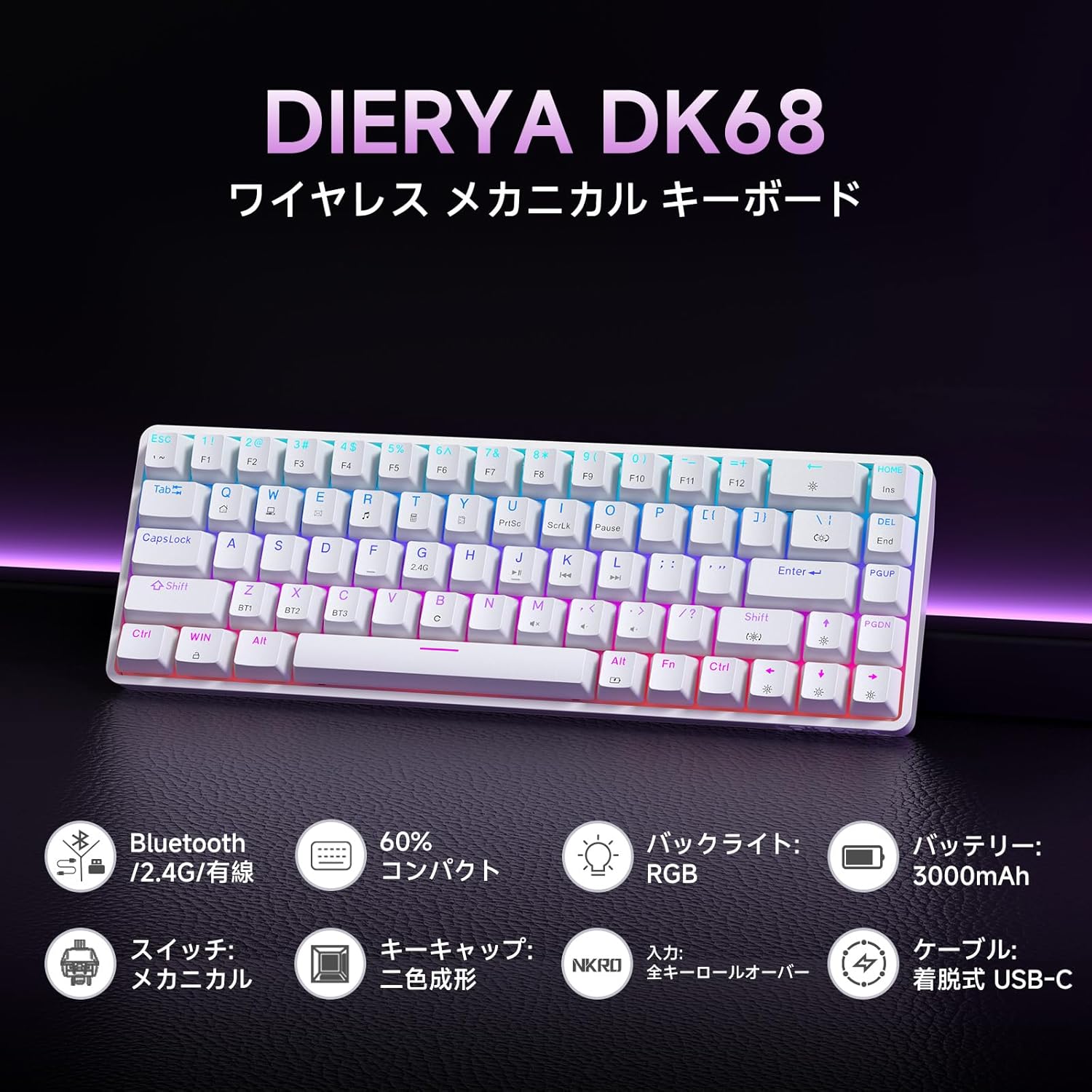
Image: An overview of the Dierya DK68 keyboard's main features, including Bluetooth/2.4G/Wired connectivity, 60% compact design, RGB backlight, 3000mAh battery, mechanical switches, double-shot keycaps, N-Key Rollover, and a detachable USB-C cable.
Setup
1. Charging the Keyboard
Before first use, fully charge the keyboard using the provided USB-C cable. Connect the cable to the keyboard's USB-C port and to a power source (e.g., computer USB port, USB wall adapter).
- The charging indicator light will show charging status.
- A full charge typically takes a few hours.
2. Connecting the Keyboard
The DK68 supports three connection modes: USB-C wired, 2.4GHz wireless, and Bluetooth.
USB-C Wired Connection
- Connect the provided USB-C cable to the keyboard's USB-C port.
- Connect the other end of the cable to an available USB port on your computer.
- The keyboard will be automatically recognized and ready for use.
2.4GHz Wireless Connection
- Locate the 2.4GHz USB receiver (usually stored in a compartment on the keyboard or packaging).
- Plug the USB receiver into an available USB port on your computer.
- Turn on the keyboard. The keyboard should automatically connect to the receiver.
- If connection is not established, press FN + R to switch to 2.4GHz mode.
Bluetooth Connection
The keyboard can store up to three Bluetooth device pairings.
- Turn on the keyboard.
- Press and hold FN + Z, FN + X, or FN + C for 3-5 seconds to enter pairing mode for BT1, BT2, or BT3 respectively. The indicator light will flash rapidly.
- On your device (PC, Mac, smartphone, tablet), enable Bluetooth and search for new devices.
- Select "Dierya DK68" from the list of available devices.
- Once paired, the indicator light will stop flashing and remain solid.
- To switch between paired Bluetooth devices, press FN + Z, FN + X, or FN + C briefly.

Image: Diagram illustrating the three connection modes: USB-C wired, Bluetooth, and 2.4GHz wireless, along with compatibility icons for Windows, Mac, iOS, Android, Xbox, PC, Laptop, and Tablet.
Operating Instructions
1. FN Key Combinations
Due to the compact 60% layout, many functions are accessed using the FN key in combination with other keys.
| Combination | Function |
|---|---|
| FN + 1-0 (top row) | F1-F10 |
| FN + - = | F11, F12 |
| FN + Backspace | Toggle Backlight ON/OFF |
| FN + Shift | Change Backlight Color |
| FN + | | Change Backlight Mode |
| FN + Up Arrow | Increase Backlight Brightness |
| FN + Down Arrow | Decrease Backlight Brightness |
| FN + Left Arrow | Decrease Backlight Speed |
| FN + Right Arrow | Increase Backlight Speed |
| FN + Z/X/C | Switch Bluetooth Device (BT1/BT2/BT3) |
| FN + R | Switch to 2.4GHz Wireless Mode |
| FN + T | Switch to USB-C Wired Mode |
| FN + WIN | Lock/Unlock Windows Key |

Image: A visual guide to customizing the RGB backlight on the Dierya DK68 keyboard using FN key combinations for turning the light on/off, changing colors, modes, brightness, and speed.
2. RGB Backlight Customization
The keyboard features over 20 dynamic RGB lighting effects. Use the FN key combinations listed above to personalize your lighting experience.
- Press FN + Backspace to toggle the backlight on or off.
- Press FN + Shift to cycle through different backlight colors.
- Press FN + | to switch between various lighting effects.
- Use FN + Up/Down Arrow to adjust brightness and FN + Left/Right Arrow to adjust effect speed.
3. Power Saving Mode
To conserve battery life, the keyboard will automatically enter sleep mode after approximately 3 minutes of inactivity. Press any key to wake it up.
Maintenance
- Cleaning: Use a soft, dry cloth to wipe the keyboard surface. For deeper cleaning, you may use a can of compressed air to remove dust and debris from between the keycaps. Avoid using harsh chemicals or abrasive materials.
- Storage: Store the keyboard in a cool, dry place away from direct sunlight and extreme temperatures.
- Battery Care: To prolong battery life, avoid fully discharging the battery frequently. Charge the keyboard regularly, especially if it will be stored for an extended period.
- Keycap Removal: If you need to remove keycaps for cleaning or switch replacement, use a keycap puller to avoid damage. Pull straight up with gentle force.
Troubleshooting
- Keyboard not responding:
- Ensure the keyboard is turned on.
- Check battery level and charge if necessary.
- Verify the correct connection mode (USB-C, 2.4GHz, or Bluetooth) is selected.
- For 2.4GHz, ensure the receiver is properly plugged in.
- For Bluetooth, re-pair the device if connection is lost.
- Try connecting via USB-C cable to rule out wireless issues.
- Keys not registering or double-typing:
- Clean under the keycaps to remove any debris.
- Ensure the switches are properly seated.
- RGB backlight not working:
- Ensure the backlight is turned on (FN + Backspace).
- Check battery level; low battery might disable backlighting.
- Bluetooth connection unstable:
- Ensure the keyboard is within range of the device.
- Minimize interference from other wireless devices.
- Try re-pairing the keyboard with your device.
Specifications
| Feature | Detail |
|---|---|
| Brand | DIERYA |
| Model Number | DK68 |
| Layout | 60% (68 Keys) |
| Connectivity | 2.4GHz Wireless, Bluetooth, USB-C Wired |
| Switch Type | Mechanical Red Switches (Linear, Silent) |
| Actuation Force | 45gf (±15gf) |
| Actuation Travel | 2.0mm (±0.6mm) |
| Keystroke Lifespan | Approx. 60 million |
| Backlight | RGB (16.8 million colors, 21+ effects) |
| Battery Capacity | 3000mAh Lithium Battery |
| Battery Life (Backlight ON) | Approx. 8 hours |
| Battery Life (Backlight OFF) | Approx. 90 hours |
| Standby Time | Approx. 360 hours (15 days) |
| Compatibility | Windows, Mac, iOS, Android, Xbox, PC, Laptop, Tablet |
| Dimensions (L x W x H) | 372 x 115 x 51 mm |
| Weight | 830 g |
| Keycaps | Double-shot (OFS height) |
| Anti-Ghosting | Full N-Key Rollover (NKRO) |

Image: A diagram showing the compact 60% layout of the Dierya DK68 keyboard with its dimensions: 372mm length, 115mm width, and 51mm height, highlighting its 68-key configuration.

Image: Close-up view of the Dierya DK68's mechanical red switches, detailing their linear and silent operation, 45gf actuation force, 2.0mm travel, and pre-lubricated design for smooth keystrokes.

Image: An exploded diagram of the Dierya DK68 keyboard, showing its internal layers including ABS keycaps, mechanical switches, positioning plate, EVA mat, PCB, high-density sound-absorbing foam, and bottom case, highlighting its robust construction.
Warranty and Support
DIERYA products are designed for durability and performance. For warranty information or technical support, please refer to the official DIERYA website or contact their customer service directly. Keep your purchase receipt as proof of purchase for warranty claims.


