
1. Overview
Welcome to the user manual for your new Relndoo P80 Android 15 Tablet. This guide provides essential information to help you set up, operate, and maintain your device. The Relndoo P80 is an 11-inch tablet designed for performance and versatility, featuring the Android 15 operating system, an Octa-core T615 processor, and a comprehensive suite of features for both productivity and entertainment.
Key features include an 11-inch IPS display with Widevine L1 support for high-definition streaming, up to 24GB RAM (6GB physical + 18GB virtual) and 256GB internal storage expandable up to 2TB, an 8000mAh battery with 18W fast charging, dual Wi-Fi 6 connectivity, Bluetooth 5.0, and dual cameras (13MP rear, 5MP front) with Face Unlock capability. The tablet also comes with a Bluetooth keyboard, wireless mouse, stylus pen, and a foldable protective case, transforming it into a 2-in-1 device.

Image: Relndoo P80 Android 15 Tablet highlighting its core specifications and included accessories.
2. Getting Started
2.1 Package Contents
Before you begin, please ensure all items are present in the package:
- 1 x Relndoo P80 11-inch Android Tablet
- 1 x Bluetooth Keyboard
- 1 x Wireless Mouse
- 1 x Stylus Pen
- 1 x Foldable Protective Case
- 1 x Screen Protector (pre-applied or separate)
- 1 x Charging Adapter
- 1 x USB-C Charging Cable
- 1 x User Manual
Image: Visual representation of the tablet's components and included accessories.
2.2 Charging the Tablet
For optimal performance, fully charge your tablet before first use. Connect the provided USB-C charging cable to the tablet's Type-C port and the charging adapter to a power outlet. The tablet supports 18W fast charging.
- A charging indicator will appear on the screen.
- Charging time may vary based on battery level and usage.
2.3 Powering On/Off
- To Power On: Press and hold the Power Button on the side of the tablet until the Relndoo logo appears.
- To Power Off: Press and hold the Power Button until the power options menu appears, then select "Power Off".
- To Restart: Press and hold the Power Button until the power options menu appears, then select "Restart".
2.4 Initial Setup
Upon first power-on, the tablet will guide you through the Android 15 setup process. Follow the on-screen instructions to:
- Select your language.
- Connect to a Wi-Fi network.
- Sign in with your Google account or create a new one.
- Set up Face Unlock (optional).
- Review and accept terms and conditions.
2.5 Connecting Accessories (Keyboard & Mouse)
The included keyboard and mouse connect via Bluetooth.
- Ensure the keyboard and mouse are charged and powered on.
- On your tablet, go to Settings > Connected devices > Bluetooth.
- Turn on Bluetooth and scan for available devices.
- Select the keyboard and mouse from the list to pair them. Follow any on-screen prompts.
3. Operating Your Tablet
3.1 Display and Visuals
The Relndoo P80 features an 11-inch IPS display with a resolution of 1280x800 pixels, offering clear and vibrant visuals.
- Widevine L1 Support: Enjoy 1080P HD video playback on streaming platforms like Netflix, Hulu, and Amazon Prime Video.
- Eye-friendly Modes: Access Night Light, Reading Mode, and Dark Mode from Settings > Display to reduce eye strain.
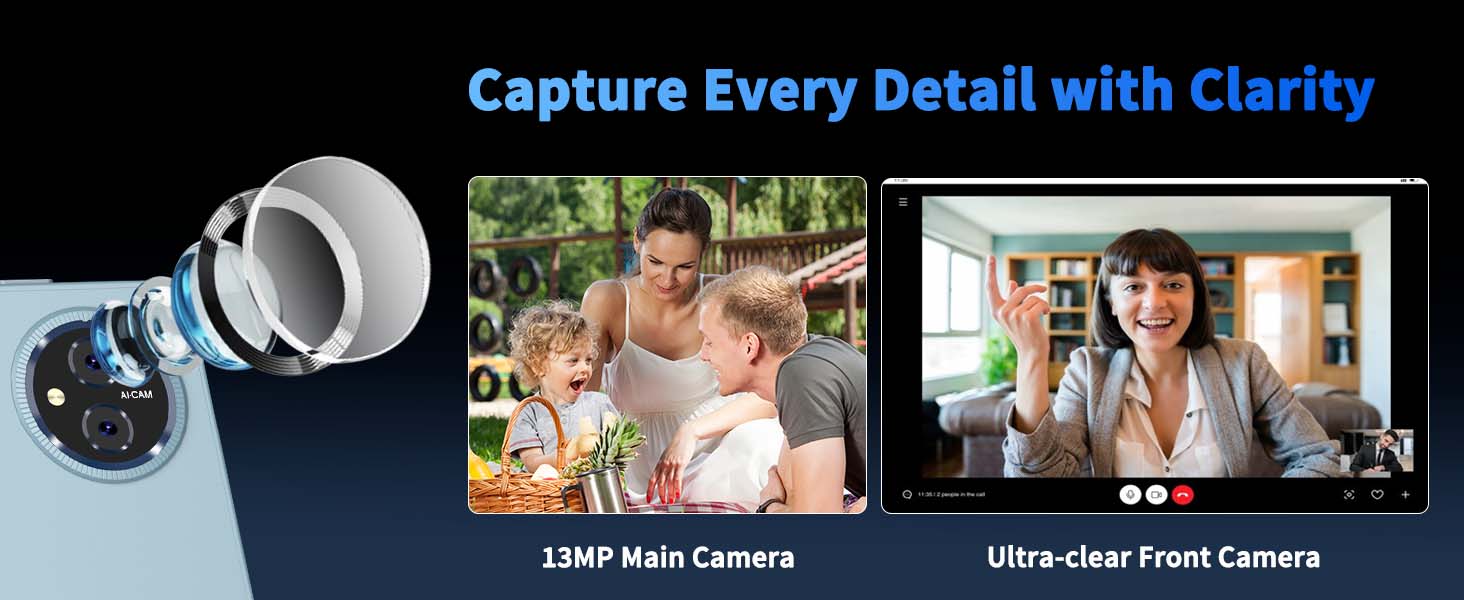
Image: Eye-friendly display modes for comfortable viewing.
3.2 Performance and Storage
Powered by an Octa-core T615 processor and Android 15, the tablet offers smooth multitasking and app performance.
- RAM: Up to 24GB (6GB physical RAM + 18GB virtual RAM). You can verify this in Settings > System > Memory Expansion.
- Internal Storage: 256GB ROM for your apps and files.
- Expandable Storage: Supports microSD cards up to 2TB (FAT32 format, sold separately). Insert the microSD card into the TF/SIM card slot.
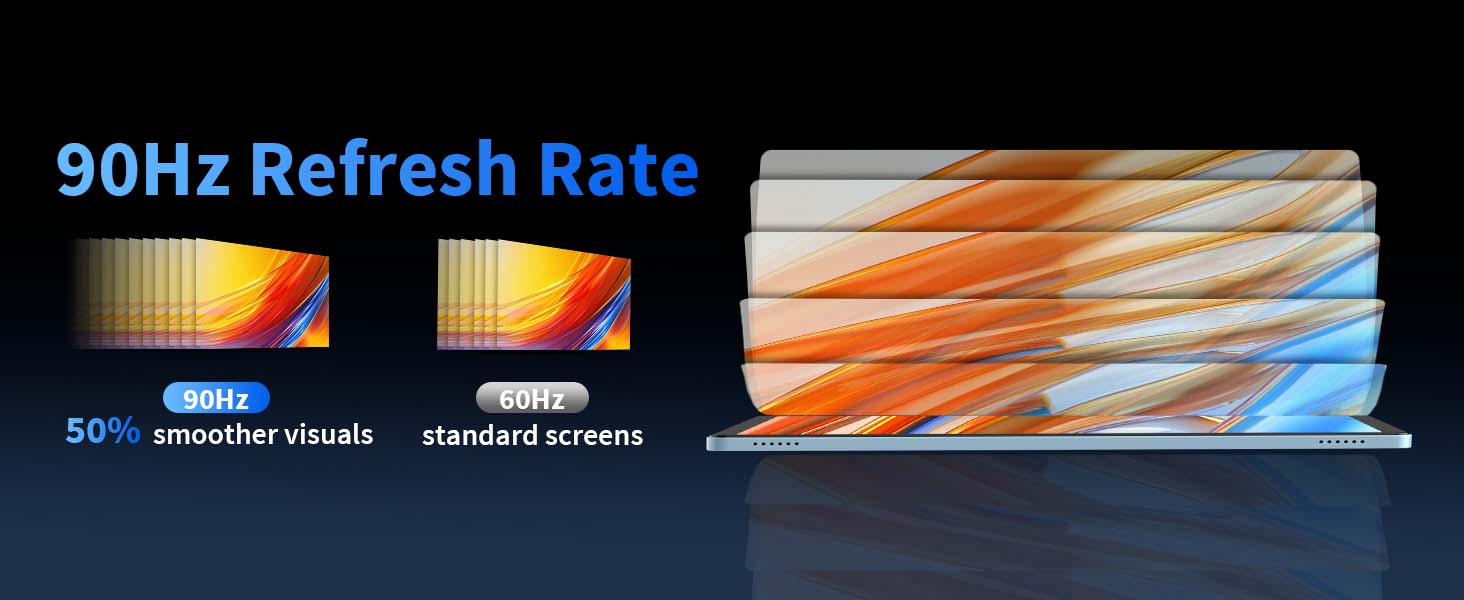
Image: Tablet memory and storage features.
3.3 Connectivity
- Wi-Fi: Supports dual-band Wi-Fi (2.4G/5G) for fast and stable internet connections. Access via Settings > Network & internet > Wi-Fi.
- Bluetooth 5.0: For connecting wireless peripherals like headphones, speakers, keyboard, and mouse. Access via Settings > Connected devices > Bluetooth.
3.4 Cameras and Face Unlock
The tablet is equipped with a 13MP rear camera and a 5MP front camera.
- Taking Photos/Videos: Open the Camera app to capture moments.
- Face Unlock: Set up Face Unlock in Settings > Security & privacy > Face Unlock for convenient and secure access to your device.
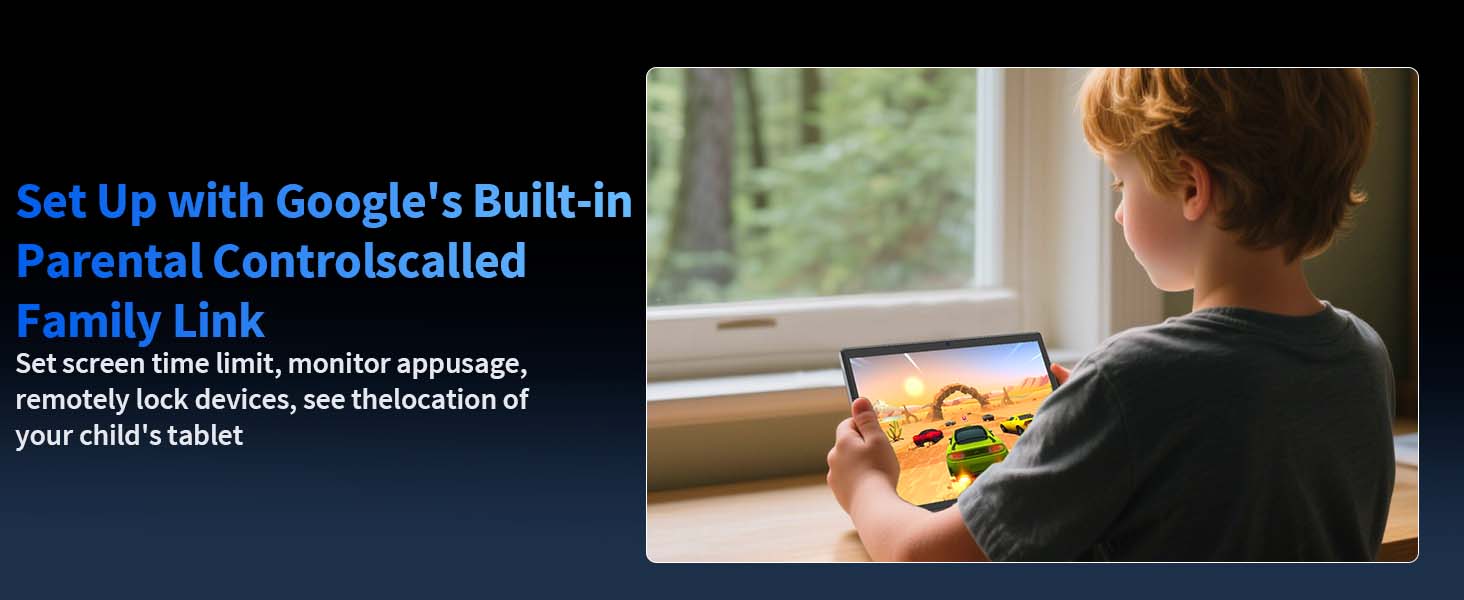
Image: Demonstrating the Face Unlock feature.
3.5 Audio
The tablet features dual speakers for an immersive audio experience and an independent 3.5mm headphone jack for private listening.
3.6 Android 15 Features
Experience enhanced functionality with Android 15:
- Split-Screen Functionality: Multitask by running two apps side-by-side. To activate, open an app, tap the square navigation button, then tap the app icon at the top of its preview and select "Split screen".
- Parental Controls: Manage screen time, monitor app usage, and remotely lock devices using Google's Family Link. Set up in Settings > Digital Wellbeing & parental controls.
- Personalized Settings: Customize widgets, themes, and notification management.
- Privacy & Security: Benefit from data encryption, user permissions, and enhanced privacy controls.
- Google Play Store: Access millions of apps and games.
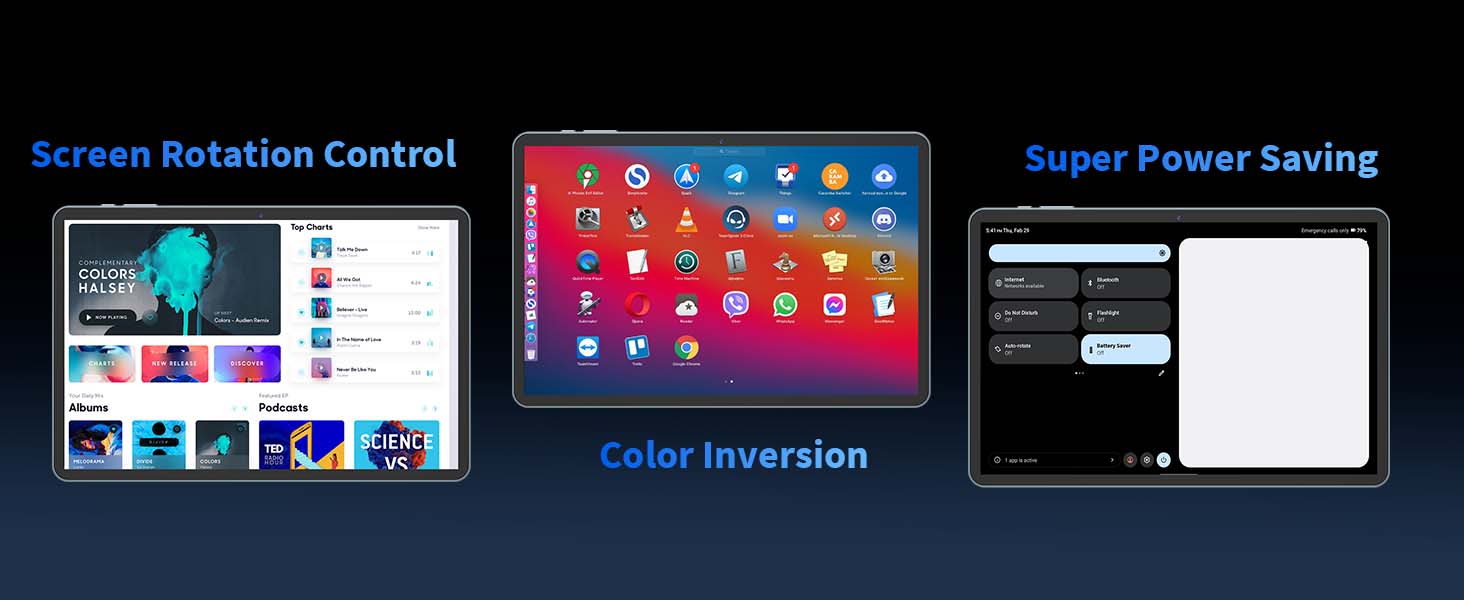
Image: Instructions for using the split-screen feature.
3.7 Google Assistant
Your tablet integrates seamlessly with Google Assistant. Simply say "Hey Google" or tap the Assistant icon to:
- Get answers to questions.
- Control smart home devices.
- Set reminders and alarms.
- Send messages and make calls.
4. Maintenance
4.1 Battery Care
- Use only the provided charging adapter and cable.
- Avoid extreme temperatures, which can degrade battery life.
- For long-term storage, charge the tablet to about 50% and power it off.
4.2 Cleaning Your Tablet
- Use a soft, lint-free cloth to clean the screen and body.
- For stubborn smudges, slightly dampen the cloth with water or a screen cleaner designed for electronics.
- Avoid harsh chemicals, abrasive materials, or excessive moisture.
4.3 Software Updates
Regularly check for and install software updates to ensure your tablet has the latest features, security patches, and performance improvements.
- Connect your tablet to a stable Wi-Fi network.
- Go to Settings > System > System update.
- Follow the on-screen instructions to download and install any available updates.
5. Troubleshooting
If you encounter issues with your Relndoo P80 tablet, try the following solutions:
| Problem | Possible Solution |
|---|---|
| Tablet won't turn on | Ensure the battery is charged. Connect to the charger for at least 30 minutes. Press and hold the Power Button for 10-15 seconds. |
| Wi-Fi connection issues | Restart the tablet and your Wi-Fi router. Forget the network in Wi-Fi settings and reconnect. Ensure you are within range. |
| Slow performance or app crashes | Close unnecessary background apps. Clear app cache (Settings > Apps > [App Name] > Storage > Clear cache). Restart the tablet. Ensure sufficient storage space. |
| Touchscreen unresponsive | Restart the tablet. If the issue persists, a factory reset might be necessary (back up data first). |
| Face Unlock not working | Ensure you are in a well-lit environment. Clean the front camera. Re-register your face in settings. |
| Accessories (keyboard/mouse) not connecting | Ensure accessories are charged and in pairing mode. Re-pair them via Bluetooth settings. |
If these solutions do not resolve the issue, please refer to the Warranty & Support section for further assistance.
6. Specifications
| Feature | Detail |
|---|---|
| Brand | Relndoo |
| Model Name | P80 |
| Operating System | Android 15 |
| Processor | T615 Octa-core |
| RAM Memory | 24 GB (6GB physical + 18GB virtual) |
| Storage Capacity | 256 GB ROM |
| Expandable Storage | microSD up to 2TB |
| Screen Size | 11 Inches |
| Display Resolution | 1280x800 Pixels (IPS) |
| Rear Camera | 13 MP |
| Front Camera | 5 MP |
| Battery Capacity | 8000 mAh |
| Charging | 18W Fast Charging, USB-C |
| Wireless Connectivity | Dual-band Wi-Fi (2.4G/5G), Bluetooth 5.0 |
| Biometric Security | Face Unlock |
| Dimensions (L x W x Th) | 11"L x 6.69"W x 2.5"Th |
| Weight | 538 g |
7. Warranty & Support
7.1 Manufacturer's Warranty
Your Relndoo P80 tablet is covered by a manufacturer's warranty. Please refer to the warranty card included in your package or visit the official Relndoo website for detailed terms and conditions regarding warranty coverage and duration.
7.2 Customer Support
For technical assistance, troubleshooting beyond this manual, or warranty claims, please contact Relndoo customer support through the following channels:
- Online Support: Visit the official Relndoo website for FAQs, support articles, and contact forms.
- Email Support: Refer to your product packaging or the official website for the customer service email address.
- Retailer Support: If purchased from a retailer, you may also contact their customer service for assistance.
Please have your product model number (P80) and purchase information ready when contacting support.