
1. Introduction
This manual provides detailed instructions for setting up, operating, and maintaining your Crossbeats Lumex Pro Smart Projector. Please read this manual thoroughly before use to ensure optimal performance and longevity of your device.
What's in the Box
- User Manual
- Cleaning Kit
- Power Cord
- Remote Control

Figure 1: Crossbeats Lumex Pro Smart Projector with its remote control, displaying a projection of streaming services and Google Store.
2. Product Overview & Key Features
The Crossbeats Lumex Pro is a versatile smart projector designed for an immersive viewing experience. It features 4K Ultra HD support, native 1080P resolution, and a high brightness of 14000 lumens. Powered by Android 13, it offers built-in access to popular streaming applications.
Key Features
- Ultra-Sharp 4K Support: Enjoy stunning 1080p resolution with 4K support for crystal-clear, high-quality images.
- Super Bright 14000 Lumens: Delivers vibrant visuals in various lighting conditions with a 20000:1 contrast ratio.
- Smart Streaming with Android 13: Access YouTube, Amazon Prime, Google TV, Netflix, and over 10,000+ apps and 800+ free channels.
- Enhanced Electronic Focus & Auto Keystone: Smoothly adjust the screen with automatic keystone correction and electric focus. Digital zoom from 35%-100%.
- Cinema-Quality Sound: Integrated 10W speaker provides rich and powerful audio, eliminating the need for external speakers.
- Memory: 1GB RAM and 8GB ROM for smooth operation and app storage.
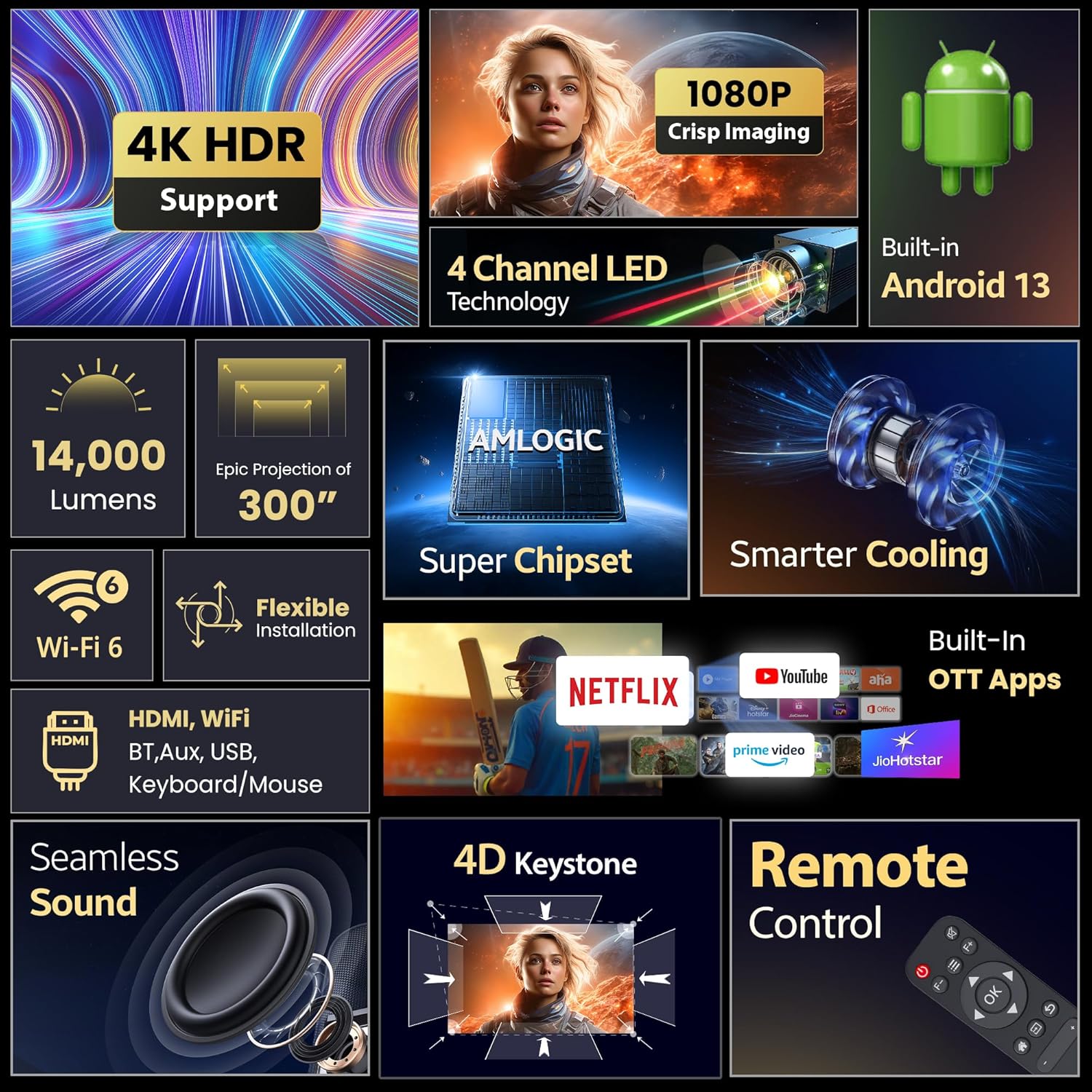
Figure 2: A collage highlighting key features of the Lumex Pro projector, including 4K HDR support, 1080P imaging, Android 13, 14000 lumens, 300-inch projection, Wi-Fi 6, flexible installation, seamless sound, 4D keystone, and remote control.
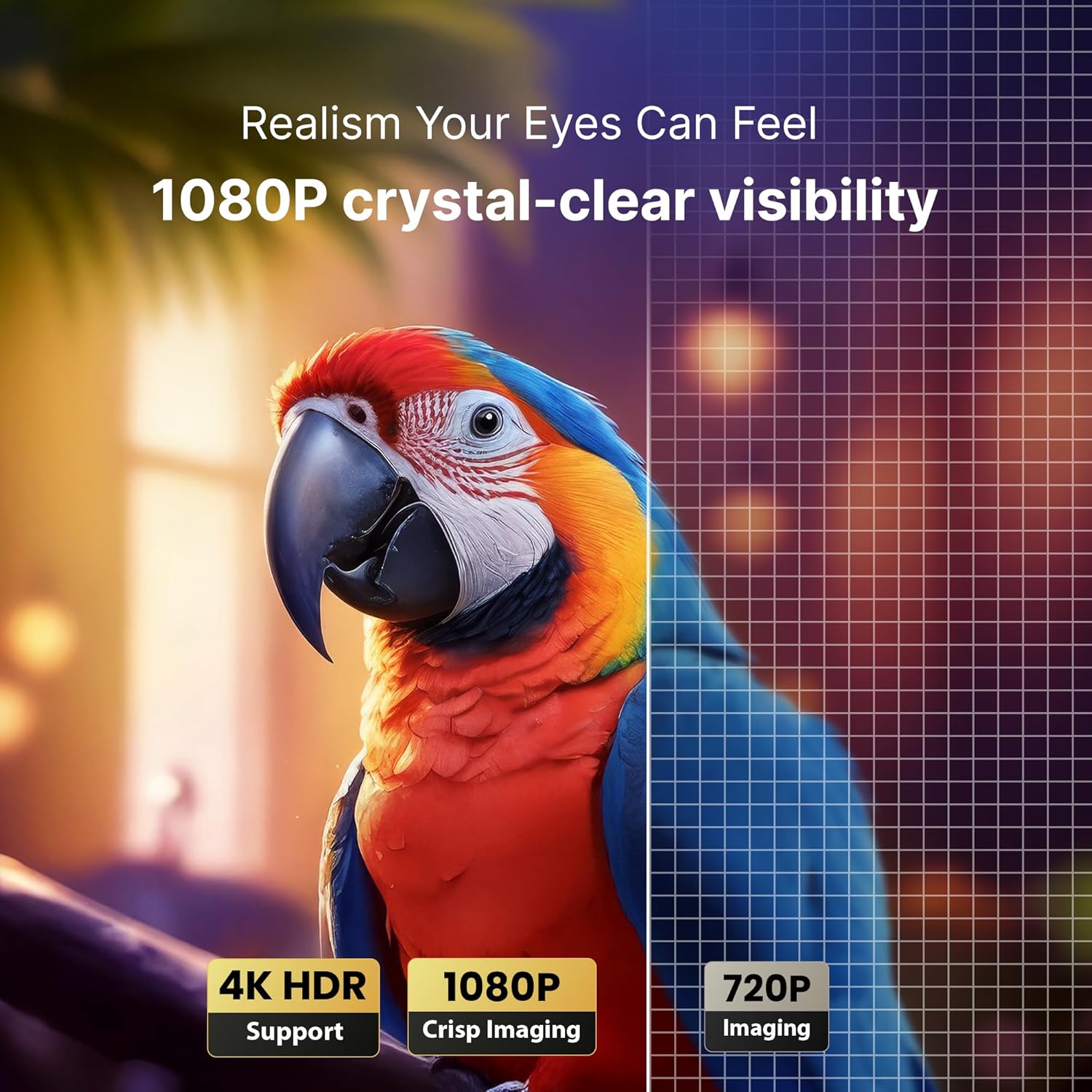
Figure 3: A visual comparison demonstrating the 1080P crystal-clear visibility of the Lumex Pro projector compared to 720P imaging.

Figure 4: An exploded view illustrating the internal 10W dedicated grill speaker for seamless Hi-Fi audio.
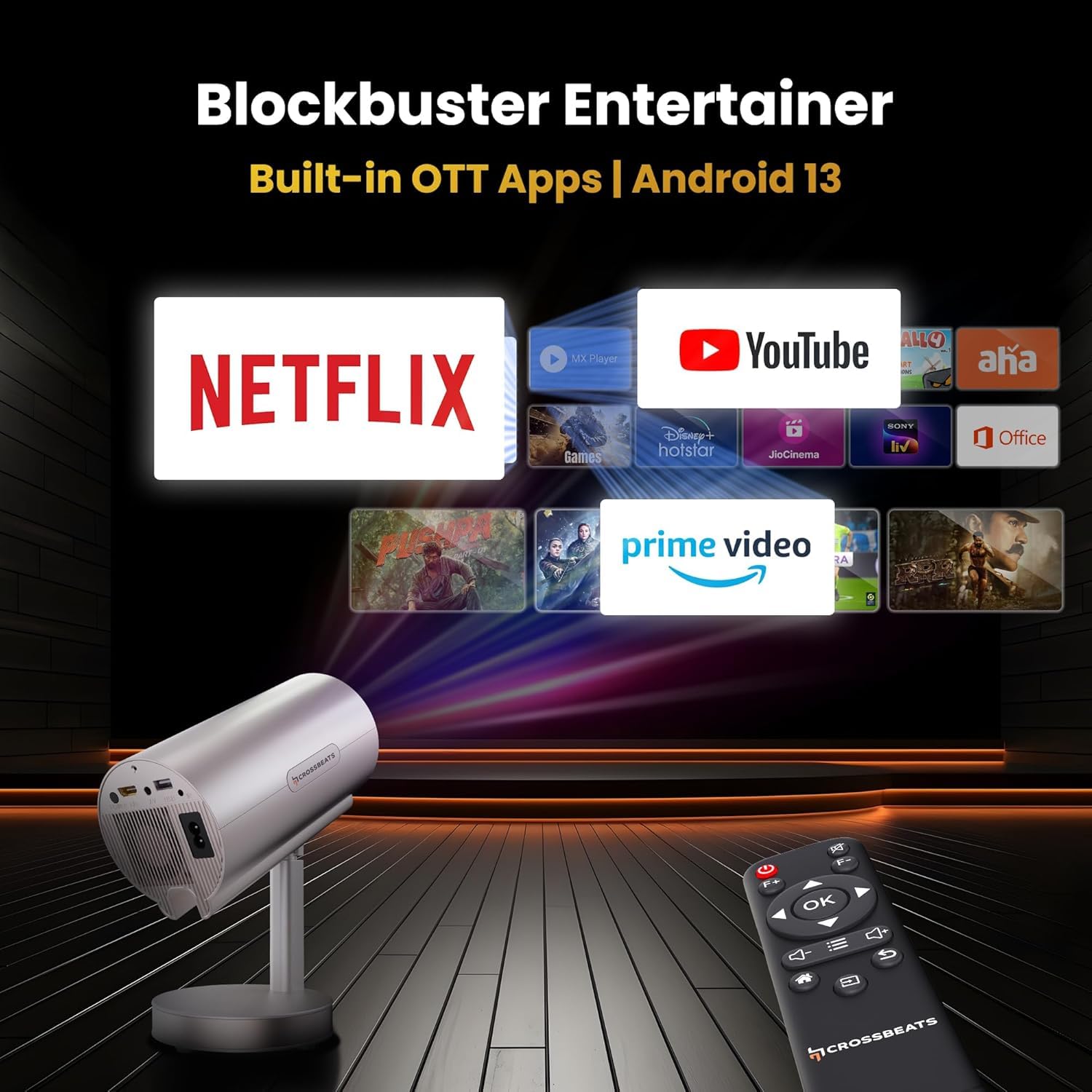
Figure 5: A diagram showing the epic projection range of the Lumex Pro, capable of displaying up to a 300-inch screen.
3. Setup Guide
Initial Placement
Place the projector on a stable, flat surface. The built-in stand allows for flexible positioning, including tabletop, wall, or ceiling projection. Ensure adequate ventilation around the device.
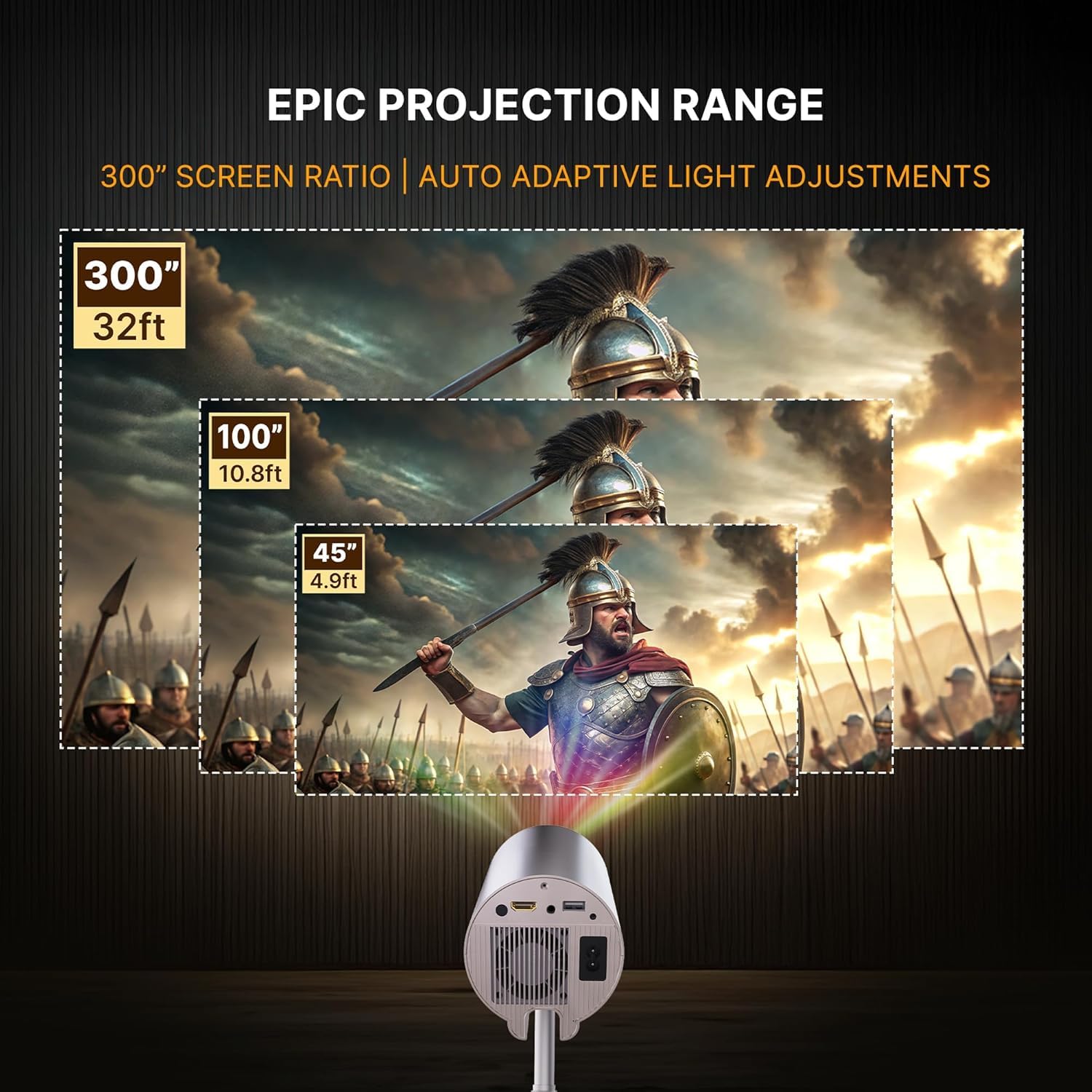
Figure 6: Illustrations showing various flexible installation options for the Lumex Pro projector, including tabletop, wall-mounted, and ceiling-mounted setups.
Power Connection
Connect the provided power cord to the projector's power input and then to a suitable electrical outlet.
Focus and Keystone Correction
The Lumex Pro features automatic keystone correction and electronic focus. The projector will attempt to adjust the image automatically upon startup. For manual adjustments:
- Use the remote control to access focus settings for a sharper image.
- The auto keystone correction will adjust the image shape to be rectangular.
- Digital zoom function allows adjusting the screen size between 35% and 100% without moving the projector.

Figure 7: Visual representation of the AI Vision Focus and Auto 4D Keystone Correction features for hassle-free setup and a perfectly aligned image.
Video 1: An introductory video demonstrating the flexible design, automatic adjustments, and various features of the Crossbeats Lumex Pro projector.
4. Operation
Connecting Devices
The projector supports multiple connectivity options:
- HDMI: Connect external devices like laptops, gaming consoles, or Blu-ray players using an HDMI cable.
- USB: Plug in USB drives for media playback.
- Bluetooth: Pair with Bluetooth headphones or speakers for audio output.
- Wi-Fi (5G+2.4G Dual Band): Connect to your home network for online streaming and screen mirroring.
- 3.5mm Audio: For wired audio output to external speakers or headphones.

Figure 8: An image illustrating the multi-device compatibility of the projector, showing connections to headphones, soundbars, tablets, laptops, mobile phones, and game consoles.
Using Built-in Apps (Android 13)
The Lumex Pro runs on Android 13 and comes with pre-installed streaming applications such as Netflix, Amazon Prime Video, YouTube, and Google TV. Navigate the interface using the remote control to select and launch your desired apps.
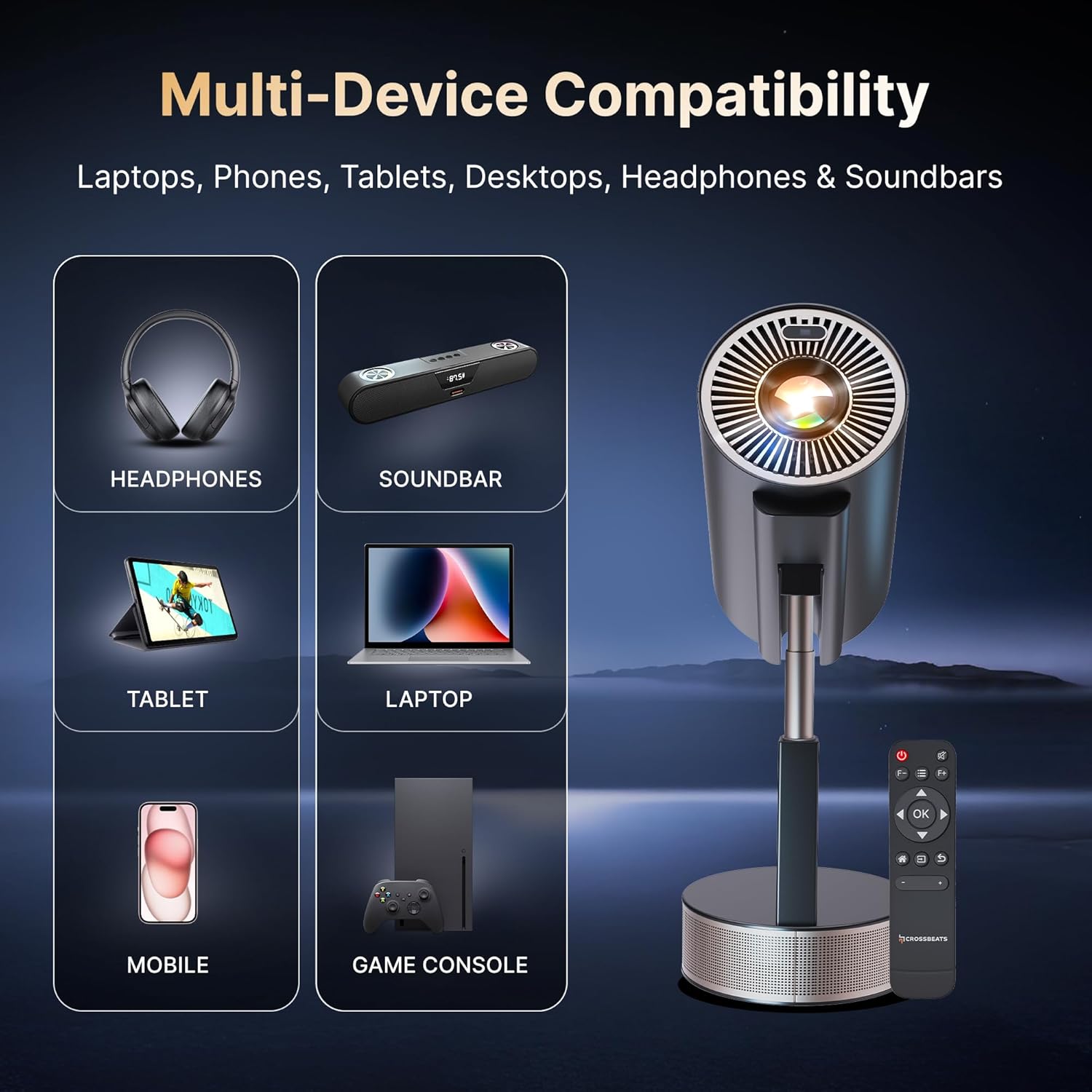
Figure 9: The projector displaying a screen with various built-in OTT applications like Netflix, YouTube, Prime Video, Disney+ Hotstar, and more, powered by Android 13.
Screen Mirroring
Wirelessly cast content from your smartphone, tablet, or laptop using the built-in Wi-Fi 6 for seamless sharing of videos, browsing, presentations, or gaming.
Video 2: A demonstration of the projector's screen mirroring capabilities, showing content from a smartphone being projected onto a ceiling.
5. Care and Maintenance
Cleaning
Regular cleaning helps maintain optimal image quality and device longevity. Use the provided cleaning kit to gently clean the lens and exterior surfaces. Avoid using abrasive cleaners or solvents.
Lamp Life
The projector lamp has an estimated lifespan of 30,000 hours, ensuring extended use without frequent replacement.

Figure 10: An illustration highlighting the projector's 30,000 hours lamp life, emphasizing its long-lasting design.
6. Troubleshooting
No Image or Dim Image
- Ensure the power cord is securely connected and the projector is turned on.
- Check the input source.
- Adjust the focus and keystone settings.
- Verify that the room lighting is appropriate for projection; the 14000 lumens brightness performs best in darker environments.
Blurred Image
- Use the electronic focus feature via the remote control to sharpen the image.
- Ensure the projection surface is flat and smooth.
Image Distortion (Trapezoid Shape)
- The auto keystone correction should automatically adjust the image. If not, check for manual keystone adjustment options in the settings.
- Ensure the projector is placed as perpendicular to the screen as possible.
No Sound or Low Sound
- Check the volume settings on the projector and any connected external devices.
- If using Bluetooth, ensure the device is properly paired and connected.
- Verify that the built-in 10W speaker is enabled, or that external speakers are correctly connected.
Lagging during Screen Sharing
- Ensure a strong and stable Wi-Fi connection, preferably using the 5G band if available.
- Reduce the distance between the projector and the source device.
- Close unnecessary applications on the source device to free up resources.
7. Technical Specifications
| Feature | Specification |
|---|---|
| Brand | CrossBeats |
| Model | LumeX Pro |
| Operating System | Android 13 OS |
| Display Technology | 4K Support, LCD |
| Display Type | LED |
| Native Resolution | 1920 x 1080 Pixels (1080P) |
| Image Brightness | 14000 Lumens |
| Image Contrast Ratio | 20000:1 |
| Aspect Ratio | 16:9 |
| Lamp Life | 30,000 hours |
| Focus Adjustment | Auto Focus |
| Keystone Correction | Auto 4D Keystone Correction |
| Connectivity | Bluetooth, HDMI, USB, Wi-Fi (Wi-Fi 6 /5G / 2.4G) |
| Hardware Interface | 3.5mm Audio, Bluetooth, HDMI |
| Compatible Devices | Gaming Console, Laptop, Smartphone, Speaker, Tablet |
| Special Features | Android 13 with OTT apps (Netflix, Prime, Youtube), Auto Focus, Auto Keystone, Built-In Wi-Fi, Rotatable Design |
| RAM/ROM | 1GB RAM / 8GB ROM |
| Product Dimensions | 21 x 12 x 12 cm; 1.28 kg |
| Form Factor | Portable |
| Mounting Type | Tabletop Mount |
| Refresh Rate | 60 Hz |
| Country of Origin | China |
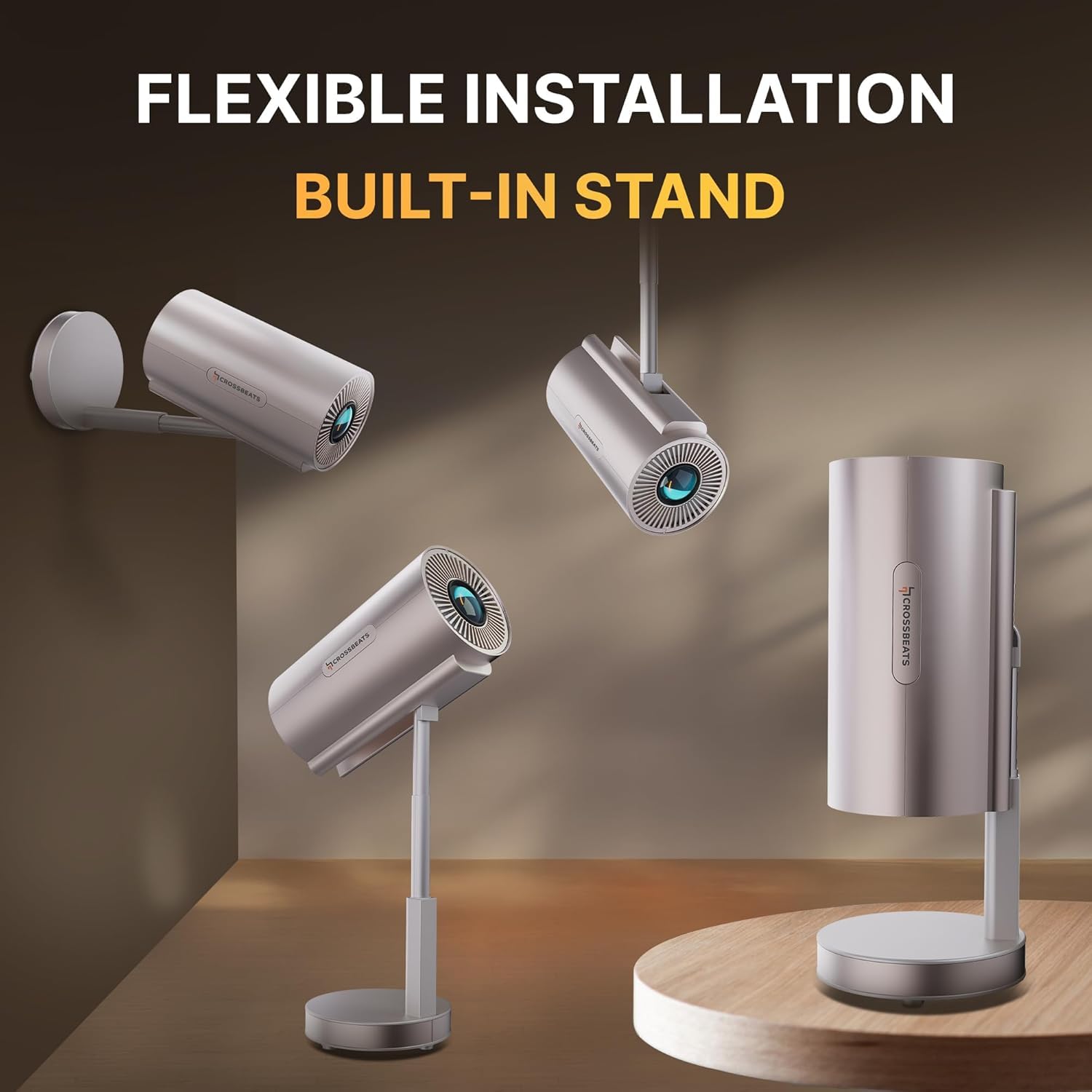
Figure 11: A visual representation of the Crossbeats Lumex Pro projector's technical specifications, including operating system, brightness, lamp life, display, resolution, connectivity, and smart features.
8. Warranty and Support
Warranty Information
The Crossbeats Lumex Pro Smart Projector comes with a standard brand warranty. For specific details regarding the warranty period and terms, please refer to the warranty card included in your product packaging or visit the official CrossBeats website.
Customer Support
Should you encounter any issues or require assistance with your projector, please contact CrossBeats customer support. Contact details can typically be found in the user manual or on the official brand website.
