
DIERYA DK68E
DIERYA DK68E 60% Mechanical Gaming Keyboard User Manual
Model: DK68E | Brand: DIERYA
Introduction
This manual provides detailed instructions for the setup, operation, maintenance, and troubleshooting of your DIERYA DK68E 60% Mechanical Gaming Keyboard. Please read this manual thoroughly to ensure proper use and to maximize your keyboard's performance and longevity.
What's in the Box
- DIERYA DK68E Mechanical Keyboard
- USB-C to USB-A Cable
- Keycap Puller
- User Manual (this document)

Image: The DIERYA DK68E keyboard with its detachable USB-C cable.
Setup
- Unpack the Keyboard: Carefully remove the keyboard and all accessories from the packaging.
- Connect the USB Cable: Insert the USB-C end of the provided cable into the port on the keyboard. Connect the USB-A end to an available USB port on your computer.
- Initial Recognition: Your computer should automatically detect and install the necessary drivers for the keyboard. This process may take a few moments.
- Placement: Position the keyboard comfortably on your desk. The keyboard features two-stage adjustable feet for ergonomic typing angles.

Image: Illustration of the USB-C port on the keyboard and the USB-A connector for the computer.

Image: Detail of the keyboard's adjustable feet and anti-slip pads for customized tilt.
Operating Instructions
Basic Keyboard Functions
The DIERYA DK68E is a 60% layout keyboard, meaning some keys are accessed via function (Fn) layer combinations. Refer to the keycaps for secondary functions, typically indicated on the front or side of the key.
RGB Backlighting Control
The keyboard features 16.8 million colors and 20 pre-set RGB lighting effects. These can be customized directly on the keyboard or through the web-based driver.
- Change Lighting Effect: Use the designated Fn key combination (e.g., Fn + \) to cycle through pre-set effects.
- Adjust Brightness: Use Fn key combinations to increase or decrease backlight brightness.
- Turn Off Backlight: A specific Fn key combination will typically toggle the backlight on/off.
Dedicated Volume Knob
The multi-functional knob located on the top right of the keyboard provides convenient media control:
- Rotate: Adjusts system volume.
- Press: Toggles play/pause for media.
- Press and Hold: May mute/unmute audio (refer to specific keyboard documentation for exact function).

Image: The multi-function metal knob for volume and media control.
Web-based Driver (KeyFlow WebOS)
The DIERYA DK68E features a driver-free, web-based customization tool. This allows for advanced personalization without software installation, compatible with Windows, Mac, and Linux.
- Access: Open a web browser and navigate to the official DIERYA web driver portal (URL typically provided in a quick start guide or on the manufacturer's website).
- Functions: Within the web interface, you can perform:
- Key remapping
- Complex macro recording
- Quick shortcuts assignment
- Per-key RGB personalization

Image: The KeyFlow WebOS interface for programming and RGB customization.
Key Features Overview
- Hot-Swappable Design: Supports both 3-pin and 5-pin mechanical switches, allowing for easy customization of typing feel and sound without soldering.
- Gasket Mount Structure: Provides a flexible typing feel and contributes to a satisfying acoustic profile.
- Pre-Lubed Linear Switches: Factory-lubricated for smooth and consistent keystrokes, rated for 50 million keystrokes.
- 5-Layer Sound-Dampening Foam: Reduces hollow sounds and minimizes noise for an enhanced typing experience.
- Double-Shot Keycaps: Constructed with double-shot injection molding to ensure legends never fade from wear.
- 1000Hz Polling Rate: Ensures ultra-responsive gaming and typing with lightning-fast command execution.

Image: Overview of the DIERYA DK68E's core features.
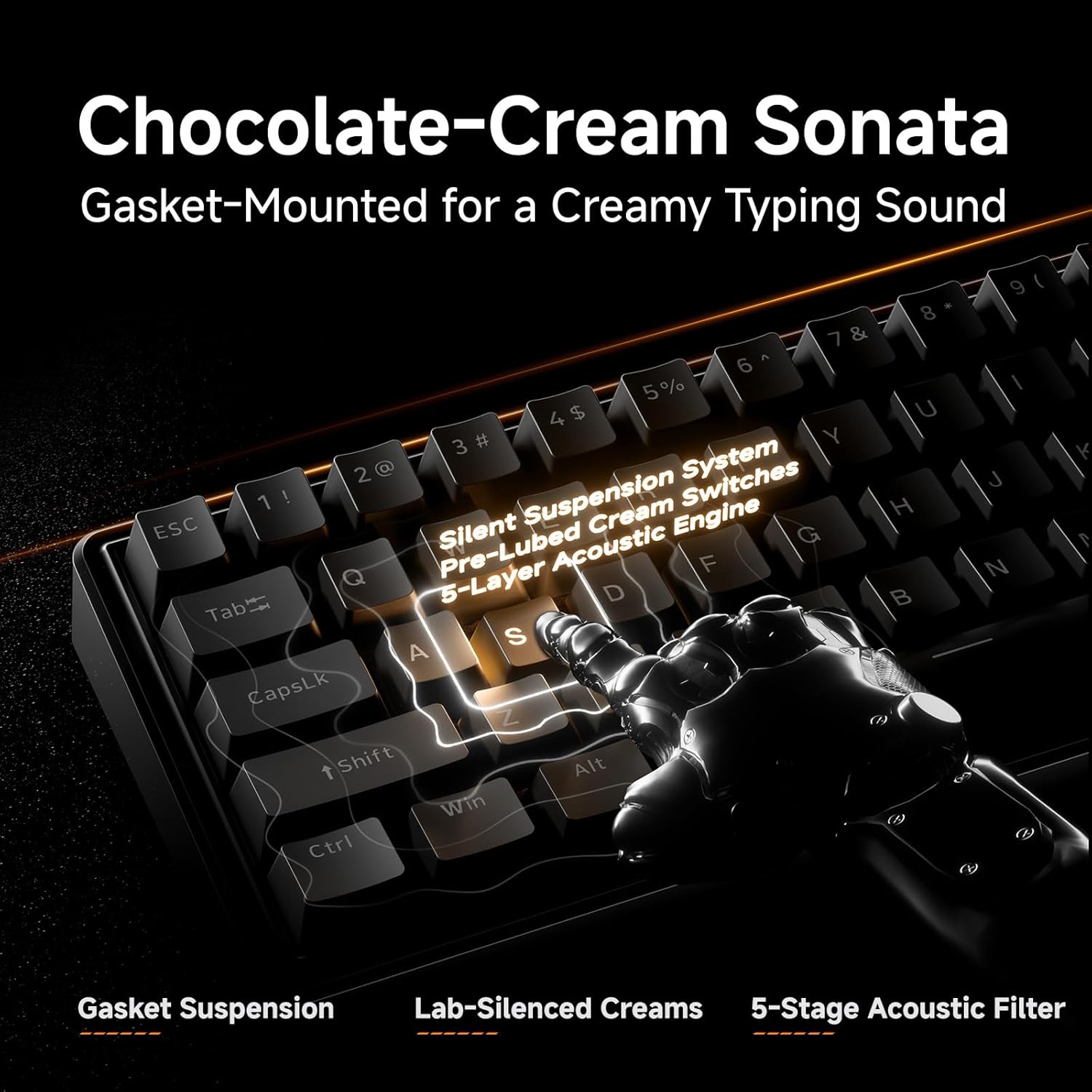
Image: Detailed view of the gasket-mounted design and internal dampening layers.

Image: Demonstration of the hot-swappable switch system.

Image: Examination of the durable double-shot keycaps.
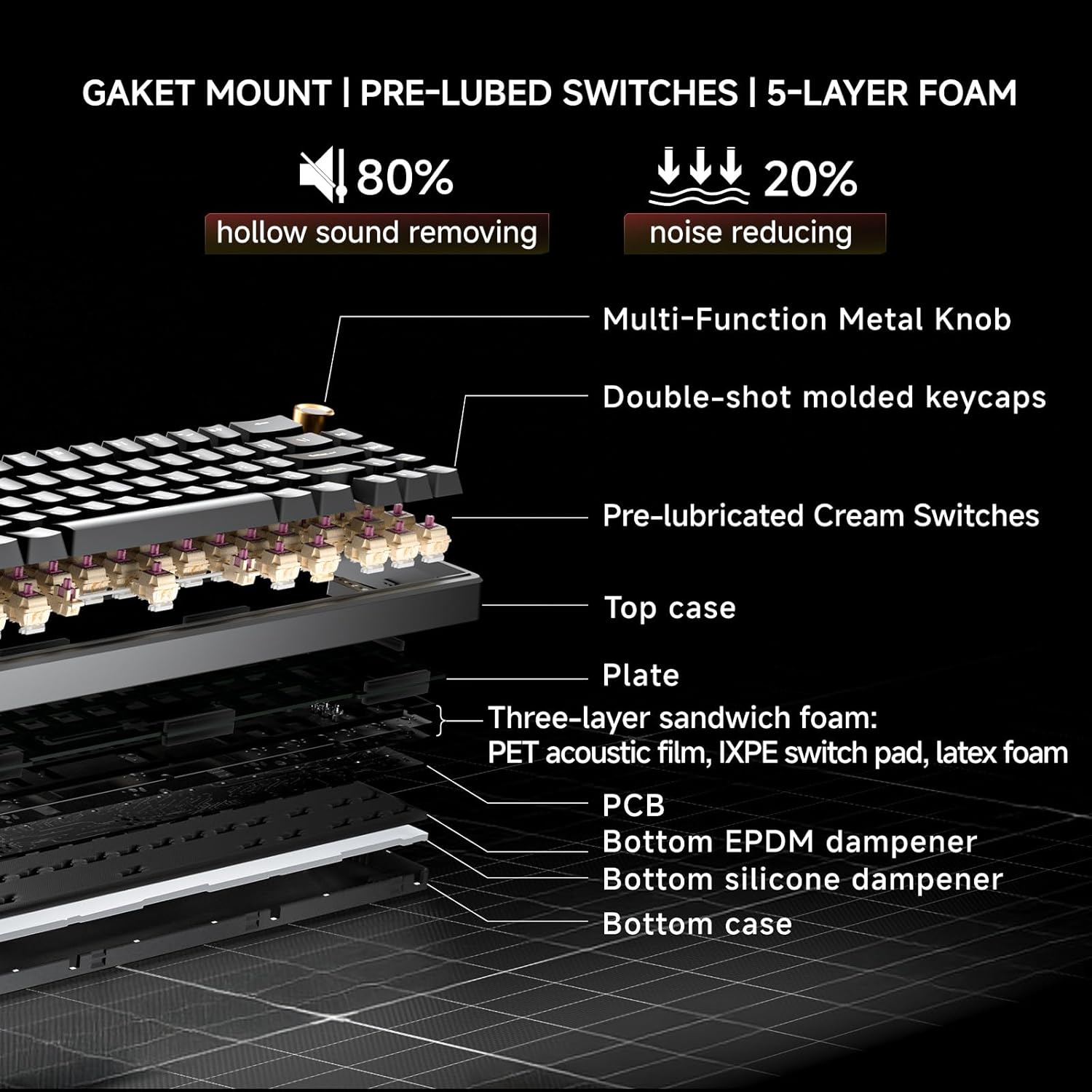
Image: Cross-section diagram detailing the gasket mount, pre-lubed switches, and 5-layer foam construction.
Maintenance
Cleaning
- General Cleaning: Use a soft, dry cloth to wipe the keyboard surface. For dust between keycaps, use compressed air.
- Deep Cleaning (Keycaps): Use the provided keycap puller to carefully remove keycaps. Clean the keycaps with mild soap and water, then ensure they are completely dry before reattaching. Clean the exposed switch stems and plate with a brush or compressed air.
Switch Replacement (Hot-Swappable)
The DK68E's hot-swappable sockets allow for easy switch replacement without soldering.
- Remove Keycap: Use the keycap puller to gently remove the keycap from the switch you wish to replace.
- Remove Switch: Use a switch puller (often integrated with the keycap puller) to grasp the top and bottom clips of the switch. Gently pull the switch straight up to remove it from the PCB.
- Insert New Switch: Align the pins of the new switch with the holes on the PCB. Ensure the pins are straight to avoid bending. Press the switch firmly until it clicks into place.
- Reattach Keycap: Place the keycap back onto the new switch stem.
Caution: Ensure the keyboard is unplugged before performing any maintenance involving switch or keycap removal to prevent accidental inputs or damage.
Troubleshooting
- Keyboard Not Responding:
- Ensure the USB cable is securely connected to both the keyboard and the computer.
- Try connecting the keyboard to a different USB port on your computer.
- Test the keyboard on another computer if possible to rule out a computer-specific issue.
- RGB Lights Not Working/Incorrect:
- Check the Fn key combinations for RGB control (e.g., brightness, mode change).
- Access the web-based driver to verify or reset RGB settings.
- Keys Not Registering or Double-Typing:
- For hot-swappable switches, carefully remove the keycap and then the switch. Reinsert the switch firmly to ensure proper contact with the PCB.
- Clean around the affected switch to remove any debris.
- Computer Wakes Up from Sleep When Keyboard is Connected:
- This can sometimes occur due to USB power settings. In your computer's Device Manager (Windows) or System Information (Mac), locate the USB Root Hubs or keyboard entry. In the power management tab, uncheck "Allow this device to wake the computer."
- Alternatively, unplug the keyboard's USB-C cable when putting the computer to sleep.
Specifications
| Feature | Detail |
|---|---|
| Model Name | DK68E |
| Brand | DIERYA |
| Keyboard Description | Gaming, Mechanical |
| Layout | 60% (68 Keys) |
| Connectivity Technology | Wired (USB-A, USB-C) |
| Switches | Pre-Lubed Linear, Hot-Swappable (3-pin & 5-pin compatible) |
| Mounting Style | Gasket Mount |
| Dampening | 5-Layer Sound-Dampening Foam |
| Keycaps | Double-Shot Molded |
| Backlighting | RGB (16.8 million colors, 20 pre-set effects) |
| Programmability | Web-based Driver (KeyFlow WebOS) |
| Polling Rate | 1000Hz |
| Compatible Devices | Laptop, PC |
| Material | Plastic |
| Item Weight | 1.65 pounds |
| Package Dimensions | 14.8 x 4.72 x 1.93 inches |
Warranty and Support
Warranty information for your DIERYA DK68E keyboard is typically included with your purchase documentation. Please refer to those materials for specific terms and conditions.
For further assistance, technical support, or to access the latest drivers and firmware updates, please visit the official DIERYA website or contact their customer support directly. You can also visit the DIERYA Store on Amazon for product information and support resources.
Related documentsDK68E


Ask a question about this manual
Ask about setup, troubleshooting, compatibility, parts, safety, or missing instructions. Manuals+ will review the question and use this page’s manual context to help answer it.