
1. Introduction
The CHUBORY X10 PRO GPS Drone is designed for both beginners and experienced users, offering advanced features for aerial photography and stable flight. This manual provides essential instructions for safe operation, setup, and maintenance of your drone.
Key features include a 4K UHD camera, GPS positioning, brushless motors for extended flight time, and intelligent flight modes such as Auto Return, Follow Me, Tap Fly, and Point of Interest. The drone is lightweight, weighing under 0.55 lbs, which may exempt it from FAA registration requirements in some regions.

Image: CHUBORY X10 PRO Drone with an overlay of its main features including 4K camera, GPS positioning, FPV, Smart Return, Tap Fly, Point of Interest, Auto Hover, Speed Switch, Smart Follow, and One Key Start.
2. Safety Precautions
To ensure safe operation and prevent injury or damage, please adhere to the following guidelines:
- Read the Manual: Thoroughly read and understand this entire instruction manual before operating the drone.
- Local Regulations: Always comply with local aviation regulations and restrictions. Flying in restricted airspace or over crowds is prohibited.
- Environmental Conditions: Avoid flying in strong winds, rain, snow, or other adverse weather conditions. Ensure adequate lighting for safe flight.
- Clear Area: Operate the drone in open, unobstructed areas, away from people, animals, buildings, trees, power lines, and water bodies.
- Line of Sight: Maintain visual line of sight with the drone at all times during flight.
- Battery Safety: Use only original CHUBORY batteries and charging cables. Do not overcharge batteries. Keep batteries away from flammable materials during charging.
- Pre-Flight Check: Before each flight, inspect the drone for any damage, especially propellers and motors. Ensure all components are securely attached.
- Age Restriction: This product is recommended for users aged 16 and above.
Video: CHUBORY X10 PRO Operation Guide Video. This video provides a comprehensive overview of the drone's operation, including safety checks and basic flight procedures.
3. Package Contents
Upon unboxing your CHUBORY X10 PRO GPS Drone, please verify that all the following items are included:
- CHUBORY X10 PRO GPS Drone
- Remote Controller
- Flight Batteries (3 included)
- Spare Propellers
- USB Charging Cable
- Screwdriver
- User Manual (this document)
- Carrying Case
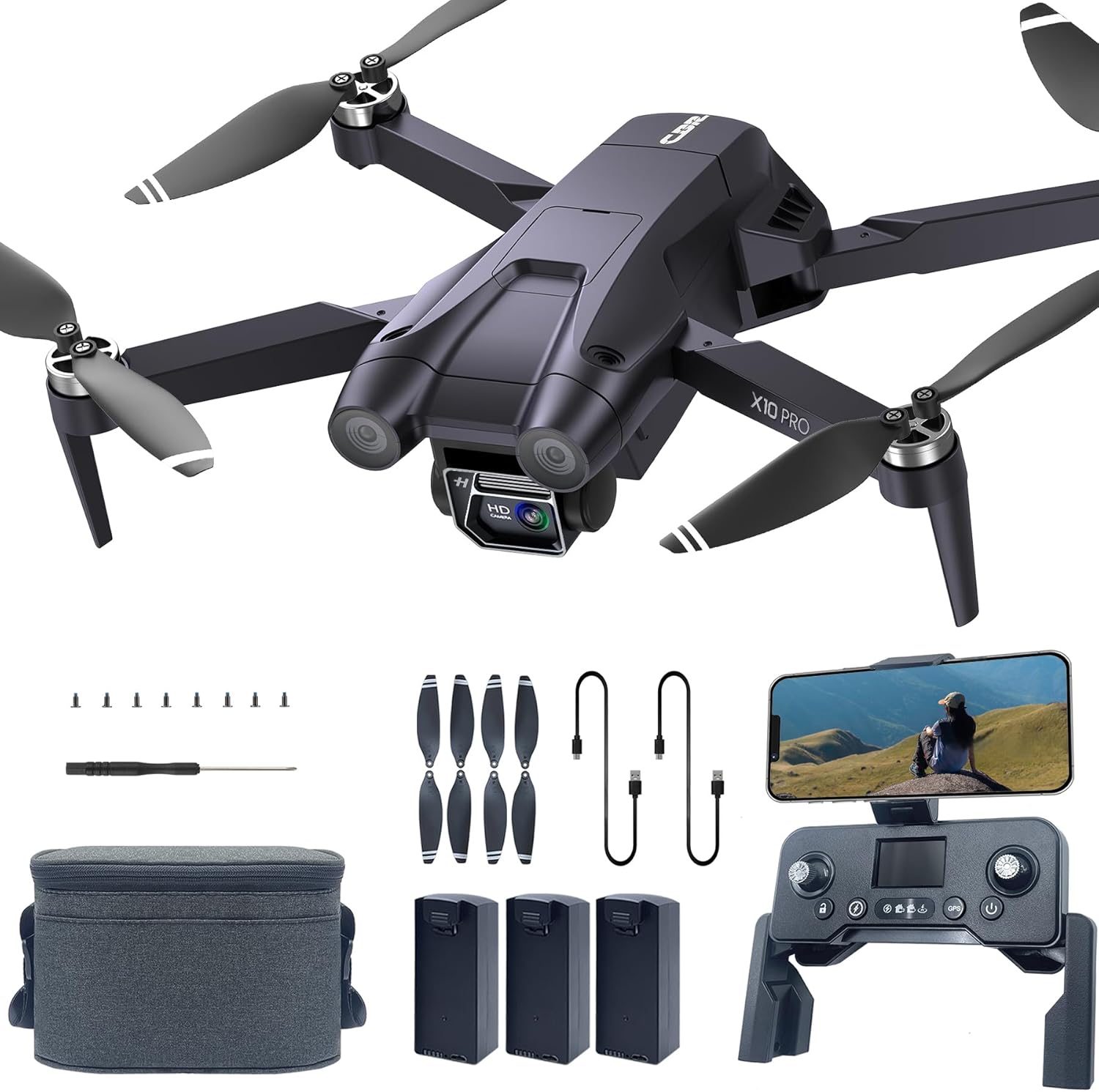
Image: The complete package contents of the CHUBORY X10 PRO GPS Drone, showing the drone, remote, batteries, propellers, and tools.
4. Component Identification
4.1 Drone Components
- Propellers: Generate lift for flight.
- Brushless Motors: Provide powerful and efficient propulsion.
- 4K UHD Camera: Captures high-resolution photos and videos.
- Optical Flow Sensor: Assists with stable indoor hovering.
- GPS Module: Enables precise outdoor positioning and intelligent flight modes.
- LED Indicator Lights: Display drone status and warnings.
- Battery Compartment: Houses the flight battery.
- Foldable Arms: Allow for compact storage and portability.
4.2 Remote Controller Components
- Left Joystick: Controls altitude and yaw (rotation).
- Right Joystick: Controls forward/backward and left/right movement.
- Phone Holder: Secures your smartphone for FPV viewing.
- Power Button: Turns the controller on/off.
- GPS Button: Toggles GPS mode and initiates calibration.
- One-Key Return Button: Initiates automatic return to home.
- Speed Switch Button: Adjusts flight speed (low/high).
- Camera Angle Adjustment Wheel: Controls the vertical angle of the drone's camera.
5. Setup
5.1 Charging Batteries
Ensure both the drone's flight batteries and the remote controller's internal battery are fully charged before use.
- Drone Battery: Connect the USB charging cable to the drone battery. The red indicator light will illuminate during charging and turn off when fully charged. Charging time is approximately 360 minutes.
- Controller Battery: Connect the USB charging cable to the remote controller. The green indicator light will illuminate during charging and turn off when fully charged. Charging time is approximately 40 minutes.
- Always use the original charging cables and keep batteries away from flammable materials during charging. Do not overcharge.
5.2 Propeller Installation/Check
The drone comes with propellers pre-installed. If replacement is necessary due to damage or deformation, ensure correct installation:
- Match the letter markings (A or B) on the propellers with the corresponding drone arms.
- Securely fasten the propellers with the provided screws and screwdriver.
- Always check that propellers are free from damage and securely attached before each flight.
5.3 App Download & Connection
To utilize the drone's full features, download the "CHUBORY GPS" app on your smartphone:
- Scan the QR code provided in the physical instruction manual or search for "CHUBORY GPS" in your device's app store (iOS/Android).
- Turn off your phone's cellular network (some phones may require this for stable Wi-Fi connection).
- Turn on your phone's Wi-Fi and connect to the network named "CBR-DRONE-XXXXXX" (where XXXXXX is a unique identifier).
- Open the "CHUBORY GPS" app and click "Start Play" to enter the flight interface.
- Install your phone onto the phone holder of the remote controller.
5.4 Controller Connection & Calibration
- Power On: Place the drone on a level surface. Long-press the power button on the drone until the LED lights flash.
- Connect Controller: Orient the drone's head and controller in the same direction. Long-press the power button on the controller. It will automatically connect to the drone.
- Gyroscope Calibration: Press the calibration button on the controller. The drone's indicator lights will flash rapidly and then stay lit, accompanied by a beeping sound from the controller, indicating completion.
- Geomagnetic Calibration (Horizontal): Press the geomagnetic calibration button on the controller. The drone's indicator lights will flash rapidly. Hold the drone in your hand and rotate it clockwise slowly three times in a horizontal direction. A single beep from the controller indicates completion.
- Geomagnetic Calibration (Vertical): With the drone's head facing downwards, rotate it slowly clockwise three times. Two beeps from the controller indicate completion.
Video: X10 PRO GPS Drone Quick Start Guide. This video demonstrates the initial setup steps, including connecting the controller and performing calibrations.
5.5 GPS Signal Search (Outdoor Mode)
If you intend to fly outdoors, you must wait for the drone to acquire a sufficient GPS signal:
- Place the drone on an open, level surface outdoors.
- The drone will automatically search for GPS signals.
- When the GPS signal strength exceeds 9 (indicated in the app), the drone indicator lights and the outdoor mode indicator light will change from a slow flash to a solid light.
- At this point, you can unlock and use the drone for outdoor flight.
6. Operating the Drone
6.1 Basic Flight Controls
- Unlock: Press the Unlock button on the controller. The propellers will start to spin. If no operation occurs within 10 seconds, the drone will automatically lock.
- Take-off: Push the left joystick up to make the drone fly upward.
- Landing: Push the left joystick down to make the drone fly downward.
- Hover: Release all joysticks, and the drone will hover in place.
- Movement:
- Left Joystick Left/Right: Turns the drone left/right (yaw).
- Right Joystick Up/Down: Moves the drone forward/backward.
- Right Joystick Left/Right: Moves the drone left/right (strafe).
6.2 Speed Modes
Press the Speed button on the controller to switch between speed modes:
- One beep sound: Indicates Low Speed.
- Two beep sounds: Indicate High Speed.
6.3 Intelligent Flight Modes
- One-Click Return: Press the Return button on the controller. The drone will automatically fly back to its home point (the position where GPS signal was first acquired).
- Automatic Return: The drone will automatically return to the home point if it loses connection with the controller or if the battery level falls below a safe threshold.
- Follow Me: Activate "Follow Me" mode in the app. The drone will recognize and automatically follow you (within a specified distance, typically 2 meters).
- Tap Fly (Waypoint Flight): In the app, select waypoints on the map. Upload the commands, and the drone will fly according to the defined path.
- Point of Interest (Surround Flight): The drone will automatically circle or maintain focus on a specific location or object.

Image: Smart Follow mode, where the drone autonomously tracks a target.

Image: Tap Fly mode, allowing users to navigate by tapping destinations on the screen.

Image: Point of Interest mode, where the drone focuses on and circles a specific object.
7. Camera Functions
The CHUBORY X10 PRO features a 4K UHD camera for high-quality aerial imaging.
7.1 Taking Photos
In the app interface, click the "Taking Photo" icon to capture a still image. The camera offers 4096x3072 photo resolution.
7.2 Shooting Video
In the app interface, click the "Recording" icon to start shooting video. Click it again to stop. The camera offers 2048x1080 video resolution.
7.3 Adjusting Camera Angle
Use the Camera Angle Adjustment Wheel on the remote controller to adjust the vertical angle of the front camera 90° up and down.

Image: The drone's 4K UHD camera, highlighting its 100° wide-angle lens and 90° remote adjustability.
7.4 Gesture Photo and Video
- Gesture Photo: Stand approximately 2 meters in front of the drone. Hold the "YEAH" gesture (V-sign) for 3 seconds to take a photo.
- Gesture Video: Stand approximately 2 meters in front of the drone. Make a "PALM" gesture to start shooting video. Make the same gesture again to end the recording.

Image: Gesture Photography feature, where the drone captures photos based on hand gestures.
8. Maintenance
Proper maintenance ensures the longevity and optimal performance of your drone:
- Cleaning: Regularly clean the drone body, camera lens, and propellers with a soft, dry cloth. Avoid using harsh chemicals.
- Propeller Inspection: Before and after each flight, check propellers for cracks, bends, or damage. Replace damaged propellers immediately.
- Battery Care: Store batteries in a cool, dry place. Do not store fully charged or completely depleted batteries for extended periods. Charge them to about 50-60% for long-term storage.
- Storage: When not in use, store the drone in its carrying case to protect it from dust and physical damage.
- Motor Care: Keep motors free from dust, dirt, and debris. Avoid operating in sandy or dusty environments.
9. Troubleshooting
If you encounter issues with your CHUBORY X10 PRO drone, refer to the following common solutions:
| Problem | Possible Cause | Solution |
|---|---|---|
| Drone does not power on. | Low battery or battery not installed correctly. | Charge the battery fully. Ensure the battery is securely inserted. |
| Controller does not connect to drone. | Incorrect pairing sequence or low controller battery. | Ensure both are powered on and follow the connection steps in Section 5.4. Charge controller. |
| Drone drifts during flight. | Improper calibration or strong wind interference. | Perform gyroscope and geomagnetic calibration (Section 5.4). Avoid flying in windy conditions. |
| No FPV image on phone. | Phone not connected to drone's Wi-Fi or cellular data is on. | Ensure phone is connected to "CBR-DRONE-XXXXXX" Wi-Fi and cellular data is off. Restart app. |
| GPS signal not acquired. | Flying indoors or in an area with poor satellite reception. | Move to an open outdoor area with a clear view of the sky. Wait for GPS signal strength to exceed 9. |
10. Specifications
- Brand: CHUBORY
- Model Name: X10 PRO
- Item Weight: 235 Grams (under 0.55 lbs)
- Product Dimensions: 3.74"L x 3.74"W x 1.18"H
- Connectivity Technology: Wi-Fi (5G FPV transmission)
- Camera: 4K UHD (4096x3072 photos, 2048x1080 videos), 100° wide-angle, 90° adjustable.
- Motor Type: Brushless Motors
- Flight Time: Up to 90 minutes (with 3 included batteries)
- Control Range: Up to 3280 feet
- Battery Cell Composition: Lithium Ion
- Batteries: 3 Nonstandard Battery batteries required (included)
- Manufacturer Part Number: X10-231214
- UPC: 718027260634
11. Warranty and Support
CHUBORY offers a 1-year warranty for replacing damaged parts and a 30-day money-back guarantee for any reason. For any questions or support needs, please contact CHUBORY customer service.
You can visit the CHUBORY Store on Amazon for more information and contact options.


