Introduction
Welcome to your new Haier H55S80F 55-inch 4K UHD QLED Smart TV. This television combines advanced display and audio technologies with smart features for an immersive entertainment experience. Please read this manual carefully to ensure proper use and to maximize your viewing pleasure.
1. Setup and Installation
1.1 Unpacking
Carefully remove all components from the packaging. Verify that all items listed below are present:
- Television
- Remote Control
- Table Stand (x1)
- Screws for Stand (x2)
- User Manual (this document)
- Warranty Card
1.2 Stand Installation
To install the table stand:
- Place the TV screen-down on a soft, flat surface to prevent scratches.
- Align the stand with the mounting holes on the bottom of the TV.
- Secure the stand using the provided screws. Ensure the stand is firmly attached before placing the TV upright.
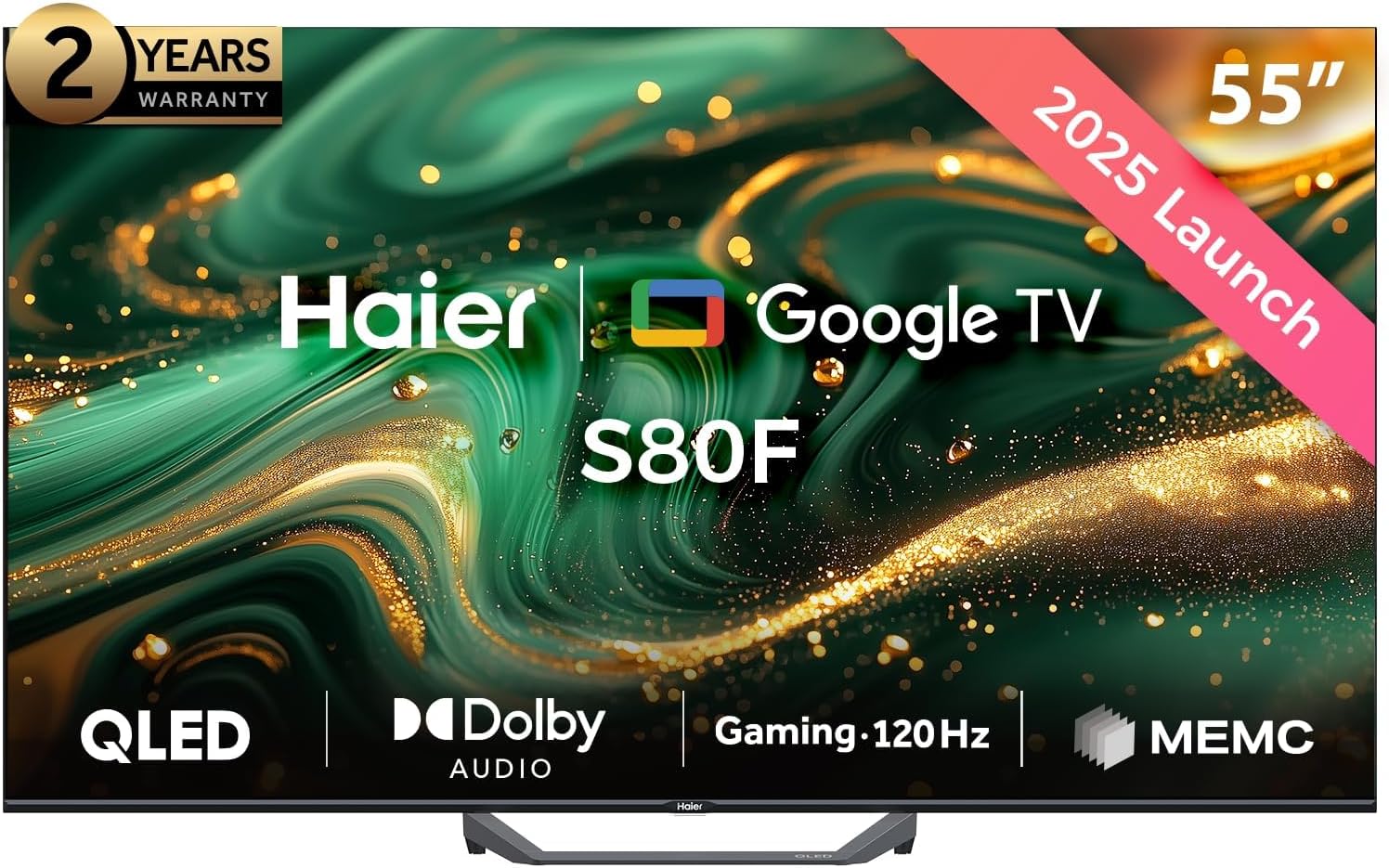
Image: Front view of the Haier H55S80F 55-inch QLED Smart TV with its central table stand installed.
1.3 Wall Mounting
The TV supports VESA wall mounts. The recommended VESA mount size is 300x300mm. A wall mount is not included in the box and must be purchased separately. Professional installation is recommended for wall mounting.

Image: Diagram showing the dimensions of the Haier H55S80F TV with and without the stand, including the VESA wall mount size of 300x300mm.
1.4 Initial Connections
Connect the power cord to the TV and then to a power outlet.
For external devices, use the appropriate HDMI or USB ports.
If using an antenna or cable, connect it to the TV's antenna input.
2. Operating Your TV
2.1 Power On/Off
Press the power button on the remote control or on the TV itself to turn the TV on or off.
2.2 Remote Control
The remote control provides access to all TV functions, including Google Assistant for voice commands and quick access buttons for popular streaming services.
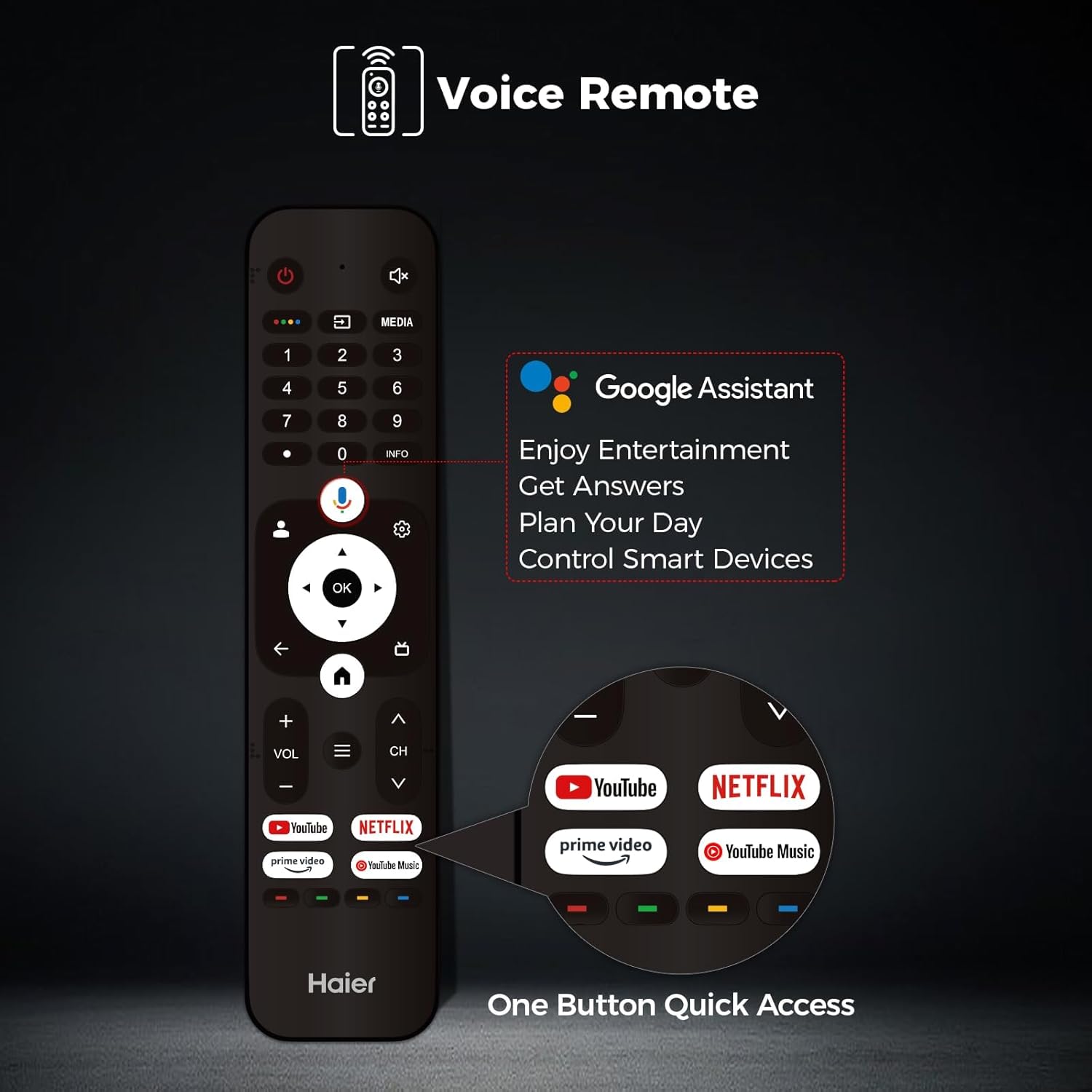
Image: Close-up of the Haier Smart TV remote control, highlighting the Google Assistant button and dedicated buttons for YouTube, Netflix, Prime Video, and YouTube Music.
2.3 Smart TV Features (Google TV)
Your Haier H55S80F TV runs on the Google TV platform, offering a personalized experience with access to a wide range of apps, movies, and shows.
- Google Assistant: Use voice commands to search for content, control smart home devices, and get information.
- Chromecast Built-in: Cast content from your mobile devices directly to the TV.
- App Access: Download and install applications from the Google Play Store.
2.4 Picture Settings
The TV features a 4K UHD QLED display, supporting multiple HDR formats including Dolby Vision, HDR10, and HLG for superior picture quality.

Image: Illustration demonstrating QLED technology, showing layers of a display panel and vibrant colors, with text "QLED: Dive into a billion color world".
Adjust picture modes (Standard, Vivid, Movie, Game) and advanced settings like brightness, contrast, color, and sharpness through the TV's menu.
2.5 Audio Settings
Experience immersive sound with stereo speakers featuring Dolby Atmos support and dbx-tv technology.

Image: A person watching TV with sound waves emanating from the screen, illustrating the immersive audio experience provided by Dolby Audio and dbx-tv technologies.
The TV includes features like auto volume leveling and surrounding sound simulation. Access audio settings to customize your sound experience.
2.6 Connectivity
Your TV offers various connectivity options:
- HDMI: Multiple HDMI inputs for connecting devices like gaming consoles, Blu-ray players, and set-top boxes.
- USB: USB ports for media playback from external storage devices.
- Bluetooth: Connect wireless headphones, soundbars, or other Bluetooth-enabled accessories.
- Wi-Fi: Connect to your home network for internet access and smart TV features.
2.7 Gaming Features
The Haier H55S80F is optimized for gaming with features designed to enhance your experience.

Image: A tennis player in action, illustrating the smooth performance provided by the 120Hz refresh rate for gaming.
- Game Mode: Automatically adjusts picture settings for optimal gaming performance, including Game Picture Mode Optimization, ALLM (Auto Low Latency Mode), VRR (Variable Refresh Rate), and Shadow Enhancement.
- 120Hz Refresh Rate: Provides smoother motion for fast-paced games.
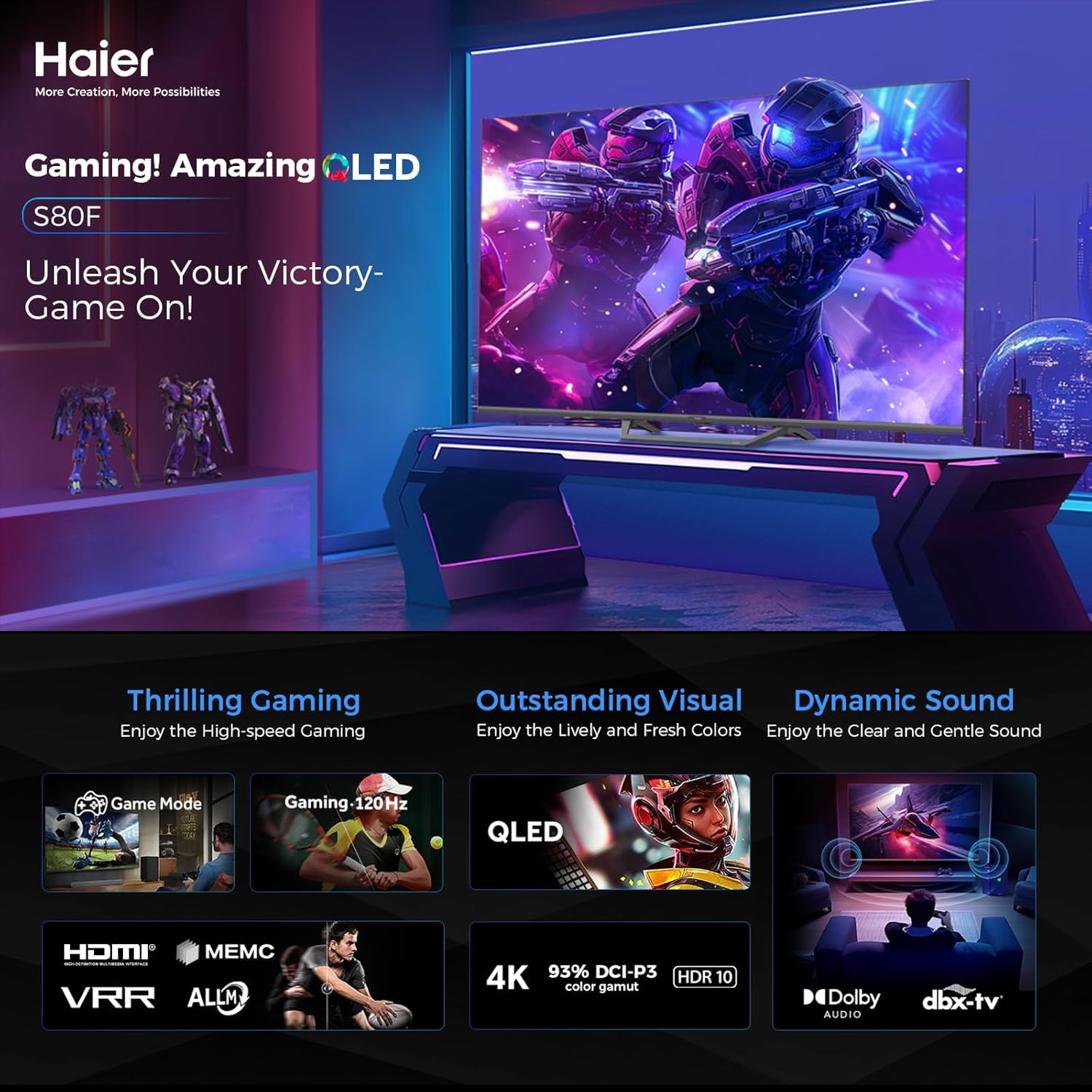
Image: A collage of gaming-related features including Game Mode, 120Hz, QLED, 4K, HDR10, Dolby Audio, dbx-tv, HDMI, VRR, and ALLM, indicating a comprehensive gaming experience.
2.8 Additional Features
- Channel Editing: Organize and customize your TV channels.
- Favorite List: Create a list of your preferred channels for quick access.
- Parental Controls: Manage content access for children.
- Power-Saving Audio-Only Mode: Turn off the display while keeping audio active to save energy.
3. Maintenance
3.1 Cleaning Your TV
Gently wipe the screen with a soft, dry, lint-free cloth. For stubborn marks, use a screen cleaner specifically designed for TVs, applied to the cloth, not directly to the screen.
Clean the TV's frame and stand with a soft, damp cloth. Avoid using abrasive cleaners or solvents.
3.2 Software Updates
Ensure your TV's software is up to date for optimal performance and new features. Updates can usually be found in the TV's settings menu under "System" or "About".
4. Troubleshooting
4.1 Common Issues and Solutions
No Power
- Check if the power cord is securely connected to both the TV and the power outlet.
- Ensure the power outlet is functional by testing it with another device.
No Picture, But Sound is Present
- Verify the correct input source is selected.
- Check all HDMI or other video cables for secure connections.
- Try restarting the TV.
No Sound, But Picture is Present
- Check the volume level and ensure the TV is not muted.
- Verify audio cables if using external speakers.
- Check audio output settings in the TV menu.
Remote Control Not Working
- Replace the batteries in the remote control.
- Ensure there are no obstructions between the remote and the TV's IR sensor.
- If it's a Bluetooth remote, try re-pairing it according to the TV's settings.
Wi-Fi Connectivity Issues
- Restart your Wi-Fi router.
- Check the TV's network settings to ensure Wi-Fi is enabled and connected to the correct network.
- Move the TV closer to the router or consider a Wi-Fi extender if the signal is weak.
5. Specifications
Technical Specifications
| Feature | Detail |
|---|---|
| Model Number | H55S80F |
| Screen Size | 55 Inches |
| Display Technology | QLED |
| Resolution | 4K (3,840 x 2,160) |
| Refresh Rate | 120Hz (for gaming) |
| HDR Support | Dolby Vision, HDR10, HLG |
| Operating System | Google TV |
| Audio Technology | Dolby Atmos, dbx-tv |
| Connectivity | Bluetooth, HDMI, Wi-Fi |
| Special Features | Browser, Chromecast, Flat, Game Mode, Sleep Timer, Google Assistant |
| Product Dimensions (with stand) | 123 cm (W) x 25 cm (D) x 75.5 cm (H) |
| Product Dimensions (without stand) | 123 cm (W) x 8.5 cm (D) x 71.9 cm (H) |
| Weight | 14.3 kg (with stand), 10.6 kg (without stand) |
| Aspect Ratio | 16:9 |
6. Warranty and Support
6.1 Warranty Information
Your Haier H55S80F TV comes with a 2-year warranty. Please refer to the included Warranty Card for detailed terms and conditions. Keep your proof of purchase for warranty claims.
6.2 Customer Support
For technical assistance, troubleshooting beyond this manual, or warranty service, please contact Haier customer support. Refer to the warranty card or Haier's official website for contact details.


