
1. Introduction
This manual provides essential information for the safe and efficient operation of your Bnegynng Android 15 Tablet CP31M. Please read this manual thoroughly before using your device to ensure proper setup, usage, and maintenance. Keep this manual for future reference.

Figure 1: Bnegynng Android 15 Tablet with its operating system interface.
2. Product Overview
2.1 Key Features
- Operating System: Android 15 (Official Version)
- Processor: 2.0GHz Quad-Core CPU
- Display: 10.1-inch 1280x800 HD IPS Touch Screen with Widevine L1 support
- Memory: 20GB RAM (4GB physical + 16GB virtual)
- Storage: 128GB ROM, expandable up to 2TB via MicroSD card
- Connectivity: 5G WiFi 6, Bluetooth 5.0
- Battery: 6000mAh (up to 8 hours average usage)
- Cameras: 2MP Front Camera, 8MP Rear Camera
- Certifications: Google GMS Certified
- Included Accessories: Protective case, stylus
2.2 Device Layout
Familiarize yourself with the physical components of your tablet:
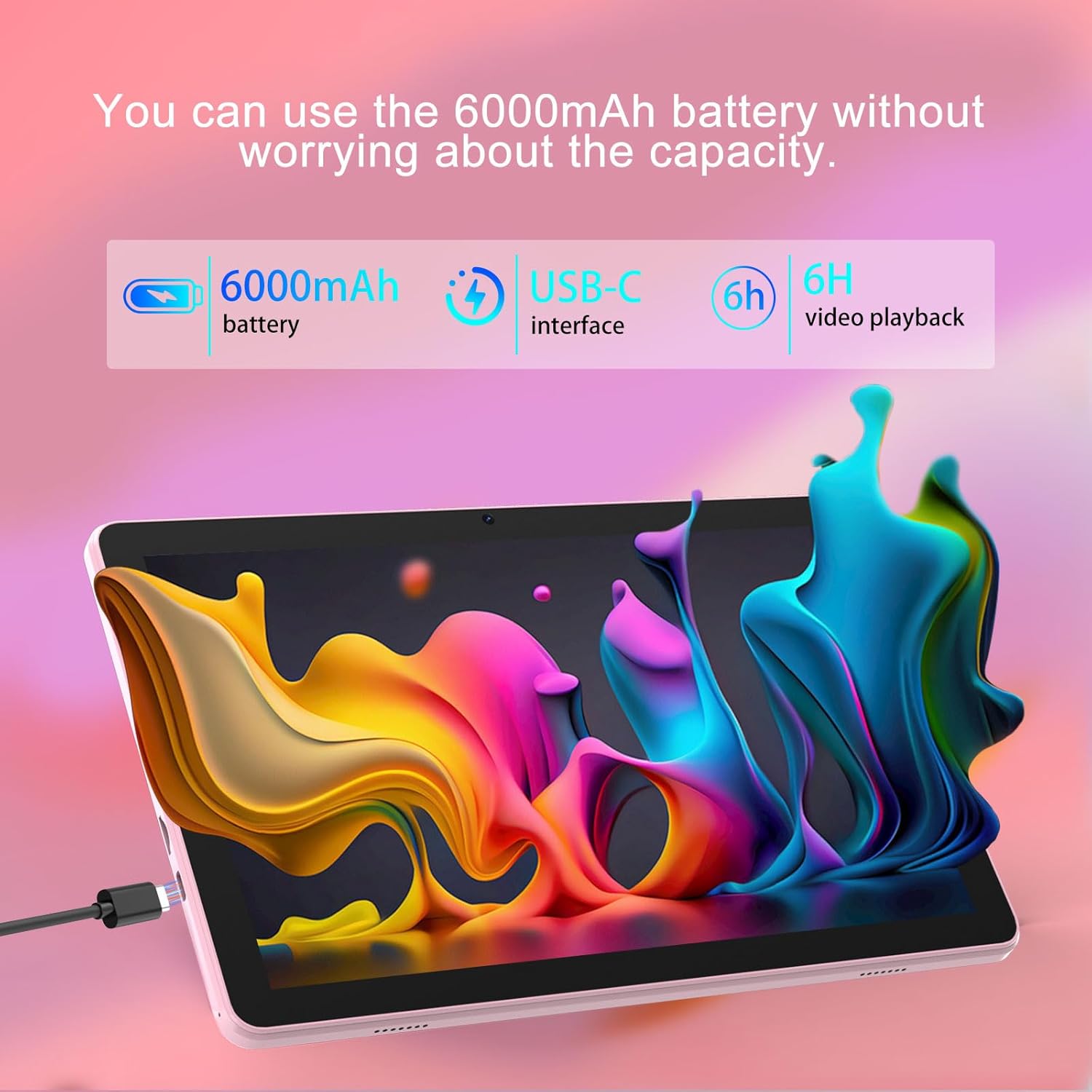
Figure 2: Labeled diagram of the Bnegynng Android 15 Tablet's external features.
- Volume +/-: Adjusts audio volume.
- Power On/Off: Press and hold to power on/off or restart. Short press to sleep/wake.
- Headphone Jack: 3.5mm audio output.
- Reset: Small pinhole for force restart if the device becomes unresponsive.
- Front Camera: For video calls and selfies.
- Speakers: Audio output.
- Type-C Port: For charging and data transfer.
- TF Card (Micro SD Card) Slot: For expandable storage.
- Flash: For rear camera illumination.
- Rear Camera: For taking photos and videos.
3. Setup
3.1 Initial Charging
Before first use, fully charge your tablet. Connect the provided USB Type-C cable to the tablet's Type-C port and the power adapter to a wall outlet. The charging indicator will show the charging status. A full charge typically takes 3-4 hours.

Figure 3: Tablet connected to charger, illustrating battery capacity and video playback time.
3.2 Powering On/Off
- To Power On: Press and hold the Power button until the screen lights up.
- To Power Off: Press and hold the Power button, then select "Power off" from the options on the screen.
- Sleep/Wake: Briefly press the Power button to put the tablet to sleep or wake it up.
3.3 Connecting to Wi-Fi
- Go to Settings > Network & internet > Wi-Fi.
- Toggle the Wi-Fi switch to On.
- Select your desired Wi-Fi network from the list.
- Enter the password if prompted, then tap Connect.
3.4 Google Account Setup
Upon first startup or after a factory reset, you will be guided through setting up your Google account. This is necessary to download apps from the Google Play Store and access Google services.
3.5 Inserting a MicroSD Card
To expand storage, insert a MicroSD card (up to 2TB, not included) into the TF Card slot as shown in Figure 2. Ensure the tablet is powered off before inserting or removing the card.
4. Operating Instructions
4.1 Basic Navigation
- Tap: Select an item or activate a function.
- Tap & Hold: Access contextual menus or move icons.
- Swipe: Scroll through screens or lists.
- Pinch: Zoom in or out on content like photos or web pages.

Figure 4: Using the stylus for precise interaction with the tablet.
4.2 App Management
- Install Apps: Open the Google Play Store, search for your desired app, and tap "Install".
- Uninstall Apps: Tap and hold an app icon on the home screen or app drawer, then drag it to "Uninstall" or select "App info" and choose "Uninstall".
- Close Apps: Swipe up from the bottom of the screen (or tap the square navigation button) to view recent apps, then swipe an app card left or right to close it.
4.3 Camera Usage
Open the Camera app to take photos or record videos. Tap the shutter button to capture an image or start/stop video recording. Switch between front and rear cameras using the camera switch icon.
4.4 Bluetooth Pairing
- Go to Settings > Connected devices > Bluetooth.
- Toggle Bluetooth to On.
- The tablet will scan for available devices. Select your device from the list and follow the on-screen pairing instructions.
4.5 Media Playback and Widevine L1
The tablet supports Widevine L1, allowing for high-definition streaming from platforms like Netflix, Prime Video, Disney+, and YouTube. Ensure a stable internet connection for optimal viewing.

Figure 5: Tablet screen showing high-definition video streaming.
5. Maintenance
5.1 Battery Care
- Avoid extreme temperatures.
- Do not let the battery completely drain frequently.
- Use only the provided or certified chargers.
5.2 Cleaning the Device
Use a soft, lint-free cloth to clean the screen and body. Do not use harsh chemicals or abrasive materials. Avoid getting moisture into openings.
5.3 Software Updates
Regularly check for and install system updates to ensure optimal performance and security. Go to Settings > System > System update.
5.4 Storage Management
Periodically clear unnecessary files and apps to free up storage space. Go to Settings > Storage to manage your device's storage.
6. Troubleshooting
6.1 Device Not Turning On
- Ensure the battery is charged. Connect the charger and wait a few minutes before attempting to power on.
- If unresponsive, press and hold the Power button for 10-15 seconds to force a restart.
- If still unresponsive, locate the small "Reset" pinhole (refer to Figure 2) and gently press it with a thin object (like a paperclip) to force a restart.
6.2 Wi-Fi Connection Issues
- Ensure Wi-Fi is enabled in settings.
- Restart your Wi-Fi router.
- Forget the network and reconnect.
6.3 Apps Crashing or Freezing
- Close and reopen the app.
- Clear the app's cache and data (Settings > Apps > [App Name] > Storage & cache).
- Update the app from the Google Play Store.
- Restart the tablet.
6.4 Factory Reset
If persistent issues occur, a factory reset may be necessary. Warning: This will erase all data on your tablet. Back up important data before proceeding.
- Go to Settings > System > Reset options.
- Select Erase all data (factory reset).
- Confirm your choice and follow the on-screen prompts.
7. Specifications
| Feature | Detail |
|---|---|
| Model Name | CP31M |
| Operating System | Android 15 |
| Processor | 2.0 GHz Quad-Core |
| RAM | 20GB (4GB physical + 16GB virtual) |
| Internal Storage | 128GB ROM |
| Expandable Storage | Up to 2TB via MicroSD (TF Card) |
| Screen Size | 10.1 Inches |
| Max Screen Resolution | 1280 x 800 Pixels (HD IPS) |
| Wireless Type | 802.11ax (WiFi 6), 5G WiFi |
| Bluetooth | Bluetooth 5.0 |
| Battery Capacity | 6000mAh |
| Average Battery Life | 8 Hours |
| Front Camera | 2MP |
| Rear Camera | 8MP |
| Dimensions (LxWxH) | 10 x 5 x 0.3 inches |
| Item Weight | 2.38 pounds |
| Color | Pink (for this variant) |
8. Warranty and Support
For warranty information and technical support, please refer to the documentation included with your purchase or contact Bnegynng customer service directly. Details regarding protection plans may also be available from your retailer.
9. Product Videos
9.1 Bnegynng Android 15 Tablet Overview
Video 1: A comprehensive overview of the Bnegynng Android 15 Tablet, showcasing its design, key features, and various color options. This video highlights the tablet's sleek profile, camera setup, and the powerful Quad-Core CPU, providing a visual guide to its capabilities and aesthetics.