
1. Product Overview
The GKU 4K Dash Cam D200 is designed to provide high-resolution video recording for your vehicle. It features Ultra HD 2160P resolution, a 170° wide-angle lens, and advanced night vision capabilities with WDR technology. Integrated Wi-Fi allows for easy smartphone connectivity and app control. Key safety features include a 24-hour parking monitor, G-Sensor for impact detection, and seamless loop recording. The compact design ensures it does not obstruct your view while driving.
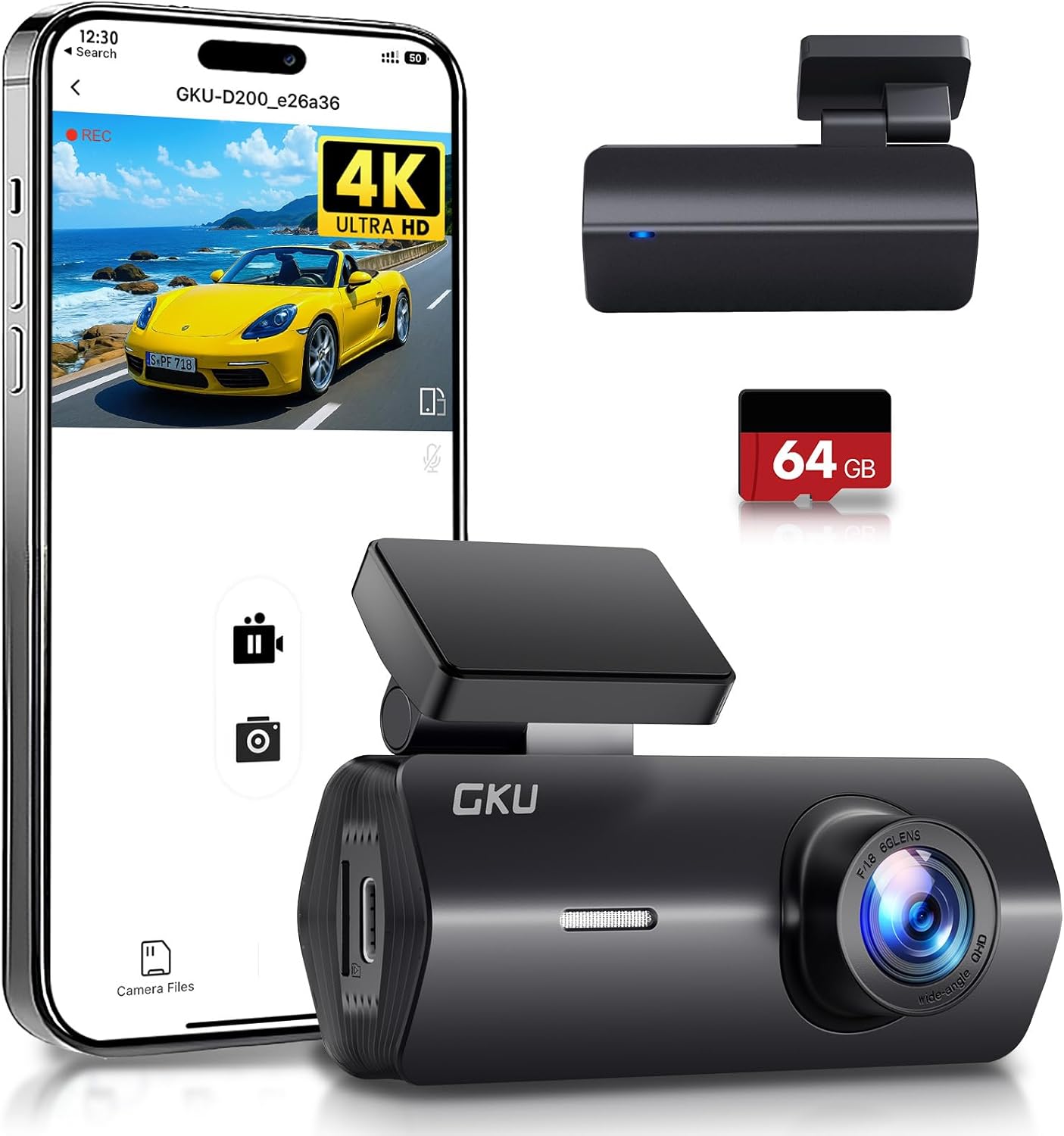
Figure 1: GKU 4K Dash Cam D200 with smartphone app interface and included 64GB SD card.
2. What's in the Box
Please check the contents of your package to ensure all items are present:
- 1 x GKU 4K D200 Front Camera
- 1 x 64GB SD Card
- 1 x Car Charger (9.84ft)
- 2 x 3M Adhesive Mounts
- 2 x Electrostatic Films
- 1 x Crowbar Tool
- 1 x User Manual

Figure 2: Contents of the GKU 4K Dash Cam D200 package.
3. Setup and Installation
3.1 SD Card Installation
- Locate the SD card slot on the side of the dash cam.
- Insert the provided 64GB SD card into the slot until it clicks into place. Ensure the card is inserted correctly with the contacts facing the camera lens.
- It is recommended to format the SD card within the dash cam settings before first use.

Figure 3: The included 64GB SD card.
3.2 Mounting the Dash Cam
- Clean the area on your windshield where you intend to mount the dash cam.
- Apply one of the electrostatic films to the cleaned area. This helps protect your windshield and makes removal easier.
- Attach a 3M adhesive mount to the dash cam's bracket.
- Press the dash cam firmly onto the electrostatic film on your windshield, ideally behind the rearview mirror to avoid obstructing your view.
- Adjust the camera angle using the 140° adjustable bracket to ensure optimal road coverage.

Figure 4: Dash cam mounted on the windshield.
3.3 Power Connection
Connect the dash cam to your vehicle's power source using the provided car charger. Route the cable neatly along the windshield and dashboard to avoid interference with driving. For 24-hour parking monitoring, a hardwire kit (not included) is required to connect directly to your car's battery.
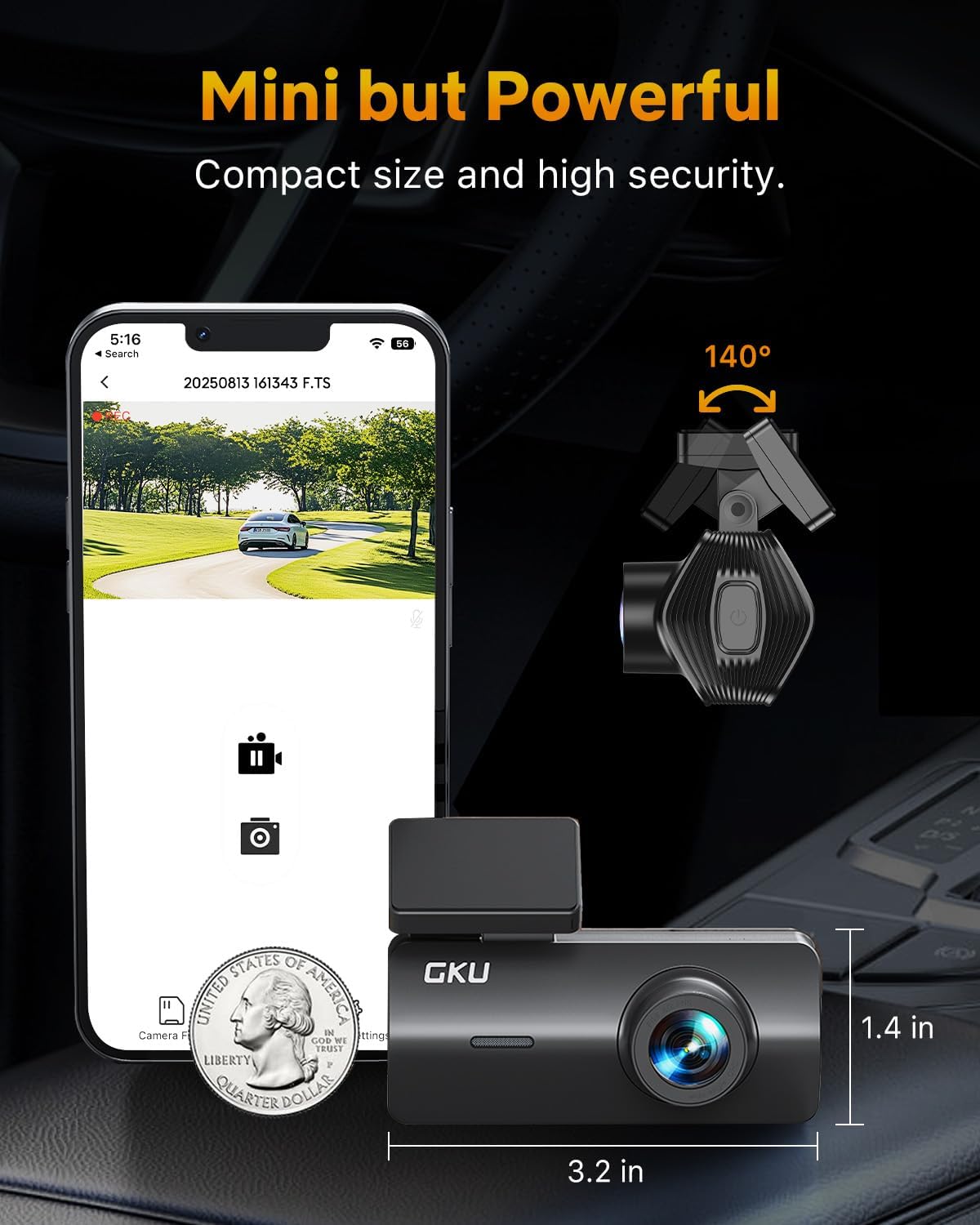
Figure 5: Car charger connection.
4. Operating Instructions
4.1 Basic Recording
Once powered on, the dash cam will automatically begin recording. It utilizes loop recording, which continuously records video in segments (e.g., 1, 3, or 5 minutes). When the SD card is full, the oldest unlocked files are overwritten by new recordings.
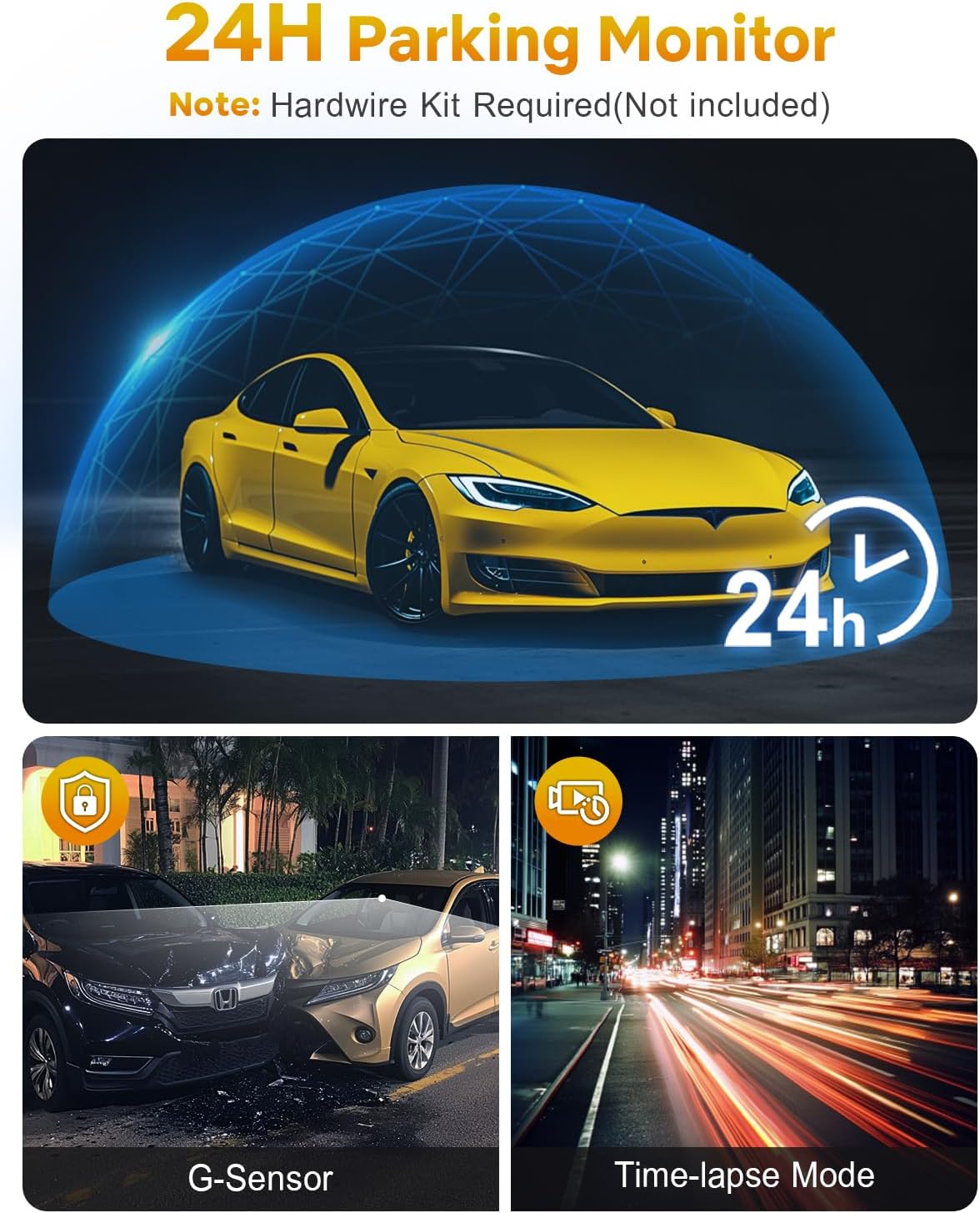
Figure 6: Loop Recording in action.
4.2 Wi-Fi & App Control
The GKU D200 features built-in Wi-Fi for seamless connection to your smartphone via a dedicated app. This allows you to:
- View live footage from the dash cam.
- Playback recorded videos.
- Download videos directly to your phone.
- Adjust dash cam settings.
Download the official GKU app from your smartphone's app store and follow the in-app instructions to connect to your dash cam's Wi-Fi network.
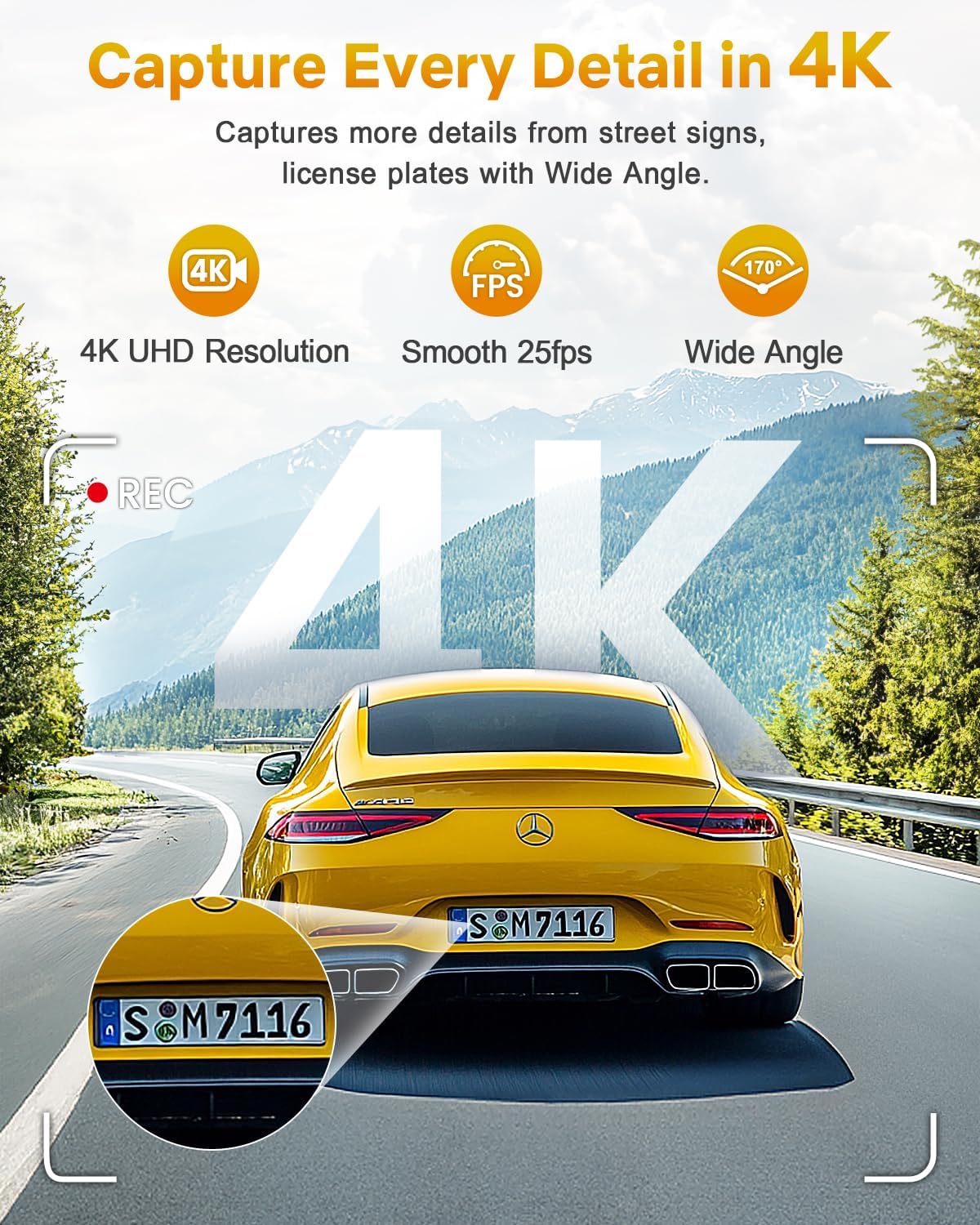
Figure 7: Wi-Fi connectivity and app control.
4.3 G-Sensor & Collision Lock
The integrated G-Sensor detects sudden impacts or collisions. When an event is detected, the dash cam automatically locks the current recording segment, preventing it from being overwritten by loop recording. This ensures critical footage is preserved.

Figure 8: G-Sensor collision lock feature.
4.4 24-Hour Parking Monitor
With the 24-hour parking monitor feature, the dash cam can continue to record even when your vehicle is parked. It uses impact detection to automatically record footage if a collision or significant vibration is detected. This feature requires a hardwire kit (sold separately) for continuous power supply.

Figure 9: 24-Hour Parking Monitor.
4.5 Night Vision
The GKU D200 is equipped with advanced night vision technology, including an F1.8 aperture and Wide Dynamic Range (WDR). This allows the camera to automatically balance exposure and enhance clarity in low-light conditions, ensuring clear recordings during nighttime driving.
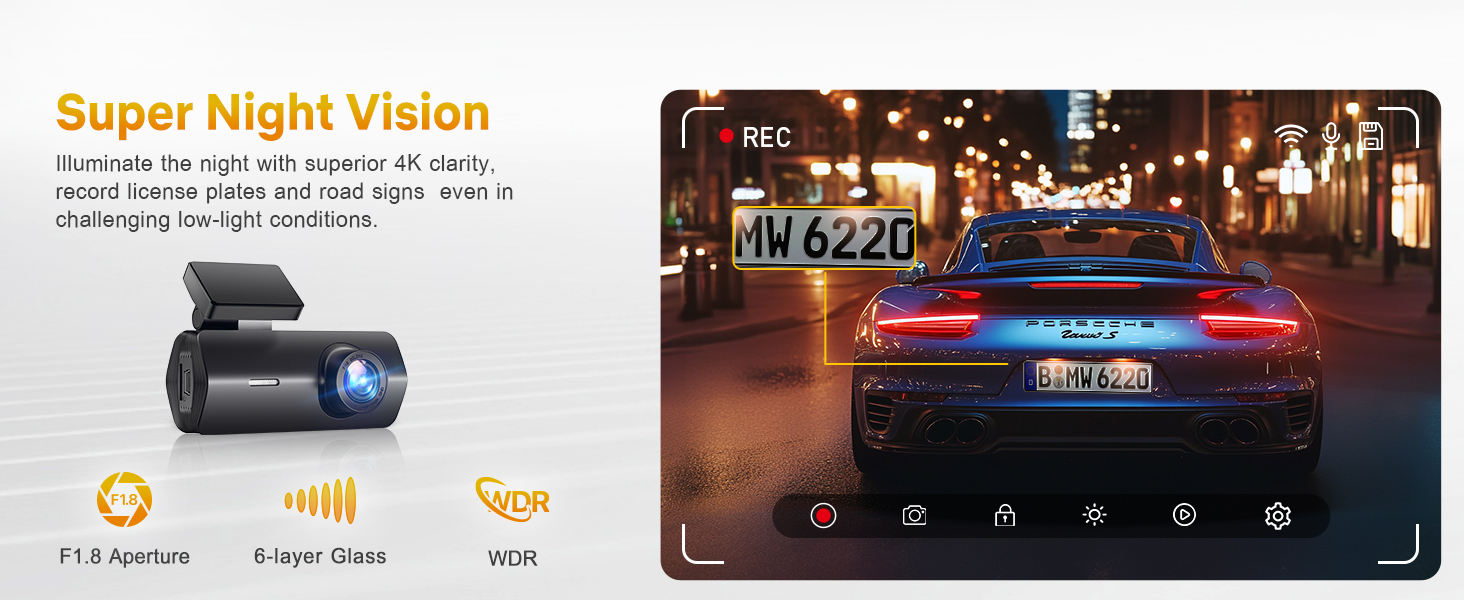
Figure 10: Enhanced night vision capabilities.
5. Maintenance
5.1 SD Card Management
Regularly format your SD card (at least once a month) to ensure optimal performance and prevent data corruption. This can typically be done through the dash cam's settings via the smartphone app.
5.2 General Care
- Keep the camera lens clean using a soft, lint-free cloth.
- Avoid exposing the dash cam to extreme temperatures for prolonged periods. The device is designed to withstand temperatures from -4°F (-20°C) to 158°F (70°C).
- Do not attempt to disassemble or repair the dash cam yourself, as this will void the warranty.
6. Troubleshooting
Common Issues and Solutions
- Dash Cam Not Powering On: Check the power connection and ensure the car charger is securely plugged into both the dash cam and the vehicle's power outlet. Verify the vehicle's power outlet is functional.
- Recording Stops or Freezes: Format the SD card. If the issue persists, try a different high-speed (Class 10 or U3) SD card. Ensure the firmware is up to date via the app.
- Wi-Fi Disconnection: Ensure your smartphone is within close proximity to the dash cam. Restart both the dash cam and your phone. Reconnect through the GKU app.
- Poor Video Quality: Clean the camera lens. Ensure the protective film has been removed from the lens. Check that the dash cam is set to 4K resolution in the app settings.
- Parking Monitor Not Working: Confirm that the parking monitor feature is enabled in the app settings. Remember that a hardwire kit (not included) is required for continuous 24-hour parking surveillance.
7. Specifications
| Feature | Detail |
|---|---|
| Model Name | D200 |
| Video Capture Resolution | 4K (UHD 2160P) |
| Field Of View | 170 Degrees |
| Connectivity Technology | Wi-Fi |
| Special Features | Night Vision, Built-In WiFi, App Control, G-sensor, Loop Recording, Parking Monitor, Free 64G SD card, Supports 512GB Max, Detachable Compact Design |
| Mounting Type | Windshield Mount |
| Product Dimensions | 1.97 x 1.18 x 1.18 inches |
| Item Weight | 10.6 ounces |
| Batteries | 1 Lithium Metal battery required |
8. Warranty and Customer Support
8.1 Warranty Information
GKU provides a 12-month warranty for the Dash Cam D200, with an additional 12 months available upon official registration with GKU. This ensures a total of 24 months of coverage.
8.2 Customer Support
For any questions, technical assistance, or warranty claims, please contact GKU customer support:
- Email: support@gkutech.com
- 24/7 customer support is available to provide professional and comprehensive assistance.


