
WonVon 5 Inch Motorcycle Carplay GPS Navigation System
WonVon 5 Inch Motorcycle Carplay GPS Navigation System User Manual
1. Introduction
This manual provides detailed instructions for the installation, operation, and maintenance of your WonVon 5 Inch Motorcycle Carplay GPS Navigation System. Please read this manual thoroughly before using the device to ensure proper functionality and safety.

Figure 1.1: WonVon 5-inch Motorcycle Carplay GPS Navigation System. This image displays the WonVon 5-inch Motorcycle Carplay GPS Navigation System, showing the main unit with its handlebar mounting bracket. Below it are icons representing Apple CarPlay and Android Auto compatibility, along with a motorcycle graphic.
Key Features:
- Wireless CarPlay & Android Auto: Seamless integration for navigation, calls, music, and voice commands.
- 5-Inch IPS Display: Crisp 854x480 resolution, anti-glare, sunlight readable, glove-friendly, and night mode.
- Dual Bluetooth Connectivity: Pair with Bluetooth headsets or helmets for immersive audio and hands-free communication.
- IP67 Waterproof & Weatherproof: Designed for durability and reliable function in all weather conditions.
- Voice Control: Supports Siri and Google Assistant for hands-free operation.
- Wide Compatibility: Suitable for various motorcycle types, including cruisers, sportbikes, touring bikes, trikes, dirt bikes, and ATVs.

Figure 1.2: Motorcycle Compatibility. This image showcases the broad compatibility of the WonVon Carplay system with a wide range of motorcycles, including cruisers, sportbikes, touring bikes, trikes, dirt bikes, and ATVs.
2. What's in the Box
Verify that all components are present before proceeding with installation:
- WonVon 5 Inch Motorcycle Carplay GPS Navigation System Unit
- Power Cable
- Mounting Bracket
- Open-end Wrench
- User Manual

Figure 2.1: Included Components and Basic Setup. This diagram illustrates the straightforward installation process, detailing how to connect the power cable to the motorcycle battery (ACC and GND) and listing the included components: the 5-inch Motor Carplay unit, power cable, open-end wrench, mounting bracket, and manual.
3. Setup and Installation
3.1 Mounting the Device
The device comes with a secure handlebar mounting bracket. Follow these steps to install it:
- Install the bracket base: Secure the bracket base to your motorcycle's handlebar using the provided screws and open-end wrench. Ensure it is tightened firmly to prevent vibration.
- Attach the second bracket component: Connect the adjustable arm to the base.
- Install the main unit: Connect the ball head of the main unit to the bracket's connector. Adjust the viewing angle as needed and tighten the locking mechanism.

Figure 3.1: Bracket Installation Steps. This image shows a three-step process for installing the mounting brackets: installing the bracket base, installing the second part of the bracket base, and finally installing the ball head of the main unit to the connector.
3.2 Power Connection
Connect the power cable to your motorcycle's electrical system. It is recommended to connect the ACC wire to a switched power source (e.g., license plate light) to ensure the unit powers off with the ignition, preventing battery drain.
- Connect the ACC (red) wire to a switched 12-24V power source.
- Connect the GND (black) wire to the motorcycle's ground.
The system supports 12-24V input.
4. Operating Instructions
4.1 Wireless CarPlay Connection
To connect your iPhone wirelessly to the system:
- Turn on Bluetooth and WiFi on your iPhone.
- On the WonVon device, navigate to the CarPlay interface.
- On your iPhone, search for and select the device's Bluetooth name (e.g., 'Car_Play_Hub_5da690').
- Confirm the pairing request on both devices.
- After a short delay (approx. 10 seconds), the CarPlay connection will be established.

Figure 4.1: Wireless Apple CarPlay Connection Steps. This image provides a four-step guide for establishing a wireless Apple CarPlay connection: turning on Bluetooth and WiFi, waiting for pairing request, selecting 'Pair', and confirming connection.
4.2 Wireless Android Auto Connection
To connect your Android phone wirelessly to the system:
- Turn on Bluetooth and WiFi on your Android phone.
- On the WonVon device, navigate to the Android Auto interface.
- On your Android phone, search for and select the device's Bluetooth name (e.g., 'Car_Play_Hub_5da690').
- Confirm the pairing request on both devices.
- After a short delay (approx. 10 seconds), the Android Auto connection will be established.

Figure 4.2: Wireless Android Auto Connection Steps. This image provides a four-step guide for establishing a wireless Android Auto connection: turning on Bluetooth and WiFi, selecting the corresponding Bluetooth device, selecting 'Connect', and confirming connection.
4.3 Bluetooth Audio Control
For optimal audio experience and hands-free communication, connect your Bluetooth headset or helmet:
- Ensure your Bluetooth headset or helmet is in pairing mode.
- On the WonVon device, go to Bluetooth settings and pair with your headset/helmet.
- Once connected, audio from navigation, music, and calls will be routed through your headset/helmet.
Note: For phone calls and voice controls, ensure your Bluetooth headset or helmet has a built-in microphone.

Figure 4.3: Bluetooth Headset/Helmet Connection. This image depicts the system's enhanced Bluetooth connectivity, illustrating how it pairs with both Bluetooth helmets and headsets for audio and communication during rides.
4.4 Voice Control (Siri & Google Assistant)
Utilize voice commands for navigation, calls, and music playback:
- Activate Siri or Google Assistant through the device's interface or by using the designated voice command phrase (e.g., "Hey Siri" or "OK Google").
- Speak your command clearly. Examples include: "Call [Contact Name]", "Navigate to [Address]", "Play [Song/Artist]".

Figure 4.4: Voice Control Functionality. The screen shows a navigation interface with voice command bubbles for Siri ('Hey Siri, Call Abraham') and Google Assistant ('OK, Google. Take me Home'). Below are icons for popular navigation apps like Google Maps, iGo, Navitel, Sygic, and Waze.
4.5 Split Screen Function
The device supports a split-screen function, allowing you to view navigation and music playback simultaneously for enhanced convenience during your ride.

Figure 4.5: Split Screen Display. This image illustrates the split-screen function, showing navigation on one side and music playback on the other, enhancing multitasking while riding.
4.6 Day & Night Mode
The system automatically adjusts its display brightness and contrast for optimal visibility in varying light conditions, ensuring clear readability during both day and night rides.
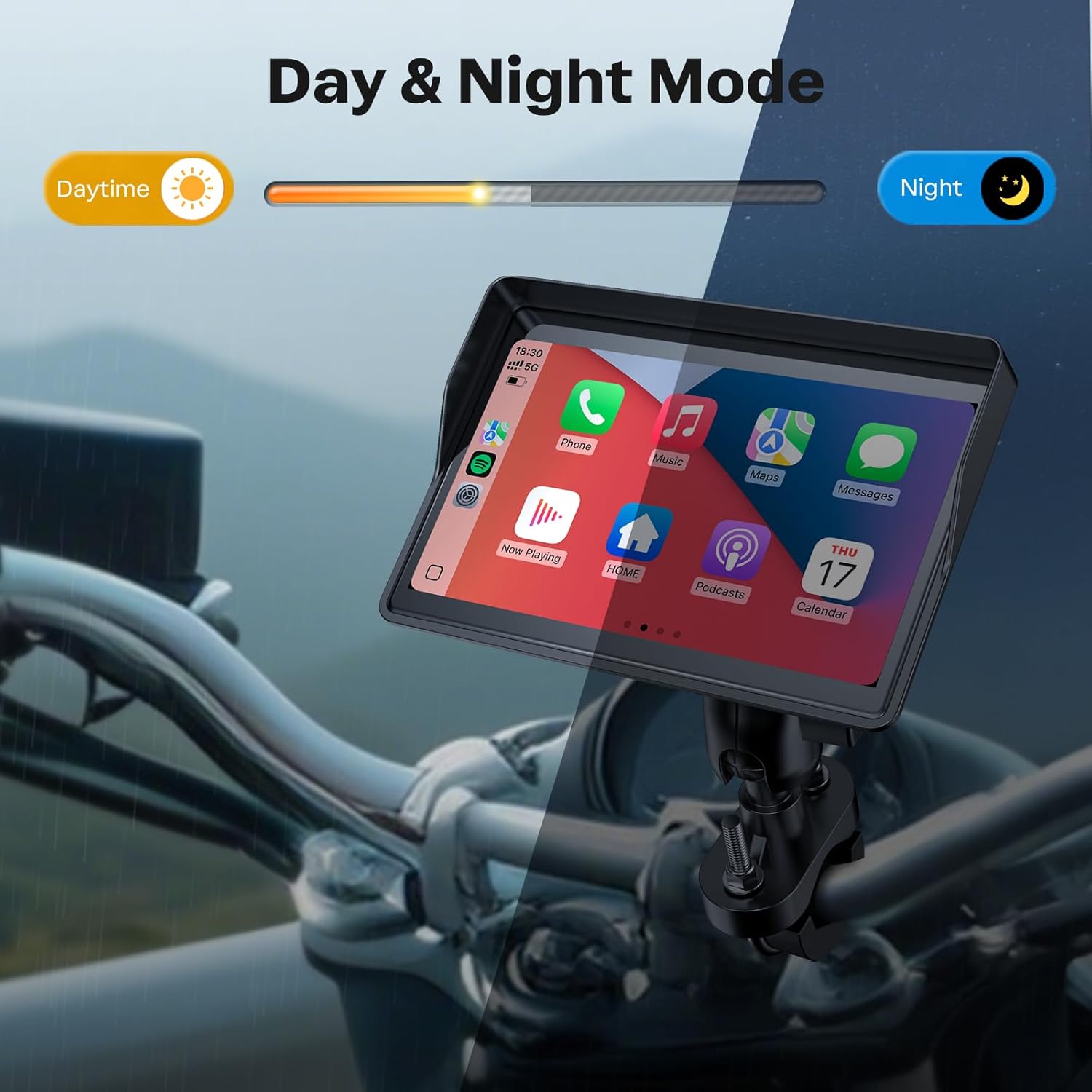
Figure 4.6: Day and Night Mode. This image demonstrates the automatic day and night mode feature, which adjusts screen brightness and contrast for optimal visibility whether riding in bright daylight or at night.
5. Maintenance
5.1 Cleaning the Device
To clean the screen and body of the device, use a soft, damp cloth. Avoid using harsh chemicals or abrasive materials, as these can damage the screen and casing.
5.2 Weather Resistance
The WonVon Carplay system features an IP67 waterproof rating, providing protection against dust and water immersion up to 1 meter for 30 minutes. It is designed to operate reliably in temperatures ranging from -20°C to 70°C (-4°F to 158°F).
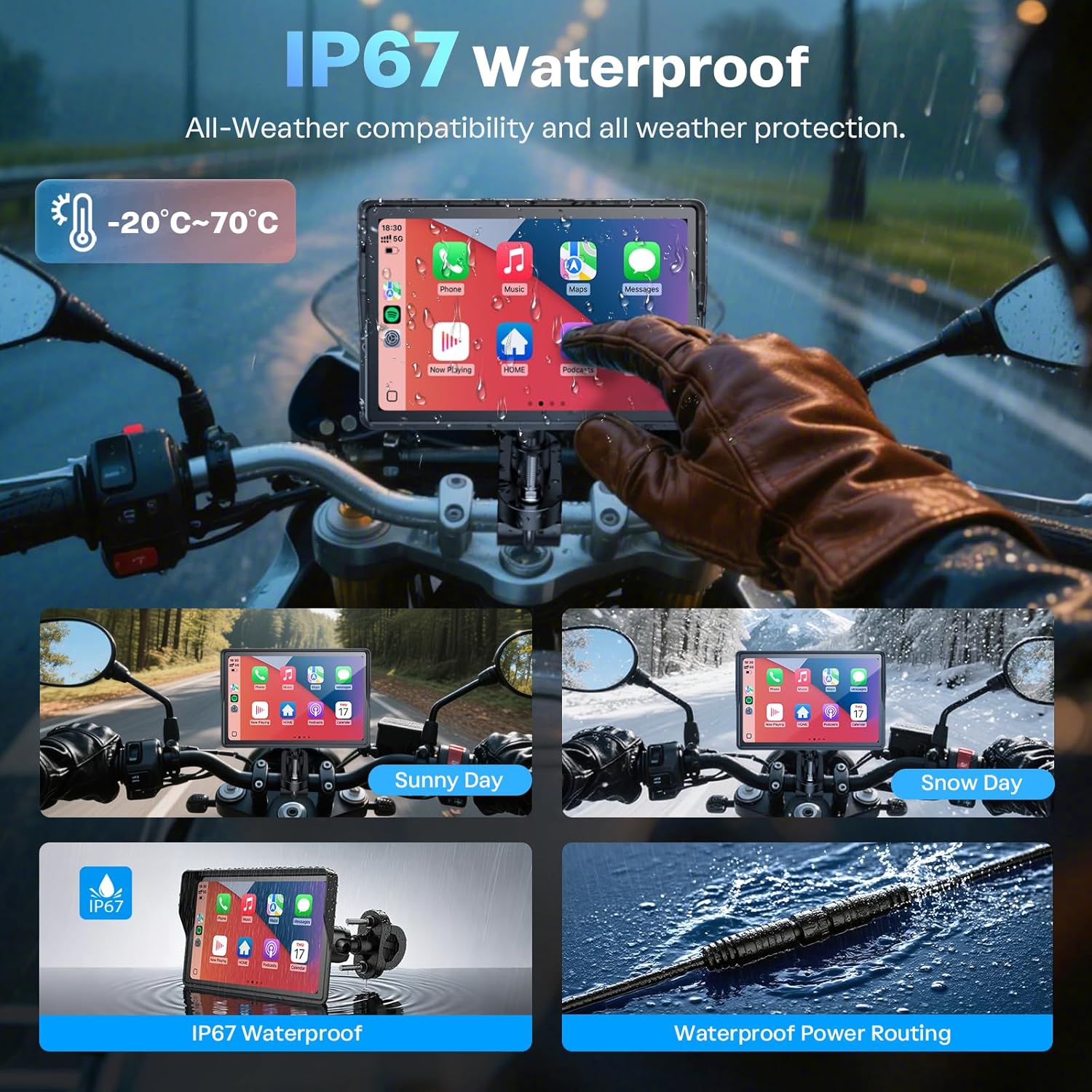
Figure 5.1: IP67 Waterproof and All-Weather Performance. This visual emphasizes the IP67 waterproof rating of the device, demonstrating its resilience in various weather conditions including sunny, snowy, and rainy environments. It also highlights the waterproof design of the power routing cable, ensuring reliable performance.
6. Troubleshooting
| Problem | Possible Cause | Solution |
|---|---|---|
| Device does not power off with ignition / Battery drains | Direct connection to battery without switched power source. | Ensure the ACC (red) wire is connected to a switched power source (e.g., license plate light, ignition wire) that turns off when the motorcycle is off. Avoid direct connection to the battery for the ACC wire. |
| No audio from device | Bluetooth headset/helmet not connected or volume too low. | Verify Bluetooth connection to your headset/helmet. Check volume levels on both the device and your audio accessory. |
| CarPlay/Android Auto fails to connect | Bluetooth/WiFi off on phone, incorrect pairing, or interference. | Ensure Bluetooth and WiFi are enabled on your phone. Forget the device in your phone's Bluetooth settings and re-pair. Restart both the phone and the WonVon device. |
| Screen not visible in bright sunlight | Screen brightness setting or direct glare. | Adjust screen brightness to maximum in settings. The device has an anti-glare design, but extreme direct sunlight can still affect visibility. Adjust viewing angle if possible. |
7. Specifications
- Item Weight: 1.15 pounds
- Product Dimensions: 7.98 x 3.6 x 3.86 inches
- Display Size: 5 Inches
- Display Resolution: 854x480
- Operating System: Linux
- Connectivity Technology: Bluetooth, Wi-Fi
- Special Features: Built-In Bluetooth, Touchscreen, Waterproof (IP67)
- Vehicle Service Type: Motorcycle
- Map Type: North America (default, may vary by region/app)
- Audio Output Mode: Stereo
- Mounting Type: Handlebar Mount
- Input Voltage: 12-24V
- Operating Temperature: -20°C to 70°C (-4°F to 158°F)
8. Warranty and Support
8.1 Manufacturer's Warranty
The WonVon 5 Inch Motorcycle Carplay GPS Navigation System comes with a 1-Year Manufacturer's Warranty from the date of purchase. This warranty covers defects in materials and workmanship under normal use.
8.2 Customer Support
For technical assistance, troubleshooting, or warranty claims, please contact WonVon customer service. Support is available via email, with responses typically provided within 24 hours. Lifetime technical support is offered for this product.
You can also refer to the seller's support page on Amazon for further assistance.
Related documents5 Inch Motorcycle Carplay GPS Navigation System

Ask a question about this manual
Ask about setup, troubleshooting, compatibility, parts, safety, or missing instructions. Manuals+ will review the question and use this page’s manual context to help answer it.