1. Introduction
This manual provides essential information for the safe and efficient use of your Lenovo Tab 10.1 Inch Wi-Fi Tablet. Please read this guide thoroughly before operating your device to ensure optimal performance and longevity. Keep this manual for future reference.
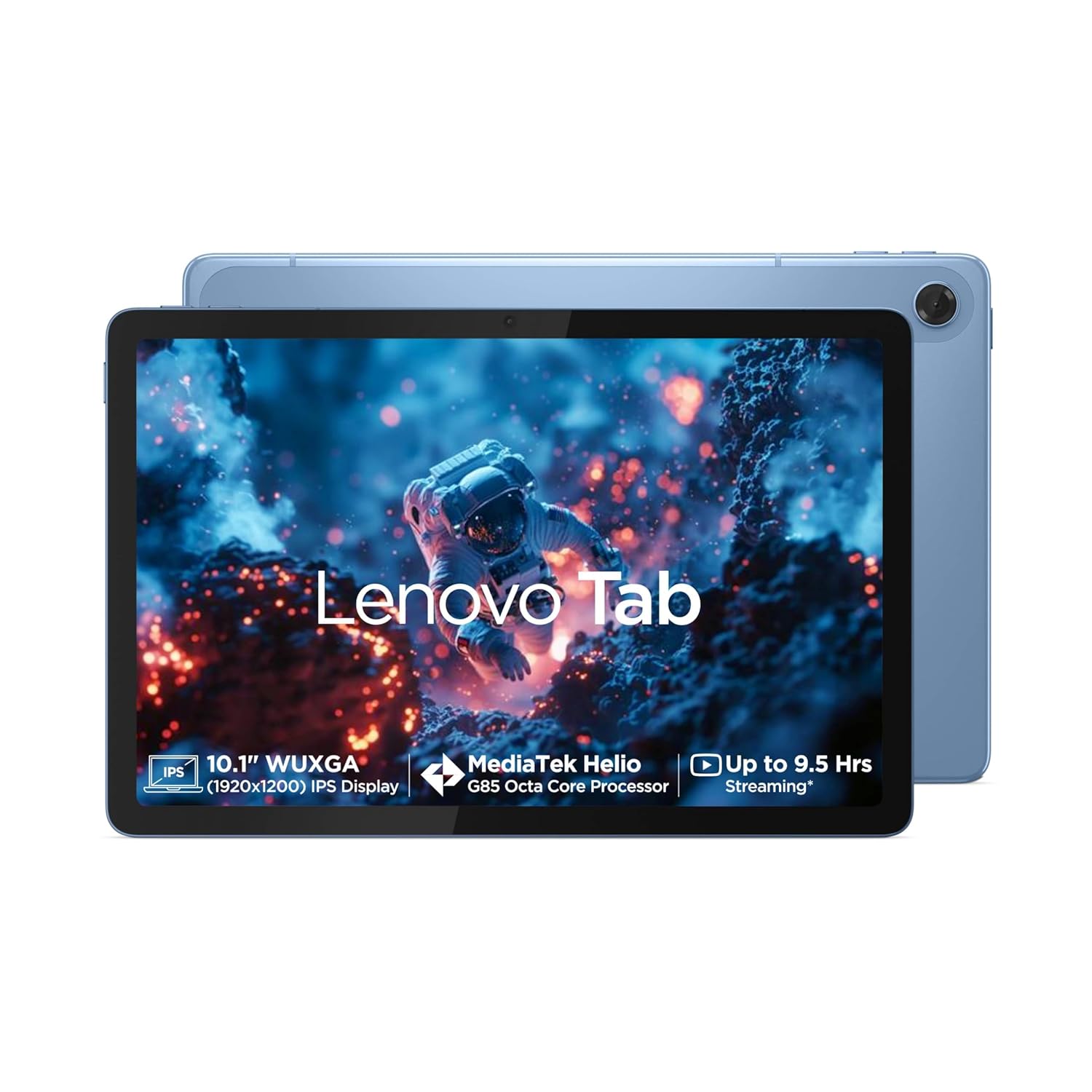
Image 1.1: Front view of the Lenovo Tab 10.1 Inch Wi-Fi Tablet.
2. Important Safety Information
- Battery Safety: Do not attempt to replace the internal battery yourself. Use only approved chargers and cables. Avoid exposing the tablet to extreme temperatures.
- Charging: Ensure the charging adapter and cable are in good condition. Do not charge the device in damp conditions.
- Usage Environment: Avoid using the tablet in dusty, humid, or excessively hot/cold environments. Keep away from direct sunlight for prolonged periods.
- Cleaning: Disconnect the tablet from power before cleaning. Use a soft, dry cloth. Avoid liquid cleaners.
- Disposal: Dispose of the device and its battery responsibly according to local regulations. Do not incinerate.
3. Package Contents
Verify that all items are present in your product package:
- Lenovo Tab
- USB Type-C 2.0 Charging Cable
- MicroSD/SIM Tray Pin
- 20W In-Box Charging Adapter
- Quick Start Guide & Safety, Warranty
4. Device Overview
Familiarize yourself with the physical components and ports of your Lenovo Tab.

Image 4.1: Overview of ports and buttons on the Lenovo Tab.
- Power Key: Located on the side, used to turn the tablet on/off or wake/sleep the screen.
- Volume Keys: Adjust the audio volume.
- USB Type-C 2.0 Port: For charging and data transfer.
- 3.5mm Audio Jack: Connect headphones or external audio devices.
- MicroSD Card Slot: Expand storage capacity up to 1TB.
- Dual Speakers: Optimized with Dolby Atmos for enhanced audio experience.
- Microphone: For voice input.
5. Initial Setup
5.1. Charging the Tablet
- Connect the USB Type-C cable to the tablet's charging port.
- Connect the other end of the cable to the 20W in-box charging adapter.
- Plug the adapter into a power outlet.
- Allow the tablet to charge fully before first use. The battery indicator on the screen will show charging status.
5.2. Powering On/Off
- To Power On: Press and hold the Power Key until the Lenovo logo appears on the screen.
- To Power Off: Press and hold the Power Key, then select 'Power off' from the options that appear.
- To Restart: Press and hold the Power Key, then select 'Restart' from the options.
5.3. Connecting to Wi-Fi
- From the Home screen, swipe down from the top to open the Quick Settings panel.
- Tap and hold the Wi-Fi icon to open Wi-Fi settings.
- Toggle Wi-Fi 'On' if it is off.
- Select your desired Wi-Fi network from the list.
- Enter the network password if prompted, then tap 'Connect'.
6. Operating Your Lenovo Tab
6.1. Display and Navigation
Your Lenovo Tab features a 10.1-inch WUXGA LCD IPS screen with a resolution of 1920 x 1200 pixels, 400 nits brightness, and a 60Hz refresh rate. It also includes Eyesafe and TUV Rheinland certification for low blue light, enhancing viewing comfort.

Image 6.1: Display features and certifications.
6.2. Audio Features
Experience immersive audio with the tablet's dual side speakers, optimized with Dolby Atmos technology. This provides a rich and clear sound experience for media consumption.
6.3. Camera Usage
The tablet is equipped with a 5.0MP front camera for video calls and selfies, and an 8.0MP rear camera for capturing photos and videos.
6.4. Storage Management
The device comes with 64GB eMMC 5.1 internal storage. You can expand this storage up to 1TB using a microSD card (sold separately) inserted into the dedicated slot.

Image 6.2: Core specifications for performance and storage.
7. Maintenance and Care
- Software Updates: Regularly check for and install system updates to ensure your tablet has the latest features and security patches. (Settings > System > System update).
- Battery Care: To prolong battery life, avoid fully discharging the battery frequently. The tablet supports an 80% charging limit function for increasing battery health.
- Cleaning the Screen: Use a microfiber cloth to gently wipe the screen. For stubborn smudges, slightly dampen the cloth with water or a screen cleaner designed for electronics.
- Storage Optimization: Periodically clear unnecessary files and uninstall unused apps to maintain optimal performance.
8. Troubleshooting Common Issues
| Problem | Solution |
|---|---|
| Tablet won't turn on | Ensure the tablet is charged. Connect to the charger and wait a few minutes before attempting to power on again. If unresponsive, perform a force restart by holding the Power Key for 10-15 seconds. |
| Wi-Fi connection issues | Check if Wi-Fi is enabled in settings. Restart your Wi-Fi router. Forget the network and reconnect. Ensure you are within range of the Wi-Fi signal. |
| Apps are slow or crashing | Close background applications. Clear app cache (Settings > Apps > [App Name] > Storage > Clear cache). Restart the tablet. Ensure sufficient free storage space. |
| Battery drains quickly | Reduce screen brightness. Close unused apps running in the background. Disable Wi-Fi/Bluetooth when not in use. Check for apps consuming excessive power in battery settings. |
| Screen is unresponsive | Restart the tablet. If the issue persists, ensure the screen is clean and free of debris. |
9. Technical Specifications
Detailed specifications for your Lenovo Tab:
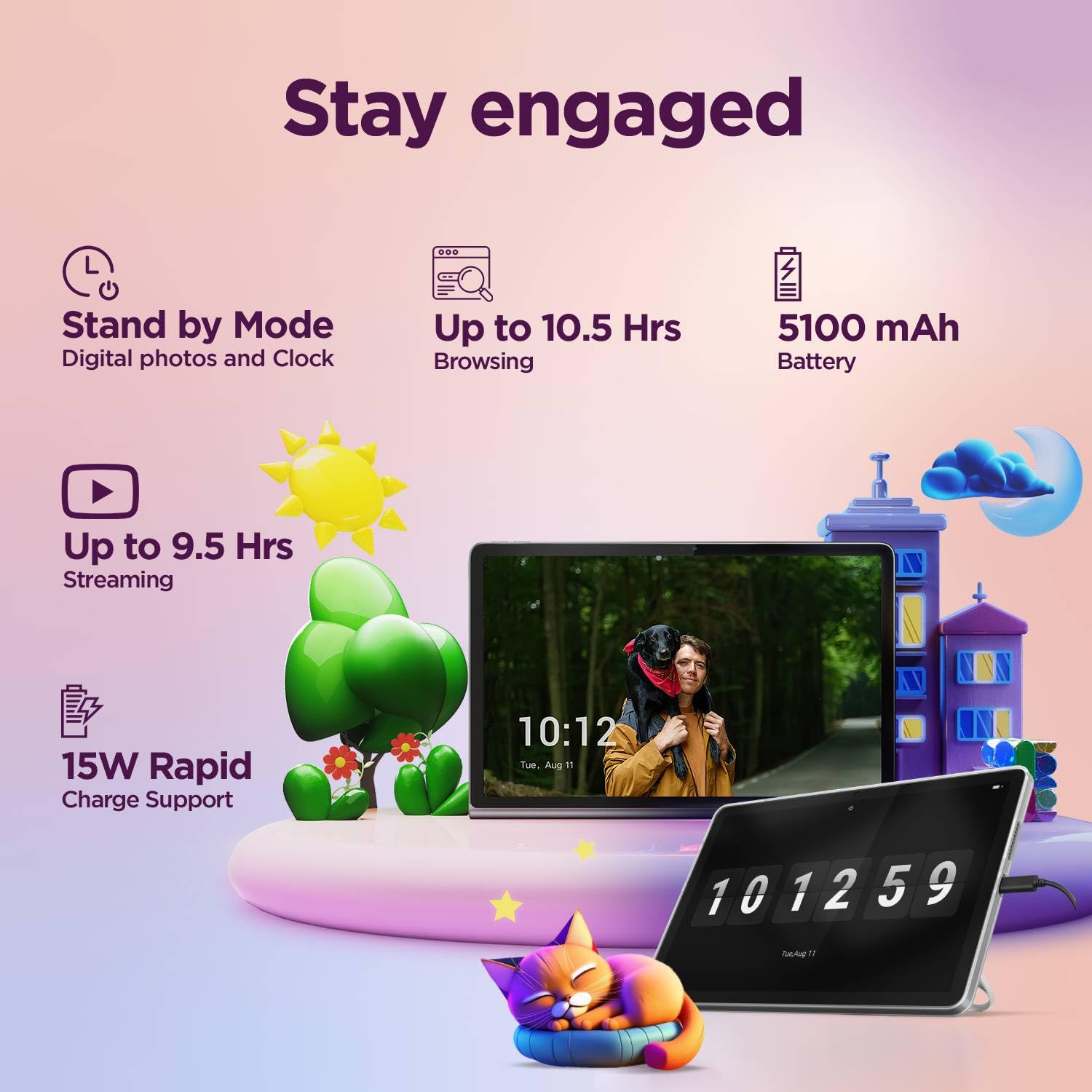
Image 9.1: Key technical specifications.
| Feature | Specification |
|---|---|
| Model Number | ZAEH0019IN |
| Display | 10.1" WUXGA LCD IPS (1920 x 1200 pixels) |
| Brightness | 400 nits |
| Refresh Rate | 60Hz |
| Processor | MediaTek Helio G85 (8C, 2x A75 @2.0GHz + 6x A55 @1.8GHz) |
| RAM | 4GB Soldered LPDDR4x |
| Internal Storage | 64GB eMMC 5.1 |
| Expandable Storage | MicroSD card, supports up to 1TB |
| Operating System | Android 14 (Upgradable to Android 15 & 16 on release) |
| Front Camera | 5.0MP |
| Rear Camera | 8.0MP |
| Audio | 2 side speakers, optimized with Dolby Atmos |
| Connectivity | Wi-Fi 5 (802.11ac 1x1), Bluetooth 5.3 |
| Battery | Integrated 5100mAh (Typ.) |
| Battery Life (Video Streaming) | Up to 9.5 hours (YouTube streaming) |
| Battery Life (Web Browsing) | Up to 10.5 hours (Chrome browsing) |
| Charging | 15W Rapid Charge Support (20W In-Box Adapter) |
| Dimensions | 25.5 x 17.3 x 6.4 cm |
| Weight | 425 g |
10. Warranty and Support
Your Lenovo Tab comes with a 1 Year Carry-in warranty. For detailed warranty information, please visit the official Lenovo support website.

Image 10.1: Warranty information and registration details.
- Warranty Lookup: Check warranty details at pcsupport.lenovo.com/in/en/warranty-lookup#/
- Warranty Registration: To activate your warranty from the date of Amazon invoice, visit pcsupport.lenovo.com/in/en/servicerequest?ProblemType=/warranty/. You will need your invoice copy, P-slip copy with serial number, and a serial number snapshot from the tablet.
- Customer Support: For further assistance, please refer to the official Lenovo support channels available on their website.


