
EVERSECU AHD-K4100MP
Eversecu 4-Channel 1080P Home Security Camera System (Model AHD-K4100MP) User Manual
Model: AHD-K4100MP | Brand: EVERSECU
Introduction
This manual provides comprehensive instructions for the installation, operation, and maintenance of your Eversecu 4-Channel 1080P Home Security Camera System. This system includes a 4-channel Digital Video Recorder (DVR) and four 1080P HD weatherproof cameras, designed for reliable surveillance. Please read this manual thoroughly before setup to ensure proper functionality and to maximize the system's capabilities.
Package Contents
- 1 x 4-Channel 1080P DVR
- 4 x 1080P HD Weatherproof Cameras
- 4 x 60ft Premade Video/Power Cables
- 2 x Power Adapters (for DVR and cameras)
- 1 x USB Mouse
- Mounting Screws and Hardware
- User Manual (this document)
Note: A hard drive (HDD) for video storage is not included and must be purchased separately. The system supports 500GB to 2TB 3.5-inch SATA HDDs.

Image: Overview of the Eversecu security system components, including the DVR, four cameras, connection cables, and power adapters.
System Setup
1. Hard Drive (HDD) Installation (If applicable)
This system does not include a hard drive. To record video, you must install a 3.5-inch SATA HDD (500GB-2TB capacity recommended). Follow these steps:
- Unscrew the DVR Cover: Carefully remove the screws from the DVR casing to access the internal components.
- Connect HDD Cables: Connect the SATA data cable and power cable from the DVR to the corresponding ports on your hard drive.
- Secure the HDD: Place the hard drive inside the DVR chassis and secure it with the provided screws.
- Replace DVR Cover: Reattach the DVR cover and secure it with the screws.

Image: Step-by-step guide for installing a 3.5-inch SATA hard drive into the DVR unit. This involves unscrewing the cover, connecting data and power cables, securing the drive, and reattaching the cover.
2. Connecting the Cameras
Each camera connects to the DVR using a single premade 60ft BNC video/power cable.
- Connect Video: Attach the BNC connector of the camera cable to one of the "VIDEO IN" ports on the back of the DVR.
- Connect Power: Connect the power connector of the camera cable to the camera's power input. The other end of the power connector from the cable will connect to the camera power adapter.
- Mount Cameras: Position the cameras in desired indoor or outdoor locations. The cameras are weatherproof (IP66 rated). Ensure a clear line of sight and optimal viewing angle.
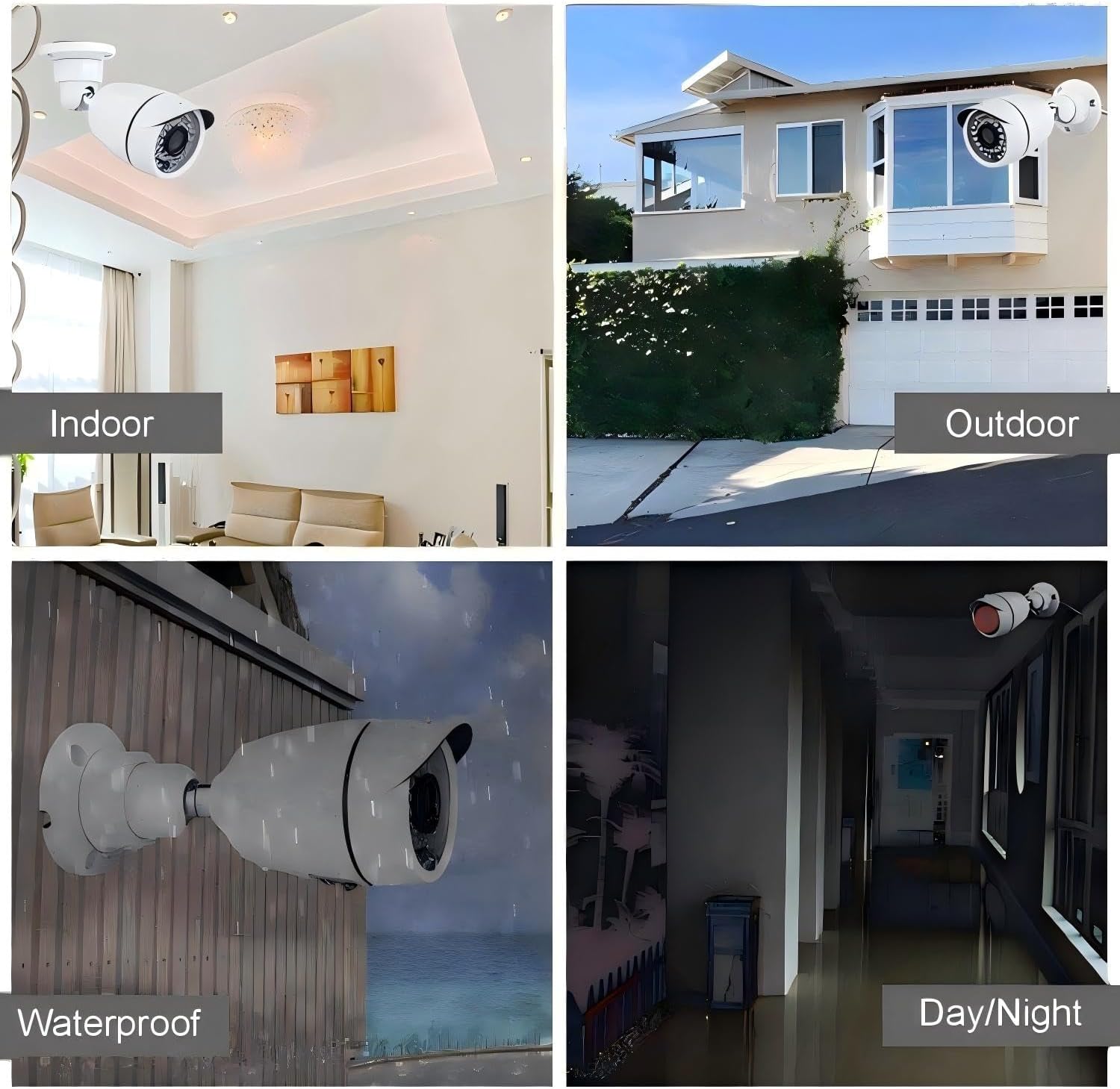
Image: Close-up of one of the Eversecu cameras, detailing its features such as the lens, IR LEDs for night vision, and durable weatherproof housing.
3. DVR Connections
Connect the DVR to your monitor, mouse, and network (optional) before powering on.
- Connect Monitor: Connect a monitor to the DVR using either the HDMI or VGA port.
- Connect Mouse: Plug the included USB mouse into one of the USB ports on the DVR.
- Connect Network (Optional): For remote access, connect an Ethernet cable from the DVR's LAN port to your router.
- Connect Power: Plug the DVR power adapter into the DVR's power input and then into a wall outlet.

Image: Detailed view of the DVR's rear panel, highlighting ports for video input (BNC), audio input/output, HDMI/VGA monitor output, USB for mouse, and power input.
The system should power on automatically. Follow the on-screen prompts for initial setup, including language selection and time zone settings.
Operation
1. Live View and Recording
Once the system is powered on and cameras are connected, you should see live video feeds on your connected monitor. The DVR supports 24/7 continuous recording (with an installed HDD).

Image: A monitor displaying a multi-camera live view from the Eversecu system, illustrating simultaneous monitoring of different areas.
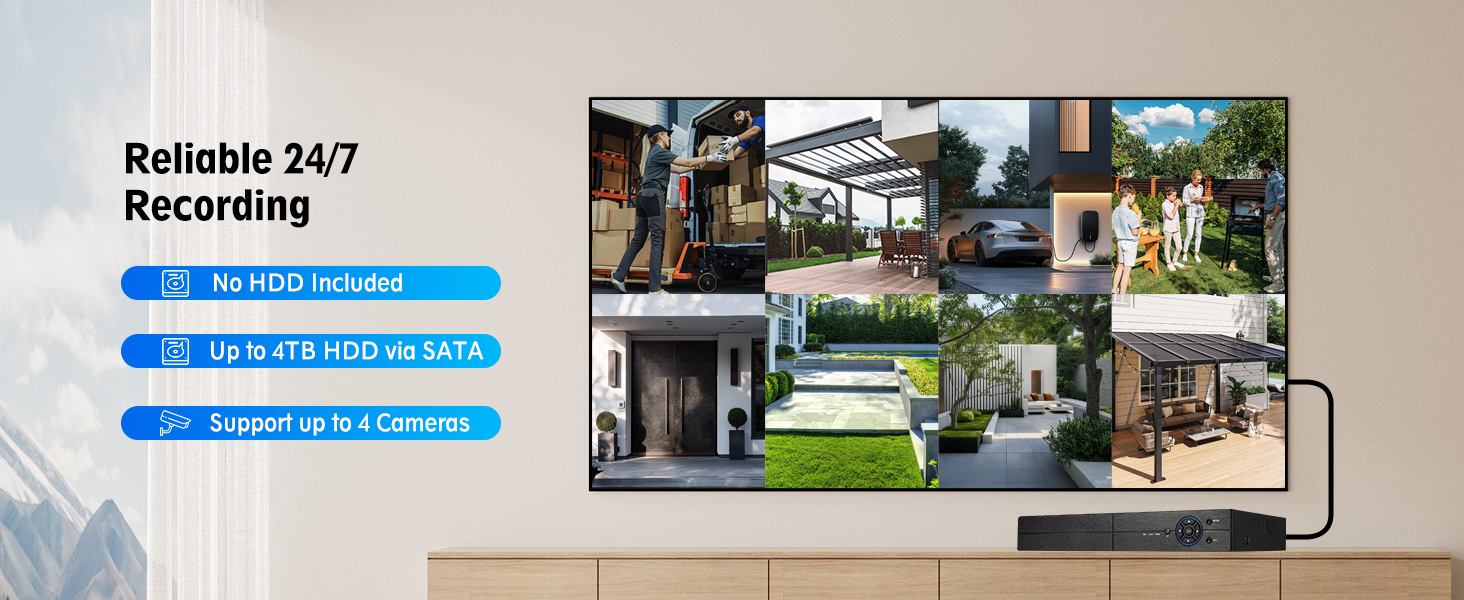
Image: This graphic highlights the system's 24/7 recording capability, clarifies that a hard drive is not included, and states support for up to 4TB SATA HDDs and up to 4 cameras.
The system utilizes H.265+ compression technology, which optimizes storage space and bandwidth. Dual-stream technology provides high-resolution local recording and efficient remote viewing.
2. Night Vision
The cameras are equipped with infrared (IR) LEDs, providing clear black and white night vision up to 100 feet in low-light conditions. The system automatically switches between day (color) and night (black and white) modes.
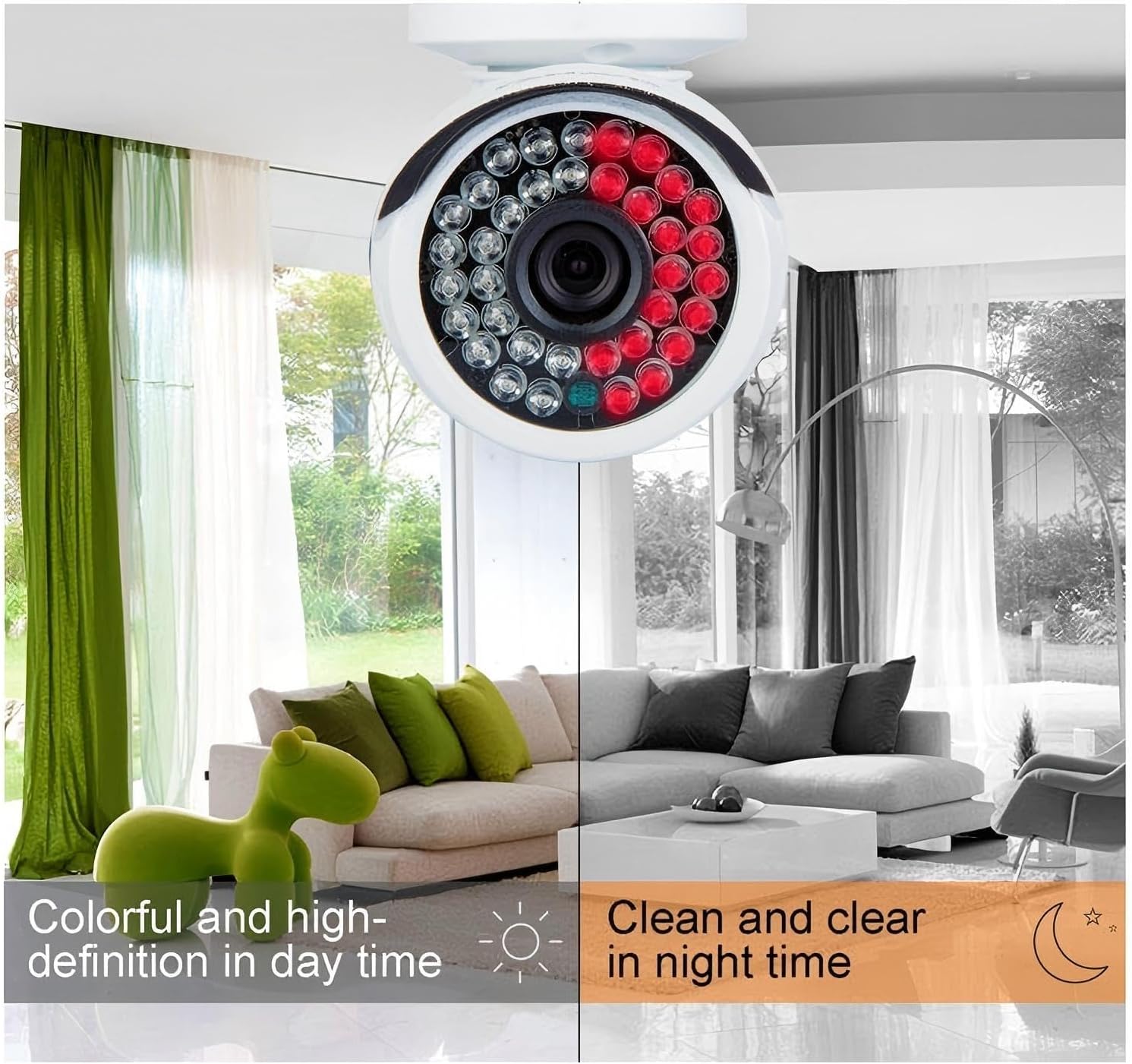
Image: Comparison of camera footage during day (color) and night (black and white infrared), demonstrating the automatic night vision capability.
3. Motion Detection and Alerts
Configure motion detection settings through the DVR's menu. When motion is detected, the system can trigger email notifications and mobile push alerts via the Xmeye APP.
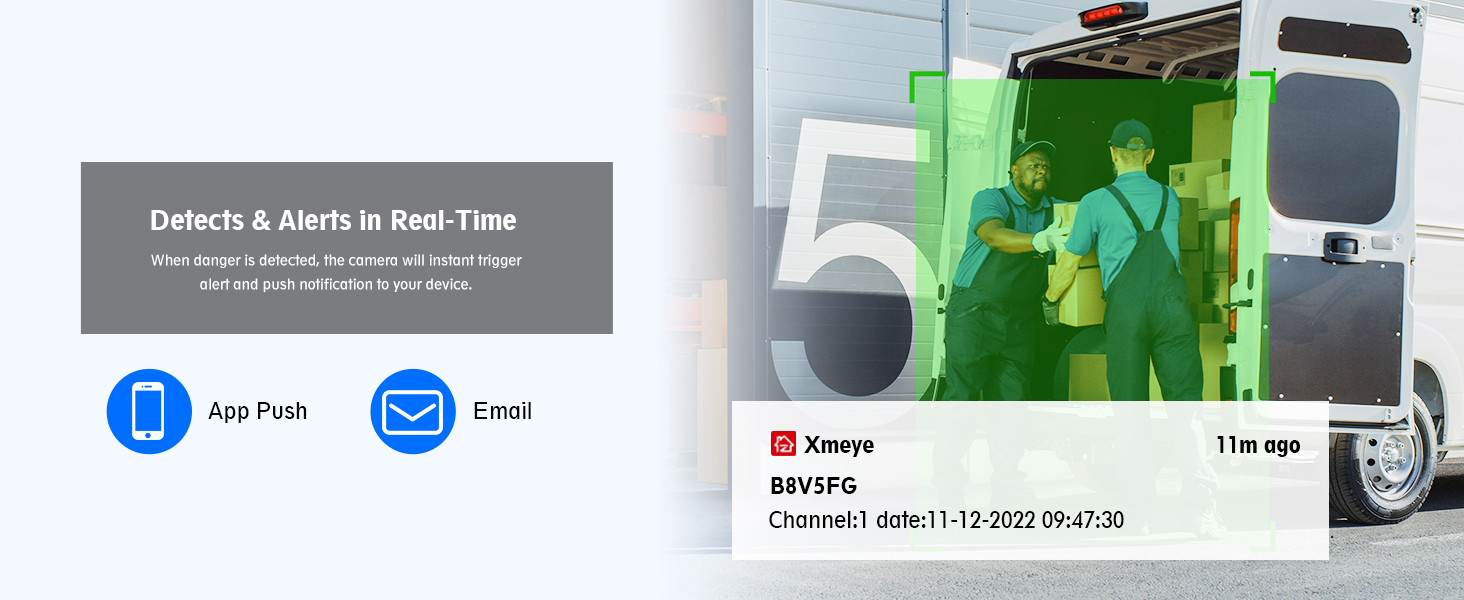
Image: Visual representation of how the system sends real-time alerts to your phone via app notifications and email when motion is detected.
4. Remote Access
To access your security system remotely, download the free Xmeye APP for iOS or Android devices. For desktop viewing, use the CMS software compatible with Windows and Mac systems. Ensure your DVR is connected to the internet via an Ethernet cable.
- Download Xmeye APP: Search for "Xmeye" in your device's app store.
- Register Account: Create an account and log in.
- Add Device: Follow the in-app instructions to add your DVR using its serial number or QR code.
- View Live Feed: Once added, you can view live feeds, playback recordings, and adjust settings from anywhere.

Image: A smartphone screen showing a live security camera feed, demonstrating the mobile remote viewing capability.
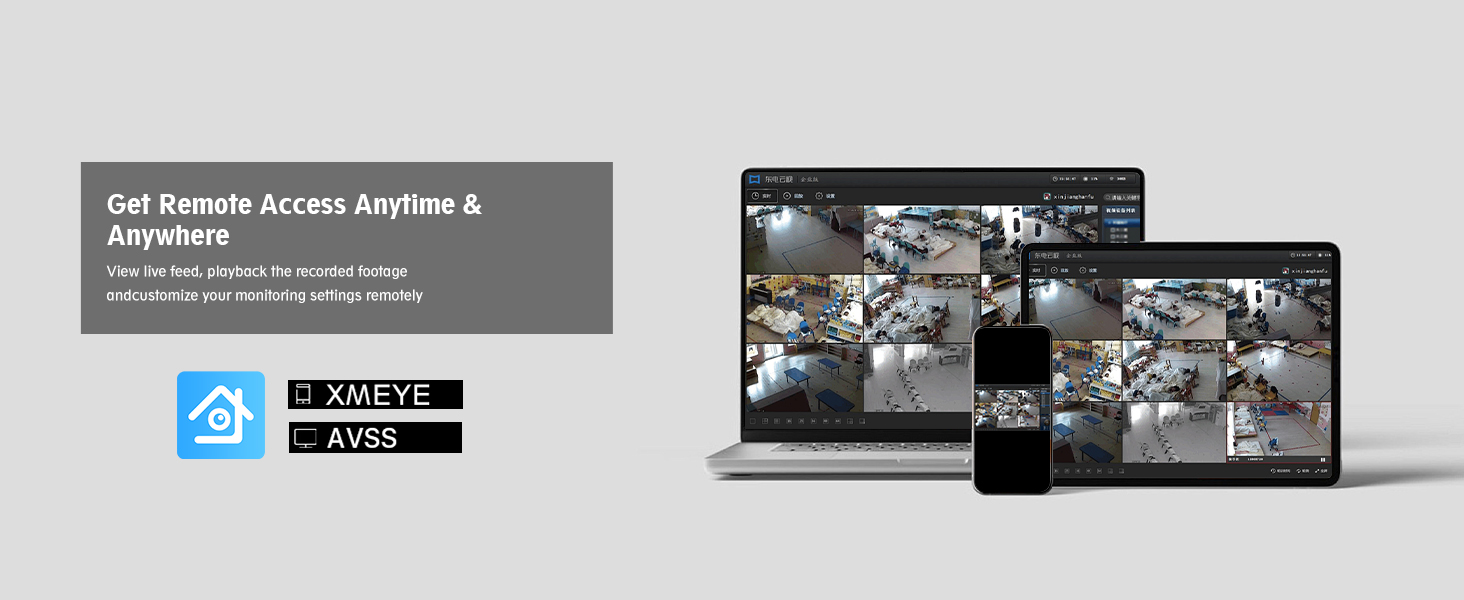
Image: A laptop and tablet displaying multiple camera feeds, illustrating remote access and monitoring capabilities across different devices.
Maintenance
- Camera Cleaning: Periodically clean the camera lenses with a soft, damp cloth to ensure clear image quality. Avoid abrasive cleaners.
- Cable Inspection: Regularly check all cables for wear, damage, or loose connections, especially for outdoor installations.
- DVR Ventilation: Ensure the DVR is placed in a well-ventilated area to prevent overheating. Keep vents clear of obstructions.
- Firmware Updates: Check the manufacturer's website for any available firmware updates for your DVR model to ensure optimal performance and security.
Troubleshooting
| Problem | Possible Cause | Solution |
|---|---|---|
| No video display on monitor | Loose video cable, incorrect monitor input, DVR not powered on. | Check all video cable connections (BNC, HDMI/VGA). Ensure monitor is set to correct input source. Verify DVR power adapter is securely connected and DVR is on. |
| No camera image | Loose camera cable, camera power issue, damaged cable. | Check camera video and power connections. Ensure camera power adapter is working. Test with a different cable if available. |
| Remote access not working | DVR not connected to network, incorrect network settings, app configuration issues. | Verify Ethernet cable is connected to DVR and router. Check DVR network settings. Ensure correct device ID/QR code is entered in the Xmeye app. Confirm router has internet access. |
| No recording | No HDD installed, HDD not initialized, recording schedule not set. | Install a compatible 3.5-inch SATA HDD. Access DVR menu to format/initialize the HDD. Configure recording schedules as needed. |
| Poor night vision | IR LEDs obstructed, camera lens dirty, insufficient power. | Clean camera lens. Ensure no obstructions are blocking the IR LEDs. Verify camera is receiving adequate power. |
Specifications
| Feature | Detail |
|---|---|
| Brand | EVERSECU |
| Model Number | AHD-K4100MP |
| Connectivity Technology | Wired |
| Video Capture Resolution | 1080p |
| Special Feature | App Control, Motion Alert, Night Vision, Weatherproof Cameras |
| Number of Channels | 4 |
| Color | White (Cameras), Black (DVR) |
| Power Source | Corded Electric |
| Product Dimensions (DVR) | 14 x 12 x 7 inches (approximate, based on item dimensions) |
| Item Weight | 9.66 pounds (total system) |
| HDD Support | 3.5-inch SATA, 500GB-2TB (not included) |
| Video Compression | H.265+ |
| Remote Viewing App | Xmeye (iOS/Android), CMS Software (Windows/Mac) |
| Camera Weatherproof Rating | IP66 |
| Night Vision Range | Up to 100ft |
Warranty and Support
For warranty information and technical support, please refer to the official EVERSECU website or contact their customer service directly. Contact details are typically found on the product packaging or the manufacturer's website.
Please retain your purchase receipt for warranty claims.
Ask a question about this manual
Ask about setup, troubleshooting, compatibility, parts, safety, or missing instructions. Manuals+ will review the question and use this page’s manual context to help answer it.