
1. Introduction
Thank you for choosing the GEEKERA Qi2 Certified 15W 3-in-1 Magnetic Wireless Charging Station. This device is designed to simplify your charging experience by providing a single, organized solution for your iPhone, Apple Watch, and AirPods. Featuring advanced Qi2 certification and 15W fast charging, it ensures efficient and safe power delivery to your compatible devices. This manual provides essential information for setup, operation, maintenance, and troubleshooting to help you get the most out of your charging station.

Figure 1: The GEEKERA 3-in-1 Wireless Charging Station offers a neat and organized charging solution, reducing cable clutter.
2. What's in the Box
Please check the package contents to ensure all items are present:
- 1 x GEEKERA Qi2 Certified 3-in-1 Magnetic Wireless Charging Station
- 1 x 30W USB-C PD Power Adapter
- 1 x USB-C to USB-C Cable
- 1 x User Manual (this document)

Figure 2: Included components: the charging station, 30W PD adapter, and USB-C cable.
3. Setup Instructions
Follow these steps to set up your charging station:
- Unpack: Carefully remove all components from the packaging.
- Connect Power Adapter: Insert one end of the provided USB-C to USB-C cable into the USB-C port on the back of the charging station.
- Connect to Power Outlet: Plug the other end of the USB-C cable into the provided 30W USB-C PD power adapter. Then, plug the power adapter into a wall outlet.
- Power On: The charging station is now ready for use. Indicator lights may briefly illuminate upon connection.
Important Note: For optimal charging performance and to ensure all three charging areas function correctly, always use the provided 30W USB-C PD power adapter and USB-C cable. Using a lower wattage adapter may result in slower charging or inability to charge multiple devices simultaneously.

Figure 3: Ensure the 30W PD USB-C power adapter is used for full-speed charging.
4. Operating Instructions
The GEEKERA 3-in-1 Wireless Charging Station allows you to charge up to three compatible devices simultaneously:
4.1. Charging Your iPhone (15W Max)
- Place your compatible iPhone (iPhone 12 series or newer) onto the magnetic charging pad on the front stand.
- The strong magnetic adsorption will align your iPhone for optimal charging.
- You can adjust your phone to any angle (360 degrees) for viewing videos, making video calls, or using StandBy mode while charging.
- An indicator light at the base will confirm charging status.
4.2. Charging Your Apple Watch (5W Max)
- Drape your Apple Watch over the dedicated charging module at the top of the stand.
- Ensure the back of your Apple Watch makes full contact with the charging surface.
- An indicator light will confirm charging status.
4.3. Charging Your AirPods (5W Max)
- Place your AirPods (with wireless charging case) onto the charging pad located at the base of the stand.
- Ensure the AirPods case is centered on the charging area.
- An indicator light will confirm charging status.
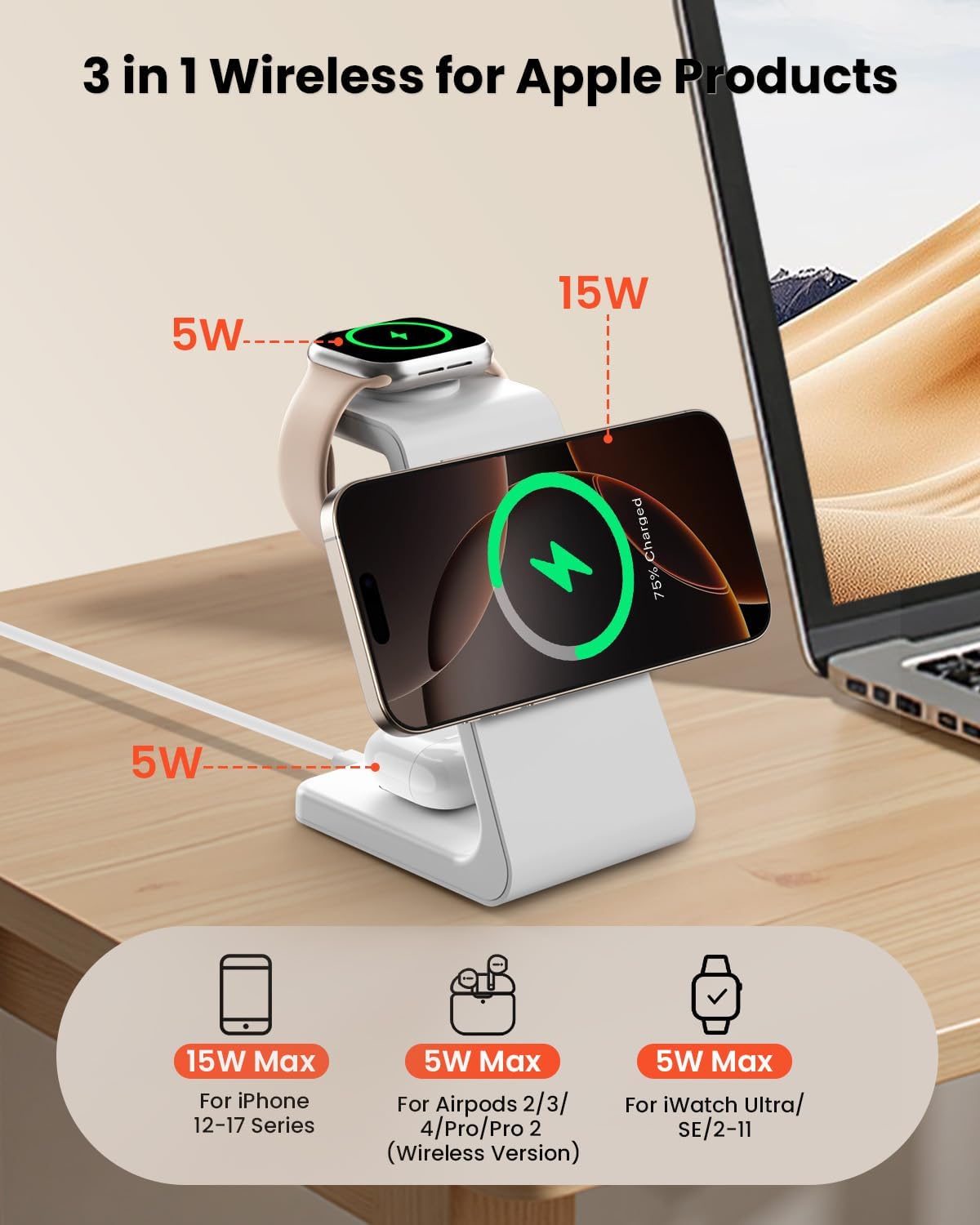
Figure 4: Simultaneous charging of iPhone (15W Max), Apple Watch (5W Max), and AirPods (5W Max).

Figure 5: The magnetic charging pad allows for 360-degree adjustable viewing angles.
5. Compatibility
The GEEKERA 3-in-1 Wireless Charging Station is compatible with the following devices:
- iPhones: iPhone 17/16/15/14/13/12 Series (for MagSafe charging, use original MagSafe case or charge without any case. Compatible with cases up to 3mm thickness).
- Apple Watch: Apple Watch Ultra/11/10/9/SE/8/7/6/5/4/3/2.
- AirPods: AirPods 2/3/4 (wireless version)/Pro/Pro 2 (with wireless charging case).

Figure 6: Extensive compatibility with a wide range of Apple devices.
6. Maintenance
To ensure the longevity and optimal performance of your charging station, please follow these maintenance guidelines:
- Cleaning: Disconnect the power adapter before cleaning. Use a soft, dry, lint-free cloth to wipe the surface of the charging station. Avoid using abrasive cleaners, solvents, or aerosol sprays.
- Storage: When not in use for extended periods, store the charging station in a cool, dry place away from direct sunlight and extreme temperatures.
- Cable Care: Avoid bending or crimping the USB-C cable excessively, as this can damage the internal wires.
- Avoid Liquids: Keep the charging station away from water and other liquids. If it comes into contact with liquid, immediately disconnect power and allow it to dry completely before reuse.
7. Troubleshooting
If you encounter issues with your GEEKERA charging station, please refer to the following common problems and solutions:
| Problem | Possible Cause | Solution |
|---|---|---|
| Device not charging | 1. Device not properly aligned. 2. Non-compatible case. 3. Power adapter not sufficient. 4. Foreign object detected. | 1. Re-position device on the charging area. 2. Remove thick or metallic cases. Use MagSafe-compatible cases. 3. Ensure using the provided 30W USB-C PD adapter. 4. Remove any metal objects between the device and charger. |
| Slow charging | 1. Lower wattage power adapter. 2. Device misalignment. 3. Background apps consuming power. | 1. Use the provided 30W USB-C PD adapter. 2. Adjust device position for optimal contact. 3. Close unnecessary apps on your device. |
| Indicator lights not working | 1. Power not connected. 2. Faulty unit. | 1. Check power connections to the wall and charger. 2. Contact GEEKERA customer support for assistance. |
| Overheating | 1. Poor ventilation. 2. Foreign object. | 1. Ensure the charging station is in a well-ventilated area. Avoid covering it. 2. Remove any foreign objects. |

Figure 7: The charging station incorporates advanced chip technology for stable power flow and lower temperatures, enhancing safety and battery longevity.
8. Specifications
| Brand | GEEKERA |
| Model Number | AG03-05 |
| Color | Pearl White |
| Connector Type | USB Type C |
| Input Voltage | 9 Volts |
| Wattage | 30 Watts (with provided adapter) |
| Output Current | 3 Amps |
| Output Voltage | 9 Volts |
| Special Feature | 3-in-1 Wireless Charger, Fast Charging, Qi2 Certified |
| Certification | CE, FCC, Qi |
| Portability | Yes |
9. Safety Information
To ensure safe operation and prevent damage to your device or the charging station, please observe the following:
- Do not disassemble or modify the product.
- Keep away from water, moisture, and high temperatures.
- Avoid dropping or subjecting the device to strong impacts.
- Do not place metallic objects, credit cards, or other foreign objects on the charging pads, as this may interfere with charging or cause overheating.
- Ensure proper ventilation around the charging station during use.

Figure 8: Built-in safety features ensure stable and secure charging.
10. Warranty
The GEEKERA Qi2 Certified 15W 3-in-1 Magnetic Wireless Charging Station comes with a 2-year warranty from the date of purchase. This warranty covers manufacturing defects and malfunctions under normal use. It does not cover damage caused by misuse, accidents, unauthorized modifications, or natural disasters. Please retain your proof of purchase for warranty claims.
11. Customer Support
For any questions, technical support, or warranty claims, please contact GEEKERA customer service through the following channels:
- Email: Refer to the contact information provided on the product packaging or the official GEEKERA website.
- Website: Visit the official GEEKERA website for FAQs and support resources.
Our dedicated support team is available to assist you.


