
1. Introduction
The Auscoumer WD-AX905 is a compact USB adapter designed to provide high-speed WiFi 6 and Bluetooth 5.3 connectivity to your PC desktop or laptop. Featuring dual-band WiFi (2.4GHz and 5GHz) and support for multiple Bluetooth devices, this adapter offers a reliable and efficient wireless experience.

Image 1.1: The Auscoumer WD-AX905 USB WiFi 6 and Bluetooth 5.3 Adapter. This compact device provides wireless internet and Bluetooth capabilities.
2. Setup and Installation
The WD-AX905 adapter offers a plug-and-play experience for Windows 10 and Windows 11 operating systems, requiring no manual driver installation. For other compatible systems, drivers may be installed automatically from the device's internal memory.
2.1 System Requirements
- Operating System: Windows 11, Windows 10 (Full WiFi and Bluetooth support)
- Operating System: Windows 7 (WiFi support only, Bluetooth not supported)
- USB Port: Available USB 2.0 or higher port
- Note: This adapter is not compatible with Mac OS, Linux, or Chrome OS.

Image 2.1: Compatibility chart showing support for WiFi and Bluetooth across Windows 11, 10, and 7. Mac OS, Linux, and Chrome OS are not supported.
2.2 Installation Steps (Windows 10/11)
- Insert the Adapter: Plug the WD-AX905 USB adapter directly into an available USB port on your computer. Avoid using USB hubs or extension cables for optimal performance.
- Automatic Driver Installation: For Windows 10/11, the driver should automatically pop up and install. Follow any on-screen prompts and restart your computer if requested.
- Manual Driver Installation (if needed): If the driver does not install automatically, open "This PC" or "My Computer," locate the "CD Drive (F:) Wireless" (or similar) entry, and double-click it to run the installer.
- Connect to Network: After installation, click the network icon in your system tray (usually bottom-right corner), select your desired Wi-Fi network, enter the password, and connect.

Image 2.2: Visual guide for installing the WD-AX905 adapter, showing insertion into a laptop, automatic driver prompt, manual driver access via 'This PC', and connecting to a Wi-Fi network.
3. Operation
3.1 Wi-Fi Connectivity
The WD-AX905 supports dual-band Wi-Fi 6 (802.11ax) for flexible and high-speed wireless internet access.
- 5 GHz Band: Offers speeds up to 600 Mbps, ideal for streaming high-definition video, online gaming, and large file transfers. This band provides faster speeds but has a shorter range and is more susceptible to obstacles.
- 2.4 GHz Band: Provides speeds up to 287 Mbps, suitable for general web browsing, email, and wider signal coverage, especially through walls and other common household barriers.

Image 3.1: Illustration of the adapter's dual-band capabilities, showing 5 GHz for high speed (600 Mbps) and 2.4 GHz for wide signal coverage (287 Mbps).
3.2 Dual-Mode Functionality: Receiver & Hotspot
The adapter can operate in two distinct modes:
- Wi-Fi Receiver Mode: Connects your PC to an existing Wi-Fi router, allowing your computer to access the internet wirelessly.
- AP Hotspot Mode: Transforms a wired internet connection on your PC into a Wi-Fi hotspot, enabling other wireless devices (like smartphones or tablets) to connect to the internet through your computer.

Image 3.2: Visual explanation of the adapter's dual functionality: Wi-Fi Receive Mode (PC connects to router) and AP Hotspot Mode (PC shares wired internet as Wi-Fi).
3.3 Bluetooth 5.3 Connectivity
The integrated Bluetooth 5.3 technology allows for stable, low-latency connections with up to 7 Bluetooth devices simultaneously. This is ideal for connecting headphones, keyboards, mice, game controllers, and other peripherals.
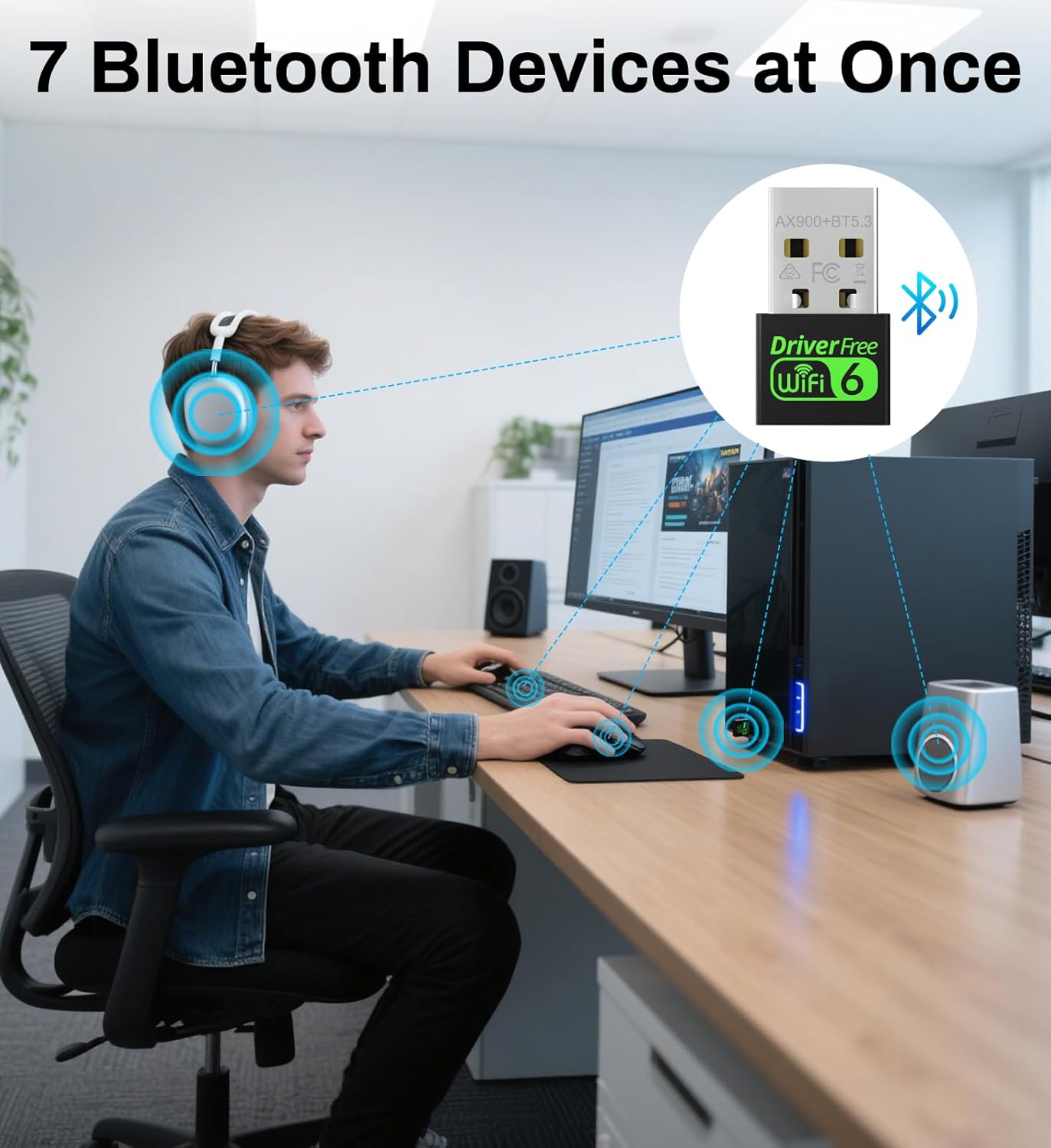
Image 3.3: A user demonstrating simultaneous connection of multiple Bluetooth devices (headphones, mouse, keyboard, speakers) to a PC via the adapter.
4. Maintenance
To ensure the longevity and optimal performance of your Auscoumer WD-AX905 adapter, consider the following:
- Physical Care: Handle the adapter carefully. Avoid bending, dropping, or exposing it to excessive force, which can damage the internal components or the USB connector.
- Port Cleanliness: Keep the USB port on your computer and the adapter's connector free from dust and debris. Use compressed air if necessary.
- Storage: When not in use, store the adapter in a clean, dry place away from extreme temperatures.
- Software Updates: Periodically check for updated drivers on the manufacturer's website or through Windows Update to ensure the best performance and compatibility.
5. Troubleshooting
5.1 Wi-Fi Adapter Not Working or Disconnecting
- Direct Connection: Plug the adapter directly into a USB port on the back of your PC. Avoid USB hubs or extension cables.
- Reduce USB Devices: Too many connected USB devices (e.g., hard drives, printers) can cause power issues. Unplug unnecessary devices.
- Power Management: Turn off power saving for the adapter. Go to Windows Key + X > Device Manager > Network adapters > Right-click your Wi-Fi adapter > Properties > Power Management, then uncheck "Allow the computer to turn off this device to save power."
- Connect Automatically: When choosing a network, check "Connect automatically" to prevent needing to reconnect every time.
- Router Distance: Ensure you are within 30 feet (10 meters) of your router. Avoid thick walls and metal objects between the adapter and router.
- Update Drivers: Download the latest driver from the manufacturer's website or use Windows Update.
- Disable Built-in Wireless: In Device Manager, find your computer's built-in Wi-Fi and Bluetooth. Right-click each and select "Disable" to prevent interference.

Image 5.1: Troubleshooting guide for Wi-Fi adapter issues, including checking connections, power settings, and driver updates.
5.2 Bluetooth Won't Pair or Drops Frequently
- Disable Built-in Bluetooth: If your PC has built-in Bluetooth, disable it in Device Manager to avoid conflicts.
- Update Bluetooth Drivers: Go to Device Manager > Right-click the adapter > Update driver.
- Re-pair Device: Turn off Bluetooth, restart your computer, turn Bluetooth back on, and then attempt to pair your device again.
5.3 Slow Internet Speed or Inconsistent Connection
- Switch to 5GHz Band: In your Wi-Fi settings, connect to the 5GHz band if available, as it is generally less crowded and offers faster speeds.
- Move Closer to Router: Position your computer ideally within 10 meters (30 feet) of the router.
- Update Drivers: Visit the manufacturer's website to download and install the latest drivers.
- Avoid Interference: Do not place the adapter near microwaves, cordless phones, or other devices that can cause wireless interference.

Image 5.2: Troubleshooting guide for Bluetooth pairing issues and slow internet speeds, including driver updates and interference avoidance.
6. Specifications
| Feature | Detail |
|---|---|
| Model Number | WD-AX905 |
| Brand | Auscoumer |
| Wireless Standard | WiFi 6 (802.11ax) |
| Bluetooth Version | Bluetooth 5.3 |
| Chipset | Realtek RTL8851BU |
| Data Transfer Rate | Up to 900 Mbps (600 Mbps on 5GHz, 287 Mbps on 2.4GHz) |
| Frequency Bands | 2.4 GHz, 5 GHz (Dual Band) |
| Hardware Interface | USB 2.0 |
| Compatible Operating Systems | Windows 11, Windows 10, Windows 7 (WiFi only for Win 7) |
| Color | Black |
| Dimensions | 3.74 x 3.35 x 0.39 inches (Package) |
| Item Weight | 0.634 ounces |
7. Support and Warranty
For technical support or warranty inquiries, please refer to the contact information provided with your product packaging or visit the official Auscoumer website. Keep your purchase receipt for warranty validation.
