
1. Introduction
This manual provides detailed instructions for the installation, operation, and maintenance of your Girafit GRF-T350SW 3K 5MP Indoor/Outdoor Pan/Tilt/Zoom Wi-Fi Security Camera. Please read this manual thoroughly before using the product to ensure proper functionality and safety. Keep this manual for future reference.
2. Product Overview
Key Features
- 3K 5MP Resolution with 4X Digital Zoom: Provides clear and detailed video footage.
- 360° Pan and 180° Tilt: Offers comprehensive coverage of your monitoring area.
- AI Person/Pet/Vehicle Detection: Advanced artificial intelligence for accurate identification of subjects, reducing false alerts.
- Auto Motion Tracking: Automatically follows detected subjects within the camera's field of view.
- Starlight Color Night Vision: Enhanced low-light performance for vivid color images at night.
- Two-Way Audio: Built-in microphone and speaker for real-time communication.
- Auto Alert Siren: Deters intruders with an audible alarm.
- IP65 Weatherproof Rating: Suitable for outdoor use in various weather conditions.
- Flexible Storage Options: Supports encrypted US cloud storage and local Micro SD card storage (up to 256GB).
- 2.4GHz/5GHz Wi-Fi Connectivity: Dual-band Wi-Fi support for stable connection.
What's in the Box
- Girafit GRF-T350SW Camera Body
- Power Adapter
- Mounting Screws and Anchors
- Mounting Template
- User Manual

Figure 2.1: Girafit GRF-T350SW camera showing its pan and tilt capabilities.

Figure 2.2: The Girafit GRF-T350SW camera operating reliably in both rainy and sunny conditions, highlighting its IP65 weatherproof design.
3. Setup
3.1 Physical Installation
- Choose a Location: Select a suitable outdoor or indoor location that provides the desired viewing angle and is within range of your Wi-Fi network. Ensure the power outlet is accessible.
- Mount the Camera: Use the provided mounting template to mark drill holes. Secure the mounting bracket to the wall or ceiling using the screws and anchors. Attach the camera to the bracket.
- Connect Power: Plug the power adapter into the camera and then into a power outlet. The camera will power on and initiate its startup sequence.
3.2 App Installation and Account Creation
- Download the Girafit App: Search for 'Girafit' in your smartphone's app store (iOS or Android) and download the official application.
- Create an Account: Open the app and follow the on-screen instructions to register a new account.
3.3 Network Connection
- Add Device: In the Girafit app, tap the '+' icon to add a new device. Select your camera model.
- Follow In-App Instructions: The app will guide you through connecting the camera to your 2.4GHz or 5GHz Wi-Fi network. This typically involves scanning a QR code displayed on your phone with the camera lens.
- Completion: Once connected, the camera's status indicator will change, and you will see the live feed in the app.
4. Operating
4.1 Pan, Tilt, and Zoom Control
From the live view in the Girafit app, use the on-screen controls to remotely adjust the camera's viewing angle. The camera supports 360° horizontal pan and 180° vertical tilt. You can also digitally zoom in up to 4X to view details.

Figure 4.1: Visual comparison demonstrating the clarity of 3K 5MP resolution with 4X zoom compared to standard 3MP resolution.
4.2 Motion Detection and Auto Tracking
The camera features advanced AI detection capabilities to identify humans, pets, and vehicles. When motion is detected, the camera can automatically track the subject, zoom in, record the event, and send push notifications to your smartphone.
- Enable Detection: Navigate to the camera settings in the app to enable AI Person/Pet/Vehicle Detection.
- Set Detection Zones: Define specific areas within the camera's view where you want motion detection to be active.
- Activate Auto Tracking: Enable auto tracking in the settings to allow the camera to follow detected subjects.
- Auto Alert Siren: Configure the camera to trigger an audible siren upon detection to deter unwanted visitors.

Figure 4.2: Illustration of the camera's automatic tracking feature, showing a person being followed with a 4X zoom.

Figure 4.3: The camera's AI accurately detecting a human, a pet, and a vehicle in a home environment.

Figure 4.4: The camera detecting activity in a defined hexagonal area and issuing an auto voice alert.
4.3 Night Vision
The GRF-T350SW offers multiple night vision modes for clear surveillance in low-light conditions.
- Starlight Color Night Vision: Utilizes a Starlight Sensor and f/1.6 aperture to capture more light, providing full-color video even in very dim environments.
- Infrared Mode: Standard black and white night vision using infrared LEDs.
- Spotlight Mode: Activates built-in spotlights to illuminate the area and capture color video when motion is detected at night.
You can switch between these modes or set them to automatic in the app settings.

Figure 4.5: Visual representation of the camera's Starlight Color Night Vision, Infrared Mode, and Spotlight Mode capabilities.
4.4 Two-Way Audio
The integrated microphone and speaker allow for two-way communication. You can speak through the camera to visitors or deter intruders directly from your smartphone via the Girafit app.
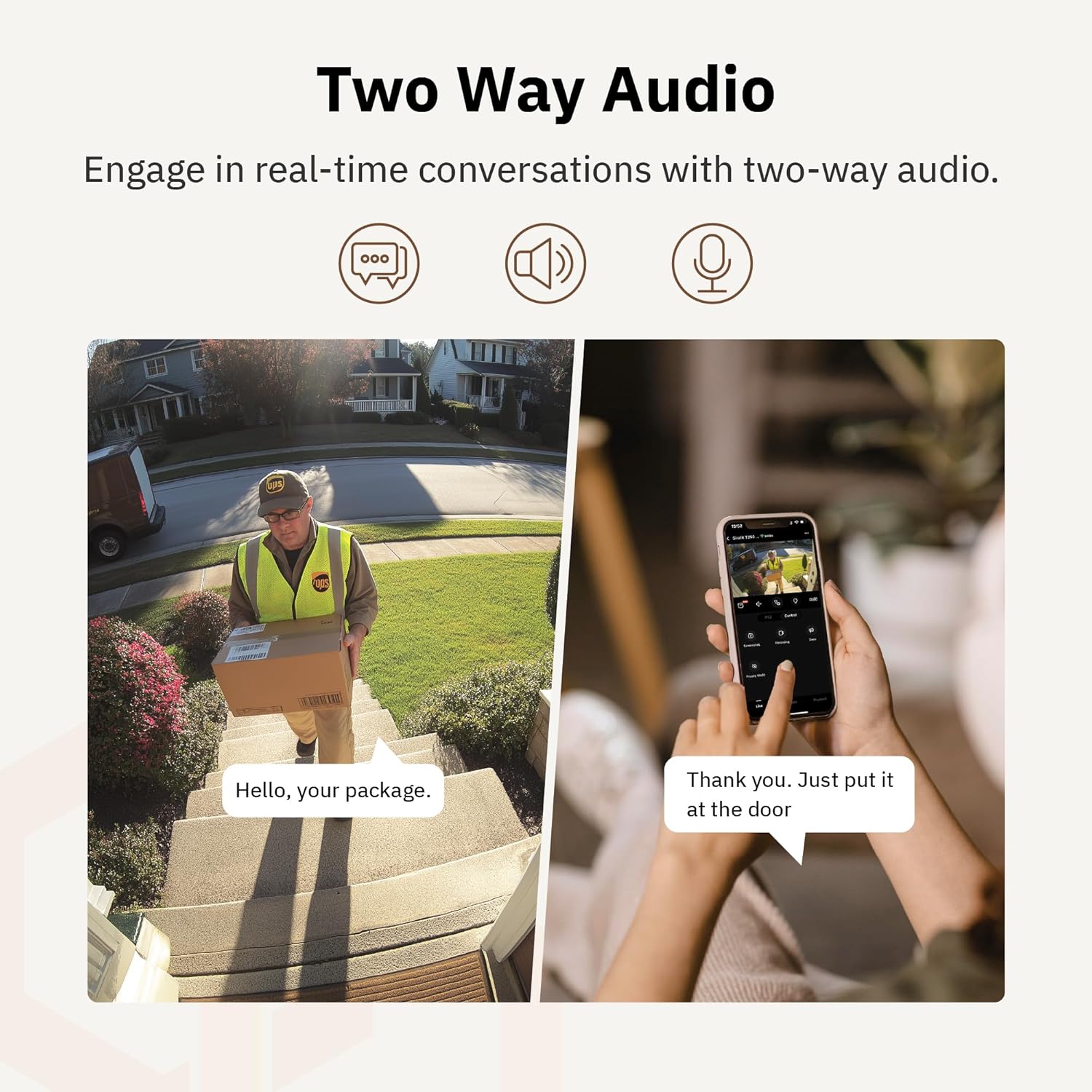
Figure 4.6: An example of using two-way audio to communicate with a delivery person at the door.
4.5 Privacy Mode
For enhanced privacy, the camera features a privacy mode. When activated, the camera lens physically tilts down by 180°, ensuring no live feed is captured or transmitted. This provides 100% privacy protection when needed.

Figure 4.7: The camera in privacy mode, with the lens tilted downwards to ensure no recording or live view.
4.6 Video Storage
The camera supports two primary methods for video storage:
- Micro SD Card: Insert a Micro SD card (up to 256GB, not included) into the designated slot on the camera for local storage of recordings.
- Cloud Storage: Girafit offers encrypted cloud storage services in the US. Refer to the app for subscription options and details.
5. Maintenance
5.1 Cleaning
To maintain optimal performance, periodically clean the camera lens and housing. Use a soft, damp cloth to wipe away dust and dirt. Avoid using harsh chemicals or abrasive materials that could damage the lens or finish.
5.2 Firmware Updates
Girafit regularly releases firmware updates to improve camera performance, add new features, and enhance security. Check the Girafit app periodically for available updates and follow the in-app instructions to install them. Ensure the camera has a stable power supply during updates.
6. Troubleshooting
- Camera Not Connecting to Wi-Fi:
- Ensure your Wi-Fi network is 2.4GHz or 5GHz and the password is correct.
- Move the camera closer to your Wi-Fi router.
- Restart your router and the camera.
- Poor Video Quality:
- Check your internet connection speed.
- Clean the camera lens.
- Ensure the camera is receiving adequate power.
- Motion Detection Not Working:
- Verify that motion detection is enabled in the app settings.
- Adjust detection sensitivity and detection zones.
- Ensure there are no obstructions blocking the camera's view.
- Two-Way Audio Issues:
- Check microphone and speaker permissions for the Girafit app on your phone.
- Ensure the camera's microphone and speaker are not obstructed.
For further assistance, please contact Girafit customer support.
7. Specifications
| Feature | Description |
|---|---|
| Model Name | GRF-T350SW |
| Video Capture Resolution | 3K (5MP) |
| Indoor/Outdoor Usage | Outdoor |
| Connectivity Technology | Wi-Fi (2.4GHz/5GHz), Wired |
| Power Source | Corded Electric |
| Mounting Type | Wall Mount |
| Special Feature | 2-Way Audio, AI Detection (Human/Pet/Vehicle), Auto Tracking, Color Night Vision, IP65 Weatherproof |
| Compatible Devices | Desktop, Laptop, Smartphone (Android/iOS) |
| Item Dimensions (L x W x H) | 2.63 x 2.63 x 4.76 inches |
| Item Weight | 14.7 ounces |
| Storage Options | Micro SD Card (up to 256GB), Cloud Storage |
| UPC | 764742517881 |
8. Warranty and Support
Girafit products are designed for reliability and performance. For warranty information, please refer to the warranty card included with your product or visit the official Girafit website. For technical support, troubleshooting assistance, or any inquiries regarding your Girafit GRF-T350SW camera, please contact Girafit customer service through the contact information provided on the official website or within the Girafit app.


