
1. Introduction
The NIMO Mini PC Desktop is a compact and powerful computing solution designed for various applications, from home office tasks to multimedia entertainment and educational use. Featuring the 12th Gen Intel N100 processor, this mini PC offers efficient performance, advanced connectivity, and support for multiple displays, all within a highly portable form factor. This manual provides essential information for setting up, operating, maintaining, and troubleshooting your NIMO Mini PC Desktop.
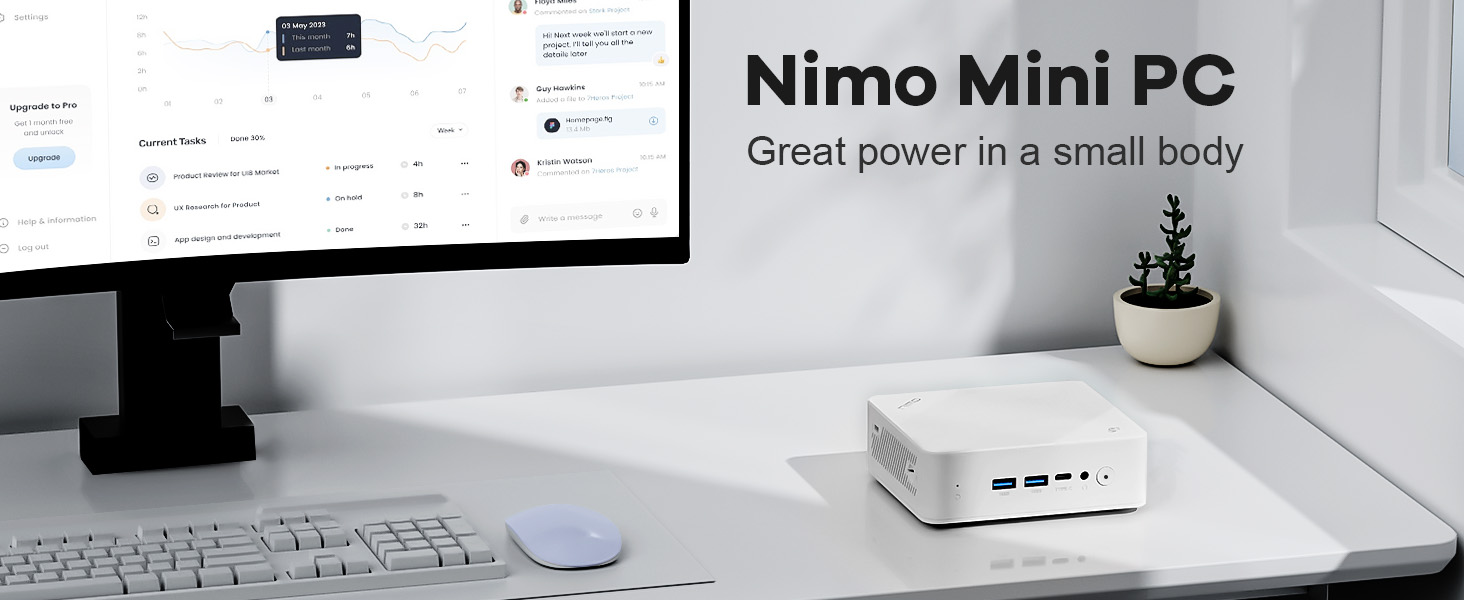
Image: The NIMO Mini PC Desktop positioned on a clean desk alongside a monitor, illustrating its compact design and powerful capabilities.
2. What's in the Box
Upon opening your NIMO Mini PC Desktop package, please verify that all the following components are included:
- 1x NIMO Mini PC Desktop
- 1x Mounting Bracket
- 1x Power Adapter
- 1x Instruction Manual

Image: A visual representation of the NIMO Mini PC Desktop and its included accessories, such as the power adapter, mounting bracket, and user manual.
3. Product Overview and Features
The NIMO Mini PC Desktop is engineered for efficiency and versatility. Its compact design belies its robust capabilities, making it an ideal choice for various computing needs.
Key Features:
- Compact Yet Mighty: Houses the robust 12th Gen Intel N100 Processor, combining high-performance cores for seamless multitasking and light gaming within a compact form factor.
- Ultimate Portability: With dimensions of 4.92 x 4.33 x 1.57 inches and weighing just 11.64 ounces, it is incredibly compact and lightweight, making it easy to transport.
- Advanced Connectivity: Features BT 5.2 and WiFi 6 for lightning-fast wireless connections, along with multiple USB 3.0 ports and a versatile USB Type-C port for high-speed data transfer and peripheral connections.
- Immersive 4K Display Expansion: Supports external connection to triple displays simultaneously via two HDMI ports and one USB Type-C port, all capable of stunning 4K resolution output.

Image: An infographic highlighting the NIMO Mini PC Desktop's core features, including WiFi 6, multiple port options, LAN connectivity, DDR4 memory, PCIe 3.0 support, and 4K display capability.

Image: A detailed illustration of the Intel N100 processor, emphasizing its role in providing powerful performance for the NIMO Mini PC Desktop.
4. Ports and Connections
The NIMO Mini PC Desktop offers a comprehensive array of ports to ensure seamless connectivity with a wide range of peripherals and displays.
Front Panel:
- 2x USB Type-A Ports: For connecting USB devices such as keyboards, mice, and external storage.
- 1x USB Type-C Port (Multifunction): Supports data transfer, display output, and power delivery (depending on connected device).
- 1x Audio Port: For headphones or external speakers.
- 1x Power Button: To power on/off the device.
- 1x Reset Button: For system reset.
Rear Panel:
- 1x Giga LAN Port (RJ45): For wired network connection.
- 2x HDMI 2.0 Ports: For connecting to displays, supporting up to 4K resolution.
- 2x USB Type-A Ports: Additional USB ports for peripherals.
- 1x DC-IN Port: For connecting the power adapter.
- 1x Security Slot: For physical security locks.
- 1x SD Card Reader: For expanding storage or transferring data from SD cards.

Image: A comprehensive diagram illustrating the layout and function of all ports and buttons on the front and rear panels of the NIMO Mini PC Desktop.
5. Setup Guide
Follow these steps to set up your NIMO Mini PC Desktop:
- Connect to Display: Connect your monitor(s) to the Mini PC using HDMI cables. For triple display setup, use both HDMI ports and the USB Type-C port (with a compatible adapter if needed).
- Connect Peripherals: Plug in your keyboard, mouse, and any other USB devices into the available USB Type-A ports.
- Connect to Network: For a wired connection, plug an Ethernet cable into the Giga LAN port. For wireless, ensure your WiFi network is available after powering on.
- Connect Power: Insert the power adapter into the DC-IN port on the Mini PC, then plug the adapter into a power outlet.
- Power On: Press the power button on the front panel of the Mini PC. The power indicator light should illuminate.
- Initial Setup: Follow the on-screen instructions to complete the operating system setup, including language, region, and network configuration.

Image: A close-up view of the NIMO Mini PC Desktop, highlighting the front panel with its USB ports and power button, essential for initial setup.
6. Operating Instructions
Once set up, your NIMO Mini PC Desktop is ready for use. Here are some basic operating instructions:
Power On/Off:
- To Power On: Press the power button once.
- To Shut Down: Use the operating system's shutdown option (e.g., Start > Power > Shut down in Windows).
- To Restart: Use the operating system's restart option (e.g., Start > Power > Restart in Windows).
- Force Shut Down: If the system is unresponsive, press and hold the power button for 5-10 seconds until the device powers off. Use this only as a last resort.
Connecting to Wi-Fi:
After booting, navigate to the network settings in your operating system to connect to an available Wi-Fi 6 network.
Triple Display Setup:
The NIMO Mini PC supports up to three displays simultaneously. Connect your monitors to the two HDMI ports and the USB Type-C port. Once connected, configure display settings within your operating system (e.g., Display Settings in Windows) to extend or duplicate your desktop across the screens.

Image: A visual demonstration of the NIMO Mini PC Desktop's ability to support a triple monitor setup, enhancing productivity and multitasking.

Image: The NIMO Mini PC Desktop discreetly mounted behind a television, showcasing its space-saving design and ability to create a clutter-free entertainment or workspace.
7. Maintenance
Proper maintenance ensures the longevity and optimal performance of your NIMO Mini PC Desktop:
- Cleaning: Regularly wipe the exterior with a soft, dry cloth. Use compressed air to clear dust from vents and ports. Do not use liquid cleaners directly on the device.
- Ventilation: Ensure the Mini PC is placed in a well-ventilated area. Do not block the air vents, as this can lead to overheating.
- Software Updates: Keep your operating system and drivers updated to ensure security and performance.
- Data Backup: Regularly back up important data to an external drive or cloud storage to prevent data loss.
- Power Management: Use the recommended power adapter. Avoid frequent power interruptions.
8. Troubleshooting
This section addresses common issues you might encounter with your NIMO Mini PC Desktop.
No Power:
- Ensure the power adapter is securely connected to both the Mini PC and a working power outlet.
- Try a different power outlet.
- Verify the power adapter is not damaged.
No Display:
- Check that the HDMI or USB-C display cables are securely connected to both the Mini PC and the monitor.
- Ensure the monitor is powered on and set to the correct input source.
- Try connecting to a different display or using a different cable.
Slow Performance:
- Close unnecessary applications running in the background.
- Ensure there is sufficient free space on the SSD.
- Check for and install any pending operating system updates.
- Monitor CPU and RAM usage through Task Manager (Windows) to identify resource-intensive processes.
- Ensure proper ventilation to prevent thermal throttling.
No Wi-Fi/Bluetooth Connection:
- Check if Wi-Fi/Bluetooth is enabled in the operating system settings.
- Restart the Mini PC.
- Ensure drivers for Wi-Fi/Bluetooth are installed and up to date.
- Move closer to the wireless router or remove obstructions.
9. Specifications
Detailed technical specifications for the NIMO Mini PC Desktop (Model: Nimo N151):
| Feature | Specification |
|---|---|
| Processor | 12th Gen Intel N100 (3.4 GHz Intel Mobile CPU, 4 Cores) |
| RAM | 8 GB DDR4 (3200 MHz) |
| Storage | 1 TB SSD (Solid State Drive) |
| Graphics | Integrated Graphics |
| Max Screen Resolution | 3840x2160 Pixels (4K) |
| Wireless Connectivity | WiFi 6, Bluetooth 5.2 |
| USB Ports | 3x USB 3.0 Type-A, 1x USB Type-C |
| Video Output | 2x HDMI 2.0, 1x USB Type-C (for display) |
| Operating System | OS (Pre-installed) |
| Item Weight | 11 pounds (approx. 5 kg) |
| Package Dimensions | 8 x 7 x 6 inches |
| Color | White |
| Power Source | DC |
10. Warranty and Support
NIMO is committed to providing excellent after-sales service for your Mini PC Desktop.
- 2-Year Technical Support: The NIMO Mini PC Desktop comes with a 2-year technical support warranty. If you experience any problems while using it, you can contact the NIMO after-sales team for consultation.
- 90-Day Free Return and Exchange: NIMO offers a 90-day free return and exchange policy from the date of purchase.
- Customer Service: For technical assistance, warranty claims, or any other inquiries, please refer to the contact information provided in the included warranty card or visit the official NIMO website.

Image: An illustration of NIMO's commitment to customer satisfaction, highlighting their after-sales support, including warranty and return policies.

