
1. Introduction
This manual provides essential information for setting up, operating, maintaining, and troubleshooting your HP 27-inch FHD Touchscreen All-in-One Desktop. Please read these instructions carefully before using your device to ensure optimal performance and longevity.
The HP 27-inch All-in-One Desktop is designed for versatile use, featuring an Intel Ultra 7 155U 12-Core processor, 32 GB DDR5 RAM, and a 1 TB SSD for efficient performance. Its 27-inch Full HD touchscreen display offers an interactive experience, complemented by Intel IrisX Graphics and Windows 11 Pro operating system.
2. What's in the Box
Verify that all components are present in the packaging:
- HP 27-inch All-in-One Desktop
- Wired Keyboard
- Wired Mouse
- Power Adapter and Cable
- Webcam (integrated or separate, depending on model configuration)
- Documentation (Quick Start Guide, Warranty Information)
3. Setup Guide
3.1 Unpacking and Placement
- Carefully remove the All-in-One desktop and all accessories from the packaging.
- Place the desktop on a stable, flat surface, ensuring adequate ventilation around the device. Avoid placing it near heat sources or in direct sunlight.
3.2 Connecting Peripherals
- Connect the wired keyboard to an available USB Type-A port on the back of the desktop.
- Connect the wired mouse to another available USB Type-A port.
- If your model includes a separate webcam, connect it to a USB port.
3.3 Power Connection
- Connect the power adapter cable to the power input port on the desktop.
- Plug the power adapter into a grounded electrical outlet.
3.4 Initial Power On
- Press the power button, usually located on the side or bottom edge of the display.
- Follow the on-screen instructions to complete the Windows 11 Pro setup, including language selection, network connection (Wi-Fi 6E supported), and user account creation.

Image: HP 27-inch All-in-One Desktop showcasing its ultra-slim design and adjustable stand. The display is a 27-inch Full HD screen.
4. Operating Instructions
4.1 Using the Touchscreen Display
The 27-inch Full HD (1920 x 1080) IPS touchscreen allows for intuitive interaction. Use gestures similar to a tablet or smartphone for navigation, zooming, and scrolling. The display features a three-sided micro-edge design and wide-viewing angles for an immersive visual experience.

Image: Visual representation of the HP 27-inch All-in-One Desktop's display features, highlighting the three-sided micro-edge, wide-viewing angles, and a 90% screen-to-body ratio.
4.2 Connectivity and Ports
Your desktop offers a variety of ports for connecting external devices:
- USB Type-C 5Gbps Signaling Rate: 1 port for modern peripherals and fast data transfer.
- USB Type-A 5Gbps Signaling Rate: 2 ports for standard USB devices.
- USB 2.0 Type-A: 2 ports for basic peripherals like keyboards and mice.
- HDMI-out 1.4: 1 port for connecting an external monitor or display.
- RJ45 LAN Ethernet port: 1 port for wired network connection.
- Headphone/Microphone Combo: 1 port for audio input/output.

Image: A detailed rear view of the HP 27-inch All-in-One Desktop, illustrating the arrangement and types of ports available, including USB Type-C, HDMI, Ethernet, USB Type-A, and the power supply connection.
4.3 Using the Privacy Camera and Audio
The HP True Vision 1080p FHD IR Tilt Privacy Camera features a pop-up mechanism for privacy. Push down to hide the camera when not in use. The integrated dual array digital microphones and dual 2W speakers provide clear audio for video calls and multimedia.

Image: The HP 27-inch All-in-One Desktop highlighting its pop-up privacy camera, dual microphones, and advanced noise reduction capabilities for enhanced communication.
5. Features Overview
- Processor: Equipped with the Intel Ultra 7 155U 12-Core processor, offering speeds up to 4.8 GHz, 12 MB Intel Smart Cache, and 14 threads for robust multitasking and performance.
- Graphics: Features Intel IrisX Graphics for clear visuals and support for everyday tasks and light creative work.
- Memory & Storage: Comes with 32 GB DDR5 5600MHz RAM and a 1 TB SSD for fast boot times, quick application loading, and ample storage capacity.
- Wireless Connectivity: Includes Realtek Rtl8852Be Wi-Fi 6 (2x2) and Bluetooth 5.3 for high-speed wireless networking and peripheral connections.
- Operating System: Pre-installed with Windows 11 Pro, providing a secure and productive computing environment.
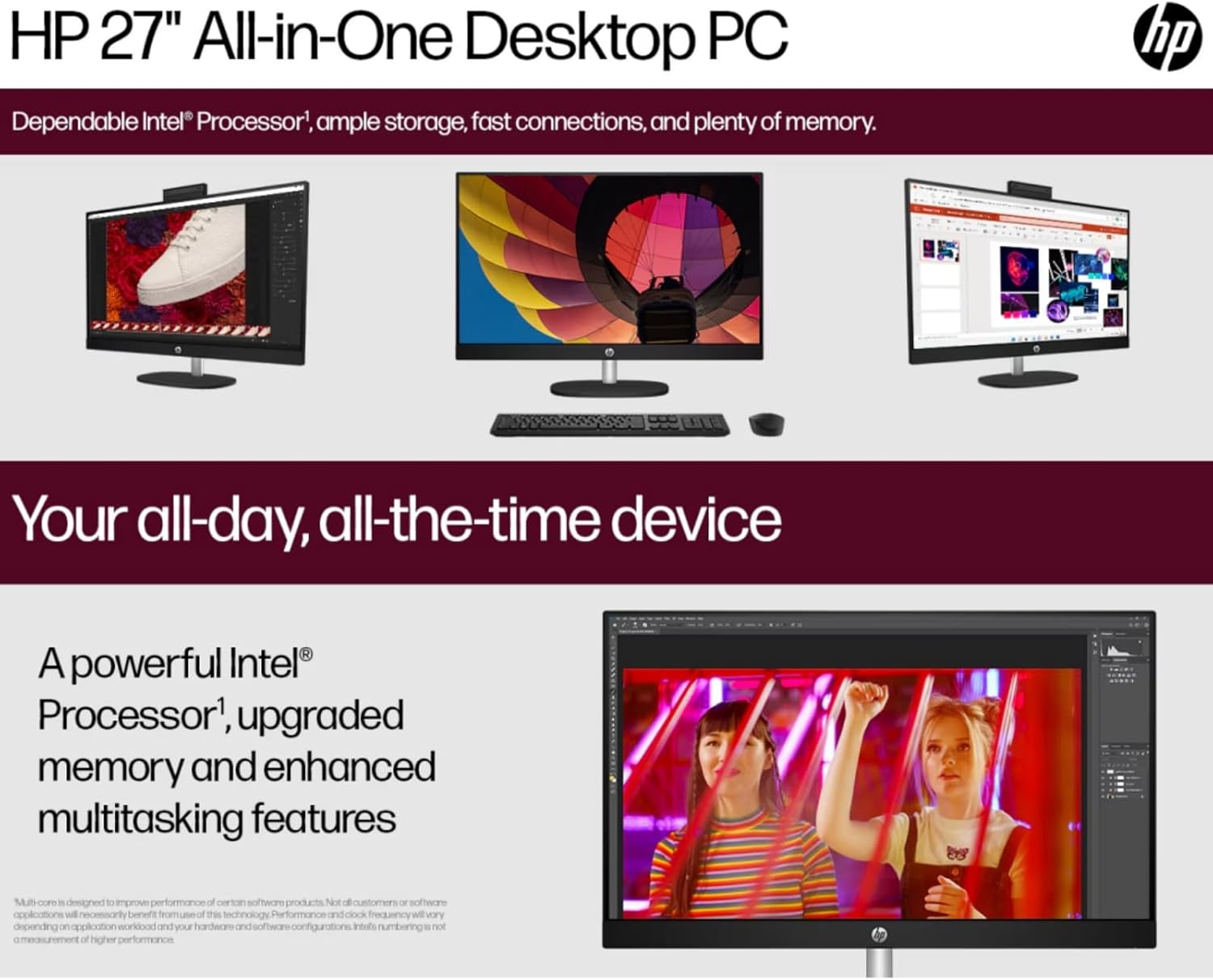
Image: The HP 27-inch All-in-One Desktop illustrating its capability for enhanced multitasking, powered by a robust Intel Processor and upgraded memory.
5.1 Environmental Considerations
This product is designed with environmental responsibility in mind. It incorporates recycled materials, including post-consumer recycled and ocean-bound plastics, and is EPEAT Gold Registered and ENERGY STAR® Certified.

Image: An infographic showing the HP 27-inch All-in-One Desktop's commitment to sustainability, detailing the use of reclaimed coffee grounds and post-consumer recycled plastics in its construction.
6. Maintenance
6.1 Cleaning the Display and Chassis
- Turn off the desktop and unplug the power cord before cleaning.
- Use a soft, lint-free cloth slightly dampened with water or a non-abrasive screen cleaner to wipe the display. Avoid harsh chemicals.
- For the chassis, use a soft, dry cloth.
6.2 Software Updates
Regularly check for and install operating system updates (Windows Update) and driver updates (HP Support Assistant) to ensure optimal performance and security.
6.3 Ventilation
Ensure that the ventilation openings on the desktop are not blocked to prevent overheating. Keep the area around the desktop clear of obstructions.
7. Troubleshooting
This section addresses common issues you might encounter.
7.1 No Power
- Ensure the power cable is securely connected to both the desktop and the electrical outlet.
- Verify the electrical outlet is functional by plugging in another device.
- Check the power adapter for any visible damage.
7.2 Display Issues
- If the screen is blank, ensure the desktop is powered on.
- Adjust display brightness settings.
- If an external monitor is connected, ensure the correct display output is selected in Windows settings.
7.3 Peripheral Not Responding
- Ensure the keyboard or mouse is properly connected to a USB port.
- Try connecting the peripheral to a different USB port.
- Restart the desktop.
7.4 Wi-Fi Connectivity Problems
- Check if Wi-Fi is enabled in Windows settings.
- Restart your router and modem.
- Ensure you are within range of your Wi-Fi network.
8. Specifications
| Feature | Detail |
|---|---|
| Brand | HP |
| Model Number | HP 27 All-In-One Desktop |
| Operating System | Windows 11 Pro |
| Processor | Intel Ultra 7 155U (12 Cores, up to 4.8 GHz) |
| RAM | 32 GB DDR5 5600MHz |
| Storage | 1 TB SSD (PCIE x 2) |
| Graphics | Intel IrisX Graphics (Integrated) |
| Display | 27-inch FHD (1920 x 1080) Touchscreen IPS, Anti-Glare, 300 Nits |
| Wireless Connectivity | Wi-Fi 6E (802.11ax), Bluetooth 5.3 |
| Ports | 1x USB Type-C 5Gbps, 2x USB Type-A 5Gbps, 2x USB 2.0 Type-A, 1x HDMI-out 1.4, 1x RJ45, 1x Headphone/Microphone Combo |
| Camera | HP True Vision 1080p FHD IR Tilt Privacy Camera |
| Audio | Dual 2W Speakers, Integrated Dual Array Digital Microphones |
| Dimensions (LxWxH) | 24.11 x 20.35 x 7.34 inches |
| Weight | 14.81 pounds |
9. Warranty and Support
For detailed warranty information, please refer to the warranty card included with your product or visit the official HP support website. HP provides various support resources, including drivers, software updates, and troubleshooting guides.
You can typically find support by visiting support.hp.com and entering your product's serial number or model name.


