
1. Introduction
This manual provides essential information for setting up, operating, and maintaining your HP 17.3" FHD Laptop, Model 17-cp2025dx. Please read this guide thoroughly to ensure proper use and to maximize the performance and longevity of your device. This laptop is designed for general computing tasks, offering a balance of performance and portability for everyday use.

Figure 1.1: HP 17.3" Laptop highlighting core components: AMD Ryzen 5 7520U processor, AMD Radeon Graphics, 512 GB SSD, and 8 GB RAM.
2. What's in the Box
Verify that all items are present in the packaging before proceeding with setup.
- HP 17.3" Laptop
- 45 W AC power adapter
- Setup instructions

Figure 2.1: Packaging contents for the HP 17.3" Laptop.
3. Product Overview
3.1 External Features and Ports
Familiarize yourself with the external components and connectivity options of your laptop.

Figure 3.1: Side view of the HP laptop illustrating port locations.
- AC Smart Pin: Connects the power adapter for charging and continuous power.
- USB Type-A (x2): Standard USB ports for connecting peripherals such as mice, keyboards, or external storage devices.
- USB Type-C (x1): Versatile port for data transfer and connecting compatible USB-C devices.
- HDMI 1.4b: For connecting to external displays or projectors.
- Headphone/Microphone Combo Jack: For connecting headphones, external speakers, or a headset with a microphone.
3.2 Key Features
- Processor: Equipped with an AMD Ryzen 5 7520U processor (4 Cores, up to 4.3 GHz) for efficient multitasking and performance.
- Display: 17.3-inch Full HD+ (1920 x 1200) IPS Anti-Glare Display for clear visuals.
- Graphics: Integrated AMD Radeon Graphics for visual tasks.
- Memory: 8 GB DDR5 RAM for responsive operation.
- Storage: 512 GB PCIe SSD for fast boot times and data access.
- Operating System: Pre-installed with Windows 11 Pro.
- Connectivity: Features Wi-Fi 6 (802.11ax) and Bluetooth 5.3 for wireless connections.
- Battery Life: Up to 9.75 hours of battery life, with HP Fast Charge capability (0 to 50% in approximately 45 minutes).
- Webcam: Integrated 720p front-facing camera with a privacy feature.
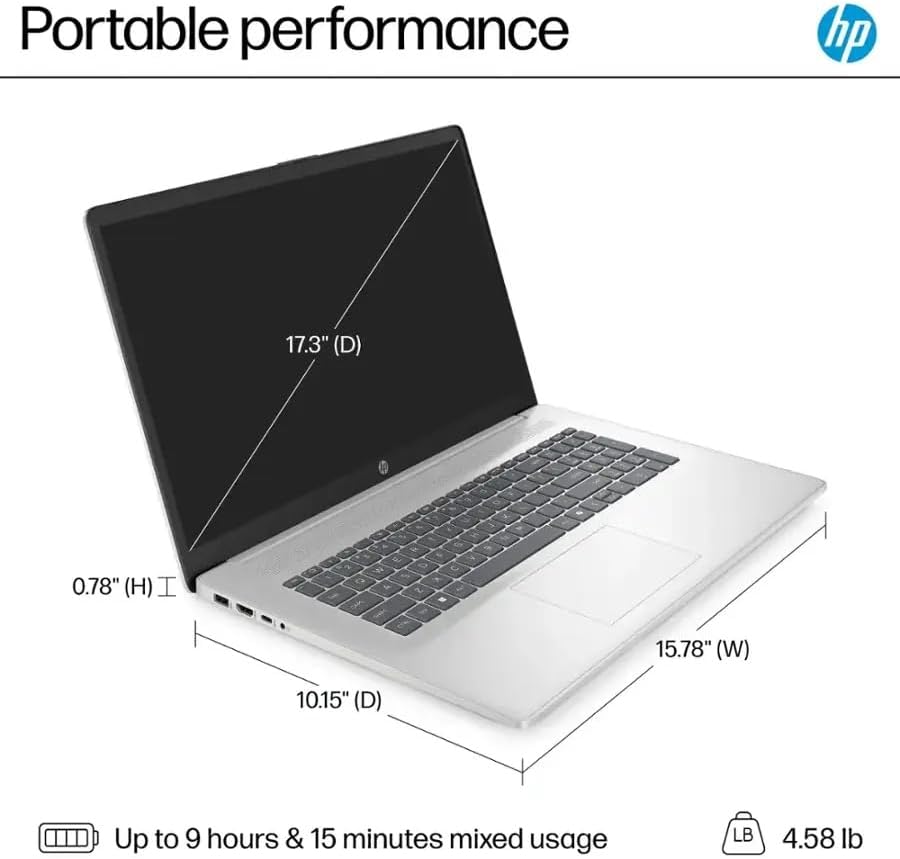
Figure 3.2: Physical dimensions and weight of the HP laptop.

Figure 3.3: Laptop in use, highlighting user comfort features.

Figure 3.4: Laptop performance capabilities with AMD components.

Figure 3.5: Display quality and ergonomic design of the HP laptop.
4. Setup
4.1 Initial Power On
- Unpack: Carefully remove the laptop and all accessories from the packaging.
- Connect Power: Plug the AC power adapter into the laptop's AC smart pin port and then into a wall outlet.
- Power On: Open the laptop lid and press the power button, typically located on the keyboard deck.
- Initial Windows Setup: Follow the on-screen prompts to complete the Windows 11 Pro setup. This includes selecting your region, connecting to a Wi-Fi network, creating a user account, and accepting terms and conditions.
4.2 Connecting to a Network
During the initial setup or at any time:
- Click the Wi-Fi icon in the system tray (bottom right of the screen).
- Select your desired Wi-Fi network from the list.
- Enter the network security key (password) if prompted, then click Connect.
5. Operating Instructions
5.1 Power Management
- Power On: Press the power button.
- Shut Down: Click the Start button, then Power, and select Shut down.
- Restart: Click the Start button, then Power, and select Restart.
- Sleep: Close the laptop lid or click the Start button, then Power, and select Sleep.
5.2 Using the Keyboard and Touchpad
- Keyboard: The laptop features a full-size keyboard with a numeric keypad. Use it for typing and system commands.
- Touchpad: The integrated touchpad supports multi-touch gestures for navigation. Tap to click, use two fingers to scroll, and pinch to zoom.
5.3 Connecting External Devices
Use the available ports to connect peripherals:
- USB Devices: Plug USB mice, keyboards, or external drives into the USB Type-A or USB Type-C ports.
- External Display: Connect an external monitor or TV using an HDMI cable to the HDMI 1.4b port.
- Audio Devices: Plug headphones or external speakers into the headphone/microphone combo jack.
6. Maintenance
6.1 Battery Care
- Avoid fully discharging the battery frequently.
- Store the laptop in a cool, dry place if not used for extended periods.
- Use only the provided HP AC power adapter.
6.2 Cleaning
- Screen: Use a soft, lint-free cloth lightly dampened with water or a screen cleaner. Do not spray cleaner directly onto the screen.
- Keyboard and Chassis: Use a soft, dry cloth. For stubborn dirt, a slightly damp cloth can be used. Avoid harsh chemicals.
- Ports: Use compressed air to gently clear dust from ports.
6.3 Software Updates
Regularly update your Windows operating system and drivers to ensure optimal performance and security. Windows Update can be accessed via Settings > Windows Update.
7. Troubleshooting
This section addresses common issues you might encounter.
7.1 Power Issues
- Laptop does not turn on: Ensure the power adapter is securely connected to both the laptop and a working power outlet. Try a different outlet. If the battery is completely drained, it may take a few minutes to show signs of life after plugging in.
- Battery not charging: Verify the power adapter connection. Check for any damage to the adapter or cable.
7.2 Display Issues
- No image on screen: Ensure the laptop is powered on. If an external monitor is connected, try disconnecting it. Press Fn + F2 (or the appropriate function key with a display icon) to cycle through display modes.
- Flickering screen: Update your graphics drivers. Check display settings for refresh rate.
7.3 Connectivity Issues
- Cannot connect to Wi-Fi: Ensure Wi-Fi is enabled (check network settings). Restart your router and modem. Run the Windows Network Troubleshooter.
- Bluetooth device not connecting: Ensure Bluetooth is enabled on both the laptop and the device. Make sure the device is in pairing mode.
8. Specifications
Detailed technical specifications for your HP 17.3" FHD Laptop.
| Feature | Specification |
|---|---|
| Brand | HP |
| Model Name | HP 17 Inch Laptop (17-cp2025dx) |
| Operating System | Windows 11 Pro |
| Processor | AMD Ryzen 5 7520U (4 Cores, up to 4.3 GHz) |
| Graphics | AMD Radeon Graphics |
| Display | 17.3 Inches, FHD+ (1920 x 1200), IPS Anti-Glare |
| RAM Memory | 8 GB LPDDR5 |
| Storage | 512 GB PCIe SSD |
| Wireless Connectivity | Wi-Fi 6 (802.11ax), Bluetooth 5.3 |
| Ports | 2 x USB-A 3.0, 1 x USB-C 3.0, 1 x HDMI 1.4, 1 x Headphone Jack, 1 x AC Smart Pin |
| Battery Life (up to) | 9.75 hours |
| Dimensions (L x W x H) | 15.78" x 10.15" x 0.78" |
| Weight | 4.58 lbs |
| Webcam | 720p Front-Facing Camera with Privacy Feature |
| Audio | HD Audio with Stereo Speakers |
9. Warranty and Support
9.1 Product Warranty
Your HP 17.3" FHD Laptop comes with a 1-year manufacturer's limited warranty. Please refer to the warranty documentation included with your product for specific terms and conditions. Keep your proof of purchase for warranty claims.
9.2 Technical Support
For technical assistance, driver downloads, or further information, please visit the official HP support website:
You may also find contact information for HP customer service in your region on the support website.

