
Introduction
This manual provides instructions for the setup, operation, maintenance, and troubleshooting of your ONIKUMA GAMING G69 68-Key Magnetic Keyboard. Please read this manual thoroughly before using the product to ensure proper functionality and longevity.
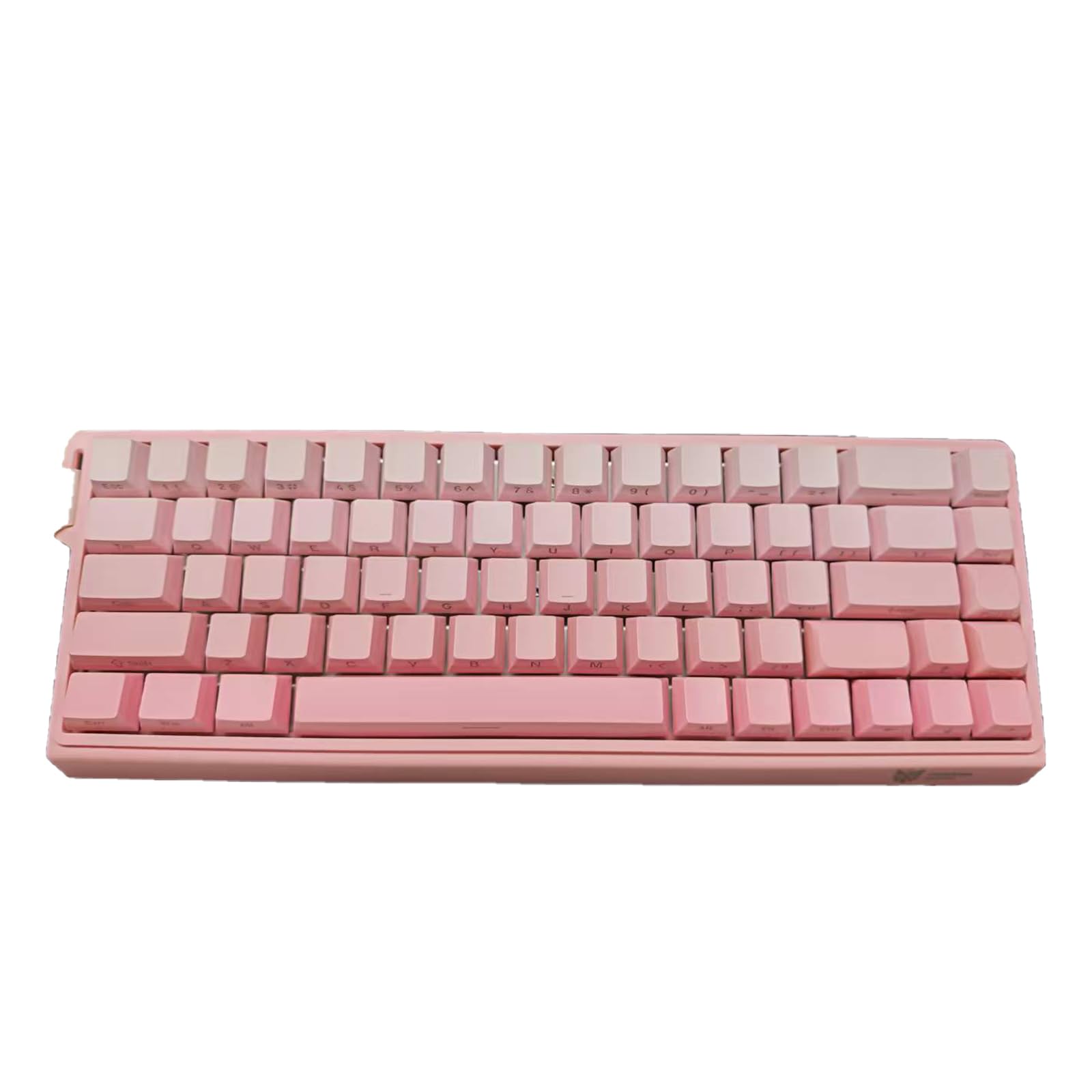
Figure 1: ONIKUMA GAMING G69 68-Key Magnetic Keyboard. This image displays the compact 65% layout keyboard with its keycaps.
Setup
1. Package Contents
- ONIKUMA GAMING G69 Magnetic Keyboard
- USB-C to USB-A Cable
- Keycap Puller (if included)
- Switch Puller (if included)
- User Manual (this document)
2. Connecting the Keyboard
- Locate the USB-C port on the back or side of the keyboard.
- Connect the USB-C end of the provided cable to the keyboard.
- Connect the USB-A end of the cable to an available USB port on your computer.
- The keyboard will automatically be recognized by your operating system. No additional drivers are typically required for basic functionality.
Figure 2: Example of USB-C cable connection to the keyboard. The cable connects to the port, typically located on the top edge of the keyboard.
Operating Instructions
1. Basic Key Functions
The G69 keyboard features a 68-key compact layout, retaining essential keys including independent arrow keys. All standard alphanumeric and symbol keys function as labeled.
2. Function (Fn) Key Combinations
Many keys have secondary functions accessible by holding down the Fn key and pressing the desired key. Refer to the keycap legends for specific combinations.
- Fn + [Key]: Activates multimedia controls, lighting effects, or other system functions.
- Specific combinations may vary; consult the keyboard's keycap legends for detailed mapping.
3. RGB Lighting Control
The keyboard features a 16.8M color RGB lighting system. Lighting effects can typically be adjusted using Fn key combinations or dedicated software (if available).
- Fn + [Lighting Key]: Cycle through various lighting modes.
- Fn + [Arrow Keys]: Adjust brightness or speed of lighting effects.
4. Hot-Swappable Switches
The G69 keyboard supports hot-swappable magnetic switches. This allows users to change switches without soldering. It is compatible with three-pin and five-pin magnetic switches.
To replace a switch:
- Gently remove the keycap using the provided keycap puller.
- Use the switch puller to carefully grip the switch from its top and bottom clips.
- Pull the switch straight up to remove it from the PCB.
- Align the pins of the new switch with the holes on the PCB.
- Press the new switch firmly until it clicks into place. Ensure it is seated correctly and not bent.
- Replace the keycap.
Maintenance
1. Cleaning the Keyboard
- Disconnect the keyboard from your computer before cleaning.
- Use a soft, lint-free cloth dampened with water or a mild cleaning solution to wipe the keycaps and chassis.
- For dust and debris between keycaps, use compressed air or a small brush.
- Avoid spraying liquids directly onto the keyboard.
2. Cable Care
- Avoid bending or crimping the USB-C cable excessively.
- Store the cable neatly when not in use to prevent damage.
Troubleshooting
1. Keyboard Not Responding
- Ensure the USB-C cable is securely connected to both the keyboard and the computer.
- Try connecting the keyboard to a different USB port on your computer.
- Test the keyboard on another computer to rule out system-specific issues.
- Restart your computer.
2. RGB Lighting Not Working
- Verify that the lighting is not turned off via Fn key combinations.
- Cycle through different lighting modes to see if any activate.
- Ensure the keyboard is receiving sufficient power from the USB port.
3. Keys Not Registering or Double-Typing
- For hot-swappable switches, ensure the switch is fully seated in its socket. Remove and re-insert the affected switch.
- Clean around the affected keycap and switch to remove any debris.
Specifications
| Feature | Detail |
|---|---|
| Model | G69 |
| Layout | 68-Key (65% Compact) |
| Switch Type | Magnetic (Hot-Swappable) |
| Connectivity | Wired (USB-C) |
| Polling Rate | 8000Hz |
| Latency | 0.3ms |
| Magnetic Axis Accuracy | ±0.02mm |
| Backlight | 16.8M Color RGB |
| Keycap Material | PBT (85%) |
| Compatible Devices | PC |
Warranty Information
The ONIKUMA GAMING G69 Magnetic Keyboard comes with a 2-year warranty from the date of purchase. This warranty covers manufacturing defects and workmanship under normal use.
The warranty does not cover damage caused by:
- Accident, abuse, misuse, or improper installation.
- Unauthorized repairs or modifications.
- Natural disasters or external causes.
- Normal wear and tear.
Please retain your proof of purchase for warranty claims.
Support
For further assistance, technical support, or warranty inquiries, please visit the official ONIKUMA GAMING website or contact their customer service.
Official Website: ONIKUMA GAMING Store on Amazon
(Note: Specific contact details may be found on the official website or product packaging.)