Introduction
Welcome to your new Realspace Rezio Computer Desk with Hutch. This manual provides essential information for the assembly, operation, and maintenance of your desk to ensure optimal performance and longevity.
Safety Information
Please read all instructions carefully before assembly and use. Keep this manual for future reference.
- Ensure all components are present and undamaged before beginning assembly.
- Assemble the desk on a soft, clean surface to prevent scratches.
- Do not overtighten screws during assembly.
- Keep small parts away from children.
- Do not exceed the weight capacity of the desk surfaces.
- Only use the integrated power hub with compatible devices and within specified electrical limits.
- Disconnect power before cleaning or performing maintenance on the integrated power hub or LED lights.
Package Contents
Verify that all parts are included before starting assembly. Refer to the included hardware list for specific component identification.
Note: Specific part numbers and quantities are detailed in the separate hardware pack. If any parts are missing or damaged, contact Realspace customer support.
Assembly Instructions
Assembly is required for this product. It is recommended to have two people for assembly.
- Unpack Components: Carefully remove all parts from the packaging and lay them out on a clean, soft surface to prevent damage.
- Attach Legs to Main Desk Surface: Secure the metal legs to the underside of the main desk surface using the provided screws and tools. Ensure all connections are firm.
- Assemble Hutch: Attach the hutch components to form the upper shelf.
- Mount Hutch to Main Desk: Secure the assembled hutch to the main desk surface.
- Install Power Hub: Carefully place the integrated power hub into its designated cutout on the hutch. Connect any necessary wiring as per the diagram in the separate assembly guide.
- Install LED Lights: Adhere the remote-controlled LED light strip to the underside of the hutch, ensuring proper placement for optimal illumination.
- Final Tightening: Once all components are in place, gently tighten all screws to ensure stability. Do not overtighten.
For detailed step-by-step diagrams, please refer to the separate assembly guide included in your product packaging.

Figure 1: Fully assembled Realspace Rezio Computer Desk with Hutch, showing the main desk surface, hutch, and integrated power hub.
Operating Instructions
Integrated Power Hub
The desk features a built-in power hub for convenient device charging and power access.
- Power Outlets: Plug in devices requiring standard AC power into the 2 power outlets.
- USB-A & USB-C Charging Ports: Connect compatible devices using appropriate cables to the USB-A and USB-C ports for charging.
- Power Connection: Ensure the desk's main power cord is securely plugged into a grounded wall outlet.

Figure 2: Detail of the integrated power hub, showing two AC outlets, one USB-A port, and one USB-C port for device connectivity.
Remote-Controlled LED Lighting
The hutch includes remote-controlled LED lights for ambient illumination.
- Power On/Off: Use the designated button on the remote control to turn the LED lights on or off.
- Color Selection: Select from various color options using the color palette buttons on the remote.
- Brightness Adjustment: Adjust the brightness level using the dimmer buttons.
- Mode Selection: Cycle through different lighting modes (e.g., fade, strobe) if available, using the mode buttons.
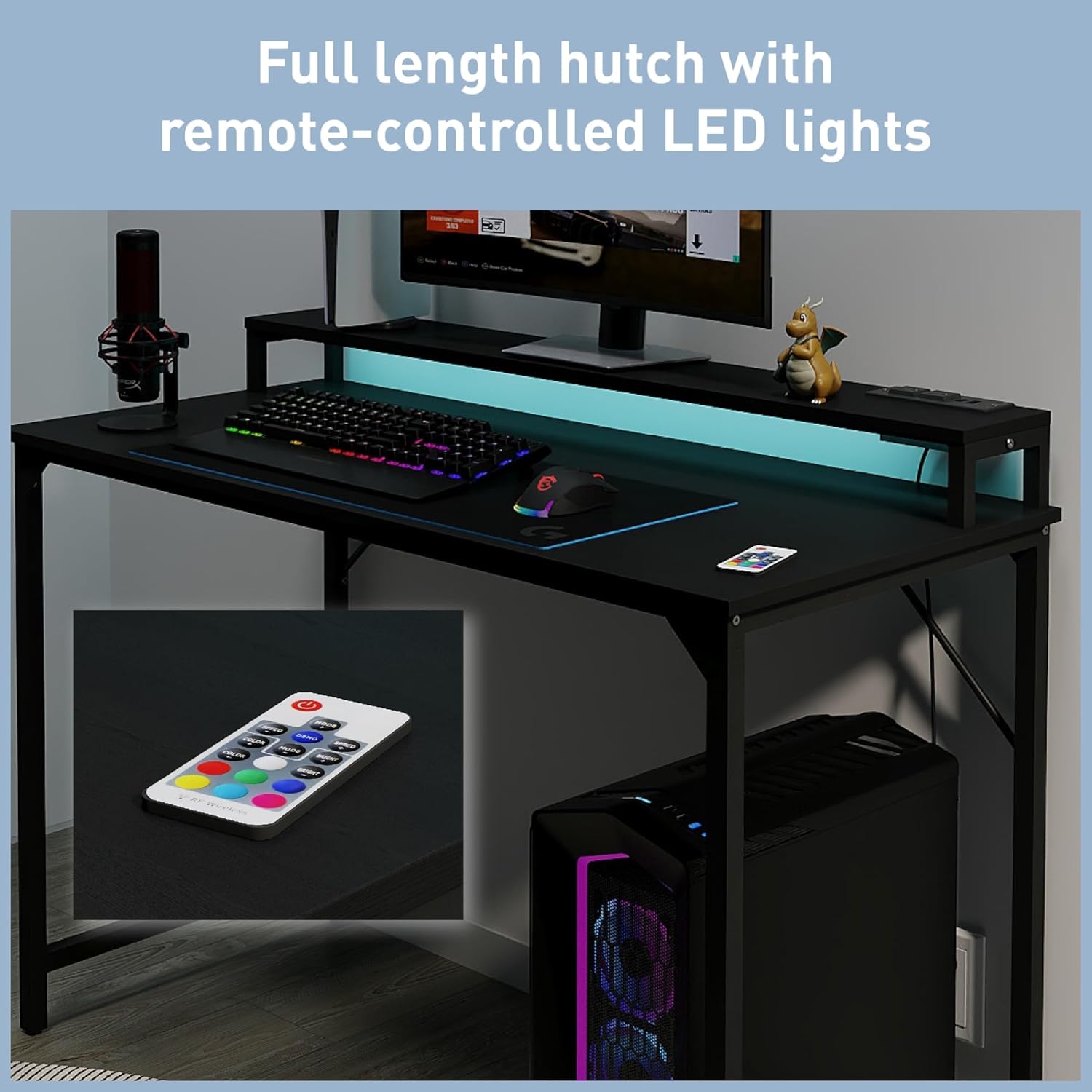
Figure 3: The hutch section of the desk with the remote-controlled LED lights active, providing ambient lighting.
Maintenance
- Cleaning: Wipe surfaces with a soft, damp cloth. Avoid abrasive cleaners or harsh chemicals that may damage the finish.
- Dusting: Regularly dust the desk and hutch to prevent buildup.
- Power Hub: Ensure the power hub remains free of dust and debris. Do not spill liquids on the power outlets or USB ports.
- LED Lights: The LED lights are designed for long-term use and typically do not require maintenance. If issues arise, refer to the troubleshooting section.
- Hardware Check: Periodically check all screws and fasteners to ensure they remain tight. Retighten if necessary.
Troubleshooting
Power Hub Not Working
- Check Power Connection: Ensure the desk's main power cord is securely plugged into a functional wall outlet.
- Test Outlet: Plug another device into the wall outlet to confirm it is receiving power.
- Check Devices: Ensure the devices you are trying to power or charge are functioning correctly.
LED Lights Not Responding
- Check Remote Battery: Replace the battery in the remote control if the lights are unresponsive.
- Line of Sight: Ensure there is a clear line of sight between the remote and the LED receiver.
- Power Connection: Verify that the LED lights are properly connected to the power source within the desk.
Desk Instability
- Tighten Screws: Re-check and tighten all assembly screws.
- Level Surface: Ensure the desk is placed on a flat, level surface.
Specifications
| Feature | Detail |
|---|---|
| Brand | Realspace |
| Model | Rezio Computer Desk with Hutch |
| Dimensions (Approx.) | 47" (W) x 22" (D) x 35" (H) (including hutch) |
| Color | Black |
| Material | Engineered wood surfaces, metal legs |
| Power Hub | 2 AC Power Outlets, 1 USB-A Charging Port, 1 USB-C Charging Port |
| Lighting | Full length hutch with remote-controlled LED lights |
| Assembly Required | Yes |
| Item Weight | 41 Pounds |
| UPC | 735854689728 |
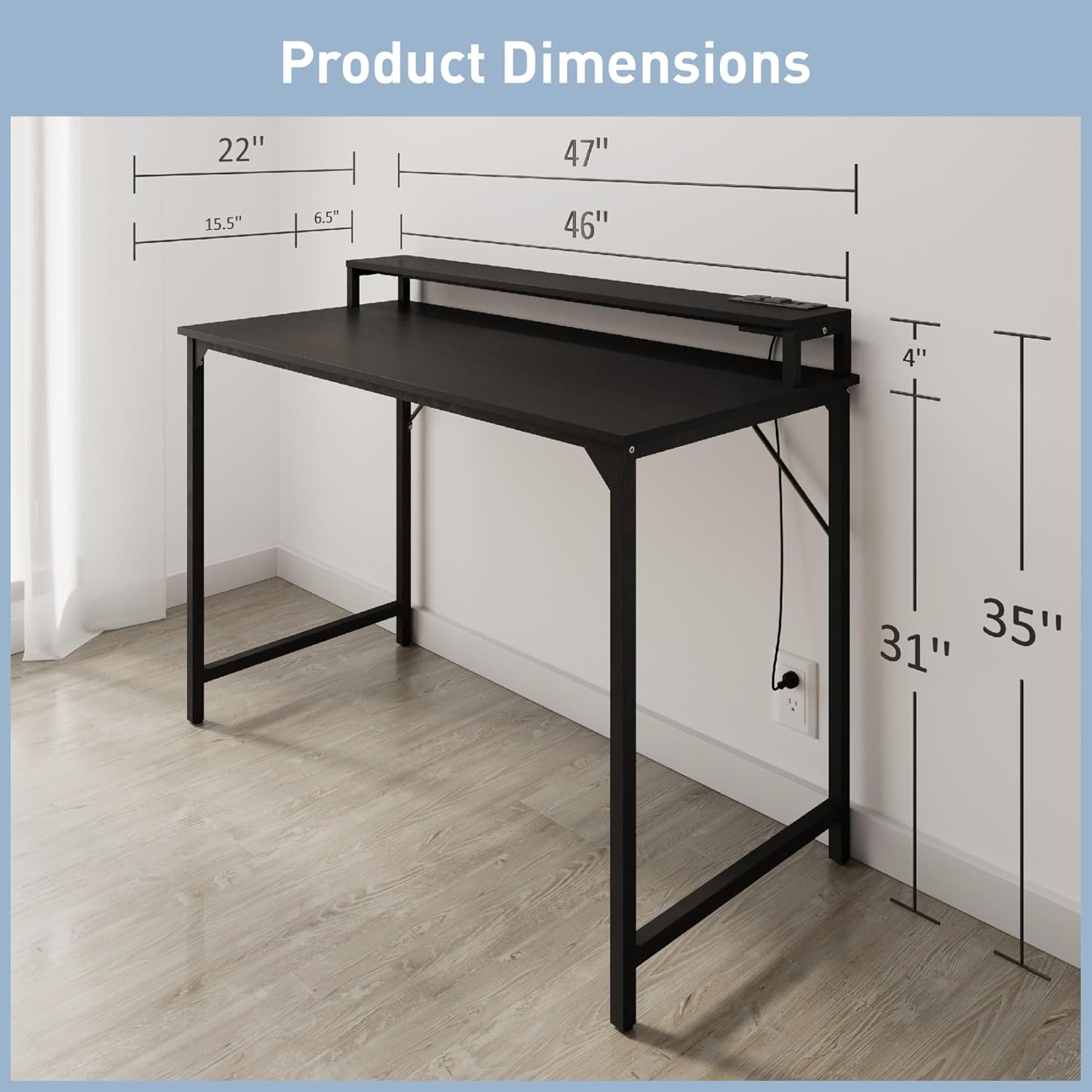
Figure 4: Detailed product dimensions, indicating a width of 47 inches, depth of 22 inches, and total height of 35 inches including the hutch.
Warranty and Support
For warranty information, please refer to the documentation included with your purchase or visit the official Realspace website. For customer support, assistance with assembly, or to report missing/damaged parts, please contact Realspace customer service.
Manufacturer: OFFICE DEPOT
Brand Store: Realspace Store on Amazon


