1. Introduction
This manual provides essential information for the safe and effective operation of your LDAILY 61 Key Keyboard Piano. Please read this manual thoroughly before use and retain it for future reference. This electronic digital piano is designed for beginners and features 61 keys, built-in speakers, and various functions to support musical learning and practice.
2. Safety Information
- Power Source: Use only the provided AC adapter or 4 AA batteries. Ensure the voltage matches the product requirements.
- Battery Safety: Do not mix old and new batteries, or different types of batteries. Remove batteries if the unit will not be used for an extended period.
- Water and Moisture: Keep the keyboard away from water, moisture, and high humidity. Do not operate with wet hands.
- Ventilation: Do not block ventilation openings. Ensure adequate airflow around the unit.
- Cleaning: Clean only with a dry, soft cloth. Do not use liquid cleaners or aerosols.
- Children: This product contains small parts and electronic components. Adult supervision is recommended for young children.
3. Package Contents
Verify that all items listed below are included in your package:
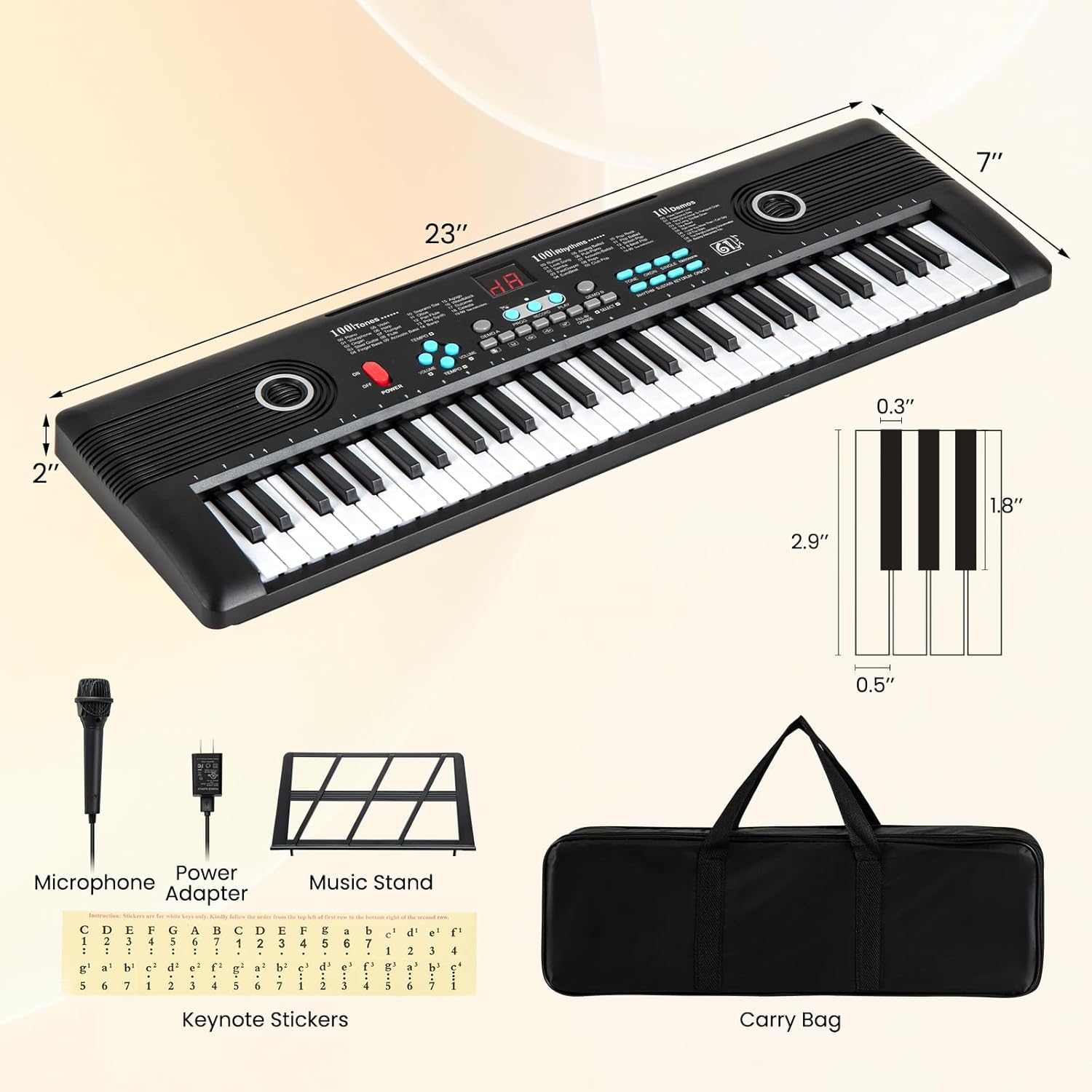
- 1 x LDAILY 61 Key Keyboard Piano
- 1 x Music Stand
- 1 x Keynote Stickers
- 1 x Microphone
- 1 x Power Adapter
- 1 x Carrying Case
- 1 x User Guide (this manual)

4. Product Overview
4.1 Keyboard Layout and Controls
Familiarize yourself with the main controls and features of your keyboard piano.

- Power Button: Turns the keyboard on or off.
- Volume Control: Adjusts the overall sound output level.
- Tone Selection: Buttons to select from 100 different instrument sounds.
- Rhythm Selection: Buttons to select from 100 rhythmic patterns.
- Demo Songs: Buttons to play 10 pre-recorded demonstration songs.
- Percussion: Buttons for 5 different percussion sounds.
- Metronome: Provides a steady beat for practice.
- Record/Playback: Records and plays back your performances.
- Sustain: Adds a sustain effect to notes.
- Programming: Allows for custom rhythm programming.
- Digital Display: Shows current settings (e.g., tone number, rhythm number).
4.2 Connectivity Ports
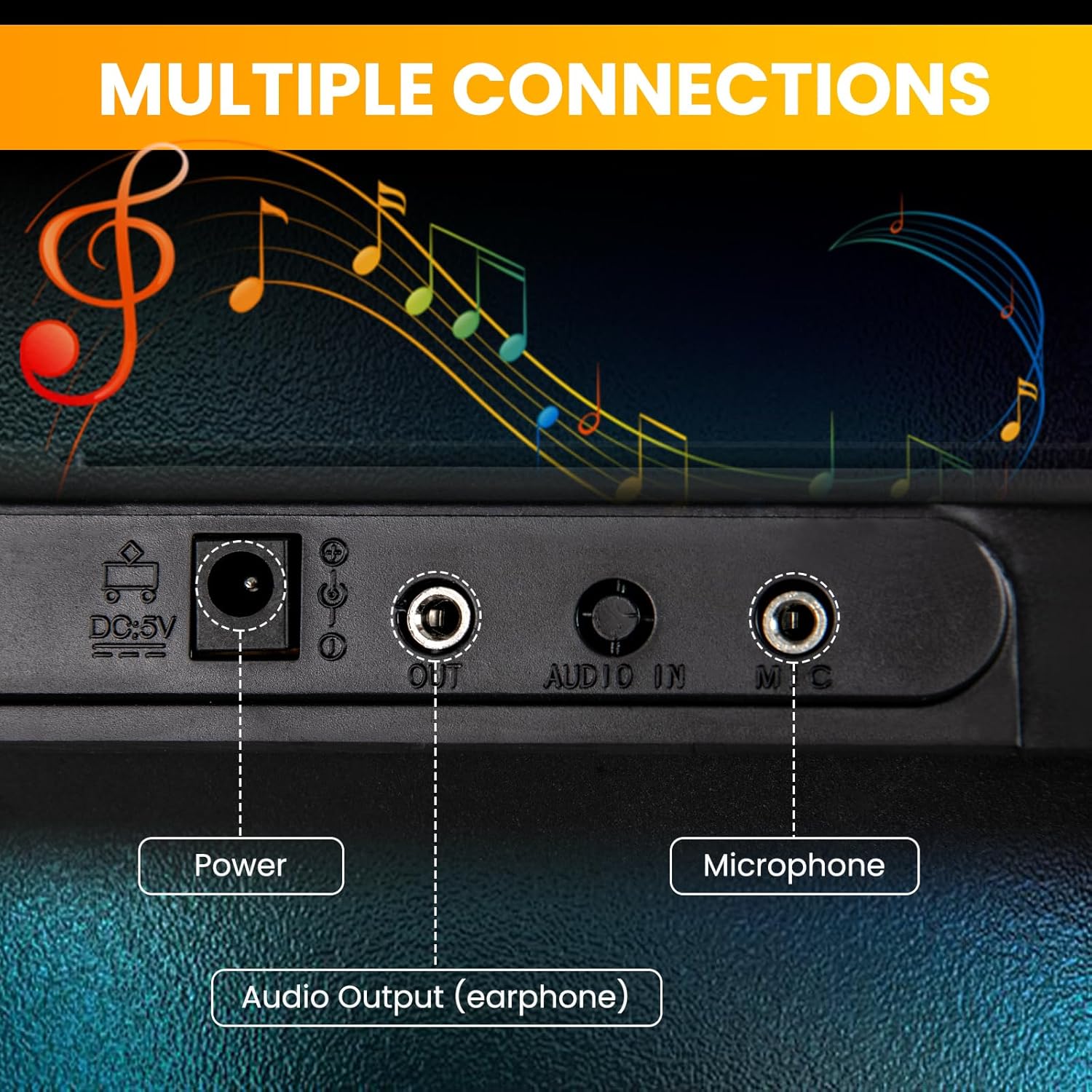
- DC 5V Power Input: Connect the included AC adapter here.
- Audio Output (Earphone): Connect headphones for private practice.
- Microphone Input: Connect the included microphone.
4.3 Built-in Speakers
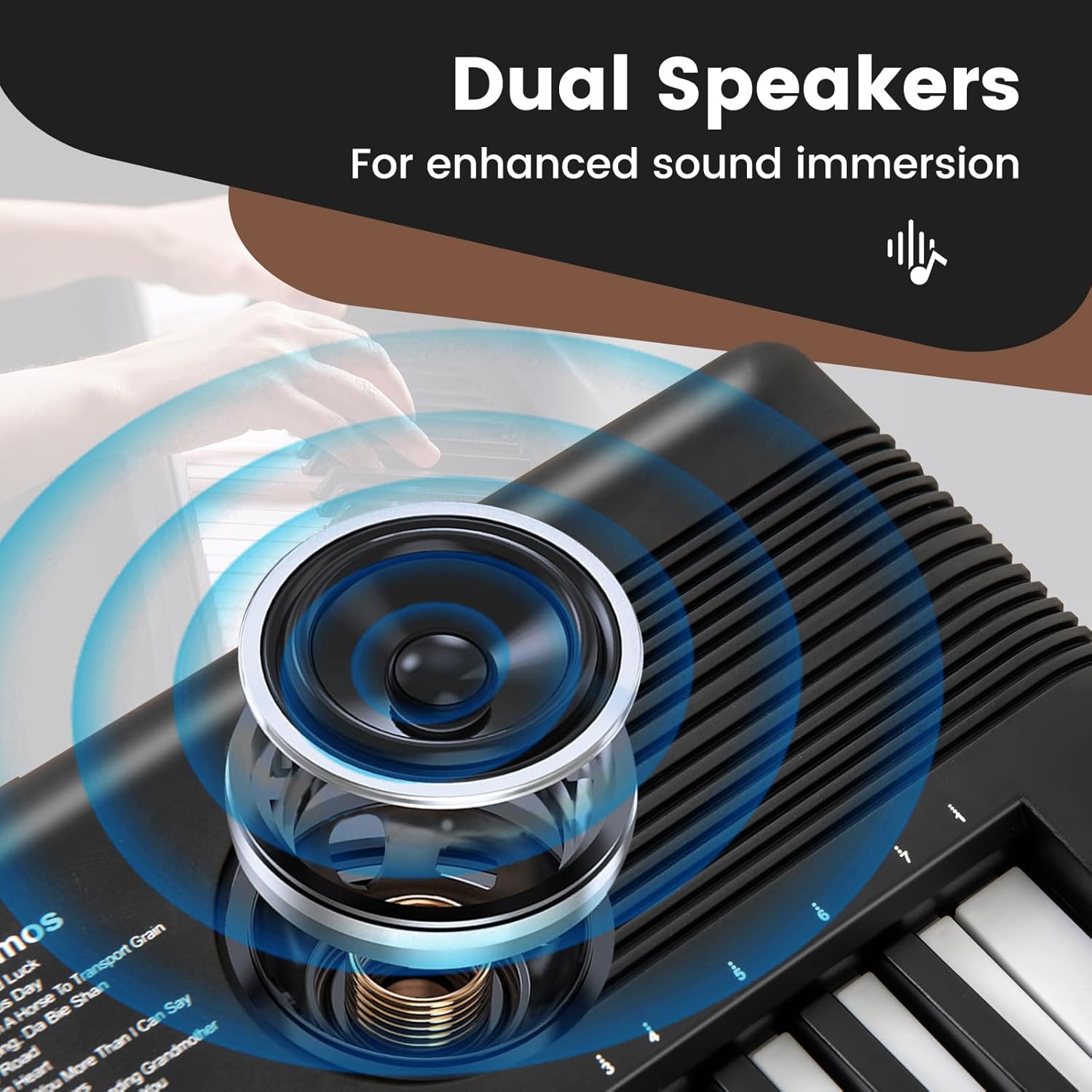
The keyboard features dual high-fidelity speakers for clear sound reproduction.
5. Setup
5.1 Power Connection
- AC Adapter: Connect the small end of the power adapter to the DC 5V input port on the keyboard. Plug the other end into a standard wall outlet.
- Batteries (Optional): If using batteries, open the battery compartment on the underside of the keyboard. Insert 4 AA batteries (not included), ensuring correct polarity (+/-). Close the compartment securely.
5.2 Music Stand Assembly
Insert the music stand into the designated slots on the top panel of the keyboard. Ensure it is firmly seated.
5.3 Keynote Stickers Application
For beginners, apply the included keynote stickers to the keys as guided by the sticker sheet. This aids in learning note identification.
6. Operating Instructions
6.1 Power On/Off and Volume
- Press the POWER button to turn the keyboard on. The digital display will illuminate.
- Rotate the VOLUME knob to adjust the desired sound level.
- Press the POWER button again to turn the keyboard off.
6.2 Selecting Tones (Instrument Sounds)
- Press the TONE button. The display will show the current tone number.
- Use the number buttons (0-9) to enter a specific tone number (e.g., 01 for Piano, 02 for Bright Piano). Refer to the tone list printed on the keyboard or in the full user guide for a complete list.
- Alternatively, use the + or - buttons to cycle through the available tones.
6.3 Selecting Rhythms
- Press the RHYTHM button. The display will show the current rhythm number.
- Use the number buttons (0-9) to enter a specific rhythm number.
- Use the + or - buttons to cycle through the available rhythms.
- Press START/STOP to begin or end the rhythm playback.
- Adjust the rhythm tempo using the TEMPO + or TEMPO - buttons.
6.4 Playing Demo Songs
- Press the DEMO SONG button. The display will show the current demo song number.
- Use the number buttons (0-9) or +/- buttons to select a demo song.
- The selected demo song will begin playing automatically. Press DEMO SONG again to stop playback.
6.5 Recording and Playback
- Press the RECORD button. The keyboard is now in recording mode.
- Play your desired melody on the keys.
- Press the PLAYBACK button to stop recording and listen to your recorded performance.
6.6 Metronome Function
- Press the METRONOME button to activate the metronome.
- Use the TEMPO + or TEMPO - buttons to adjust the metronome speed.
- Press the METRONOME button again to turn it off.
6.7 Sustain Function
Press the SUSTAIN button to apply a sustain effect to the notes played. Press it again to deactivate.
6.8 Microphone and Headphone Use
- Microphone: Plug the included microphone into the MIC input port. Adjust the keyboard's volume for microphone output.
- Headphones: Plug standard 3.5mm headphones into the AUDIO OUT (EARPHONE) port for private listening. The built-in speakers will mute automatically.

7. Maintenance
- Cleaning: Wipe the keyboard surface with a soft, dry cloth. Do not use abrasive cleaners, solvents, or waxes.
- Storage: When not in use, store the keyboard in its carrying case in a cool, dry place, away from direct sunlight and extreme temperatures.
- Battery Removal: If storing for an extended period, remove the batteries to prevent leakage.
8. Troubleshooting
| Problem | Possible Cause | Solution |
|---|---|---|
| Keyboard does not power on. | No power, low batteries, or faulty adapter. | Ensure AC adapter is properly connected or replace batteries. |
| No sound from speakers. | Volume too low, headphones connected, or speaker issue. | Increase volume, disconnect headphones, or check power. |
| Microphone not working. | Microphone not plugged in correctly or volume too low. | Ensure microphone is fully inserted into the MIC port and adjust keyboard volume. |
| Keys are unresponsive. | Keyboard may be in a specific mode (e.g., programming) or a temporary glitch. | Try turning the keyboard off and on again. Check if any special function is active. |
9. Specifications
| Feature | Detail |
|---|---|
| Model Number | LD-10116US-BK-MU |
| Number of Keys | 61 |
| Dimensions (L x W x H) | 23" x 7" x 2" (58.4 cm x 17.8 cm x 5.1 cm) |
| Item Weight | 2.2 lbs (1 kg) |
| Tones | 100 |
| Rhythms | 100 |
| Demo Songs | 10 |
| Percussion Sounds | 5 |
| Power Input | 100V-240V~50/60Hz |
| Power Output | 5V 1A |
| Battery Type | 4 x AA batteries (not included) |
| Headphones Jack | 3.5mm |
| Special Features | Built-In Speaker, Digital Display, Portable, Record/Playback, Metronome, Sustain |
10. Warranty and Support
For warranty information or technical support, please refer to the contact details provided with your purchase documentation or visit the official LDAILY website. Keep your proof of purchase for warranty claims.


