
1. Introduction
Welcome to the user manual for your KINGRID W90 Android 15 Tablet. This guide provides essential information on setting up, operating, maintaining, and troubleshooting your device to ensure a seamless user experience. Please read this manual thoroughly to familiarize yourself with all features and functions.
2. Product Overview
The KINGRID W90 is an 11-inch FHD tablet powered by Android 15 and a T615 Octa-Core processor. It features 24GB RAM, 256GB ROM (expandable up to 2TB), an 8000mAh battery with 18W fast charging, 5G WiFi, and 13MP cameras. The display is TÜV certified for eye comfort and supports Netflix HD streaming.
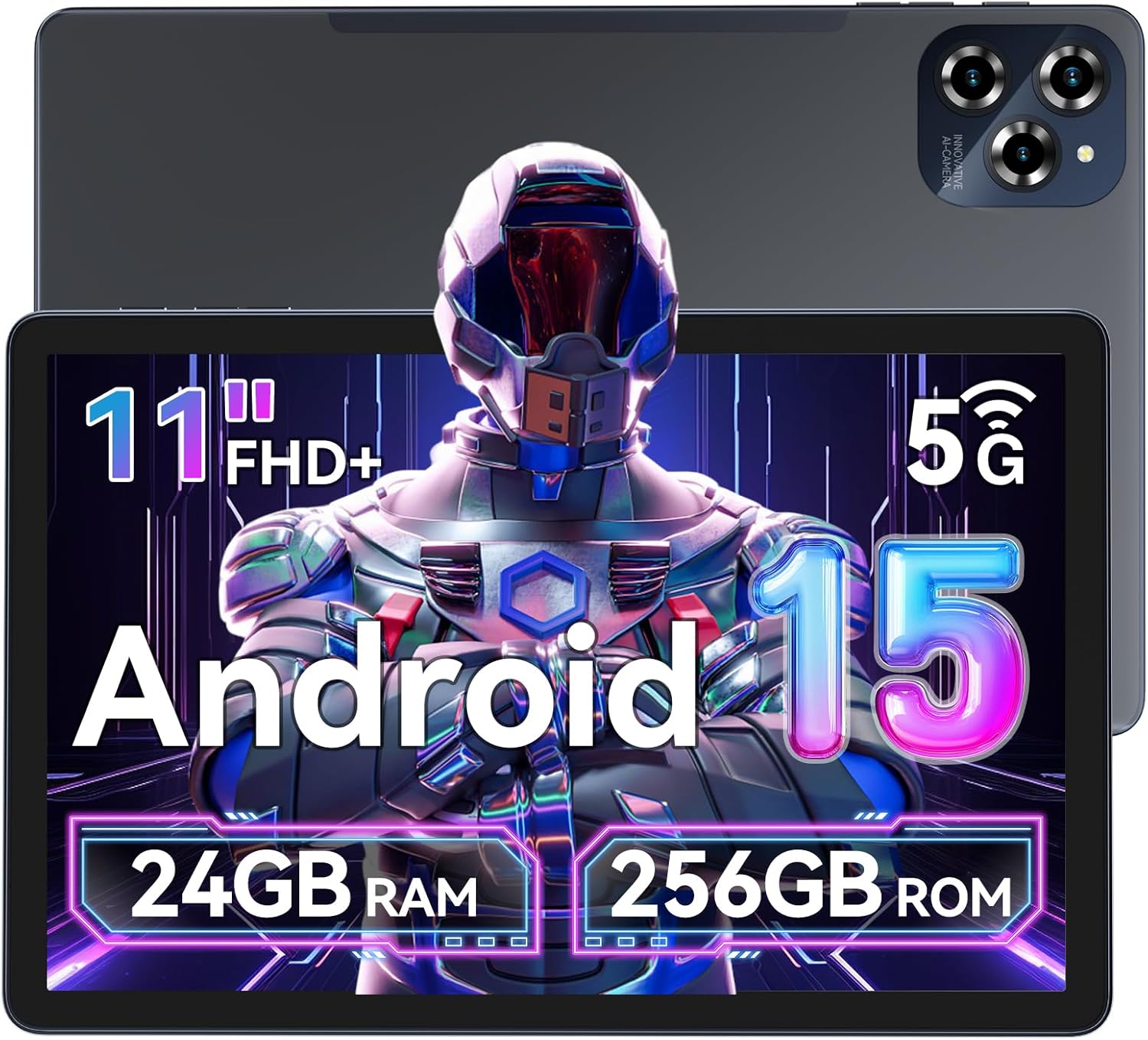
Image: Front and back view of the KINGRID W90 Android 15 Tablet, highlighting its sleek design.

Image: A visual summary of the tablet's key features and specifications.
Key Features:
- Android 15 Operating System: Features revolutionary privacy vaults and cross-device collaboration.
- T615 Octa-Core Processor: Delivers fast app switching and smooth performance for 4K video editing.
- 11-inch FHD (1920x1200) IPS Display: 380nit peak brightness, TÜV-certified blue light reduction, and Widevine L1 for 1080P streaming.
- 24GB RAM + 256GB ROM: Expandable up to 2TB via TF card for extensive storage and multitasking.
- 8000mAh Battery with 18W Fast Charging: Provides up to 12 hours of video playback and quick recharging.
- 5G WiFi & Bluetooth 5.0: High-speed wireless connectivity.
- 16MP Rear Camera & 8MP Front Camera: For clear photos and video calls.
3. Setup
Initial Power On and Configuration
Upon first use, press and hold the power button until the KINGRID logo appears. Follow the on-screen prompts to select your language, connect to Wi-Fi, and set up your Google account.
Changing the System Language
To change the tablet's display language:
- Go to Settings.
- Scroll down and tap on System.
- Select Languages & input.
- Tap Languages, then Add a language to choose your preferred language.
- Drag your preferred language to the top of the list to set it as the system language.
Video: Visual guide on how to change the system language on your KINGRID W90 tablet.
Activating Memory Expansion
The tablet supports virtual RAM expansion. To activate this feature:
- Go to Settings.
- Tap About Tablet.
- Select Running Memory.
- Slide the expansion bar to the right to allocate virtual RAM.
- Restart your device for changes to take effect.
4. Operating Instructions
Using App Split-Screen
To multitask efficiently, you can use the split-screen feature:
- Open the first app you wish to use.
- Swipe up from the bottom of the screen and hold to view recent apps.
- Tap the app icon at the top of the first app's card.
- Select Split screen.
- Choose the second app from the recent apps list or app drawer to open it in the other half of the screen.
Video: Demonstrates how to activate and use the app split-screen feature on your device.
Recording Phone Calls
Your device supports call recording. To enable and use this feature:
- Go to Settings.
- Tap on Auxiliary function.
- Select Call recording.
- Toggle on Call recording and choose your preferred recording option (e.g., all calls automatically).
- During a call, you can manually start/stop recording if not set to automatic. Recorded files can be found in the recorder app.
Video: Instructions on how to enable and use the phone call recording function.
Connecting a Bluetooth Keyboard (K1 Keyboard Tutorial)
To pair your K1 Bluetooth keyboard with the tablet:
- Ensure the keyboard is charged and powered on.
- On your tablet, go to Settings > Bluetooth and turn Bluetooth on.
- On the K1 keyboard, press and hold the Fn + C keys for 3 seconds to enter pairing mode. The Bluetooth indicator light on the keyboard will flash.
- On the tablet, look for 'Blackview K1 Keyboard' (or similar) in the list of available devices and tap to connect.
- Confirm the pairing request on your tablet.
Video: Step-by-step guide for linking the K1 Bluetooth keyboard to your tablet.
Screen Mirroring
You can mirror your tablet's screen to a compatible external display for a larger viewing experience.

Image: Illustration of the tablet's screen mirroring feature to a larger display.
Optimized for Entertainment and Productivity
The KINGRID W90 tablet is designed for various uses, from reading e-books to watching movies, playing games, and engaging in fitness activities.

Image: Examples of how the tablet can be used for reading, entertainment, and exercise.
5. Maintenance
Battery Care
To prolong battery life, avoid extreme temperatures and fully discharging the battery frequently. Use the provided 18W fast charger for optimal charging. The tablet features AI Smart Charging Protection to prevent overcharging.

Image: Visual representation of the tablet's battery capacity and charging features.
Software Updates
Regularly check for and install system updates to ensure your device has the latest features, security patches, and performance improvements.
- Go to Settings.
- Scroll down and tap on System.
- Select System updates.
- Tap Check for update and follow the on-screen instructions if an update is available.
Video: Guide on how to check for and upgrade your tablet's system version.
Cleaning Your Tablet
Use a soft, lint-free cloth to clean the screen and body of your tablet. Avoid using harsh chemicals or abrasive materials that could damage the surface.
6. Troubleshooting
Device Lagging or Freezing
If your device experiences lagging or freezing, consider the following steps:
- Close Background Apps: Swipe up from the bottom of the screen and hold, then swipe up on individual app cards or tap 'Clear all' to close them.
- Uninstall Unused Apps: Long-press an app icon, then drag it to 'Uninstall' or select 'Uninstall app' from the menu.
- Restart Device: Press and hold the power button, then tap 'Restart'. If unresponsive, long-press the power button for more than 10 seconds to force a reboot.
Video: Solutions for when your device keeps lagging or freezing, including closing apps and restarting.
App Notification Issues or Background Auto-Close
If you are not receiving notifications or apps are closing unexpectedly in the background:
- Go to System Manager (often represented by a shield icon).
- Tap App Management.
- Select Auto cleanup.
- Ensure the problematic app is toggled OFF in the auto-clean list to prevent it from being killed in the background.
Video: Steps to resolve app notification issues or prevent apps from auto-closing in the background.
Camera Error: "Go to System Setting to Empower Permissions"
If you encounter a camera error related to permissions:
- Long-press the Camera app icon.
- Tap App info (often an 'i' icon).
- Select Storage & cache.
- Tap Clear storage and Clear cache.
- Re-open the Camera app and grant necessary permissions when prompted.
Video: How to fix camera permission errors by clearing storage and cache.
WiFi Not Connecting or Keeps Dropping
If you experience issues with WiFi connectivity:
- Go to Settings.
- Scroll down and tap on System.
- Select Reset options.
- Tap Reset Bluetooth & Wi-Fi.
- Confirm by tapping Reset. This will reset all network settings, requiring you to reconnect to your WiFi network.
Video: Instructions for resetting Bluetooth and Wi-Fi settings to resolve connectivity issues.
7. Specifications
| Feature | Specification |
|---|---|
| Standing Screen Display Size | 11 Inches |
| Screen Resolution | 1920 x 1200 pixels |
| Max Screen Resolution | 1920*1200 Pixels |
| Processor | 2.2 GHz (Unisoc T615 Octa-Core) |
| RAM | 24 GB (8GB physical + 16GB virtual expansion) |
| Flash Memory Size | 256 GB |
| Expandable Storage | Up to 2TB TF card |
| Wireless Type | 802.11a, 802.11ac, 802.11b, 802.11g, 802.11n (5G WiFi) |
| Bluetooth | Bluetooth 5.0 |
| Average Battery Life (in hours) | 585 Hours (Standby), 12 hours (video playback), 8 hours (intensive gaming) |
| Operating System | Android 15 |
| Item Weight | 1.18 pounds |
| Product Dimensions | 10.1 x 6.7 x 0.3 inches |
| Color | Gray |
| Rear Webcam Resolution | 16 MP |
| Front Camera Resolution | 8 MP |
| Model Name | Kingrid W90 |
8. Warranty and Support
Your KINGRID W90 tablet comes with a comprehensive 2-year warranty from the date of activation. Additionally, a 30-day hassle-free return policy is provided.
For any assistance, technical support, or warranty claims, please contact us via Amazon Messages or through our official support channels. All inquiries are typically resolved within 12 hours.
Optional protection plans are available for purchase:
- 2-Year Protection Plan: Provides extended coverage for your device.
- Complete Protect: A monthly plan covering eligible past and future purchases.