
1. Introduction
Welcome to the user manual for your Doro Leva E22 4G flip phone. This guide provides essential information on how to set up, operate, and maintain your new phone. Designed with ease of use in mind, the Doro Leva E22 features a large screen, contrasting keys, and loud, clear sound, making it ideal for seniors. Please read this manual carefully to ensure optimal performance and longevity of your device.
2. Package Contents
Please check the box for the following items:
- Doro Leva E22 4G Flip Phone
- Charging Station
- USB Type-C Cable
- Battery
- Quick Start Guide
3. Phone Overview
Familiarize yourself with the physical components of your Doro Leva E22 phone.
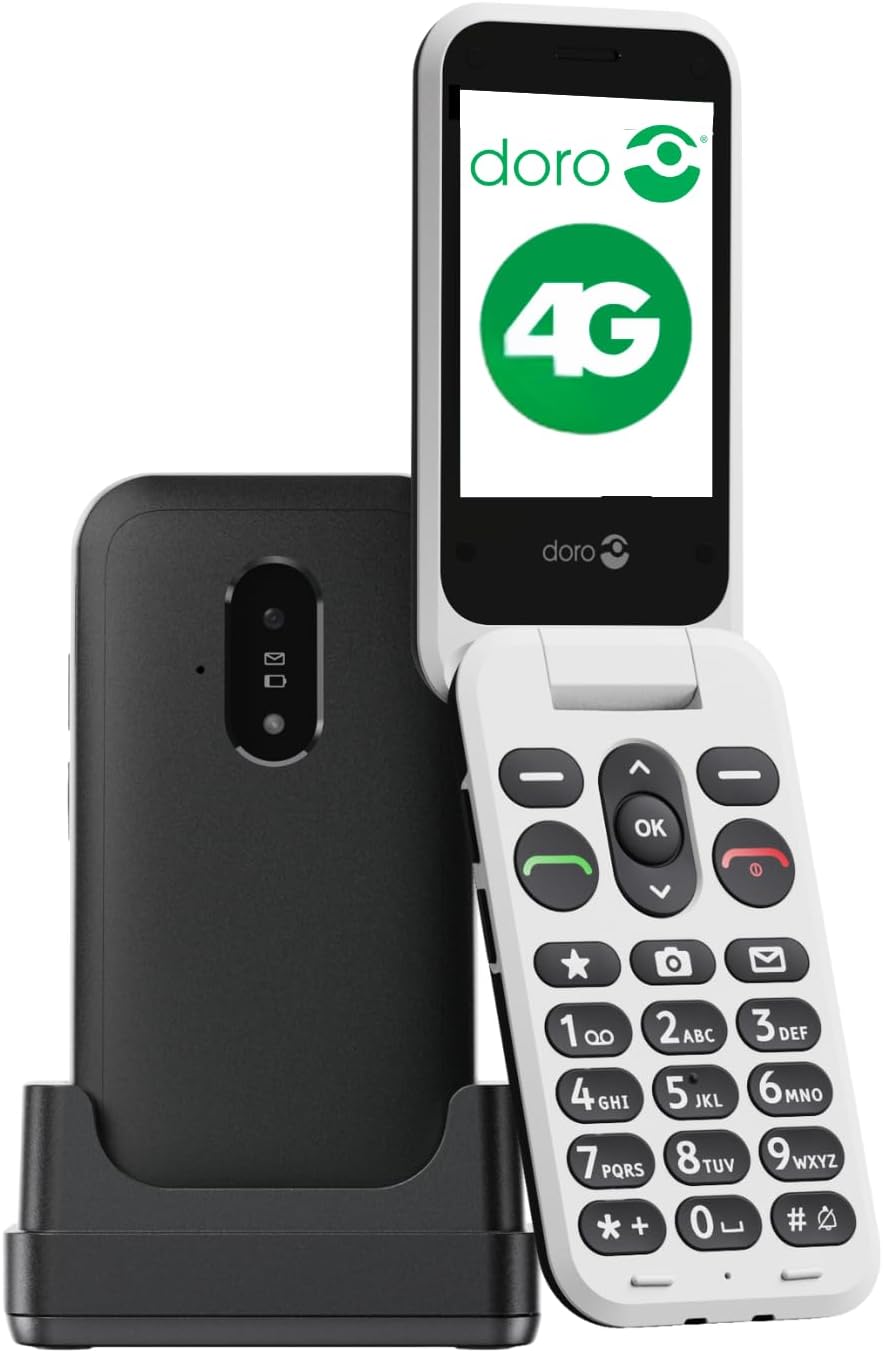
Image 3.1: Doro Leva E22 phone with charging station.
The Doro Leva E22 is a simple and user-friendly 4G flip phone. It features a Doro Secure Button for emergencies, allows answering and hanging up calls with a simple flip, and is compatible with hearing aids. Enjoy clear and powerful sound, along with large keys that offer voice feedback for easier dialing.

Image 3.2: Key features of the Doro Leva E22.
The phone offers a simple menu interface, a built-in camera, a flashlight, and is splash-resistant (IP54 rated).

Image 3.3: User interface and additional features.
The ergonomic design ensures comfortable handling. Make calls, send SMS, and take photos easily thanks to the well-spaced and high-contrast keys, and the large screen. The included charging station ensures your phone is always in a known location and charged.

Image 3.4: Ergonomic design and Doro Secure Button.
The phone also supports speed dial for favorite contacts, quick access to the camera, and messages.

Image 3.5: Speed dial functionality.

Image 3.6: Ergonomic design of the closed phone.
4. Setup
4.1. Inserting the SIM Card
- Carefully remove the back cover of the phone.
- Locate the SIM card slot. The Doro Leva E22 supports a single SIM card.
- Insert the SIM card with the gold contacts facing down and the cut corner aligned with the slot.
- Ensure the SIM card is securely in place.
4.2. Inserting the Battery
- After inserting the SIM card, place the battery into the battery compartment, aligning the gold contacts on the battery with the contacts in the phone.
- Gently press down until the battery is seated securely.
- Replace the back cover, ensuring it clicks into place.
4.3. Charging the Phone
- Connect the USB Type-C cable to the charging station.
- Plug the other end of the USB cable into a power adapter (not always included) and then into a wall outlet.
- Place your Doro Leva E22 phone into the charging station. Ensure it is properly seated and the charging indicator appears on the screen.
- For initial use, charge the phone for at least 2-3 hours.
5. Basic Operation
5.1. Powering On/Off
- To Power On: Press and hold the red End Call/Power button (usually marked with a red phone icon) until the Doro logo appears.
- To Power Off: Press and hold the red End Call/Power button until the power-off options appear on the screen. Select 'Power off' and confirm.
5.2. Making and Receiving Calls
- Making a Call: Enter the phone number using the keypad and press the green Call button (usually marked with a green phone icon).
- Answering a Call: When the phone rings, open the flip or press the green Call button.
- Ending a Call: Close the flip or press the red End Call button.
5.3. Sending and Receiving Messages (SMS)
- Navigate to the 'Messages' menu using the navigation keys.
- Select 'New Message' or 'Create Message'.
- Enter the recipient's number or select from your contacts.
- Type your message using the keypad.
- Press 'Send'.
5.4. Managing Contacts
- Go to the 'Contacts' or 'Phonebook' menu.
- You can add new contacts, edit existing ones, or delete entries.
- Use the speed dial feature to assign frequently called numbers to specific keys (e.g., 2-9).
5.5. Adjusting Volume
Use the dedicated volume buttons on the side of the phone to adjust call volume, ringtone volume, and media volume.
6. Advanced Features
6.1. Using the Camera
Your Doro Leva E22 is equipped with a 0.3-megapixel camera.
- Access the camera from the main menu or via a dedicated shortcut key if available.
- Frame your shot using the screen.
- Press the 'OK' button or the designated camera button to take a picture.
- Photos are saved to the phone's gallery.
6.2. Doro Secure Button (SOS Function)
The Doro Secure Button is located on the back of the phone and is designed for emergencies.
- Setup: Before using, configure emergency contacts in the phone's settings.
- Activation: In an emergency, press and hold the Doro Secure Button for a few seconds. The phone will automatically call and send an SMS to your pre-set emergency contacts.
6.3. Flashlight
The phone includes a built-in flashlight for convenience.
- Access the flashlight function from the main menu or by pressing a dedicated shortcut key (refer to your Quick Start Guide for specific key assignments).
6.4. Hearing Aid Compatibility
The Doro Leva E22 is designed to be compatible with hearing aids, providing a clearer audio experience for users with hearing impairments.
7. Maintenance
7.1. Cleaning Your Phone
- Use a soft, lint-free cloth to clean the screen and body of the phone.
- Avoid using harsh chemicals, abrasive cleaners, or aerosol sprays.
- Ensure the phone is powered off and disconnected from the charger before cleaning.
7.2. Battery Care
- Avoid exposing the battery to extreme temperatures.
- Do not puncture, disassemble, or modify the battery.
- If the battery appears damaged or swollen, discontinue use and replace it with an authorized Doro battery.
8. Troubleshooting
If you encounter issues with your Doro Leva E22, try the following solutions:
| Problem | Possible Solution |
|---|---|
| Phone does not turn on | Ensure the battery is charged. Connect to the charging station and wait a few minutes before attempting to power on. Check if the battery is correctly inserted. |
| Cannot make/receive calls | Check if the SIM card is correctly inserted and activated. Ensure you have network coverage. Restart the phone. |
| Poor sound quality | Adjust the volume using the side buttons. Ensure the speaker/microphone is not blocked. If using a hearing aid, ensure compatibility settings are correct. |
| Battery drains quickly | Reduce screen brightness. Close unused applications. Limit background data usage. Ensure the phone is not in an area with very weak signal, which can increase battery consumption. |
If the problem persists, please refer to the Doro support website or contact customer service.
9. Specifications
- Model Name: Leva E22
- Model Number: 8991
- Brand: Doro
- Color: Black/White
- Operating System: MOCOR OS
- Screen Size: 2.8 Inches
- Connectivity: 4G, LTE
- Charging Port: USB Type C
- Camera Resolution: 0.3 Megapixels (Effective Fixed Resolution)
- SIM Card Slots: Single SIM
- Wireless Carrier: VoiceStream Wireless Service Provider (Note: Compatibility may vary by region/carrier)
- Special Features: Doro Secure Button, Large Contrasting Keys, Loud & Clear Sound, HD Voice, Hearing Aid Compatible, Flashlight, Splash-resistant (IP54)
10. Warranty and Support
Your Doro Leva E22 4G flip phone comes with a standard manufacturer's warranty. Please refer to the warranty card included in your package for specific terms and conditions, including warranty duration and coverage details.
For technical support, troubleshooting assistance, or to inquire about spare parts, please visit the official Doro website or contact Doro customer service directly. Contact information can typically be found on the Doro website or in your product packaging.
Online Support: www.doro.com/support (Example link, please verify official Doro support page)


