
Introduction
The AGXOV M302-144GB MP3 Player is a versatile portable media device designed for music, video, and app enjoyment. Featuring an Android 9.0 operating system, an MTK 8-core processor, and a 4.02-inch touchscreen, it offers a smooth user experience. With 144GB of storage (16GB ROM + 128GB TF card) expandable up to 1TB, you can store thousands of songs, videos, and e-books. It supports Wi-Fi and Bluetooth connectivity, allowing access to popular streaming apps like Spotify, Deezer, and Amazon Music. The device also includes an FM radio, voice recorder, and e-book reader functionalities.
This manual provides detailed instructions on how to set up, operate, and maintain your AGXOV M302-144GB MP3 Player to ensure optimal performance and longevity.
What's in the Box
Please check the package contents upon unboxing to ensure all items are present:
- 1 x AGXOV M302-144GB MP3 Player
- 1 x Earphones
- 1 x USB Cable (Type-C)
- 1 x Micro SD Card (128GB pre-installed)
- 1 x Protective Case
- 1 x User Manual (this document)

Image: All items included in the AGXOV M302-144GB MP3 Player package.
Setup
1. Charging the Device
Before first use, fully charge your MP3 player. Connect the provided USB Type-C cable to the device's charging port and the other end to a USB power adapter (not included) or a computer's USB port. The battery indicator on the screen will show charging status. A full charge provides approximately 50 hours of music playback or 8 hours of video playback.

Image: The MP3 player being charged via USB Type-C, highlighting its battery capacity and usage duration.
2. Powering On/Off
- To Power On: Press and hold the power button located on the side of the device until the screen lights up.
- To Power Off: Press and hold the power button until a power-off menu appears. Select "Power off" to shut down the device.
3. Inserting a Micro SD Card
Your device comes with a 128GB Micro SD card pre-installed. If you wish to expand storage further (up to 1TB), ensure the new Micro SD card is formatted to FAT32. Carefully insert the Micro SD card into the designated slot until it clicks into place.
4. Connecting to Wi-Fi
To access online features and app downloads, connect to a Wi-Fi network:
- Go to Settings > Network & Internet > Wi-Fi.
- Toggle Wi-Fi On.
- Select your desired Wi-Fi network from the list.
- Enter the password if prompted and tap Connect.
Operating Instructions
1. Music Playback
The AGXOV M302-144GB supports various audio formats including MP3, WAV, FLAC, APE, OGG, M4A, AAC, and WMA. It features a high-performance audio decoding chip for HIFI sound quality.
- Local Music: Transfer music files to the device's internal storage or Micro SD card. Use the pre-installed music player app to browse and play your library.
- Streaming Services: Pre-installed apps like Spotify, Deezer, and Amazon Music allow you to stream music directly over Wi-Fi. Log in with your account credentials.
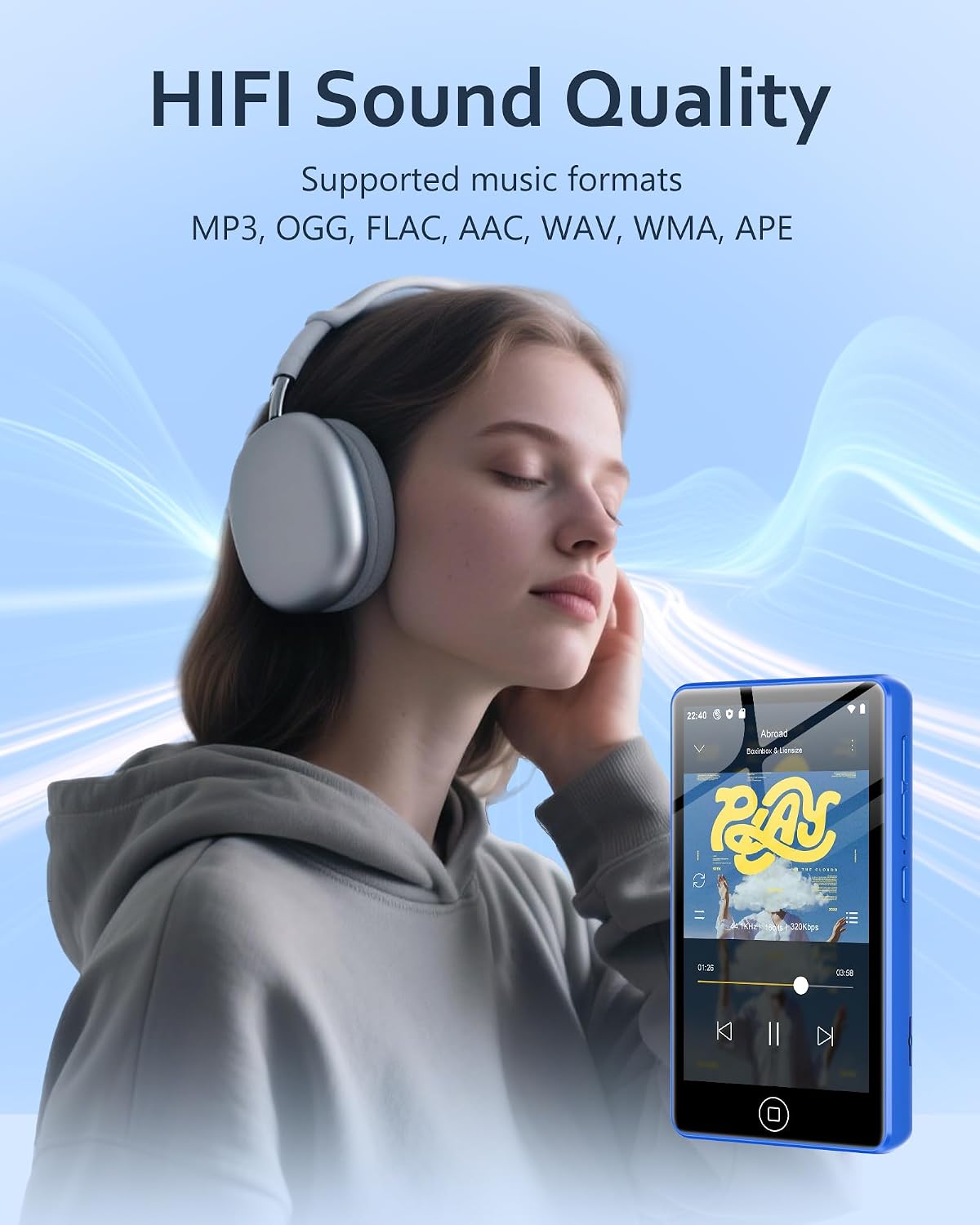
Image: User enjoying music on the device, emphasizing high-fidelity audio and compatible formats.
2. Video Playback
Enjoy videos on the 4.02-inch full touchscreen with 1080P viewing experience. Supported video formats include RM, RMVB, FLV, MP4, DAT, MKV, MPG, MOV, and TS.
- Transfer video files to the device.
- Open the video player app to select and play your videos.

Image: The MP3 player screen showing a video, demonstrating its visual capabilities.
3. App Management
Running on Android 9.0, the device allows you to download and install various applications from the Google Play Store.
- Downloading Apps: Open the Play Store app, search for desired applications, and tap "Install."
- Uninstalling Apps: Go to Settings > Apps & notifications, select the app, and tap "Uninstall."

Image: The device screen showing various applications, demonstrating its multi-functional capabilities.
4. Bluetooth Connectivity
Connect your MP3 player to Bluetooth headphones, speakers, or other compatible devices for wireless audio.
- Go to Settings > Connected devices > Bluetooth.
- Toggle Bluetooth On.
- Ensure your Bluetooth accessory is in pairing mode.
- Select your accessory from the list of available devices to pair.
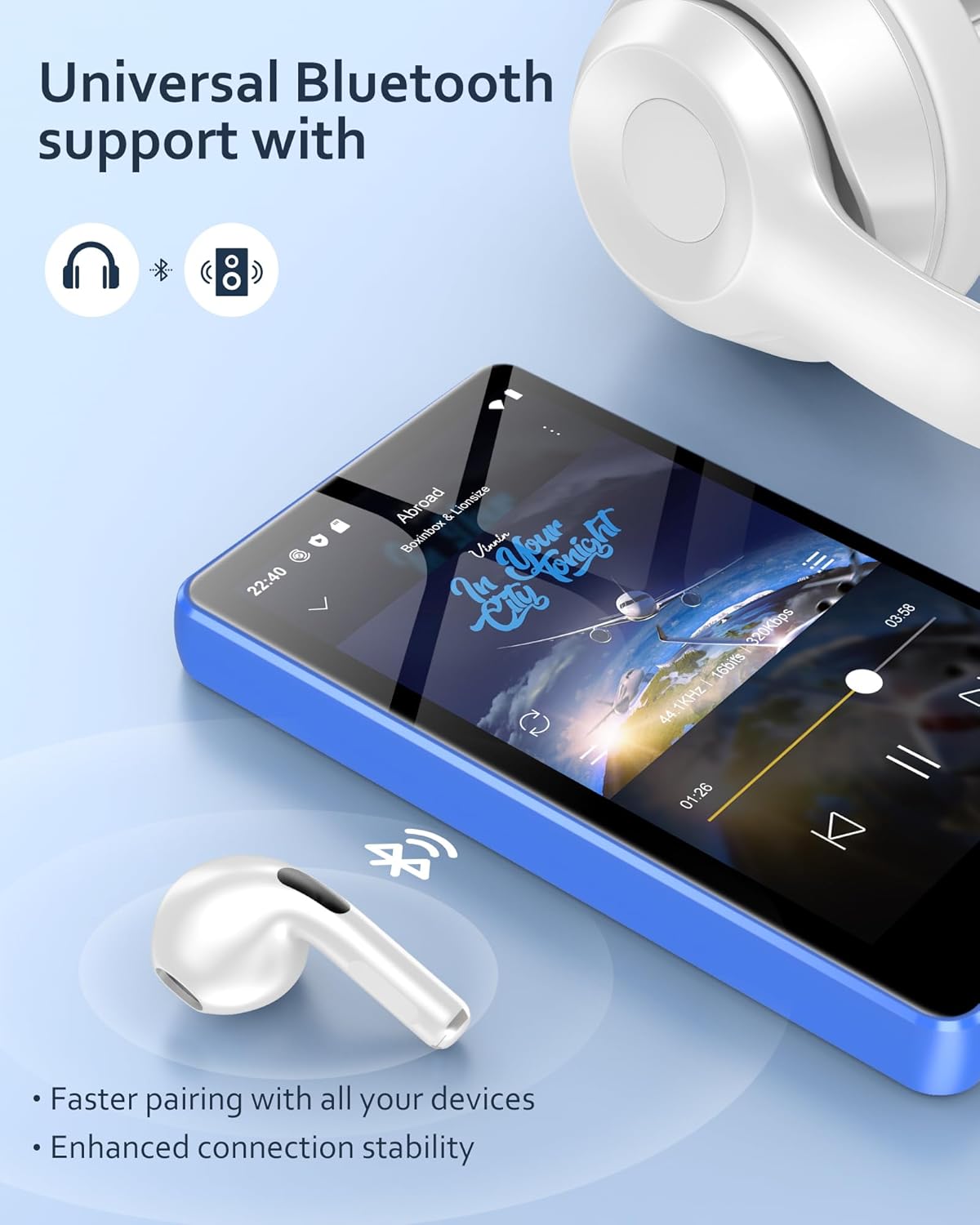
Image: The MP3 player paired with wireless earbuds, showcasing its Bluetooth connectivity.
5. FM Radio
To use the FM radio function, connect the wired earphones (included) as they act as an antenna. Open the FM Radio app and scan for available stations.
6. Voice Recorder
The device includes a built-in voice recorder. Open the Voice Recorder app to start, pause, and save audio recordings.
7. E-Book Reader
Transfer e-book files to your device. Use the pre-installed e-book reader app to open and read your digital books.
8. Parental Controls
The Android operating system allows for parental controls. After connecting your Google account, you can configure parental settings via Google settings to manage screen time, restrict app access, and control website permissions on the Chrome browser.

Image: Parental control settings interface on an Android device.
Maintenance
- Cleaning: Use a soft, dry cloth to clean the device. Avoid liquid cleaners or abrasive materials.
- Battery Care: To prolong battery life, avoid extreme temperatures. Do not let the battery fully discharge frequently.
- Software Updates: The device supports wireless updates. Check for system updates periodically via Settings > System > System update to ensure optimal performance and security.

Image: System update screen on the MP3 player.
Troubleshooting
| Problem | Possible Solution |
|---|---|
| Device does not power on. | Ensure the device is fully charged. Connect it to a power source and try again. If unresponsive, perform a hard reset (refer to support for specific instructions if power button alone doesn't work). |
| Cannot connect to Wi-Fi. | Check if Wi-Fi is enabled in settings. Verify the Wi-Fi password. Restart your router and the MP3 player. Try connecting to a different Wi-Fi network if available. |
| Bluetooth device not pairing. | Ensure Bluetooth is enabled on both devices and the accessory is in pairing mode. Move the devices closer. Try restarting both devices. |
| Micro SD card not recognized. | Ensure the SD card is properly inserted. Check if the card is formatted to FAT32. Try restarting the device. Test with another FAT32 formatted Micro SD card if possible. |
| Audio playback issues (skipping, errors). | Ensure audio files are in supported formats. Check the integrity of the audio files. If streaming, verify your Wi-Fi connection stability. |
| Device is slow or unresponsive. | Close unnecessary background applications. Clear cache for frequently used apps. Restart the device. Consider a factory reset if the issue persists (backup data first). |
Specifications
| Feature | Detail |
|---|---|
| Brand | AGXOV |
| Model Name | M302-144GB |
| Operating System | Android 9.0 |
| Processor | MTK 8-core |
| Display | 4.02-inch Touchscreen, LCD |
| Internal Storage (ROM) | 16 GB |
| RAM | 2 GB |
| Expandable Storage | Micro SD card (128GB included), supports up to 1 TB (FAT32 format) |
| Connectivity | Bluetooth, Wi-Fi |
| Battery Capacity | 2000 mAh Lithium battery |
| Battery Life (approx.) | 50 hours music, 8 hours video |
| Supported Audio Formats | MP3, WAV, FLAC, APE, OGG, M4A, AAC, WMA |
| Supported Video Formats | RM, RMVB, FLV, MP4, DAT, MKV, MPG, MOV, TS |
| Special Features | Voice Recorder, Built-in Speaker, Video Playback, FM Radio, Touchscreen, E-Book Reader |
| Dimensions (D x W x H) | 1.4 x 6.2 x 11.1 cm |
| UPC | 754046921248 |
Warranty and Support
AGXOV provides customer support for its products. If you encounter any issues during use, please contact our customer service team. We aim to resolve your concerns within 12 hours.
For support, please refer to the contact information provided on the product packaging or the official AGXOV website.