1. Introduction
This manual provides essential information for setting up, operating, maintaining, and troubleshooting your Xbox Series X console. Please read this guide thoroughly to ensure optimal performance and a comprehensive understanding of your device's capabilities.
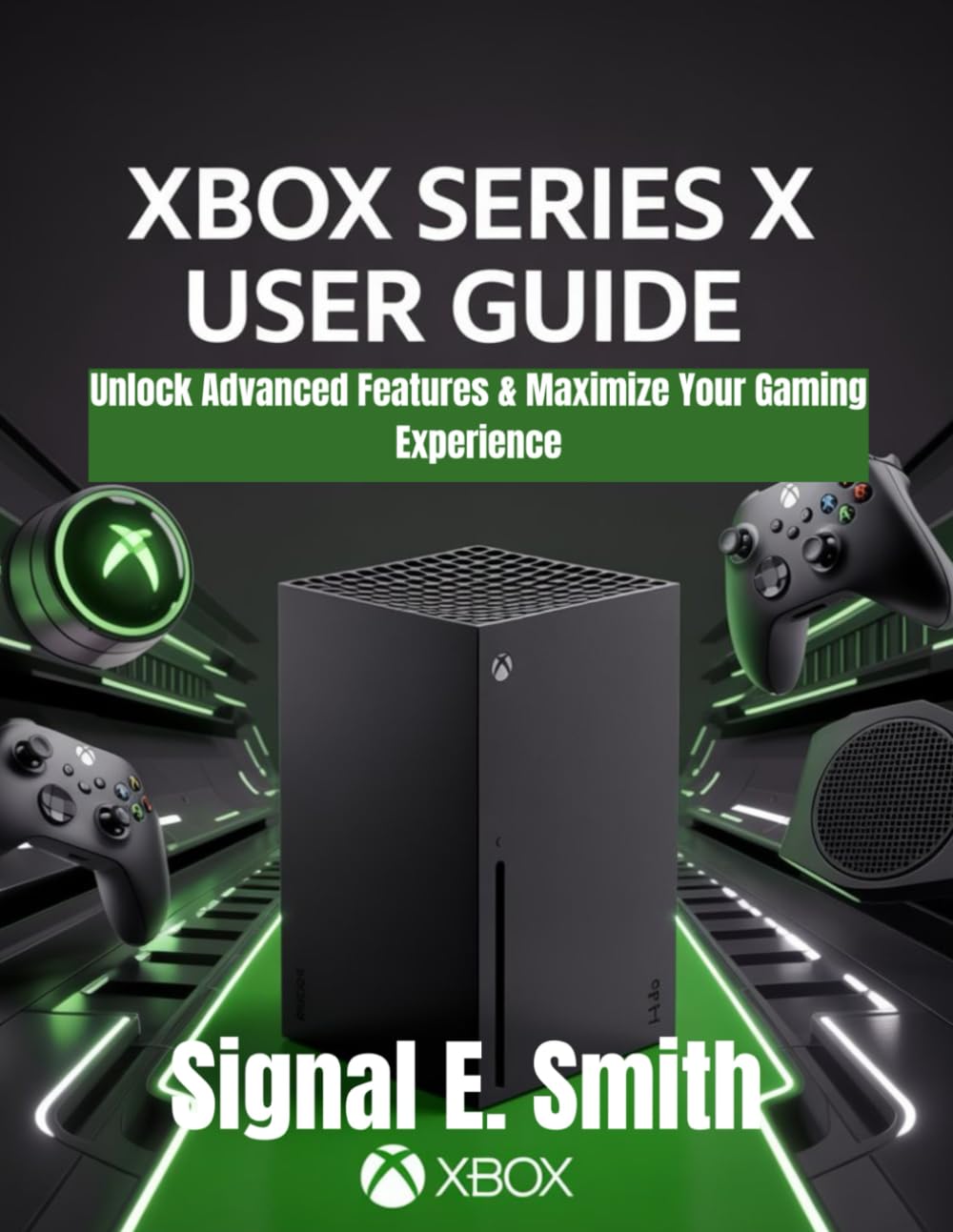
Image 1.1: Front cover of the Xbox Series X User Manual. This image displays the console and controllers, indicating the manual's focus.
2. Setup
Follow these step-by-step instructions to get your Xbox Series X console up and running efficiently.
2.1 Unboxing and Initial Placement
- Carefully remove all components from the packaging.
- Place the console in a well-ventilated area, ensuring adequate space around all sides for airflow. Avoid enclosed cabinets.
2.2 Connecting Cables
- Power Cable: Connect the power cable to the console's power port and then to a wall outlet.
- HDMI Cable: Connect the included HDMI cable from the console's HDMI OUT port to an HDMI input on your television or monitor. For optimal performance, use an HDMI 2.1 compatible port on your display.
- Ethernet Cable (Optional): For a stable internet connection, connect an Ethernet cable from your router to the console's Ethernet port.
2.3 Initial Console Setup
- Power on your console and display.
- Follow the on-screen prompts to select your language, region, and connect to your network (Wi-Fi or Ethernet).
- Sign in with your Microsoft account or create a new one. This is essential for accessing games, online services, and digital purchases.
- Complete any system updates as prompted.
3. Operating
Understand the core functionalities and advanced features of your Xbox Series X to enhance your gaming experience.
3.1 Navigating the Dashboard
- The Xbox dashboard is your central hub for games, apps, and settings.
- Use the controller's Xbox button to open the Guide, providing quick access to friends, notifications, and system functions.
3.2 Game Management
- Installing Games: Insert a game disc or download digital titles from the Microsoft Store or Xbox Game Pass.
- Quick Resume: This feature allows you to seamlessly switch between multiple games and resume instantly from where you left off, without loading screens.
3.3 Maximizing Graphics and Performance
The Xbox Series X supports advanced visual and performance settings:
- 4K Resolution: Ensure your display supports 4K and enable it in the console's display settings for crisp visuals.
- HDR (High Dynamic Range): For enhanced contrast and color, activate HDR in your console and TV settings.
- 120Hz Refresh Rate: If your display supports 120Hz, enable this setting for smoother gameplay in compatible titles.
- Access these settings via Settings > General > TV & display options.
3.4 Multiplayer and Online Gaming
- Xbox Live: Connect with friends, join parties, and engage in online multiplayer. An Xbox Game Pass Ultimate or Xbox Live Gold subscription may be required for certain features.
- Cloud Gaming: With Xbox Game Pass Ultimate, stream games directly to your console, PC, or mobile devices.
- Cross-Platform Play: Play with friends across different platforms in supported games.
3.5 Controller Customization
Personalize your Xbox Wireless Controller settings:
- Remap buttons, adjust stick sensitivity, and configure vibration settings through the Xbox Accessories app on your console.
4. Maintenance
Regular maintenance ensures your Xbox Series X performs optimally and extends its lifespan.
4.1 Cleaning
- Use a soft, dry, lint-free cloth to clean the console's exterior.
- Gently vacuum or use compressed air to clear dust from vents, ensuring proper airflow. Do not insert objects into the vents.
4.2 Software Updates
- Ensure your console is connected to the internet to receive automatic system updates.
- Manually check for updates via Settings > System > Updates. Keeping your system updated provides new features, performance improvements, and security enhancements.
4.3 Preventing Overheating
- Always place the console in an open, well-ventilated space.
- Avoid placing the console on carpet or other soft surfaces that can block vents.
- Do not stack other electronics or objects on top of or directly next to the console.
5. Troubleshooting
This section addresses common issues and provides solutions to help you resolve problems quickly.
5.1 No Power
- Check Power Cable: Ensure the power cable is securely connected to both the console and the wall outlet.
- Test Outlet: Try plugging another device into the same outlet to confirm it is functional.
- Power Cycle: Unplug the console for 30 seconds, then plug it back in and try to power on.
5.2 No Display on TV/Monitor
- Check HDMI Cable: Ensure the HDMI cable is firmly connected to both the console and the display. Try a different HDMI port on your TV.
- Select Correct Input: Verify your TV is set to the correct HDMI input source.
- Try Different Cable: If possible, test with a different HDMI cable.
- Low Resolution Mode: If you see a blank screen, try booting the console into low resolution mode. Hold the Xbox button and the Eject button until you hear a second beep.
5.3 Network Connection Issues
- Restart Router/Modem: Power cycle your network equipment.
- Test Connection: Go to Settings > General > Network settings > Test network connection.
- Wired Connection: If using Wi-Fi, try connecting with an Ethernet cable to rule out wireless interference.
5.4 Game Crashes or Freezes
- Restart Game: Close the game and restart it.
- Restart Console: Perform a full console restart.
- Check for Game Updates: Ensure the game is fully updated.
- Reinstall Game: As a last resort, uninstall and reinstall the problematic game.
6. Specifications
Key technical specifications for the Xbox Series X console:
- CPU: 8-core AMD Zen 2 CPU @ 3.8GHz (3.6GHz with SMT)
- GPU: 12 TFLOPS, 52 CUs @ 1.825 GHz Custom RDNA 2 GPU
- RAM: 16GB GDDR6 (10GB @ 560 GB/s, 6GB @ 336 GB/s)
- Internal Storage: 1TB Custom NVMe SSD
- Expandable Storage: 1TB Seagate Expansion Card (sold separately)
- Optical Drive: 4K UHD Blu-ray Drive
- Video Output: HDMI 2.1, supports 4K @ 120Hz, 8K @ 60Hz, VRR, ALLM
- Audio: Dolby Digital 5.1, DTS 5.1, Dolby TrueHD with Atmos, up to 7.1 L-PCM
- Connectivity: Wi-Fi 802.11ac dual band, Gigabit Ethernet
- Ports: 3x USB 3.1 Gen 1, HDMI 2.1 output, Ethernet, Power input, Storage Expansion Card slot
- Dimensions: 15.1 cm x 15.1 cm x 30.1 cm (5.9 in x 5.9 in x 11.8 in)
- Weight: 4.45 kg (9.8 lbs)
7. Warranty and Support
Information regarding product warranty and customer support is typically provided with your console purchase or can be found on the official Xbox support website.
- For detailed warranty terms and conditions, please refer to the documentation included with your Xbox Series X console.
- For technical assistance, troubleshooting guides, and frequently asked questions, visit the official Xbox Support website: support.xbox.com.

Image 7.1: Back cover of the Xbox Series X User Manual. This image includes the ISBN barcode and copyright information.


