
1. Product Overview
This manual provides essential information for setting up, operating, maintaining, and troubleshooting your HP OMEN 16L Gaming Desktop. This high-performance desktop is equipped with an Intel Core i7-14700F processor, NVIDIA GeForce RTX 4060 graphics, 64GB DDR5 RAM, and a 2TB PCIe NVMe M.2 Solid State Drive, running on Windows 11 Pro.
The HP OMEN 16L is designed for demanding gaming and computing tasks, offering robust performance and efficient cooling. It comes bundled with a Thunderobot KG3089R Gaming Keyboard to enhance your experience.

Image 1.1: Front view of the HP OMEN 16L Gaming Desktop.
2. Setup Guide
2.1 Unboxing and Initial Placement
- Carefully remove the desktop and all accessories from the packaging. Retain packaging for future transport or service.
- Place the desktop on a stable, flat surface with adequate ventilation around all sides. Ensure no vents are obstructed.
2.2 Connecting Peripherals
Connect your monitor, keyboard, mouse, and other peripherals to the appropriate ports on the desktop. Refer to the 'Ports' section for a detailed diagram.
- Monitor: Connect your monitor using a DisplayPort or HDMI cable to the dedicated graphics card ports.
- Keyboard & Mouse: Connect the Thunderobot KG3089R Gaming Keyboard and your mouse to any available USB Type-A ports.
- Power: Connect the power cable to the desktop's power supply port and then to a grounded electrical outlet.
- Network: For wired internet, connect an Ethernet cable to the RJ-45 port. For wireless, ensure Wi-Fi 6 is enabled after initial setup.

Image 2.1: Example of a complete desktop setup with peripherals connected.
2.3 First Boot and Windows 11 Pro Setup
- Press the power button on the front of the desktop.
- Follow the on-screen instructions to complete the Windows 11 Pro initial setup, including language, region, network connection, and user account creation.
- Ensure all drivers are up-to-date after Windows setup for optimal performance.
3. Operating Instructions
3.1 Power On/Off
- Power On: Press the power button located on the front of the desktop.
- Power Off: Click the Start button in Windows, then select Power > Shut down. Avoid direct power-offs unless necessary to prevent data loss.
3.2 Network Connectivity
- Wired (Ethernet): Connect an Ethernet cable to the RJ-45 port on the rear of the desktop. The connection should be automatically detected.
- Wireless (Wi-Fi 6): In Windows, click the network icon in the taskbar, select your Wi-Fi network, enter the password, and connect.
3.3 Using Ports and Connections
The desktop offers a variety of ports for connecting external devices:
- Front Ports: 3 x Superspeed USB Type-A (5Gbps signaling rate), 1 x Superspeed USB Type-C (10Gbps signaling rate), 1 x Headphone/Microphone combo.
- Rear Ports: 4 x USB Type-A 2.0, 1 x RJ-45 (Ethernet), 1 x HDMI, 3 x DisplayPort, 2 x Audio Port.

Image 3.1: Front panel ports for easy access.
3.4 Gaming and Performance
The HP OMEN 16L is optimized for gaming. Utilize the pre-installed OMEN Gaming Hub software to monitor system performance, customize RGB lighting, and optimize game settings. Ensure your graphics drivers are regularly updated for the best gaming experience.

Image 3.2: The HP OMEN 16L desktop in a gaming environment.
4. Maintenance
4.1 Cleaning
- Exterior: Use a soft, damp cloth to clean the exterior surfaces. Avoid harsh chemicals.
- Vents: Periodically use compressed air to clear dust from the intake and exhaust vents to maintain optimal airflow and cooling. Ensure the system is powered off before cleaning vents.
4.2 Software Updates
- Regularly check for and install Windows updates through the Windows Settings.
- Update graphics drivers (NVIDIA GeForce RTX 4060) directly from the NVIDIA website or through the GeForce Experience application.
- Update HP-specific drivers and firmware using the HP Support Assistant or OMEN Gaming Hub.
4.3 Data Backup
Regularly back up your important data to an external drive or cloud storage to prevent data loss in case of system failure.
5. Troubleshooting
This section addresses common issues you might encounter.
5.1 No Power
- Ensure the power cable is securely connected to both the desktop and the electrical outlet.
- Verify the electrical outlet is functional by plugging in another device.
5.2 No Display
- Check that the monitor is powered on and the video cable (DisplayPort/HDMI) is securely connected to both the desktop's graphics card and the monitor.
- Ensure the correct input source is selected on your monitor.
- If using multiple monitors, test with a single monitor.
5.3 System Slowdown or Freezing
- Close unnecessary applications running in the background.
- Check Task Manager (Ctrl+Shift+Esc) for processes consuming high CPU, RAM, or disk resources.
- Ensure the system has adequate ventilation and is not overheating. Clean vents if necessary.
- Run a full system scan for malware or viruses.
5.4 Network Connectivity Issues
- Wired: Check the Ethernet cable connection and router status.
- Wireless: Restart your router/modem. Ensure Wi-Fi is enabled in Windows and try reconnecting to the network.
6. Specifications
Detailed technical specifications for the HP OMEN 16L Gaming Desktop (Model TG03).
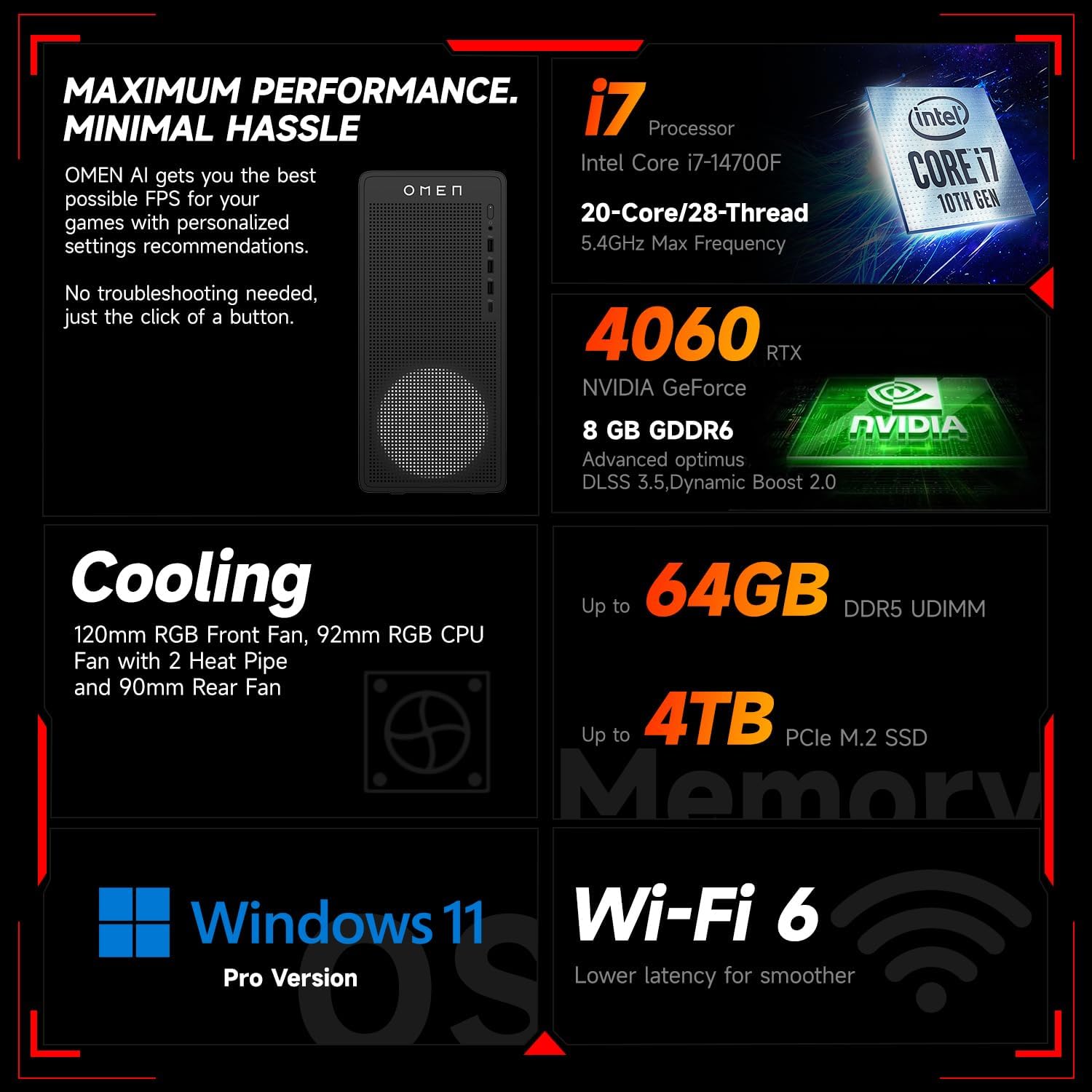
Image 6.1: Overview of key performance and cooling specifications.
| Component | Specification |
|---|---|
| Brand | HP |
| Model Number | TG03 |
| Operating System | Windows 11 Pro |
| CPU Model | Intel Core i7-14700F (20 Cores, 28 Threads, up to 5.4 GHz) |
| Graphics Coprocessor | NVIDIA GeForce RTX 4060 (8GB GDDR6) |
| RAM Memory Installed Size | 64 GB DDR5 RAM |
| Memory Storage Capacity | 2 TB PCIe NVMe M.2 Solid State Drive |
| Wireless Connectivity | Wi-Fi 6, Bluetooth |
| Front Ports | 3x USB Type-A (5Gbps), 1x USB Type-C (10Gbps), Headphone/Mic Combo |
| Rear Ports | 4x USB Type-A 2.0, 1x RJ-45, 1x HDMI, 3x DisplayPort, 2x Audio Port |
| Dimensions (L x W x H) | 13.26 x 6.1 x 12.12 inches |
| Item Weight | 13.14 Pounds |
| Color | Black |
| Bundled Accessory | Thunderobot KG3089R Gaming Keyboard |

Image 6.2: Details of the Intel Core i7-14700F processor.

Image 6.3: Information on the NVIDIA GeForce RTX 4060 graphics card.
7. Warranty Information
Your HP OMEN 16L Gaming Desktop comes with a standard manufacturer's warranty. The specific terms and duration of the warranty are provided with your purchase documentation and are subject to HP's official warranty policy.
Important Note: Modifications to the system, such as upgrading components (e.g., RAM) with non-HP certified parts or by unauthorized personnel, may void the manufacturer's warranty. Always consult HP's official support or authorized service providers before making any internal hardware changes.
The Thunderobot KG3089R Gaming Keyboard bundled with this desktop may have a separate warranty provided by its manufacturer. Please refer to the documentation included with the keyboard for its specific warranty terms.
8. Support
For further assistance, technical support, or warranty claims, please contact HP Customer Support through the following channels:
- HP Support Website: Visit www.hp.com/support for drivers, manuals, and troubleshooting guides.
- HP Support Assistant: Use the pre-installed HP Support Assistant software on your desktop for diagnostics, updates, and direct access to support.
- Telephone Support: Refer to your product documentation or the HP support website for regional contact numbers.


