
Product Overview
The Redragon K745 PRO is a full-size 108-key wireless gasket RGB gaming keyboard designed for a superior typing and gaming experience. It features advanced tri-mode connectivity, custom Mint Mambo switches, and a 5-layer noise dampening system for a crisp, clean, and softer typing feel. The keyboard is hot-swappable, allowing for easy switch replacement and customization.
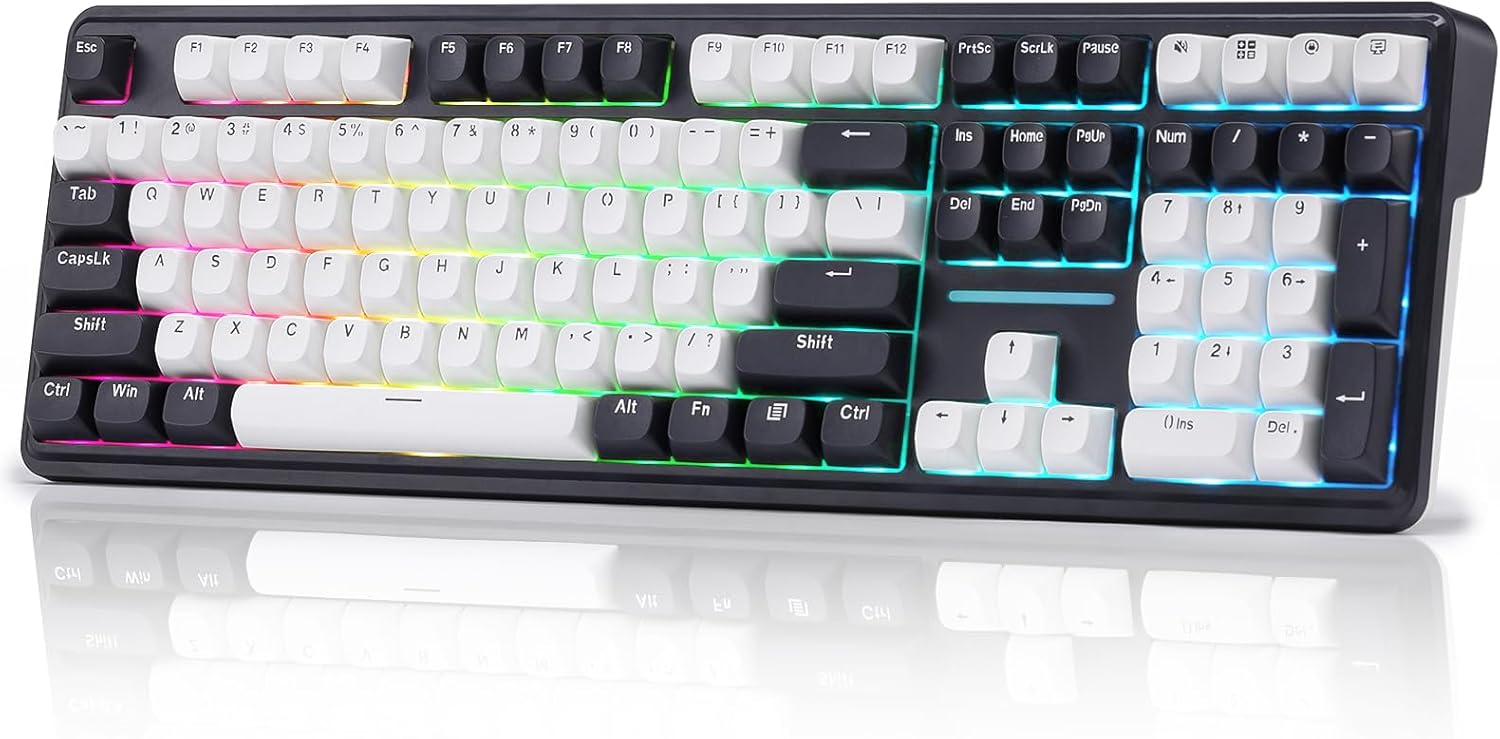
Image: Redragon K745 PRO Wireless Gasket RGB Gaming Keyboard in Abyssal Blue color, showcasing its full 108-key layout with RGB backlighting.

Image: Diagram highlighting key features including 108 Keys Gasket Design, 4 Extra Shortcuts, 5-Layer Noise Dampener, WIN/MAC Supported, Custom Mambo Switch, Mixed Color PBT Keycaps, South-Facing LED, and 4000mAh Battery.
What's in the Box
- Redragon K745 PRO Wireless Gasket RGB Gaming Keyboard
- USB Cable (for wired connection and charging)
- Keycap/Switch Puller
- Spare Switches (Mint Mambo)
- Spare Keycaps (Spacebar, Esc key)
Setup
Connectivity Modes
The K745 PRO supports three connection modes: USB-C wired, 2.4GHz wireless, and Bluetooth (BT 3.0/5.0). The mode switch and LED indicators are conveniently located on the keyboard.

Image: The Redragon K745 PRO keyboard connected to multiple devices (phone, monitor, tablet) demonstrating its tri-mode connection capabilities and 4000mAh battery.
2.4GHz Wireless Connection
- Locate the 2.4GHz USB dongle stored in a dedicated slot on the back of the keyboard.
- Plug the USB dongle into an available USB port on your computer.
- Slide the mode switch on the keyboard to the 2.4G position. The keyboard will automatically connect.
Bluetooth Connection
- Slide the mode switch on the keyboard to the BT position.
- On your device (computer, tablet, phone), enable Bluetooth and search for available devices.
- Select "Redragon K745 PRO" from the list to pair.
USB-C Wired Connection
- Connect the provided USB-C cable to the keyboard's USB-C port.
- Connect the other end of the cable to a USB-A port on your computer.
- The keyboard will automatically switch to wired mode and begin charging if needed.
Windows/Mac Compatibility
The keyboard features a dedicated switch to toggle between Windows and Mac operating system layouts, ensuring full compatibility and optimized key functions for your preferred system.

Image: Close-up of the Windows/Mac mode switch on the keyboard.
Battery Level Check
To check the current battery level, press the Fn key simultaneously with the Right Menu key. The LED indicators on the keyboard will light up to show the approximate charge level. The 4000mAh battery provides extended usage time.

Image: Illustration showing how to check the battery level using the Fn key and the corresponding LED indicators on the keyboard.
Operating Instructions
RGB Backlighting Control
The Redragon K745 PRO features vivid 16.8M RGB backlight modes with on-board control. You can customize the lighting effects directly from the keyboard.

Image: The Redragon K745 PRO keyboard displaying various RGB backlighting effects.
- Change Lighting Mode: Press Fn + Insert to cycle through different lighting patterns.
- Change Lighting Color: Press Fn + Delete to change the color of the current lighting mode.
- Adjust Brightness: Press Fn + Up Arrow (or Fn + Down Arrow) to increase or decrease the backlight brightness.
- Adjust Speed: Press Fn + Left Arrow (or Fn + Right Arrow) to adjust the speed of dynamic lighting effects.
Programmable Shortcuts
The keyboard includes 4 extra shortcut keys for enhanced convenience and practicality. These can be programmed using the Redragon Pro Software.

Image: Close-up of the four extra programmable shortcut keys located above the numeric keypad.
Ergonomic Design
The keyboard features 2-stage adjustable feet, allowing you to set the typing angle for optimal comfort and wrist relaxation during extended use.
Maintenance
Hot-Swappable Switches
The K745 PRO is equipped with hot-swappable sockets, compatible with most 3/5-pin switches. This allows for easy replacement of switches without soldering, enabling full customization of your typing experience.
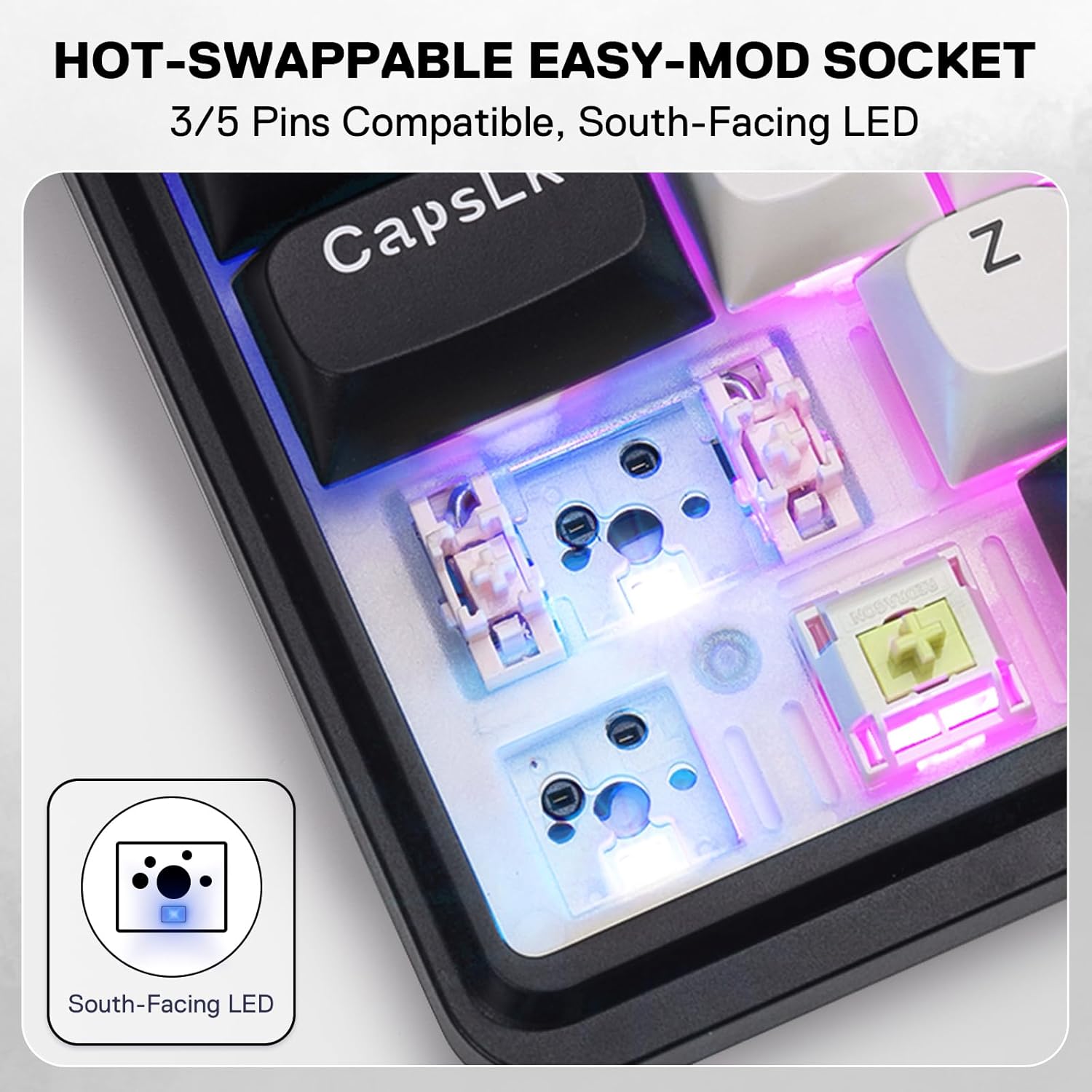
Image: Close-up view of the hot-swappable switch sockets and a Mint Mambo switch.
Replacing Keycaps and Switches
- Remove Keycap: Use the provided keycap puller. Gently hook the puller onto the keycap and pull straight up.
- Remove Switch: Once the keycap is removed, use the switch puller. Align the prongs of the switch puller with the two clips on the top and bottom of the switch. Squeeze the clips and pull the switch straight up.
- Install New Switch: Align the pins of the new switch with the holes on the PCB. Gently push the switch down until it clicks into place. Ensure the pins are straight to avoid bending.
- Install New Keycap: Align the keycap with the switch stem and push down firmly until it is seated.
Cleaning
Regular cleaning helps maintain the keyboard's performance and appearance.
- Use a can of compressed air to blow away dust and debris from between the keycaps.
- For stubborn dirt, remove keycaps and gently wipe the keyboard surface with a microfiber cloth dampened with a small amount of isopropyl alcohol.
- Clean keycaps separately with mild soap and water if necessary, ensuring they are completely dry before reattaching.
Troubleshooting
Connectivity Issues
- Keyboard not responding: Ensure the keyboard is charged. Try switching between wired, 2.4GHz, and Bluetooth modes.
- 2.4GHz connection unstable: Ensure the USB dongle is securely plugged in and is not too far from the keyboard. Try a different USB port.
- Bluetooth pairing issues: Ensure Bluetooth is enabled on your device and the keyboard is in pairing mode. Try unpairing and re-pairing the device.
Lag in Bluetooth Mode (Gaming)
While Bluetooth offers convenience, it may introduce slight input lag, especially noticeable in fast-paced gaming. For optimal gaming performance, it is recommended to use the 2.4GHz wireless connection or the USB-C wired connection, as these modes offer lower latency.
Specifications
| Model | K745 PRO |
| Layout | 108 Keys (Full Size) |
| Connectivity | USB-C Wired, Bluetooth (BT 3.0/5.0), 2.4GHz Wireless |
| Switches | Custom Mint Mambo Linear Switches (Pre-lubed, Hot-Swappable) |
| Actuation Travel | 2.0 ± 0.5 mm |
| Actuation Force | 40 ± 10 gf |
| Total Travel | 3.60 mm |
| Keycaps | Round PBT Keycaps (Mixed Color) |
| Noise Dampening | 5-Layer (3.5mm PO foam, IXPE switch foam, PET sound pad, bottom socket foam, silicone bottom pad) |
| LED | South-Facing LED, 16.8M RGB Backlight Modes |
| Battery Capacity | 4000mAh Lithium Polymer (included) |
| Compatibility | Windows, Mac |
| Dimensions | 17.72 x 7.09 x 1.77 inches |
| Item Weight | 1.94 pounds |
| Country of Origin | China |
Warranty and Support
For detailed warranty information and technical support, please visit the official Redragon website or contact Redragon customer service. The keyboard is supported by Redragon Pro Software for advanced customization, including key remapping, macro editing, and RGB lighting definition.


