
ANCEL FX6100
ANCEL OBD2 Scanner FX6100 Bidirectional Scan Tool + Protective Case User Manual
Comprehensive Guide for Operation and Maintenance
1. Introduction
This user manual provides detailed instructions for the ANCEL OBD2 Scanner FX6100 Bidirectional Scan Tool and its accompanying protective case. It covers setup, operation, maintenance, and troubleshooting to ensure optimal performance and longevity of your device.
2. Package Contents
Upon opening your package, please verify that all the following items are included:
- 1 x ANCEL FX6100 Full System Scan Tool
- 1 x ANCEL Large Hard Protective EVA Bag
- User Manual (this document)
- Necessary cables and accessories (e.g., OBDII cable, USB cable)
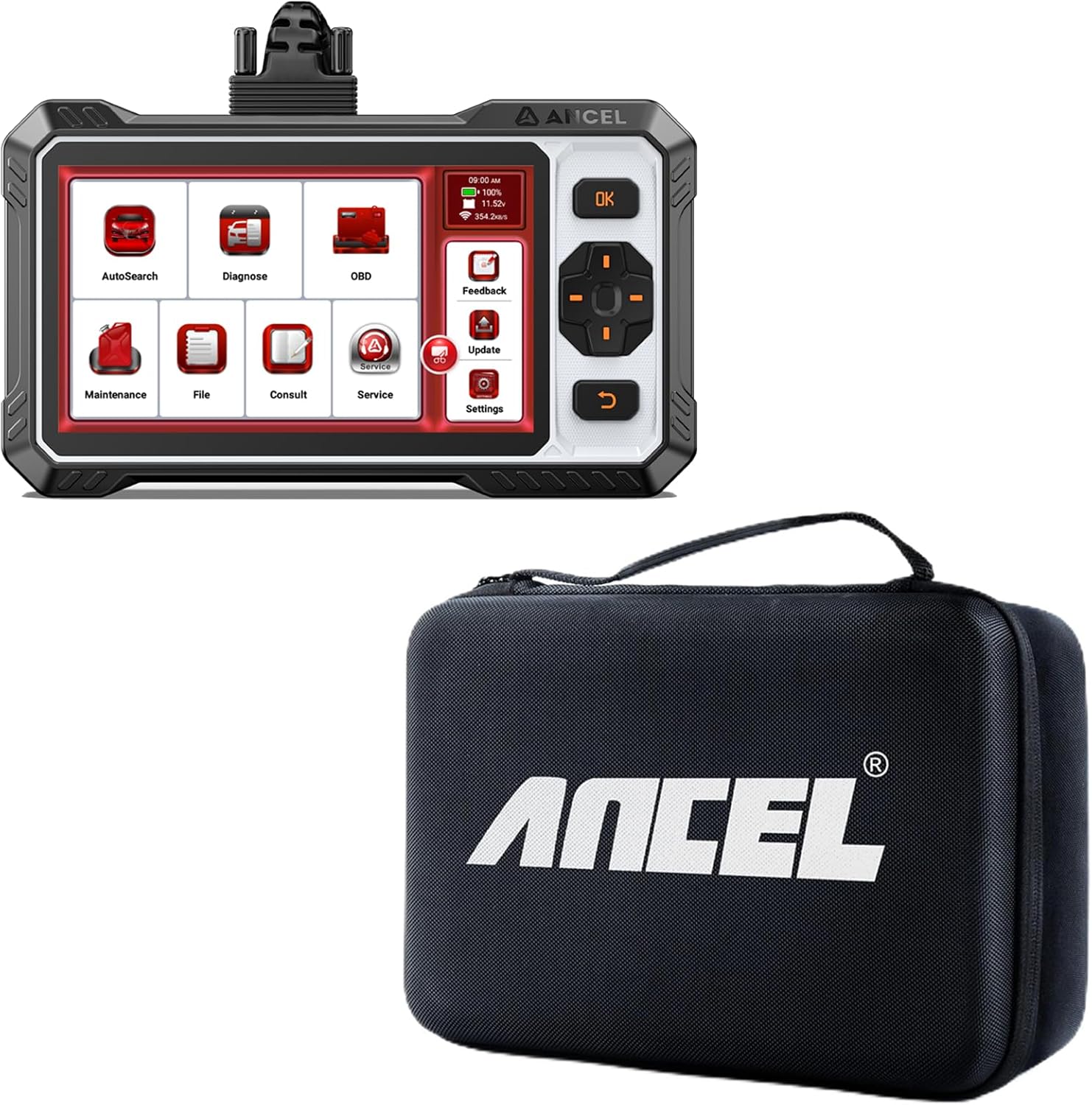
Image: The ANCEL FX6100 OBD2 Scanner and the included large hard protective case.
3. Product Features
The ANCEL FX6100 is a powerful diagnostic tool designed for comprehensive vehicle analysis. Key features include:
- Full System Scan: Capable of diagnosing all available electronic control systems in a vehicle.
- Bidirectional Control: Perform active tests to control various vehicle components and systems.
- 15+ Reset Services: Access common maintenance functions such as Oil Reset, EPB, BMS, ABS Bleeding, SAS Reset, and more.
- Android 10.0 OS: Runs on a stable and user-friendly Android operating system.
- 6.2-inch Screen: Large display for clear data visualization.
- Online Service & Free Updates: Provides access to online support and lifetime free software updates.
- AutoVIN: Quickly identify vehicle information for efficient diagnosis.
- Data Stream Graphing: View live data parameters in graphical format for easy analysis.
3.1. Bidirectional Control Capabilities

Image: Illustration of bidirectional control functions, showing the ability to send commands to components like wipers, mirrors, fuel injectors, and coolant pumps to identify their working status.
The FX6100 allows you to send commands directly to vehicle components, enabling active testing of systems such as wipers, mirrors, fuel injectors, and coolant pumps. This feature helps in quickly identifying the operational status of various actuators.
3.2. Hot Maintenance Services

Image: Visual representation of over 15 hot maintenance services, including Oil Reset, Battery Matching, Brake-pad Reset, Steering Angle Reset, TPMS Reset, NOX Sensor Reset, Air/Fuel Ratio Reset, ABS Bleeding, Gear Learning, DPF Regeneration, AdBlue Reset, EGR Adaption, Electronics Throttle Adaption, Injector Coding, and Gearbox Learning.
The device supports over 15 essential maintenance and reset functions, crucial for routine vehicle servicing. These include, but are not limited to, Oil Reset, Battery Matching, Brake-pad Reset, Steering Angle Reset, TPMS Reset, ABS Bleeding, DPF Regeneration, and Injector Coding. Always ensure the software is updated before using these functions.
3.3. All Systems Diagnosis

Image: Diagram illustrating the comprehensive system diagnostic capabilities, covering ABS, Airbag, Engine, TPMS, BCM, EBS, ESP, SAS, Transmission, Instrument, HVAC, and ACM systems.
The FX6100 provides easy access to diagnose all major vehicle systems, including Engine, ABS, Airbag (SRS), Transmission, TPMS, BCM (Body Control Module), EBS (Electronic Braking System), ESP (Electronic Stability Program), HVAC (Heating, Ventilation, and Air Conditioning), and more.
3.4. Data Capture and Reporting

Image: A graph showing real-time data streams for Accelerator Pedal Position, Air Mass, Engine RPM, and Fuel Rail Pressure, with a user giving a thumbs-up, indicating ease of data interpretation.
The scan tool allows for real-time data capture and display, presenting critical parameters like accelerator pedal position, air mass, engine RPM, and fuel rail pressure in an easy-to-understand graphical format. This enables quick assessment of vehicle performance.
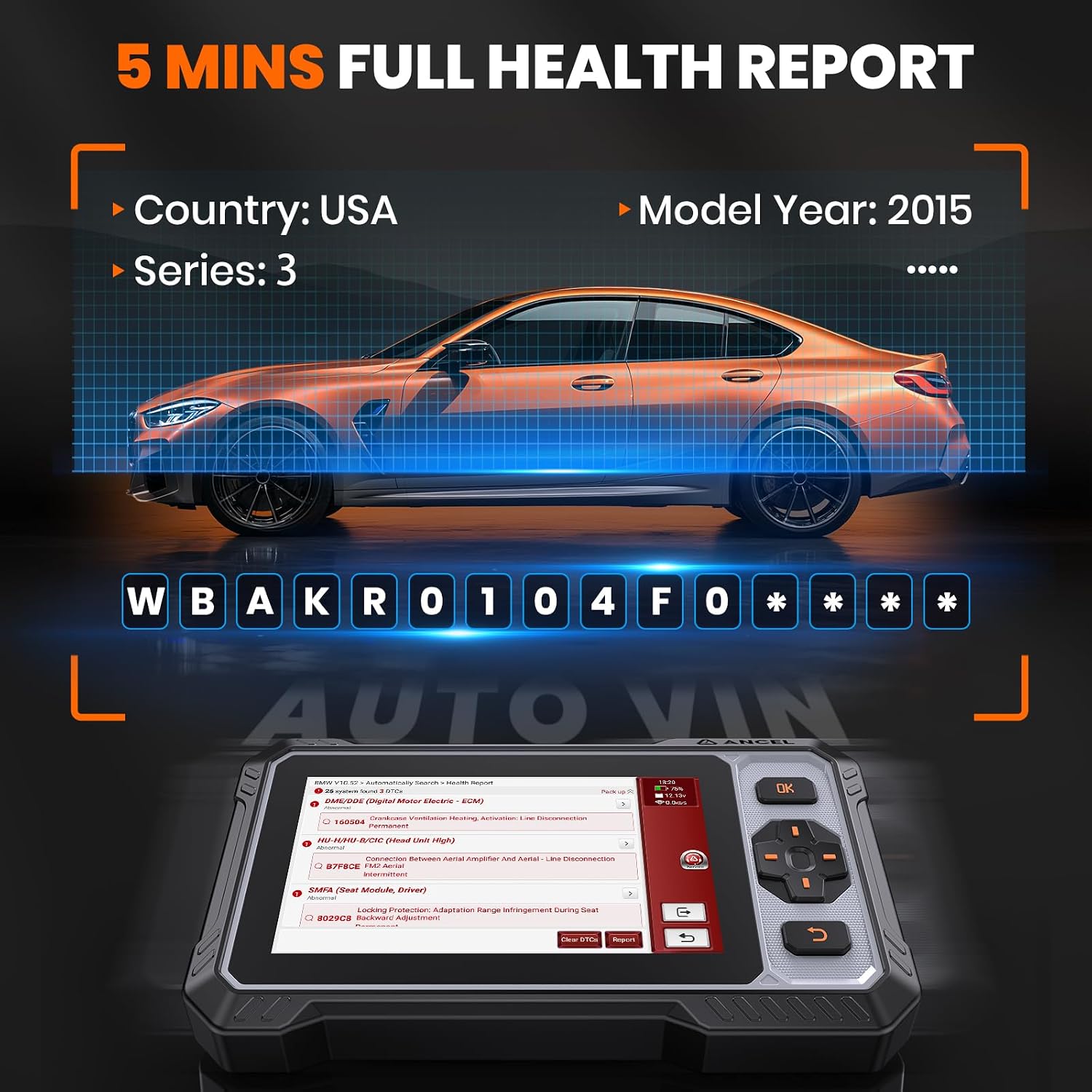
Image: A screen capture of the FX6100 displaying a vehicle health report, including AutoVIN detection, and a list of diagnostic trouble codes (DTCs) with descriptions, indicating a quick and comprehensive diagnostic process.
Generate a full vehicle health report in approximately 5 minutes. The AutoVIN feature automatically identifies vehicle information, and the report details all detected diagnostic trouble codes (DTCs) for a comprehensive overview of the vehicle's condition.
4. Setup
4.1. Initial Device Setup
- Charge the Device: Before first use, fully charge the FX6100 scan tool using the provided USB cable and a compatible power adapter.
- Power On: Press and hold the power button to turn on the device.
- Language and Time Zone: Follow the on-screen prompts to select your preferred language, time zone, and other initial settings.
- Wi-Fi Connection: Connect the device to a stable Wi-Fi network to enable software updates and online services. Navigate to Settings > Wi-Fi and select your network.
- Software Update: It is highly recommended to update the software to the latest version immediately after connecting to Wi-Fi. Go to Update on the main menu and follow the instructions.
4.2. Connecting to Vehicle
- Locate OBD-II Port: The OBD-II (On-Board Diagnostics II) port is typically located under the dashboard on the driver's side, though its exact position may vary by vehicle model. Refer to your vehicle's owner's manual if you cannot locate it.
- Connect Cable: Plug one end of the OBD-II diagnostic cable into the FX6100 scan tool and the other end into the vehicle's OBD-II port.
- Turn Ignition On: Turn the vehicle's ignition to the "ON" position (engine off). Do not start the engine unless instructed by a specific diagnostic procedure.
- Establish Communication: The FX6100 will automatically attempt to establish communication with the vehicle's ECU (Engine Control Unit). Once connected, the vehicle's VIN (Vehicle Identification Number) may be automatically detected via AutoVIN.
5. Operating Instructions
5.1. Main Menu Overview
The main menu of the FX6100 provides access to various functions:
- AutoSearch: Automatically identifies vehicle information and initiates a full system scan.
- Diagnose: Manual selection of vehicle make/model for specific system diagnostics.
- OBD: Standard OBD-II functions for engine and emission-related diagnostics.
- Maintenance: Access to the 15+ reset and service functions.
- File: View saved diagnostic reports, data streams, and screenshots.
- Consult: Access online resources or support.
- Update: Check for and install software updates.
- Settings: Configure device settings such as language, Wi-Fi, display, etc.
- Feedback: Send diagnostic logs or feedback to ANCEL support.
5.2. Performing a Diagnostic Scan
- From the main menu, select AutoSearch for automatic vehicle identification and full system scan, or Diagnose to manually select vehicle details.
- Follow the on-screen prompts to confirm vehicle information (VIN, year, model).
- Select the desired diagnostic function (e.g., Health Report, System Scan, Read Codes, Live Data).
- Allow the tool to communicate with the vehicle's ECUs. This may take a few moments.
- Review the diagnostic results. Diagnostic Trouble Codes (DTCs) will be displayed with descriptions.
- For live data, select the parameters you wish to monitor. Data can be displayed in text, graph, or gauge format.
5.3. Using Maintenance Functions
- From the main menu, select Maintenance.
- Choose the specific reset or service function you wish to perform (e.g., Oil Reset, EPB Reset).
- Follow the detailed on-screen instructions for each function. These instructions are crucial and must be followed precisely to avoid damage or incorrect operation.
- Confirm the successful completion of the service function.
6. Maintenance
6.1. Device Care
- Cleaning: Use a soft, dry cloth to clean the device screen and body. Do not use abrasive cleaners or solvents.
- Storage: Store the FX6100 in its protective case when not in use to prevent damage from drops or impacts. Keep it in a cool, dry place, away from direct sunlight and extreme temperatures.
- Battery: For optimal battery life, avoid fully discharging the battery frequently. Charge the device regularly, especially if it will be stored for an extended period.
- Cable Care: Handle the OBD-II cable carefully. Do not pull on the cable to disconnect it; always grasp the connector. Avoid bending or kinking the cable excessively.
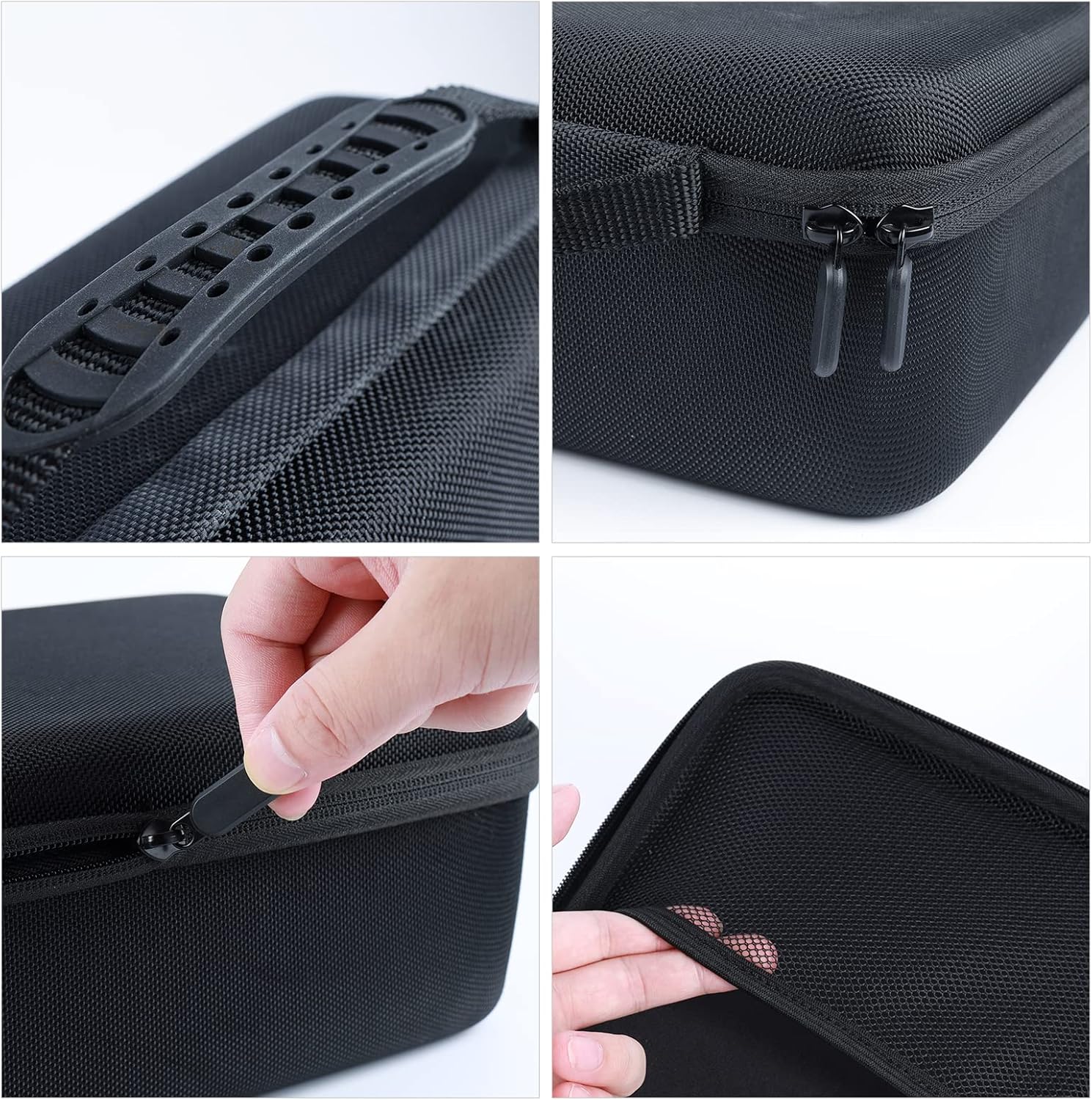
Image: The ANCEL large hard protective case with dimensions labeled as 13.38 inches in length, 8.68 inches in width, and 4.33 inches in height, highlighting its compact and protective design.
The included hard protective case is designed to safeguard your scan tool from physical damage. Its dimensions are approximately 13.38 inches (length) x 8.68 inches (width) x 4.33 inches (height), providing a snug and secure fit.

Image: A collage showing close-up details of the ANCEL protective case, including the durable handle, smooth zipper operation, and robust construction, emphasizing its quality and ease of use.
The case features a durable handle, smooth-gliding zippers, and a robust construction to ensure maximum protection for your device during transport and storage.
6.2. Software Updates
Regular software updates are crucial for maintaining optimal performance, adding new vehicle coverage, and fixing bugs. ANCEL provides 100% free lifetime updates for the FX6100.
- Ensure the device is connected to a stable Wi-Fi network.
- From the main menu, select Update.
- The system will check for available updates. Follow the on-screen instructions to download and install any new software versions.
- Do not power off the device during the update process.
7. Troubleshooting
| Problem | Possible Cause | Solution |
|---|---|---|
| Device does not power on. | Low battery; Power button not pressed long enough; Device malfunction. | Charge the device for at least 30 minutes. Press and hold the power button for 3-5 seconds. If problem persists, contact support. |
| Cannot connect to vehicle. | Loose OBD-II connection; Vehicle ignition not ON; Vehicle not OBD-II compliant; Damaged cable. | Ensure cable is securely connected. Turn ignition to ON position. Verify vehicle is OBD-II compliant (most vehicles 1996 and newer). Try a different OBD-II cable if available. |
| No communication with ECU. | Incorrect vehicle protocol; Faulty vehicle ECU; Software outdated. | Ensure correct vehicle information is selected. Check for software updates. Consult vehicle's manual for specific ECU issues. |
| Maintenance function fails. | Incorrect procedure; Software outdated; Vehicle specific requirements not met. | Carefully re-read and follow on-screen instructions. Update software. Ensure all vehicle conditions (e.g., engine off, parking brake on) are met. |
8. Specifications
| Feature | Detail |
|---|---|
| Product Name | ANCEL OBD2 Scanner FX6100 Bidirectional Scan Tool |
| Operating System | Android 10.0 |
| Display | 6.2-inch Touchscreen |
| Connectivity | Wi-Fi, OBD-II Cable |
| Update Method | Online via Wi-Fi (Free Lifetime Updates) |
| Power Input | 9-18V DC via vehicle OBD-II, 5V DC via USB |
| Operating Temperature | 0°C to 50°C (32°F to 122°F) |
| Storage Temperature | -20°C to 70°C (-4°F to 158°F) |
| Protective Case Dimensions | Approx. 13.38" L x 8.68" W x 4.33" H |
9. Warranty and Support
9.1. Warranty Information
ANCEL products typically come with a limited warranty covering manufacturing defects. Please refer to the warranty card included with your product or visit the official ANCEL website for the most current and detailed warranty policy. Keep your purchase receipt as proof of purchase for warranty claims.
9.2. Technical Support
For technical assistance, troubleshooting, or inquiries regarding your ANCEL FX6100 scan tool, please contact ANCEL customer support through their official website or the contact information provided in the device's "Consult" or "Feedback" sections. Ensure you have your device's serial number and purchase details ready when contacting support.
Online Resources:
Related documentsFX6100


Ask a question about this manual
Ask about setup, troubleshooting, compatibility, parts, safety, or missing instructions. Manuals+ will review the question and use this page’s manual context to help answer it.