
1. Introduction
This manual provides comprehensive instructions for the setup, operation, and maintenance of your Beyution RC813A Voice Replacement Remote Control. This remote is designed to be compatible with various TCL QLED UHD 4K Smart TV models in the QM6K and QM7K series. Please read this manual carefully to ensure proper use and to maximize your remote control's functionality.
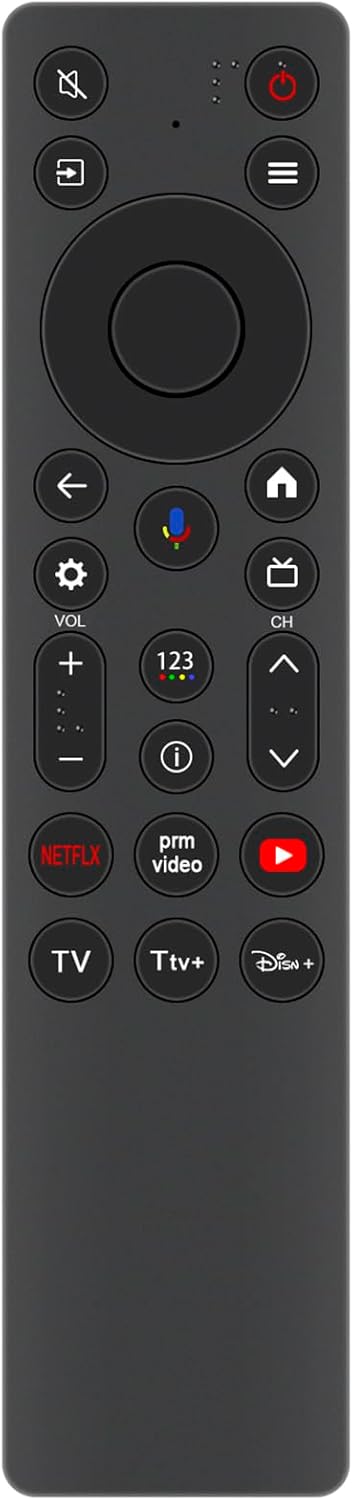
Figure 1: Front view of the Beyution RC813A remote control. This image displays the front of the Beyution RC813A remote control, showing all buttons and their layout, including power, navigation, volume, channel, and dedicated app buttons.
2. Setup
2.1 Battery Installation
- Locate the battery compartment on the back of the remote control.
- Slide the battery cover downwards or press the latch to open it.
- Insert two new AAA ALKALINE batteries, ensuring the positive (+) and negative (-) terminals match the indicators inside the compartment.
- Replace the battery cover by sliding it back into position until it clicks securely.

Figure 2: Back view of the Beyution RC813A remote control with the battery compartment open. This image shows the rear of the Beyution RC813A remote control with the battery cover removed, revealing the two AAA battery slots for proper battery insertion.
2.2 Pairing the Remote Control
After installing the batteries, the remote control needs to be paired with your TCL Smart TV. The pairing process typically involves the following steps:
- Ensure your TCL Smart TV is powered on.
- Point the remote control towards your TV.
- Press and hold the OK button (center of the navigation pad) and the Back button (left arrow) simultaneously for a few seconds.
- A pairing message should appear on your TV screen, indicating that the remote is connecting.
- Once paired, the remote control will function normally. If pairing fails, try repeating the steps or consult your TV's user manual for specific remote pairing instructions.
3. Operating the Remote Control
3.1 Button Functions
The Beyution RC813A remote control features a standard layout for easy navigation and control of your TCL Smart TV. Key buttons include:
- Power Button: Turns the TV on or off.
- Navigation Pad (Up/Down/Left/Right/OK): Used for menu navigation and selection.
- Back Button: Returns to the previous screen or menu.
- Home Button: Accesses the TV's main home screen.
- Volume Up/Down: Adjusts the TV's volume level.
- Channel Up/Down: Changes TV channels.
- Mute Button: Mutes or unmutes the TV audio.
- Dedicated App Buttons: Quick access to popular streaming services like Netflix, Prime Video, YouTube, and Disney+.
- Voice Control Button: Activates the voice assistant for commands (see Section 3.2).
3.2 Voice Control Functionality
The RC813A remote control supports voice commands, allowing for hands-free operation and quicker access to content. To use voice control:
- Press the Voice Control Button (typically marked with a microphone icon).
- Speak clearly into the microphone located on the remote control.
- Examples of commands include: "Open Netflix," "Search for action movies," "Switch to HDMI 1," or "What's the weather?"
- The TV will process your command and respond accordingly.

Figure 3: Beyution RC813A remote control emphasizing its voice control functionality. This image illustrates the Beyution RC813A remote control, highlighting its voice control feature with a prominent microphone icon and accompanying 'VOICE CONTROL' text, indicating its capability for voice commands.

Figure 4: User interacting with a TCL Smart TV using the Beyution RC813A remote control. This image depicts a hand holding the Beyution RC813A remote control, interacting with a TCL Smart TV displaying a menu interface, demonstrating typical usage.
4. Compatibility
The Beyution RC813A Voice Replacement Remote Control is compatible with the following TCL QLED UHD 4K Smart TV models:
- QM6K Series
- QM7K Series
- 50QM6K
- 55QM7K
- 65QM6K
- 65QM7K
- 75QM6K
- 75QM7K
- 85QM6K
- 85QM7K
- 98QM6K
- 98QM7K
If your specific TV model is not listed, please verify compatibility with the product seller or your TV's manufacturer.
5. Troubleshooting
- Remote not responding:
- Ensure batteries are inserted correctly with the correct polarity.
- Replace old batteries with new ALKALINE batteries.
- Ensure there are no obstructions between the remote and the TV's IR receiver.
- Re-pair the remote control with your TV as described in Section 2.2.
- Voice control not working:
- Ensure the remote is properly paired with the TV.
- Speak clearly and directly into the microphone.
- Check your TV's settings to ensure voice control is enabled.
- Short operating distance:
- Replace batteries with new ones.
- Ensure a clear line of sight to the TV. The remote is designed for stable performance up to 8 meters, and available up to 10 meters.
6. Specifications
| Feature | Detail |
|---|---|
| Product Model Number | RC813A |
| Brand | Beyution |
| Connectivity Technology | Wireless (requires pairing) |
| Special Feature | Voice Control, Ergonomic Design |
| Color | Black |
| Compatible Devices | TCL QLED UHD 4K Smart TVs (QM6K, QM7K Series) |
| Product Dimensions | 5 x 1 x 0.6 inches (12.7 x 2.54 x 1.52 cm) |
| Item Weight | 1 ounce (28.35 grams) |
| Power Source | 2 x AAA ALKALINE Batteries (not included) |

Figure 5: Beyution RC813A remote control with its physical dimensions. This image shows the Beyution RC813A remote control with its physical dimensions clearly marked: 4.3 cm (1.69 in) width and 18.5 cm (7.28 in) length, providing a visual reference for its size.
7. Maintenance
- Keep the remote control clean by wiping it with a soft, dry cloth.
- Avoid exposing the remote to extreme temperatures, direct sunlight, or moisture.
- Do not drop the remote control or subject it to strong impacts.
- If the remote will not be used for an extended period, remove the batteries to prevent leakage.
8. Warranty and Support
For any questions or issues regarding your Beyution RC813A Voice Replacement Remote Control, please contact the seller or manufacturer directly. They are committed to providing a satisfactory answer within 24 hours.