1. Introduction
This manual provides detailed instructions for the Redragon M810 MAX 3-Mode Wireless Gaming Mouse. Designed for versatility and performance, this mouse offers wired, 2.4GHz wireless, and Bluetooth connectivity options, along with customizable features to enhance your computing and gaming experience.
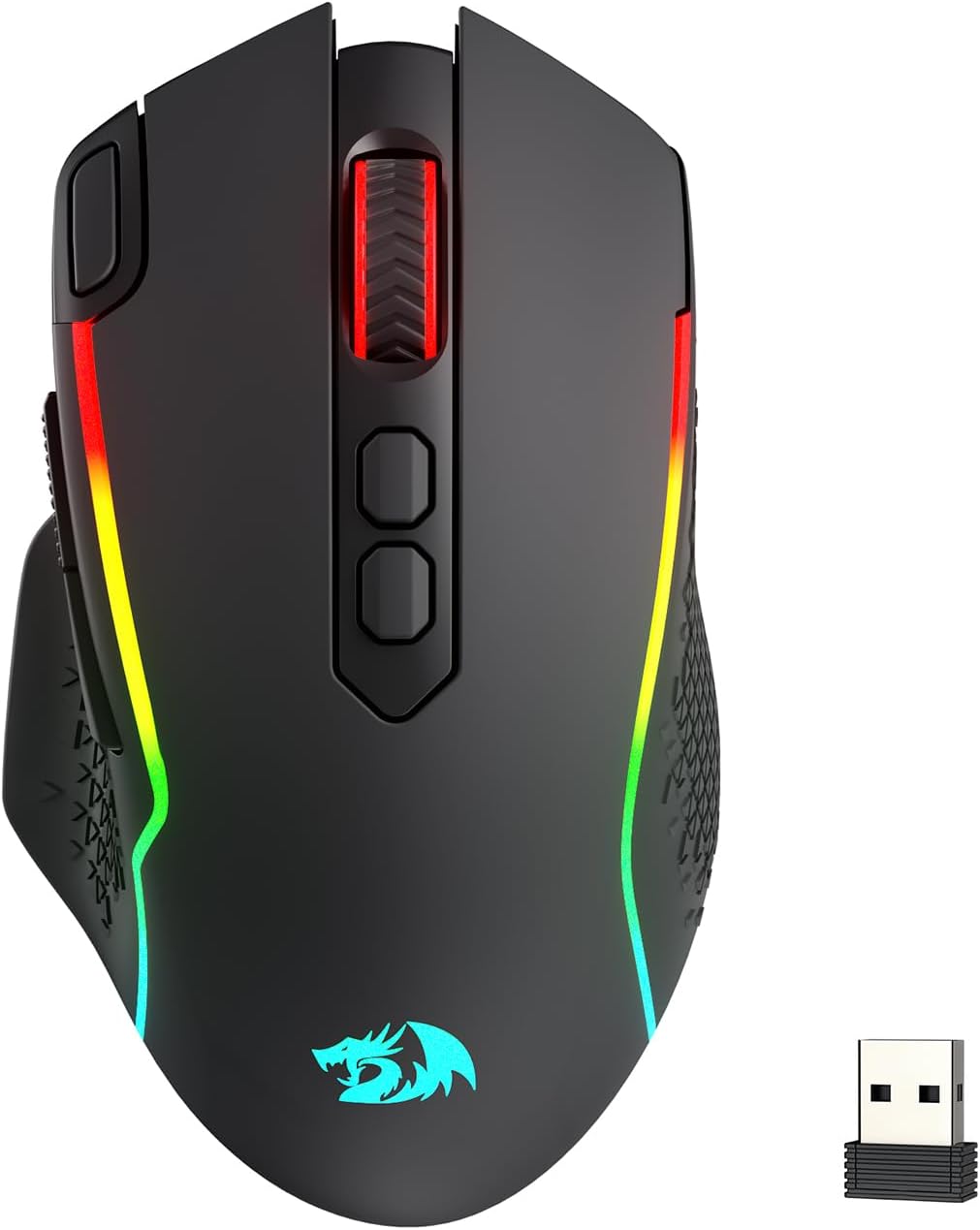
Image: The Redragon M810 MAX 3-Mode Wireless Gaming Mouse, showcasing its ergonomic design and RGB lighting.
2. Package Contents
Verify that all items are present in your package:
- Redragon M810 MAX Wireless Gaming Mouse
- USB-C to USB-A Charging Cable
- 2.4GHz USB Wireless Dongle
- User Manual (this document)

Image: An overview of the Redragon M810 MAX mouse highlighting its key features such as 3-mode connection, PAW3311 sensor, 8 macro buttons, 1000mAh battery, 12000 MAX DPI, DIY RGB lighting, rapid fire button, and Pro Software.
3. Mouse Layout and Features
The Redragon M810 MAX is equipped with multiple buttons and features for optimal control:
- Left Button: Standard left-click function.
- Right Button: Standard right-click function.
- Scroll Wheel: For scrolling and middle-click. Features high texture for enhanced grip.
- DPI+ / DPI- Buttons: Adjust DPI levels on the fly.
- Rapid Fire Key: Pre-programmed for rapid firing (default 3-click burst).
- Forward Button: Navigational button (default: forward).
- Backward Button: Navigational button (default: backward).
- Mode Switch (Underside): Toggles between different polling rates/refresh rates.
- On/Off/Eco Mode Switch (Underside): Powers the mouse on/off or activates eco mode for battery saving.
- Wireless Dongle Compartment (Underside): Secure storage for the 2.4GHz USB dongle.
- USB-C Port (Front): For wired connection and charging.
- Non-slip Side Wings: Textured grip on the sides for improved handling.

Image: A detailed view of the Redragon M810 MAX mouse, labeling its 8 freely programmable buttons: Left Button, Right Button, Scroll, Rapid Fire Key, DPI+, DPI-, Forward Button, and Backward Button.
4. Setup and Connection
The M810 MAX offers three connection modes:
4.1. Wired Connection
- Connect the USB-C end of the provided cable to the mouse.
- Connect the USB-A end of the cable to an available USB port on your computer.
- The mouse will automatically switch to wired mode and begin charging.
4.2. 2.4GHz Wireless Connection
- Locate the 2.4GHz USB wireless dongle stored in the compartment on the underside of the mouse.
- Plug the dongle into an available USB port on your computer.
- Turn on the mouse using the On/Off/Eco mode switch on the underside.
- The mouse should automatically connect.
4.3. Bluetooth Connection
- Turn on the mouse using the On/Off/Eco mode switch on the underside.
- Activate Bluetooth pairing mode on the mouse (refer to specific software instructions if needed, usually indicated by a blinking LED).
- On your computer, go to Bluetooth settings and search for new devices.
- Select "Redragon M810 MAX" from the list of available devices to pair.

Image: The Redragon M810 MAX mouse demonstrating its tri-mode silky connection options: 2.4GHz wireless, Bluetooth, and wired USB-C, ensuring reliable transmission.
5. Operating Modes and Adjustments
5.1. DPI Adjustment
The mouse features 5 on-board DPI levels that can be adjusted using the DPI+ and DPI- buttons. The default settings are 400/800/1600/2400/3200 DPI. These levels can be customized further using the Redragon Pro driver software.

Image: The Redragon M810 MAX mouse illustrating its 12000 MAX DPI capability and adjustable DPI levels at 400, 800, 1600, 2400, and 3200, each indicated by a different color.
5.2. Polling Rate Adjustment
The polling rate can be adjusted via the mode switch on the underside of the mouse or through the Redragon Pro driver. The mouse supports a 1000Hz polling rate in dual mode for optimized performance.
5.3. Eco Mode
To conserve battery life, switch the mouse to Eco Mode using the On/Off/Eco mode switch on the underside. In this mode, the mouse's power consumption is optimized, extending usage time.
6. Customization (Redragon Pro Driver)
Unlock the full potential of your M810 MAX mouse with the Redragon Pro driver software. This software allows for extensive customization:
- Keybinding: All 8 programmable buttons can be assigned custom tactical keybinds for various games or work applications.
- DPI Levels: Customize the 5 on-board DPI levels to suit your preferences.
- RGB Lighting: DIY endless lighting styles including dynamic streaming, breathing, and waving effects. Adjust colors, brightness, and speed.
- Polling Rate: Fine-tune the polling rate for optimal responsiveness.

Image: The Redragon M810 MAX mouse displayed alongside the Redragon Pro driver software interface, showing options for DPI stages, report rate, sensor settings, and DPI light effects.
7. Charging and Battery Life
The M810 MAX features an ultra long-lasting core and a rechargeable battery. To charge the mouse, connect it to your computer using the provided USB-C cable. The mouse can be used in wired mode while charging.
- Maximum Battery Life (RGB off): Up to 188 hours.
- Battery Life (RGB on): Approximately 29 hours.

Image: The Redragon M810 MAX mouse highlighting its durable battery life, showing 188 hours with RGB off and 29 hours with RGB on.
8. Maintenance
To ensure the longevity and optimal performance of your Redragon M810 MAX mouse, follow these maintenance guidelines:
- Cleaning: Use a soft, dry cloth to wipe the mouse surface. Avoid harsh chemicals or abrasive materials.
- Sensor Care: Keep the optical sensor on the underside clean and free from dust or debris.
- Cable Management: Store the USB-C cable neatly to prevent kinks or damage.
- Storage: When not in use, store the wireless dongle in its designated compartment to prevent loss.
9. Troubleshooting
If you encounter issues with your Redragon M810 MAX mouse, try the following solutions:
- Mouse Not Responding:
- Ensure the mouse is powered on.
- Check battery level and charge if necessary.
- For wireless connections, ensure the dongle is securely plugged in and within range.
- For Bluetooth, ensure the mouse is paired correctly and Bluetooth is enabled on your device.
- Try connecting via wired mode to rule out wireless issues.
- Lag or Disconnections:
- Reduce distance between mouse and wireless dongle/Bluetooth device.
- Ensure no strong interference sources (e.g., other wireless devices) are nearby.
- Update mouse drivers via the Redragon Pro software.
- RGB Lighting Issues:
- Ensure RGB is not turned off in Eco Mode.
- Adjust lighting settings using the Redragon Pro driver.
10. Specifications
| Feature | Detail |
|---|---|
| Brand | Redragon |
| Model Number | M810 PRO |
| Connectivity Technology | BT, 2.4Ghz, USB-C |
| Movement Detection Technology | Optical (PAW3311 Sensor) |
| Max DPI | 12000 |
| Programmable Buttons | 8 |
| Battery Life (RGB off) | Up to 188 hours |
| Battery Life (RGB on) | Approximately 29 hours |
| Polling Rate | 1000Hz (dual mode) |
| Item Weight | 8.8 ounces |
| Special Feature | Ergonomic Design, Programmable Buttons |
11. Warranty and Support
For warranty information, technical support, or further assistance, please visit the official Redragon website or contact their customer service. Keep your purchase receipt for warranty claims.
Official Redragon Website: www.redragonzone.com


